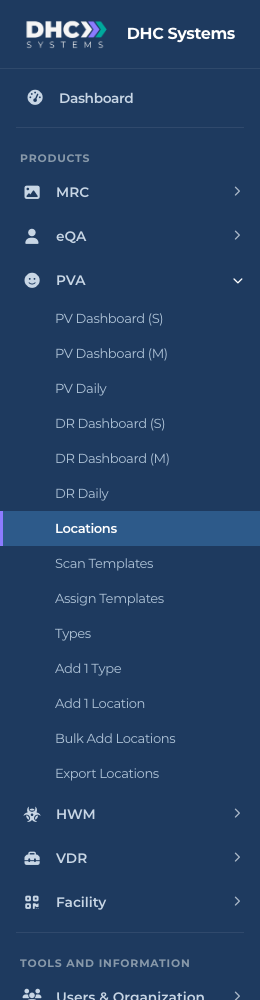
Everything for Patient Surveys and Discharge Checks sits under PVA in the left sidebar. Click PVA once to open the group and the links appear below it. The group stays open while you are on any PVA page.
What a Director (M2) sees under PVA
The links, top to bottom
Reports
PV Dashboard (S): today’s patient visit surveys at a glance. The (S) view is the simple one every account type can open.
PV Dashboard (M): the manager view of today’s patient visit surveys, with surveys by name and by location. M1 and Director (M2) only.
PV Daily: patient visit surveys over a date range, with tabs for daily, location, survey by and details. M1 and Director (M2) only.
DR Dashboard (S), DR Dashboard (M), DR Daily: the same three views for discharge checks.
Setup
Locations: every scannable room, with its zone, type, which template it uses, question counts, last scan and status.
Scan Templates: the shared question sets. Open one to edit it, or create a new one.
Assign Templates: point rooms at a template, in bulk or one at a time. M1 and Director (M2) only.
Types: your room categories and their question sets.
Add 1 Type: create one new type. M1 and Director (M2).
Add 1 Location: add one room. This opens the Facility add page with PVA already switched on. M1 and Director (M2).
Bulk Add Locations: upload a spreadsheet of rooms. Director (M2) only.
Export Locations: print QR code sheets for your PVA rooms. Director (M2) only.
What a worker sees
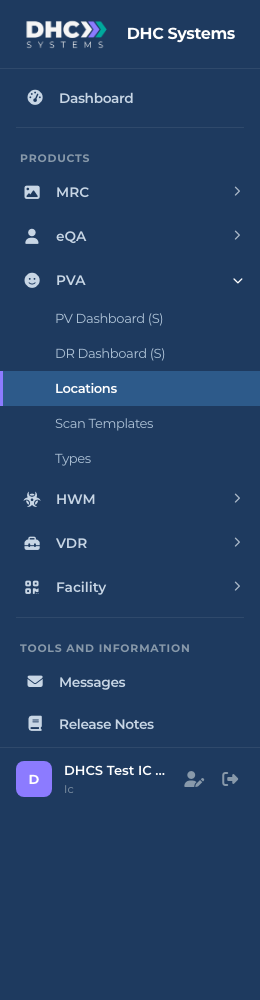
An IC account gets a shorter list: PV Dashboard (S), DR Dashboard (S), Locations, Scan Templates and Types. Workers can read the lists but cannot change anything. Most workers never need the sidebar at all, because scanning a uCode opens the survey directly on the phone.
The shorter PVA menu for a worker (IC account)
On a phone
On a phone the sidebar is tucked behind the menu button at the top. Tap it, then tap PVA. The dashboard links open the mobile layout of the same report automatically.
Tips
The breadcrumb at the top of every page (Home / PVA / Locations) is a quick way back to the PVA group.
Every PVA page has a Help button in the top right. It explains the columns and buttons on that page.
Rooms, zones and uCodes are shared with the other products. The Facility group in the sidebar is where you print uCodes and manage zones for all products at once. See the Facility article “What is a uCode (Universal Barcode)?”.