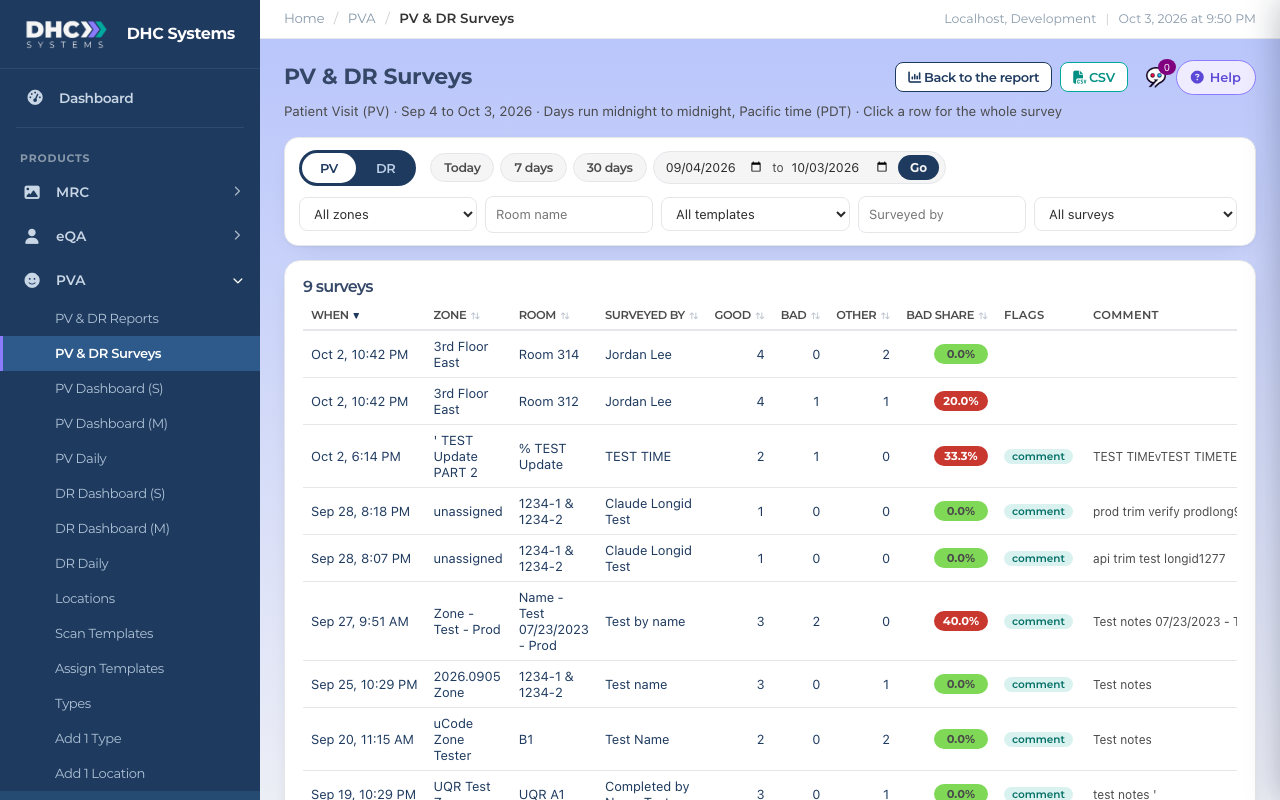
PV and DR Surveys lists the individual surveys behind the report numbers. Use it to find out which survey had a bad answer, who did it, what the comment said, and whether a photo was attached.
The surveys list
How to open it
In the sidebar click PVA, then PV & DR Surveys. Or click View surveys at the top of PV & DR Reports, or click a count in the report (a question’s bad answers, via ER, Serv. Rec., or a room’s surveys link).
Pick PV or DR, then a period. The list covers at most 92 days; a longer period is shortened and a note tells you.
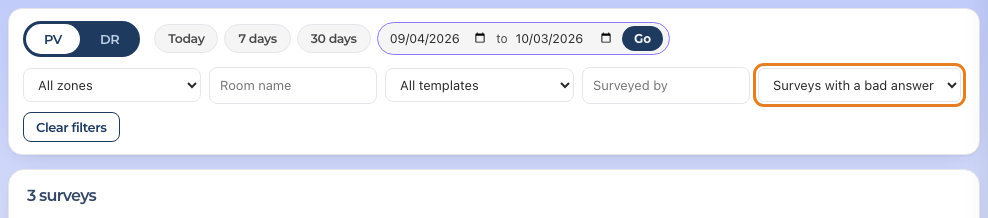
Narrow it with All zones, Room name, All templates, Surveyed by and Show only: all surveys, surveys with a bad answer, Serv. Rec. surveys, admitted via ER, or surveys with a comment.
Show only
What the columns mean
When: the date and time at your facility.
Surveyed by: the name typed on the survey.
Good, Bad and Other: how many of the survey’s answers were good, bad, or something else such as N/A, patient unsure or unable to ask.
Bad share: bad divided by good plus bad, so Other is left out. The pill is green when the survey met the 90% target and red when it did not. Hover it to see a low count note when there were fewer than 10 valid answers.
Flags: Serv. Rec., via ER and comment chips.
Comment: the start of the comment, if there is one.
Click any column heading to sort, and click again to flip the order. Use Surveys per page for 25, 50 or 100. CSV downloads every survey in the list, with the full comments.
Open one survey
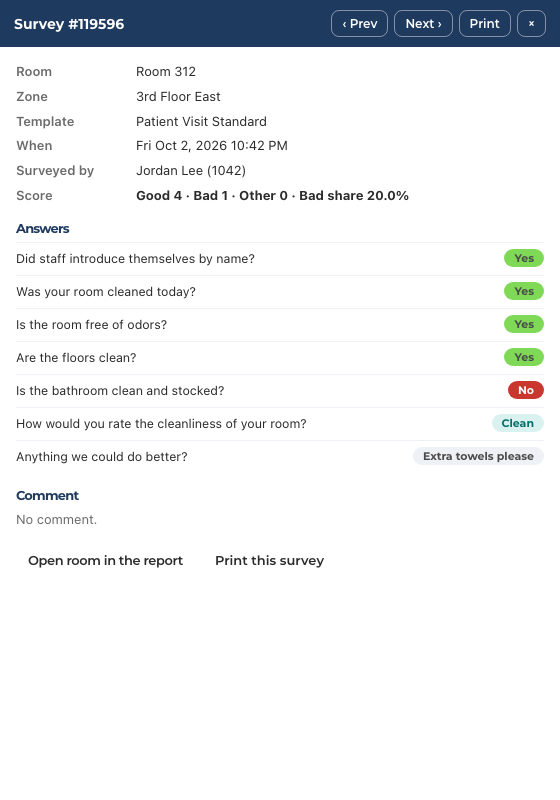
Click a row. A panel slides in from the right.
Read the room, zone, template, when, who did it and the Good, Bad, Other and Bad share line. Every question is listed with its answer: green is a good answer, red is a bad answer, purple is another answer such as N/A or patient unsure.
Below the answers you see the comment and the photo, when the survey has them.
Use Prev and Next to move through the surveys on the page. Click Open room in the report to see that room in the report, or Print this survey to print just that survey.
To share a survey, copy the address from your browser while the panel is open and paste it into an email. Anyone from your facility who opens it sees the same survey.
One survey in the panel
Who can do this
IC accounts, M1 accounts and Directors (M2). The page is read only. People (the Surveyed by column and filter) and comments are shown to M1 and Director (M2) accounts; IC accounts see the survey numbers, flags and answers without them.
Tips
From a question in the report, click See the N bad to land here with only the surveys where that question got a bad answer. A line above the table names the question and has a remove link.
In Survey By on the report, click a name to see only that person’s surveys.
A survey sent twice by the same phone appears once.