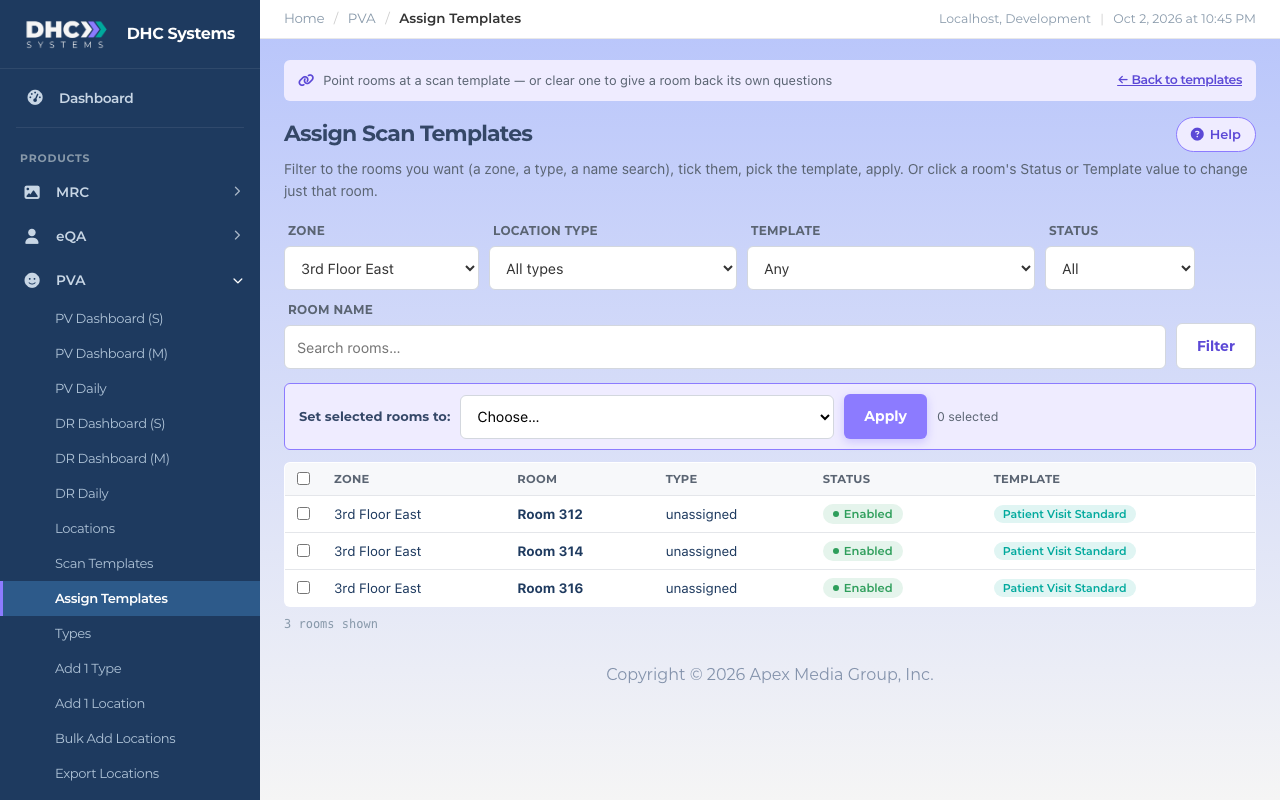
Assign Templates is where you tell rooms which Scan Template to use. Filter down to the rooms you want, tick them, pick the template, click Apply. Or change one room by clicking its Template value. Nothing here touches surveys already submitted.
The page filtered to one zone
How to assign a template to many rooms
In the sidebar click PVA, then Assign Templates.
Use the filters to narrow the list: Zone, Location type, Template (including “No template (room’s own questions)”), Status, or type part of a name in Room name. Click Filter.
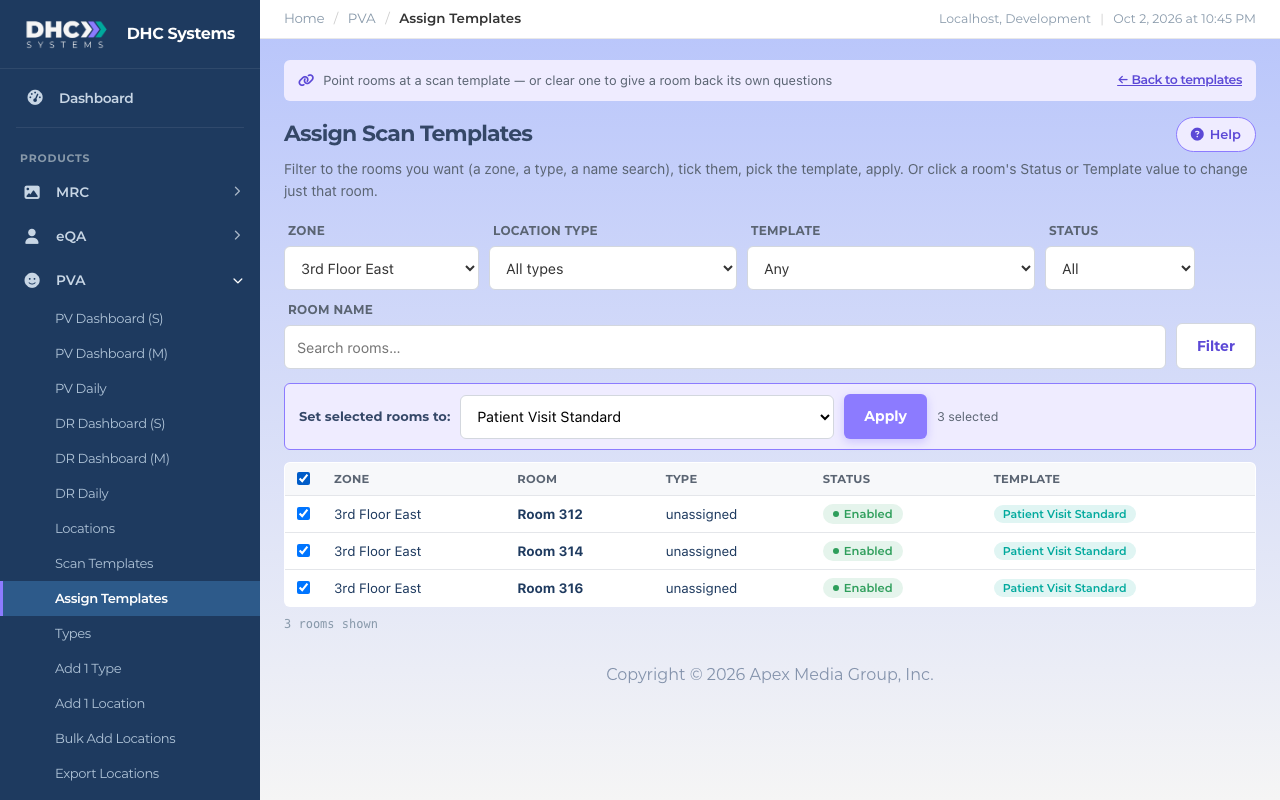
Tick the rooms you want. The checkbox in the table header selects everything shown.
In the purple bar, open Set selected rooms to: and choose the template. The bar shows how many rooms are selected.
Pick the template, then click Apply
Click Apply. The page reloads with a green message saying how many rooms were updated.
How to change one room
Click the room’s value in the Template column. It turns into a drop down.
Click a Template value to change just that room
Pick the template, or pick “room’s own questions” to clear it. The change saves straight away and the badge updates.
How to give a room back its own questions
Tick the rooms and set them to No template (use the room’s own questions), or use the single room drop down. The room goes back to the PV and DR questions saved on its record. Nothing is lost either way: the room questions were kept while the template was assigned, and the template is untouched.
Status on this page
The Status column shows Enabled or Disabled for each room. A Director (M2) can click it to disable or enable the room right here. The list shows enabled rooms by default, so set the Status filter to Disabled or All to see the rest.
Who can do this
M1 accounts and Directors (M2) can assign templates. Only Directors (M2) can enable or disable rooms. Workers (IC) do not see this page.
Tips
Filter by Template set to “No template” to find rooms that nobody has moved onto a template yet.
A room that needs its own special questions can have its own template with just that room on it. That keeps the room on the template system instead of the older room questions.
After a big change, open Locations and check the Questions from column. Every room on a template shows the template name in a green badge.