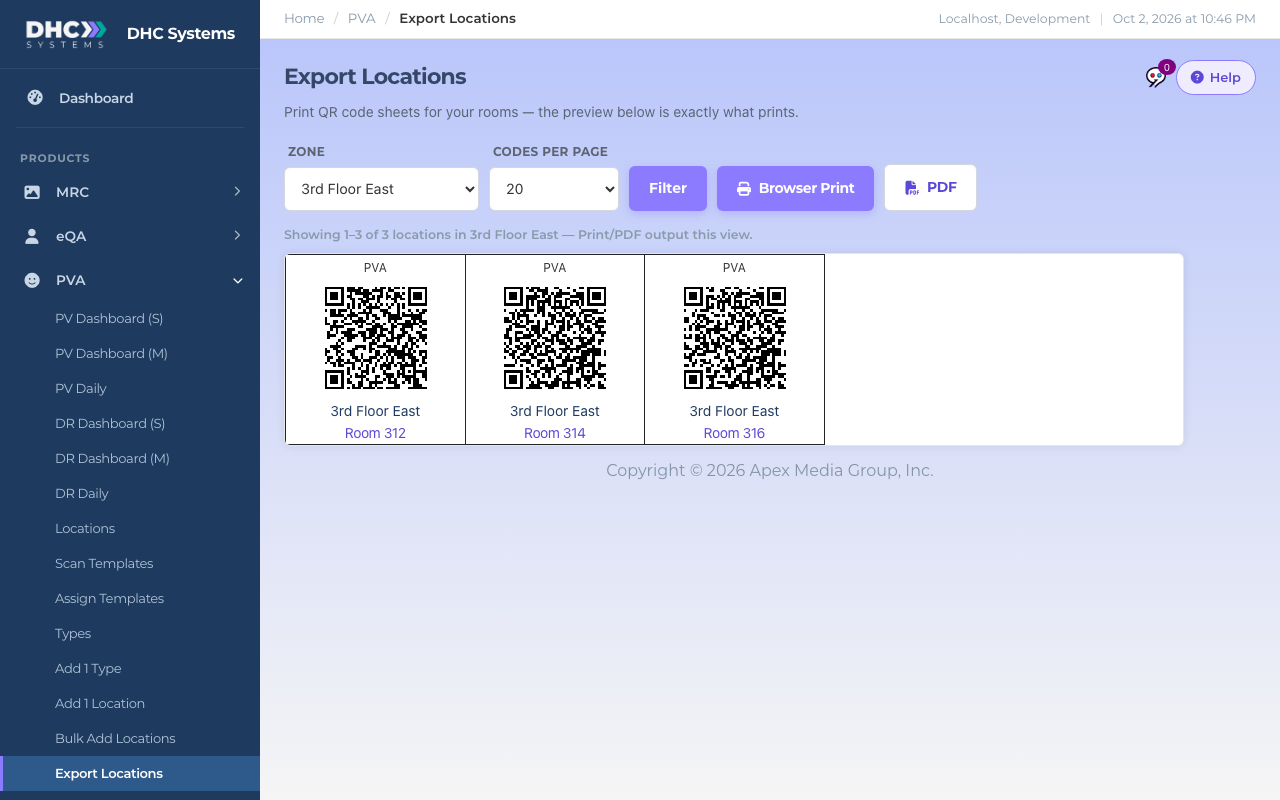
Export Locations prints QR code sheets for your PVA rooms, five codes across, each with the zone and room name under it. The preview on the page is exactly what prints. Use it when you want codes for one zone quickly. For a code that opens every product a room has, print uCodes from the Facility page instead (see “Printing and Reprinting uCodes (Export Codes)”).
The preview is what prints
How to print a sheet
In the sidebar click PVA, then Export Locations.
Pick a Zone, or leave All zones. The list reloads as soon as you pick.
Set Codes per page to how many you want in one batch (up to 1000). Big batches take longer to build.
Check the preview. The line above it says how many rooms are showing and for which zone.
Click Browser Print to open a clean print view in a new tab, then use your browser’s print dialog. In Chrome, open More settings and tick Background graphics so the cell borders print.
Or click PDF to build a PDF of the same view, which you can save or print later.
Browser Print for right now, PDF for later
Good to know
Disabled rooms are left out automatically.
Click a room name under its code to open that room’s record.
Printed codes keep working if you rename the room later. The code carries the room’s permanent ID, not its name.
Scanning one of these codes opens the Visit Type Selection screen for that room straight away.
Who can do this
Directors (M2) only.
Tips
Cut along the borders and put each code at eye level near the room door, where a phone can focus on it without glare.
Print one zone at a time so the sheets match the person who will be hanging them.