Zones tell your reports where a room is. If a pile of rooms landed in a zone like “unclassified”, or a zone just needs a better name, you can fix it in a few clicks. Pick the locations, pick the zone, check the preview, and click Move. The zone changes on the uCode and on every product record it opens, in one go.
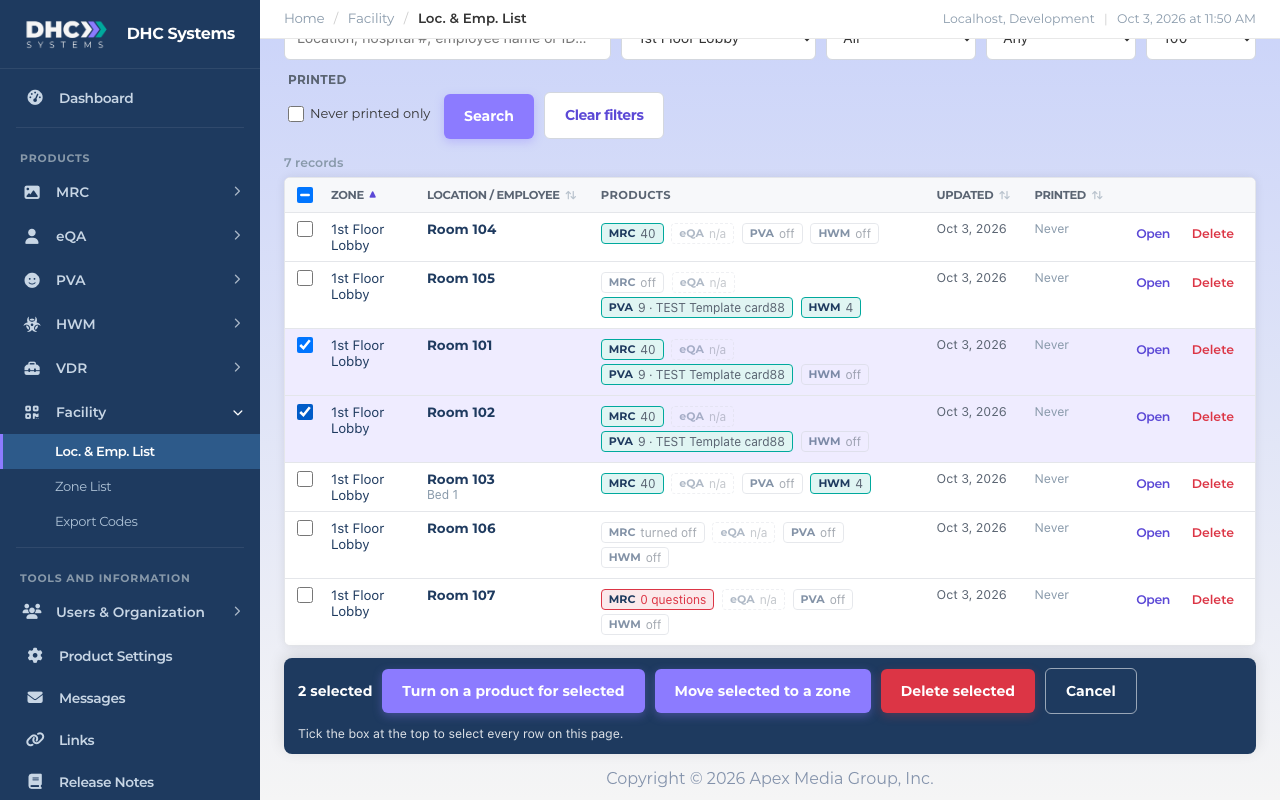
Tick the rooms, then click Move selected to a zone
How to move several locations to a zone
Go to Facility, then Loc. & Emp. List. Use the Zone filter or the search box to find the rooms. For example, pick the zone “unclassified” to see everything that still needs a home.
Click Select several. A tick box appears on every row.
Tick the rooms you want to move. The box at the top of the column ticks every row on the page (up to 250).
Click Move selected to a zone in the bar at the bottom.
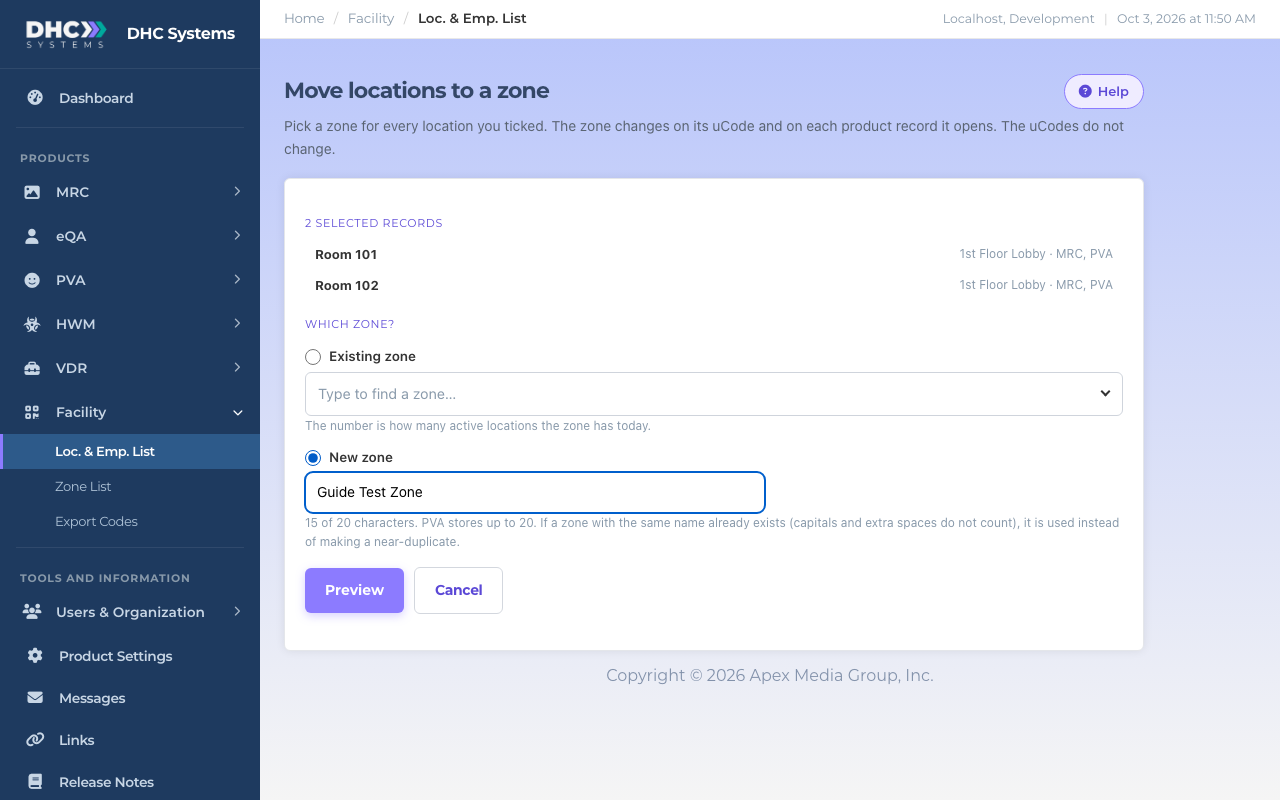
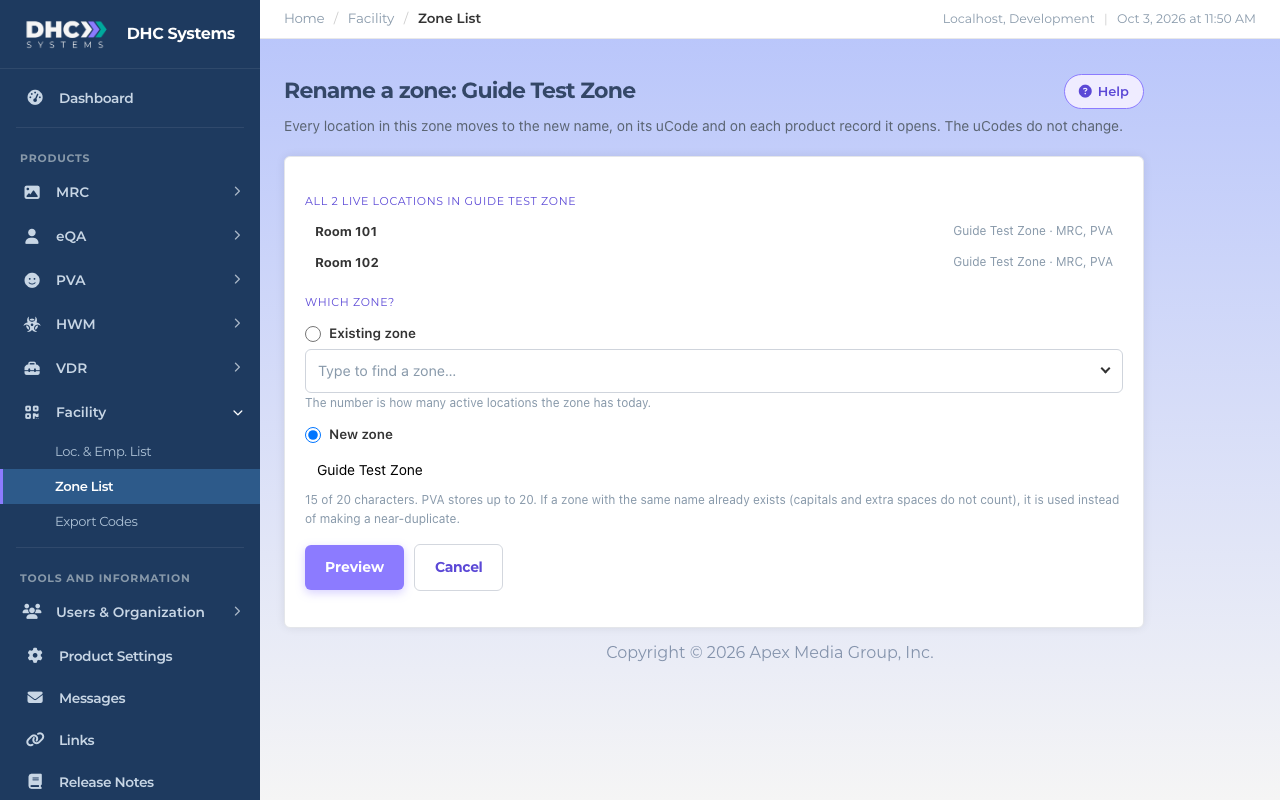
Under Which zone?, choose one of two options. Existing zone lists your zones with how many locations each has: type to find one and click it. New zone creates one by name: type it in.
Click Preview.
Choose an existing zone or type a new one
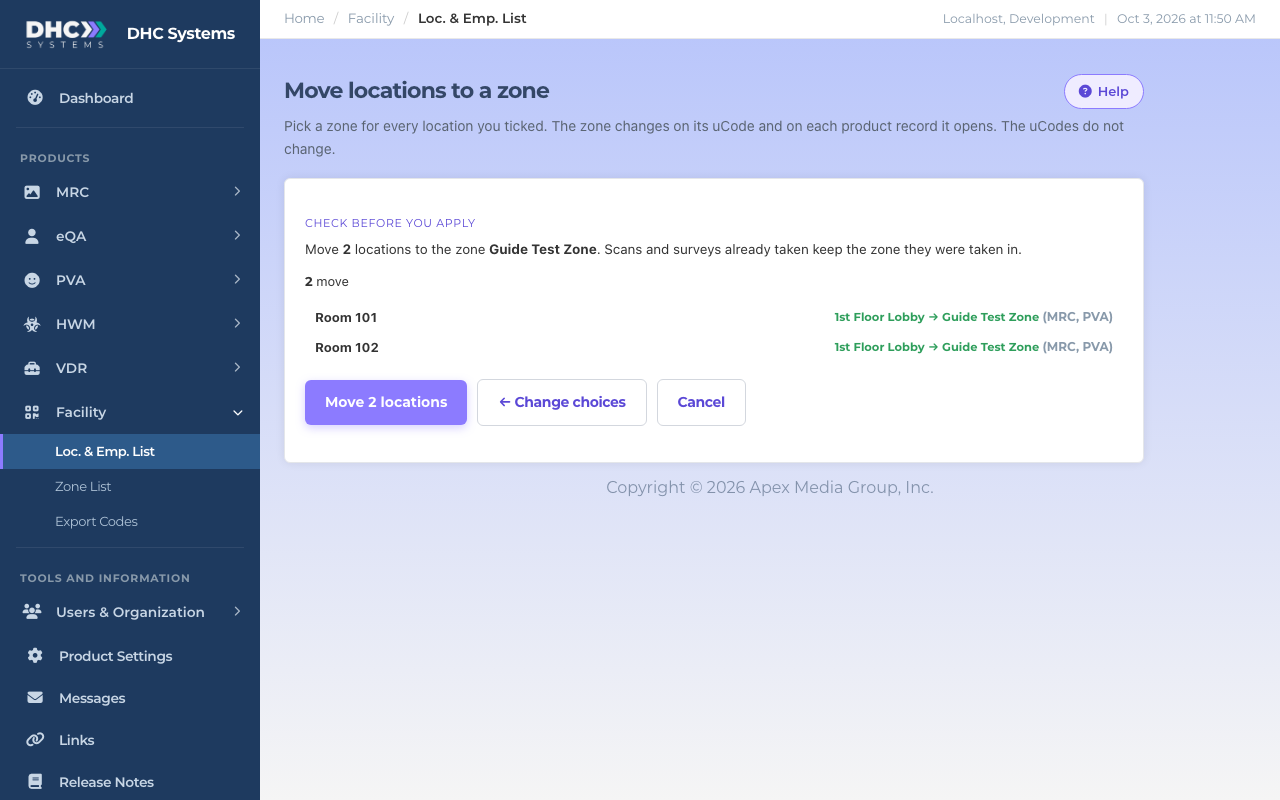
Check the preview, then move
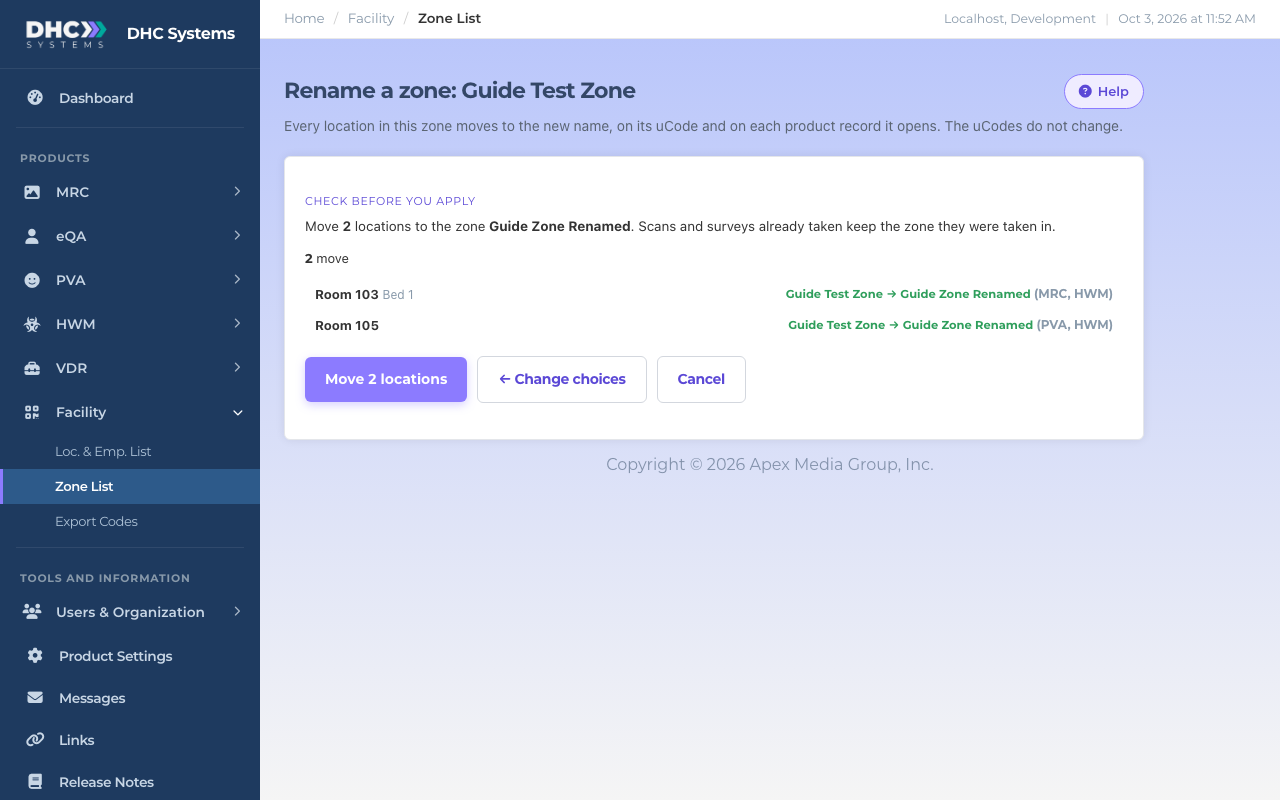
The preview lists every room as old zone → new zone, with the products whose record will change in brackets, for example “(MRC, PVA)”. Nothing is saved yet. If it looks right, click Move. If not, click Change choices or Cancel.
The preview shows exactly what will change
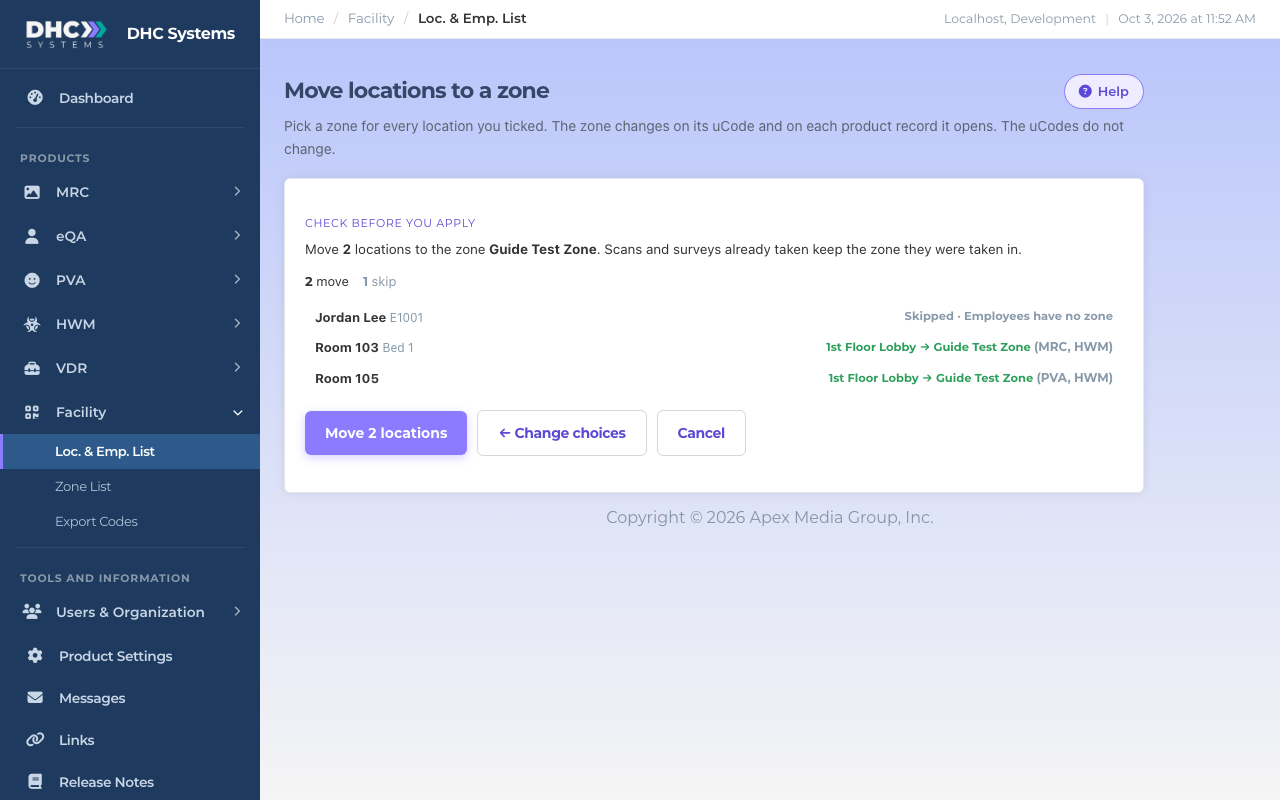
Some rows are skipped on purpose, and the preview tells you why:
Employees have no zone, so they are skipped. You can leave them ticked.
Rooms already in that zone are skipped.
Disabled records are skipped.
Employees are skipped because they have no zone
The result
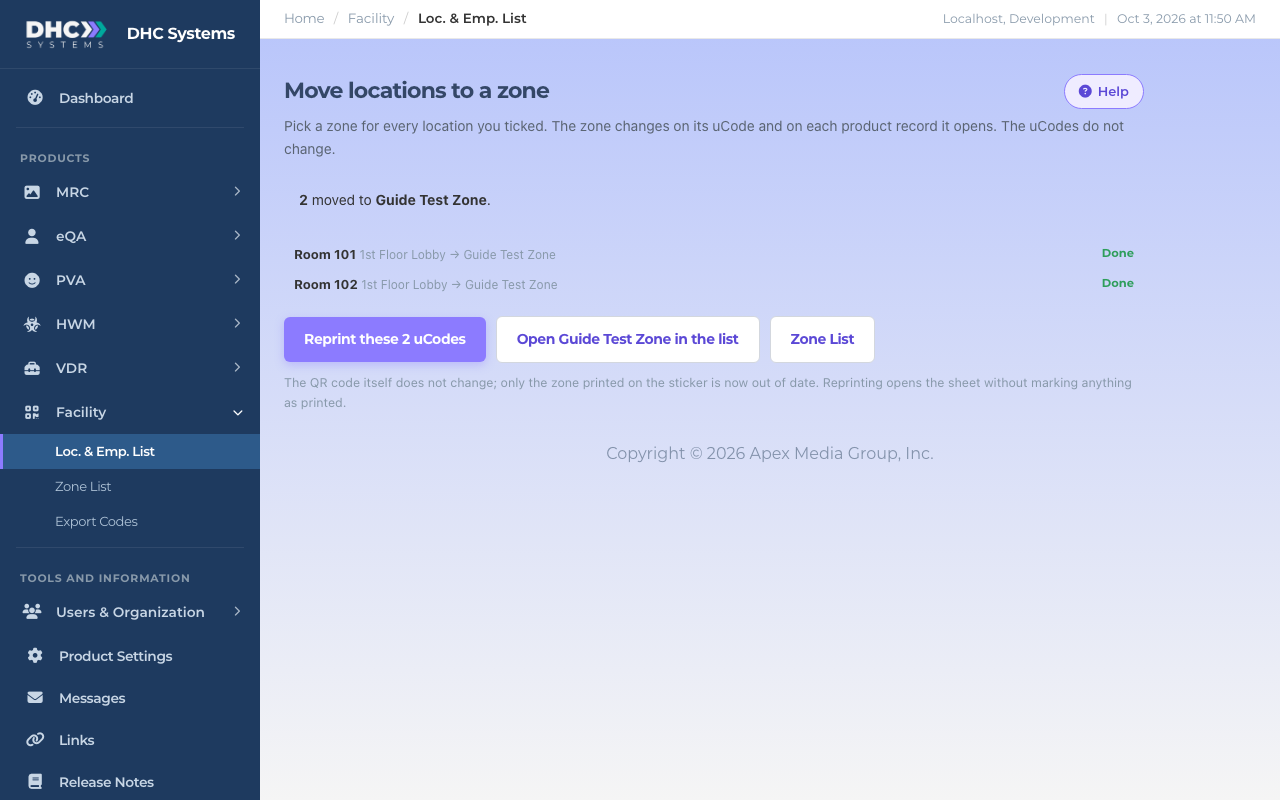
Each room is saved on its own, so one problem never stops the rest. When it finishes you see how many were moved, skipped or failed, with the reason for anything that failed. A long list is done in passes of up to two minutes and the page carries on by itself, so keep it open until it says it is finished.
The result, with a one-click reprint
Reprint the stickers
The QR code itself does not change, so the stickers already on the doors keep working. Only the zone printed on the sticker is now out of date. Click Reprint these N uCodes to open a print sheet of just the rooms you moved. Reprinting does not mark anything as printed. See “Printing and Reprinting uCodes” for the print steps.
How to rename a zone
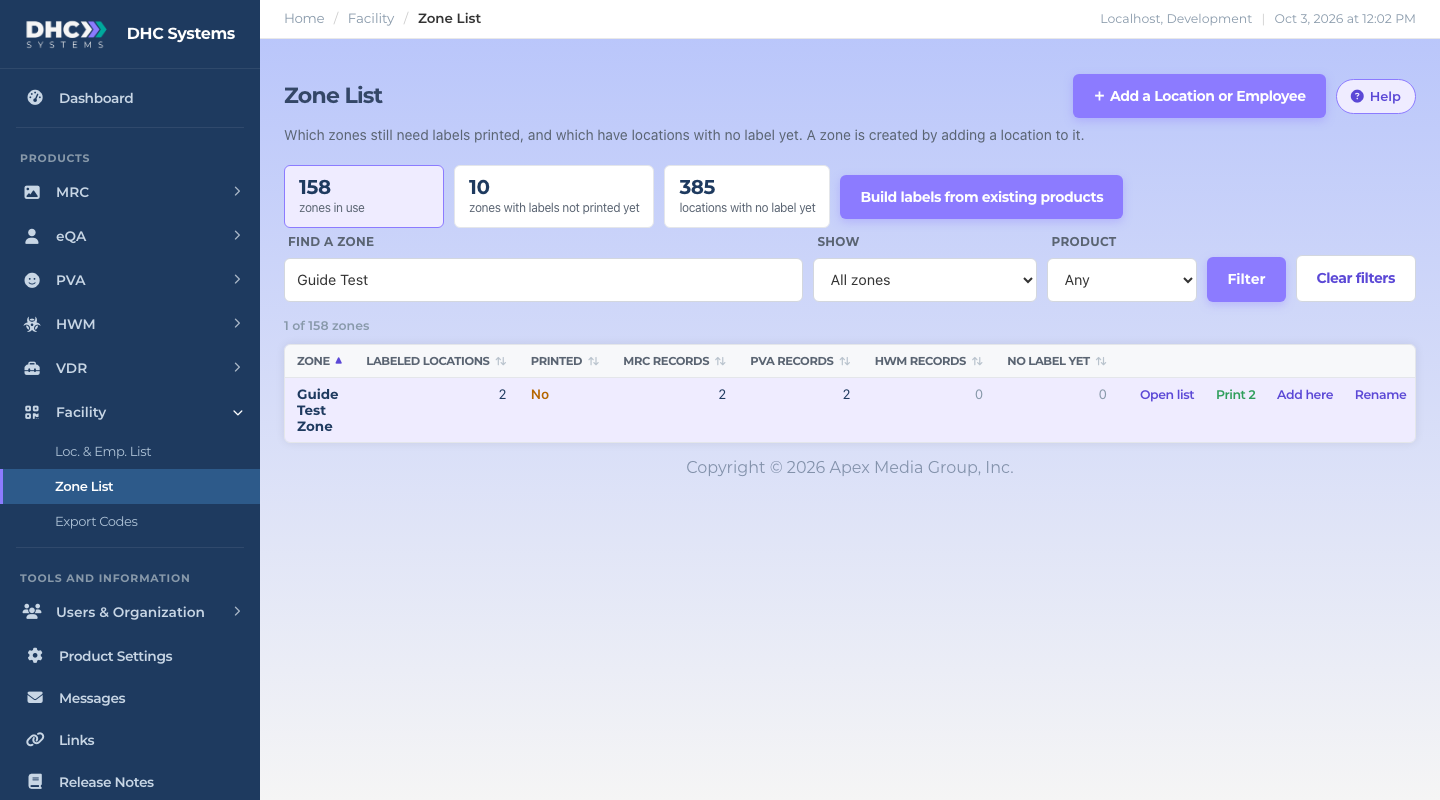
Go to Facility, then Zone List.
Find the zone and click Rename on its row.
Every live location in the zone is selected for you, and the New zone box starts with the current name. Edit it.
Click Preview, check the list, and click Move.
Rename is on every zone rowThe New zone box starts with the current namePreview a rename before you apply it
Changing only the capitals or spacing of a zone name, for example “2nd floor west” to “2nd Floor West”, is fine and works the same way.
Merging two zones
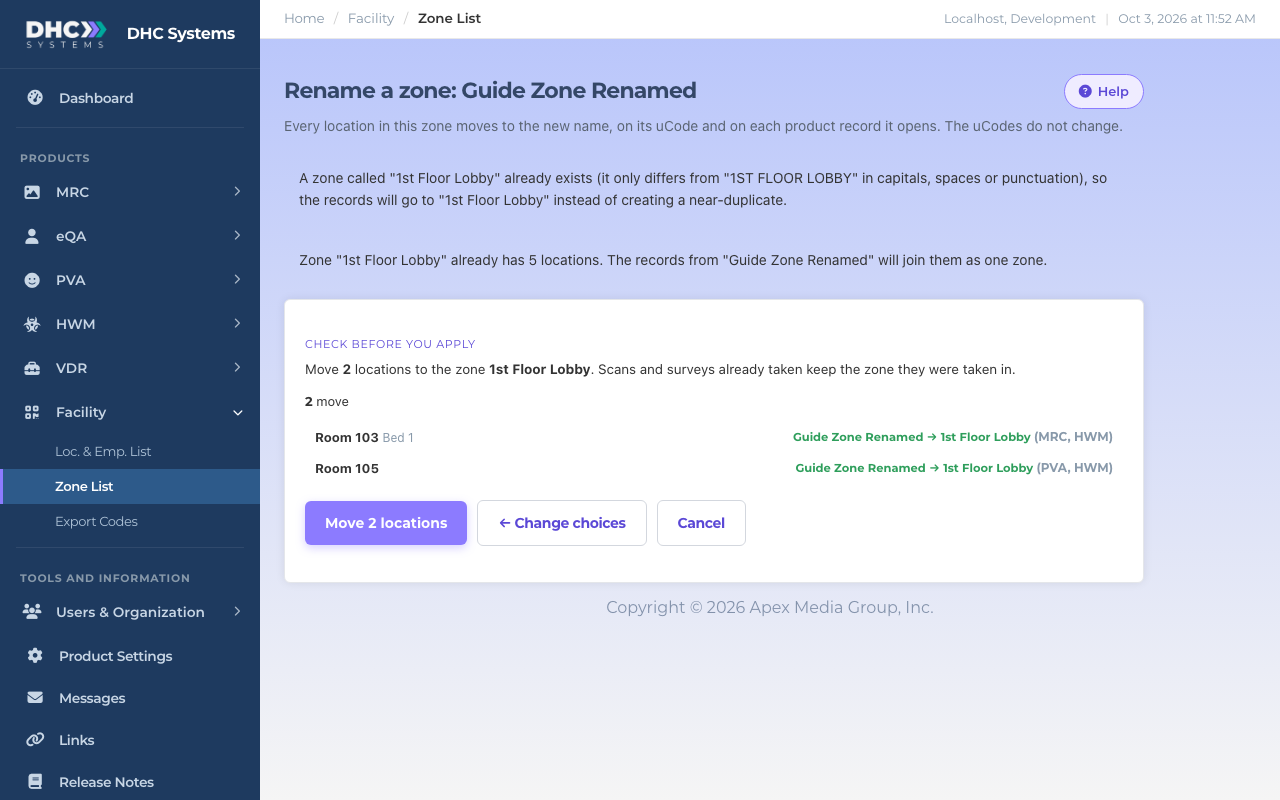
To fold one zone into another, click Rename on the zone you want to get rid of and type the name of the zone you want to keep. The page tells you the zone already exists and how many locations it has, and the records join it. A zone with nothing left in it disappears from the Zone List by itself.
If the zone name is almost the same as one you have
Typing “1ST FLOOR LOBBY” when you already have “1st Floor Lobby” would create a near-duplicate that splits your reports in two. So the page uses the zone you already have and says so in a note above the preview. Capitals and extra spaces do not make a new zone.
The existing spelling is used instead of a near-duplicate
What changes and what does not
Changes: the zone on the uCode and on each product record it opens, for the products your facility uses. New scans and reports use the new zone.
Does not change: the QR code, and scans and surveys already taken. They keep the zone they were taken in, so old results still show under the old zone name.
Employees have no zone, so nothing happens to them.
A new zone name can be up to 20 characters when your facility uses PVA, because PVA stores 20. The counter under the New zone box shows how many you have used.
If product records in the zone have no uCode yet, a Rename leaves them under the old name and tells you how many. Use Build from existing products first if they should follow.
Who can do this
Directors (M2). Everyone else can look at the zones but cannot move locations or rename a zone.
Tips
Filter the list to the zone you are cleaning up before you tick. It is easier to check the preview that way.
Moved the wrong ones? Select them again and move them back. Each move is saved in the activity log with the old and new zone.
Do the move first and print after, so the sticker shows the right zone the first time.