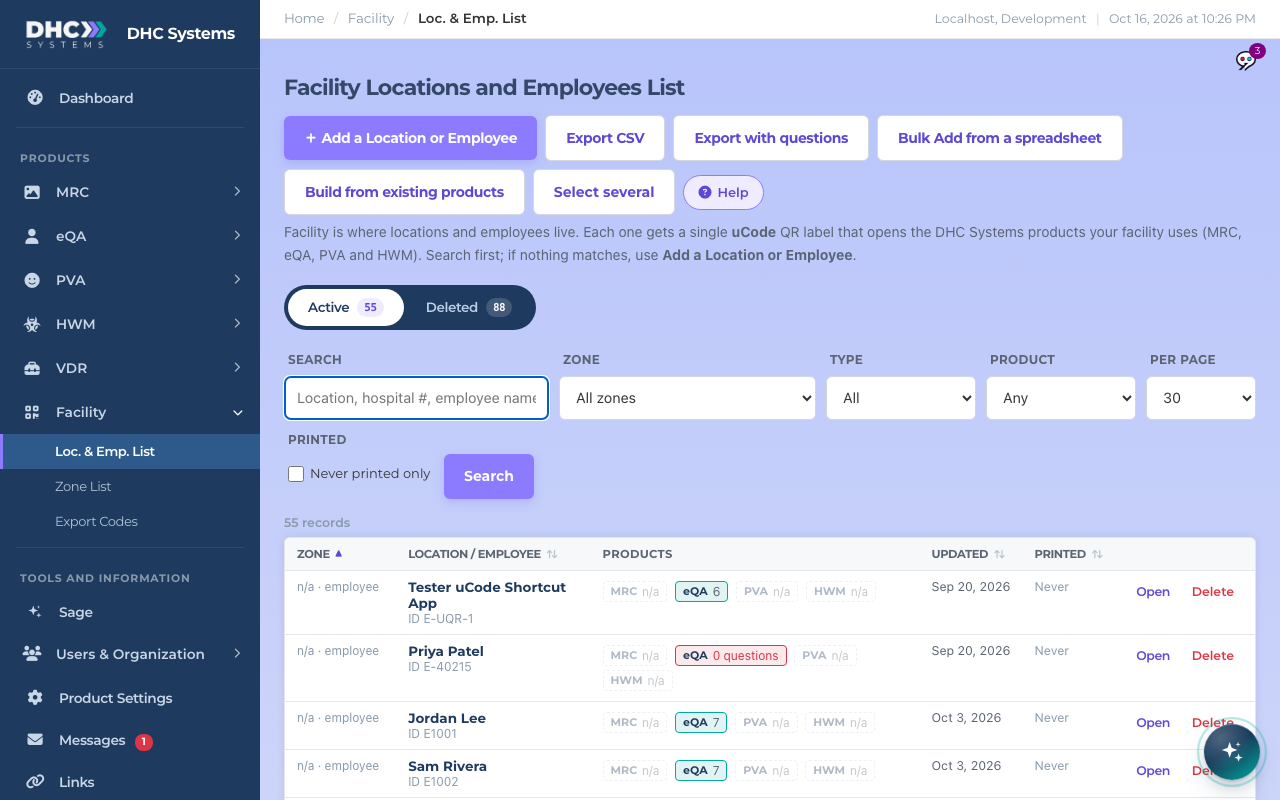
Sage is the help assistant built into DHC Systems. Ask Sage how to do something, or what a page or report means, and you get a short answer in plain steps taken from this Guide. Sage is on every page, so help is always one click away.
Open Sage from the sidebar or from the sparkles button in the bottom right corner of every page.
How to ask a question
Click Sage in the sidebar under Tools and Information, or click the sparkles button in the bottom right corner. The Sage panel opens.
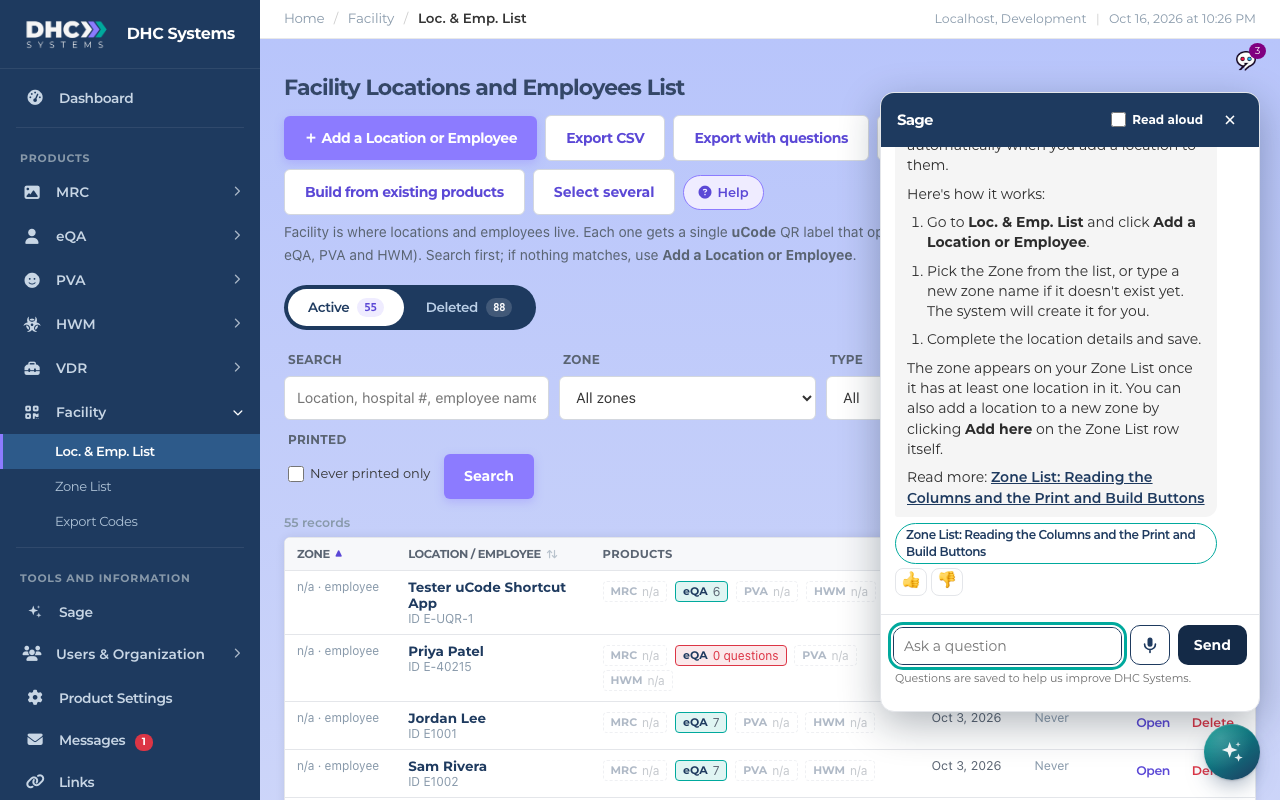
Type your question in the box, for example “How do I add a zone?” Be as specific as you like.
Click Send, or press Enter. Use Shift and Enter together to start a new line.
Read the answer. Steps are numbered, and button names are in bold exactly as they appear on screen.
Click the X at the top of the panel, or press Esc, when you are done.
Ask in your own words and get short numbered steps.
Ask out loud
If your browser supports it, you will see a microphone button next to Send. Click it, say your question, and your words appear in the box. Check them, then click Send. Click the microphone again to stop listening. Your browser may ask permission to use the microphone the first time. If you do not see the microphone button, your browser does not support speaking to Sage, and typing works the same way.
Have answers read aloud
Turn on Read aloud at the top of the panel and Sage speaks each answer to you. Turn it off to stop. This is handy when your hands are busy. If you do not see Read aloud, your browser does not support it.
Tell us if an answer helped
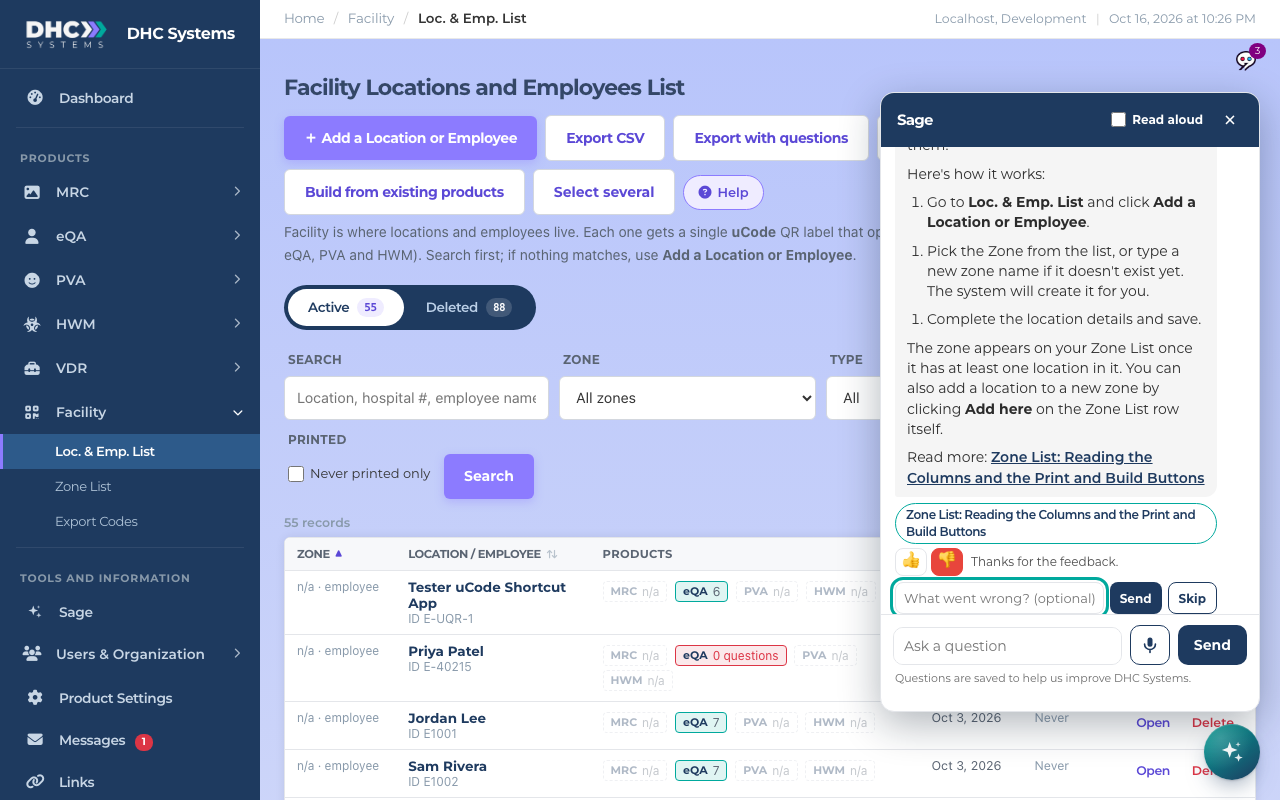
Under every answer are a thumbs up and a thumbs down. Click the thumbs up when the answer solved it. Click the thumbs down when it missed, and you can add one short line about what went wrong. We read this feedback and use it to improve Sage and this Guide.
A thumbs down lets you add a short note.
Links in answers
Read more opens the matching Guide article in a new tab.
Go there takes you to the DHC Systems page where you do the task.
What Sage can and cannot do
Sage answers from this Guide. If the Guide does not cover your question, Sage says so and points you to the closest article. It does not guess.
Sage knows which page you are on and what your account can do, so the answer fits where you are. An IC account, an M1 account and a Director (M2) can each do different things, and Sage tells you who can do what.
Sage cannot see or change your records. It cannot add a location, disable an employee or run a report for you. It tells you how.
Please do not type patient names, survey comments or other personal information. Sage does not need it, and it will ask you to leave it out.
Good to know
Your questions are saved so we can improve DHC Systems. You will see a reminder under the box.
Your conversation stays in your browser tab. Close the tab and it starts fresh.
There is a daily limit on questions per person. If you reach it, it resets the next day.
Who can do this
Everyone who signs in to DHC Systems: IC accounts, M1 accounts and Directors (M2).
Tips
Name the page or product in your question, for example “In eQA, how do I add an employee?”
Ask one thing at a time. You can follow up in the same conversation, for example “And how do I disable one?”
If the answer is not quite right, rephrase and ask again, then click the thumbs down so we can fix it.