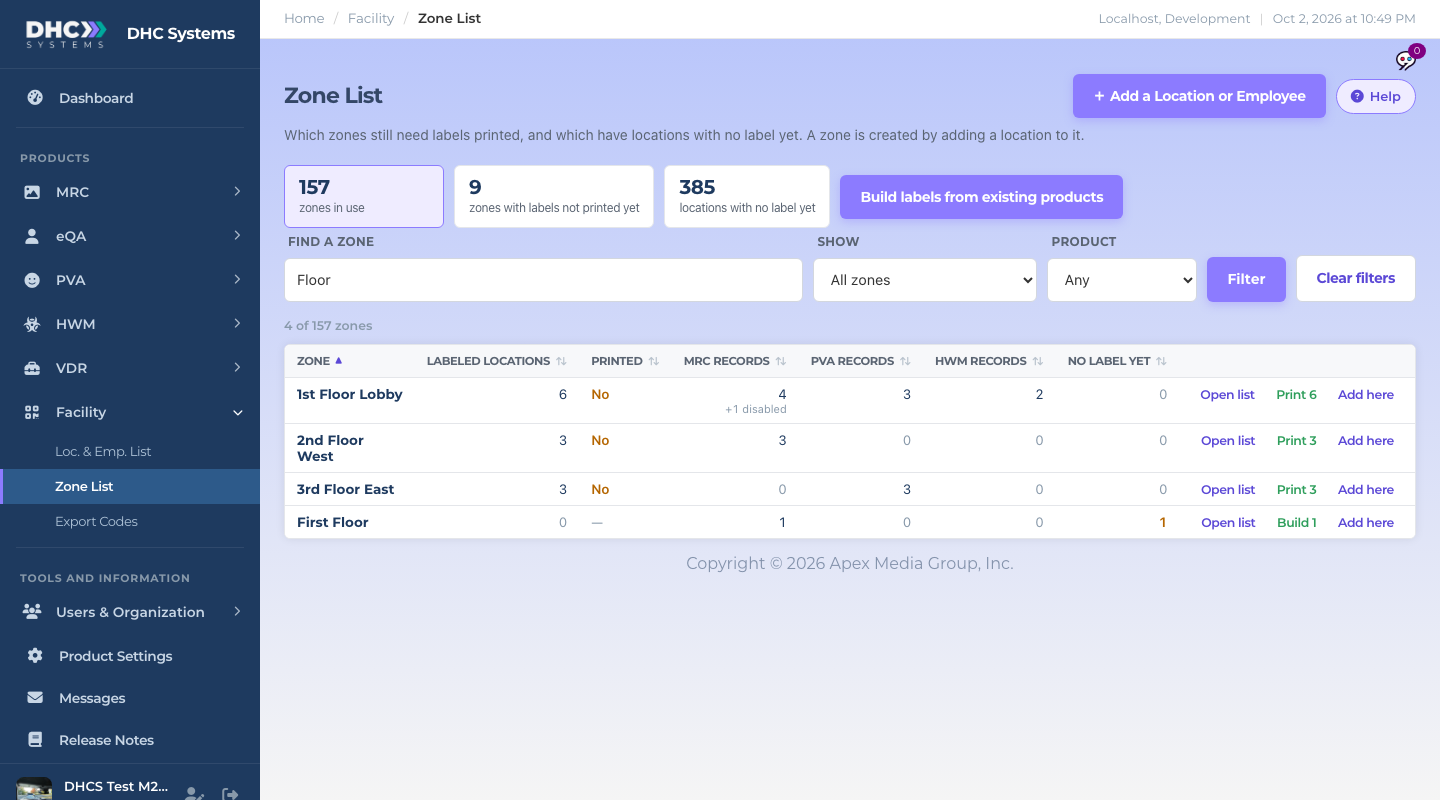
The Zone List is one row per zone. It answers two questions a Director asks all the time: which zones still have uCodes that were never printed, and which zones still have rooms with no uCode at all. Open it from Facility, then Zone List.
The Zone List filtered to zones with Floor in the name
The tiles at the top
Zones in use: how many zones have at least one record in them.
Zones with labels not printed yet: zones where at least one uCode has never been on a print sheet. Click it to filter the table to those zones.
Locations with no label yet: rooms that exist in one of your products but are not on a uCode. Click it to filter, or use the Build labels from existing products button next to it to fix them all in one pass.
Reading the columns
Zone: the zone name. A zone appears when a location is added to it and goes away when it is empty. There is nothing to create or delete here.
Labeled locations: locations in this zone that already have a uCode. Employees have no zone, so they never show on this page.
Printed: Yes when every uCode in the zone has been on a print sheet, No when none has, and Partly, 12 of 40 when some have.
Product records (for example MRC records): how many enabled records the product has in this zone today. You only see a column for each product your facility uses, so a single-product facility sees one column.
+n disabled: a small grey note under a product count. It means that many more records are disabled in that product. Disabled records are not counted and are never built into uCodes. Enable one in its product and it joins the count.
No label yet: enabled product records in this zone that are not on a uCode. This is the number a Build can still convert.
The +n disabled note under a product count
The buttons on each row
Open list: shows this zone in the Loc. & Emp. List.
Print N: appears when some uCodes in the zone were never printed. It opens Export Codes with this zone and the Never printed filter already set, so you only print the new ones.
Reprint: appears when everything in the zone has been printed. It opens Export Codes for the whole zone, with identical codes.
Build N: appears when the zone has records with no uCode yet. It opens Build from existing products for just this zone.
Add here: opens Add a Location with the zone already filled in.
Filters
Type part of a zone name in Find a zone.
Use Show to see only zones that need printing, zones that have locations with no uCode, or empty zones.
Use Product to see only zones with records in one product.
Click any column heading to sort. Click it again to flip the order.
Who can do this
Everyone can view the Zone List. Add here needs an M1 account or higher. Print, Reprint and Build need a Director (M2) account.
Tips
The Build page starts with a Scanned window of the last 12 months, so it can offer fewer rooms than the Build N count until you widen the window. See the Build from existing products article.
If a count looks too high, check the +n disabled note first. Rooms nobody uses are usually sitting disabled in the product and are already left out.