Build from existing products gives every room and employee you already have in your DHC Systems products a uCode, without retyping anything. Where you use more than one product, the same room in two products becomes one uCode. Run it once when you start using uCodes, and again any time a room was added inside a product directly. Nothing is written until you click Build.
Watch: Build from existing products, zone by zone (1:34)
Your existing barcodes keep working. Building uCodes changes nothing about the codes already printed for your products (the page names them). It only adds the option to print one uCode per room or badge.
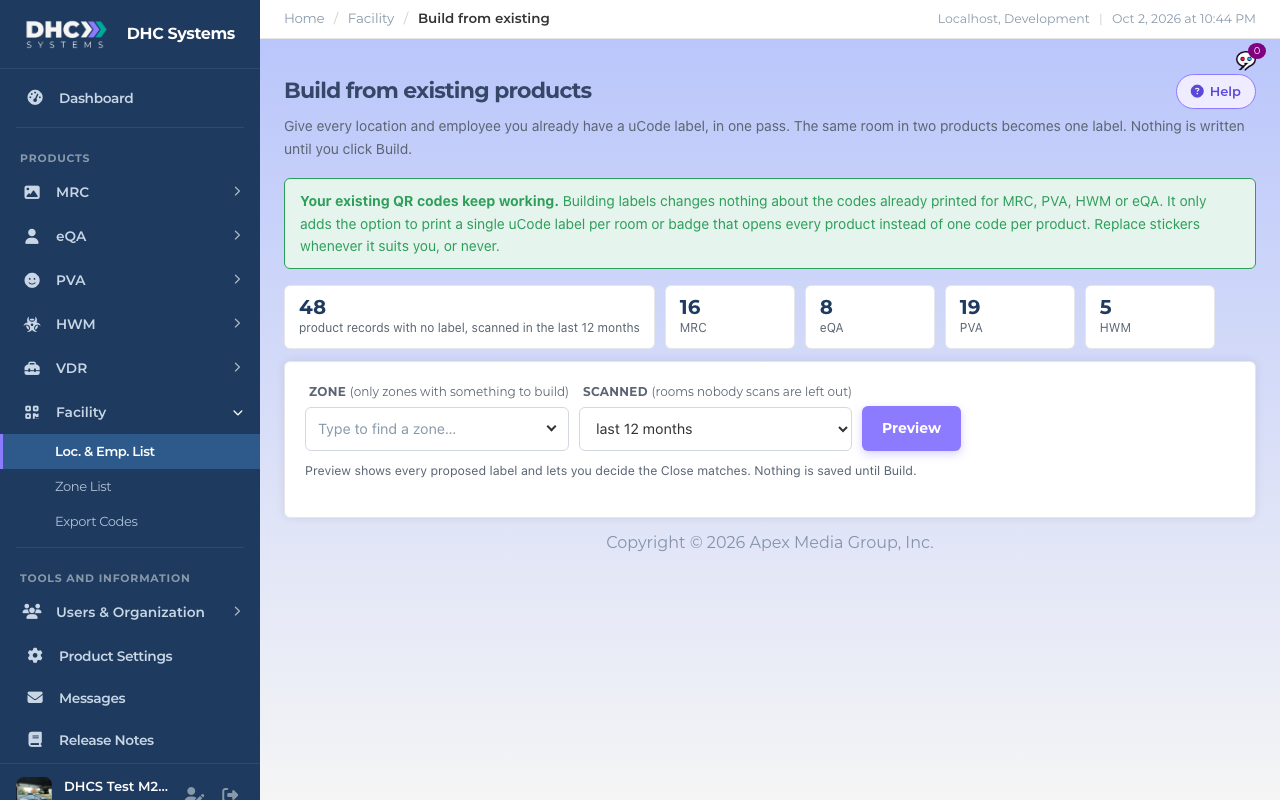
The start screen before you click Preview
How to build a zone
Go to Facility, then Loc. & Emp. List, and click Build from existing products. Or click Build N on a row of the Zone List to arrive with that zone already picked.
Pick a zone. The list only shows zones that still have something to build, with the count in brackets. A zone that is missing from the list is finished. Leave it on All zones and employees to do the whole facility in one go.
Choose the Scanned window. Only records with a completed scan in this window are proposed, newest first. The default is the last 12 months. Rooms nobody has scanned in a year are almost always stale or duplicates, so leaving them out is the fastest way to a clean list. Choose ever, including never scanned to see everything.
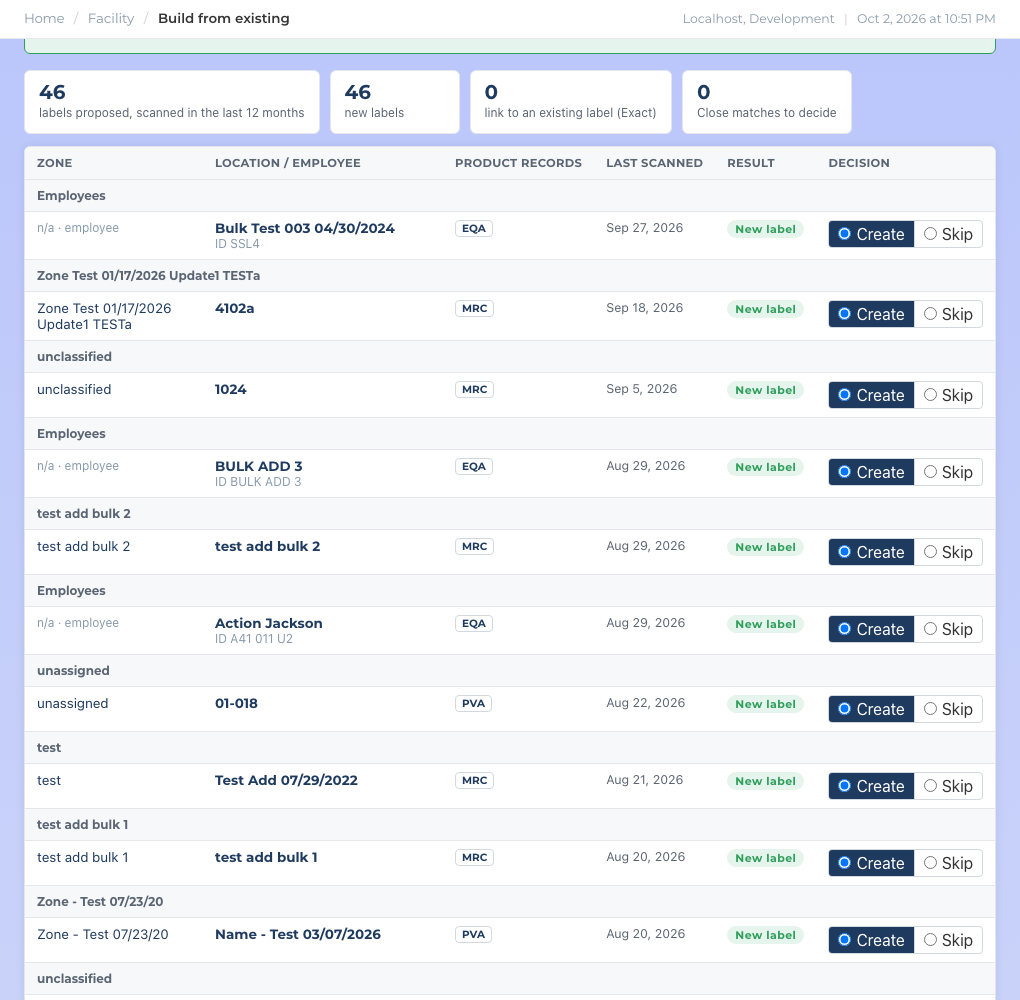
Click Preview. The page matches every record and shows a table of what it proposes. Nothing is saved yet.
Read the Result column and set a Decision where one is needed (see below).
Optionally tick products under Switch on other products at the same time (see below). This card only exists when your facility uses more than one location product.
Click Build N labels. When it finishes you can open the list, print the new uCodes, or build more.
The preview table. Nothing is saved yet
What the Result column means
New label: no uCode exists for this place yet. One is created. Where more than one of your products holds the same room in the same zone, the row says how many products merge into one uCode.
Exact: a uCode with the same zone and name already exists. The product record is attached to it. The decision is Link by default.
Close: something similar exists, usually a spacing or spelling difference. You choose Same, link or Different, new label. Different is the safe default, and you can open the existing record in a new tab to compare.
Duplicate: this is a second product record with the same zone and name as one that is already on a uCode. A uCode opens one record per product, so this copy cannot be linked. It stays on Skip and stays in the No label yet count. The row shows when each copy was last scanned, so you can tell which one people really use. To clear it, disable the copy nobody uses in its product. Choose Different, new uCode only if it really is another place that happens to share the name.
Switch on other products at the same time
This optional card appears under the preview when your facility uses more than one location product and some of the proposed locations do not have every product yet. It is handy when you bring rooms over from one product and want your other products on the same uCodes straight away. Single-product facilities never see it.
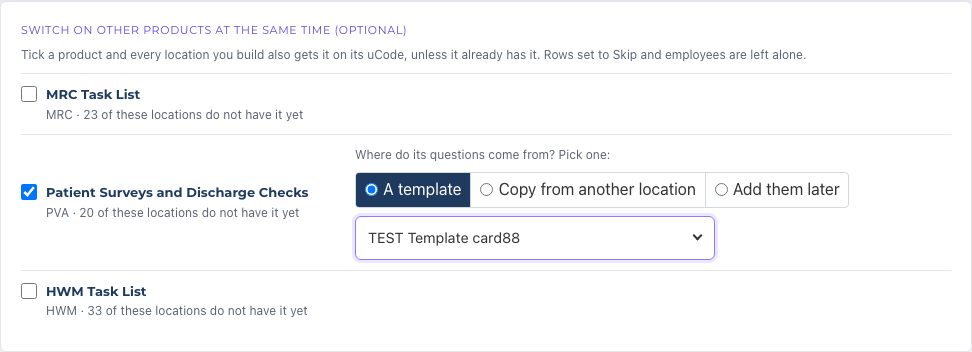
Tick the product, for example Patient Surveys and Discharge Checks (PVA) where you use it. The line tells you how many of the proposed locations do not have it yet.
Choose one place for its questions to come from: A template (where the product has them, such as PVA), Copy from another location, or Add them later.
If you chose a template or a location, pick it from the list that appears. Build will not run until you have.
Repeat for any other product.
Every location you build also gets the ticked products on its uCode, unless it already has them. Rows set to Skip and employees are left alone. If the product already holds the same place without a uCode, that record is used rather than a second one being made. With Add them later the uCode says “not ready” for that product until questions are added.
Switching PVA on for every location you build, with a template for its questions
Large zones build in batches
A zone with hundreds of rooms is built in batches so the page never times out. After you click Build, the page shows N of M done with a progress bar and carries on by itself until it reaches the end. Keep the page open. If it stops, click Continue with the remaining N. Closing the page is safe too: nothing is lost, and whatever is left shows up again the next time you click Preview. A record that already has a uCode is never given a second one, even if the same Build is sent twice.
Who can do this
Directors (M2).
Tips
Questions are untouched. Each product keeps the questions already on its record.
If you arrive from a link and the zone was not found, the page says so and previews nothing. Pick the zone from the list. It will never quietly fall back to the whole facility.
Start with the default 12 month window. Widen it later only if a room you expected is missing.
Where a product holds two copies of a room, the copy scanned most recently is the one proposed.