Turn on a product for selected switches a product on for a whole group of rooms or people that already have a uCode, and sets their questions in one go. Use it when a new product starts in a zone, or when several rooms should share the same questions. The uCodes themselves never change, so nothing needs reprinting.
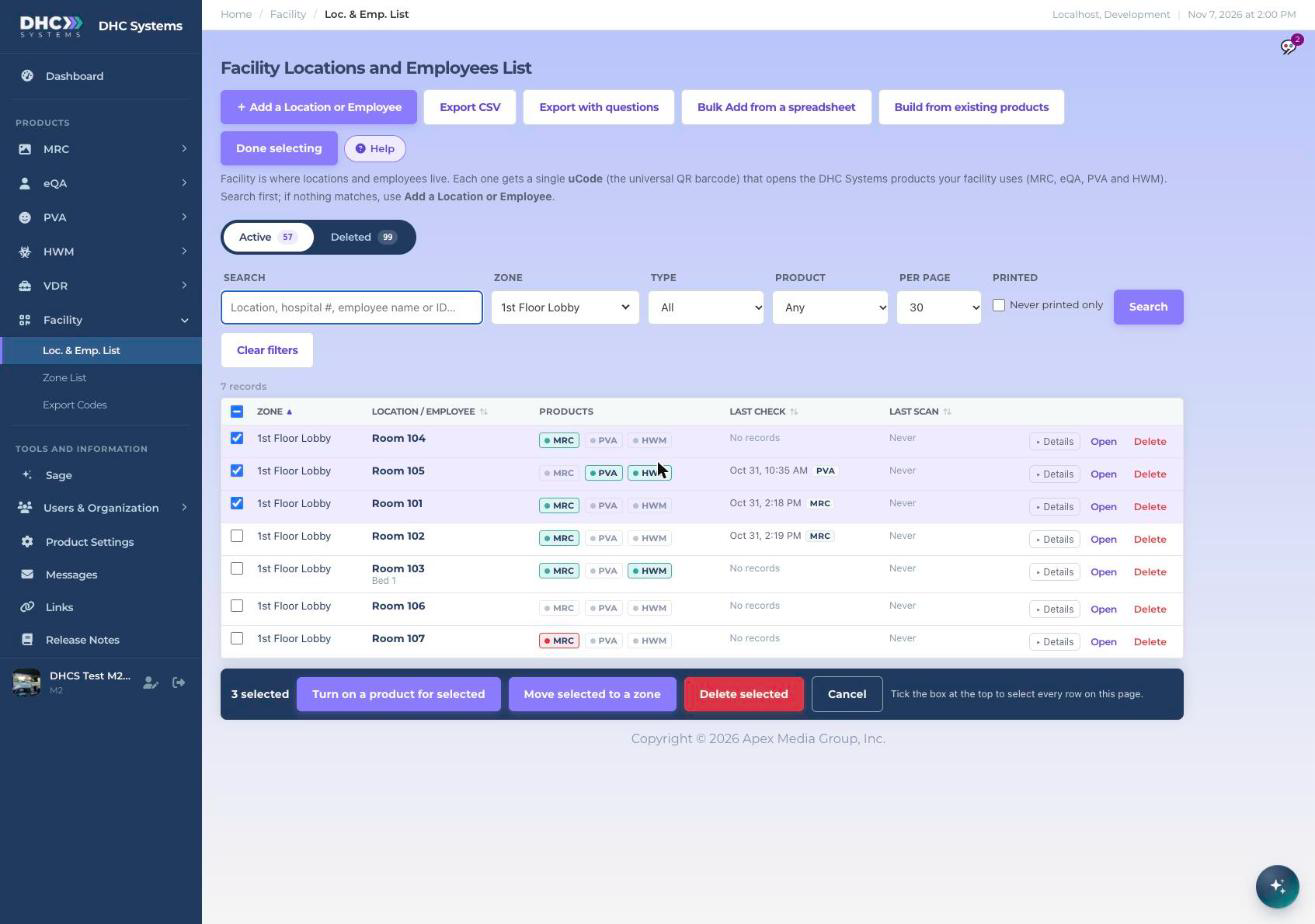
Watch: Turn on a product for selected, from Select several to Preview (1:51)Select several adds checkboxes and the action bar
How to do it
Go to Facility, then Loc. & Emp. List. Filter to the zone or product you want first; it keeps the list short.
Click Select several. A checkbox appears on every row and a dark bar appears at the bottom.
Tick the rows, or tick the box in the table header to select every row on the page.
Click Turn on a product for selected.
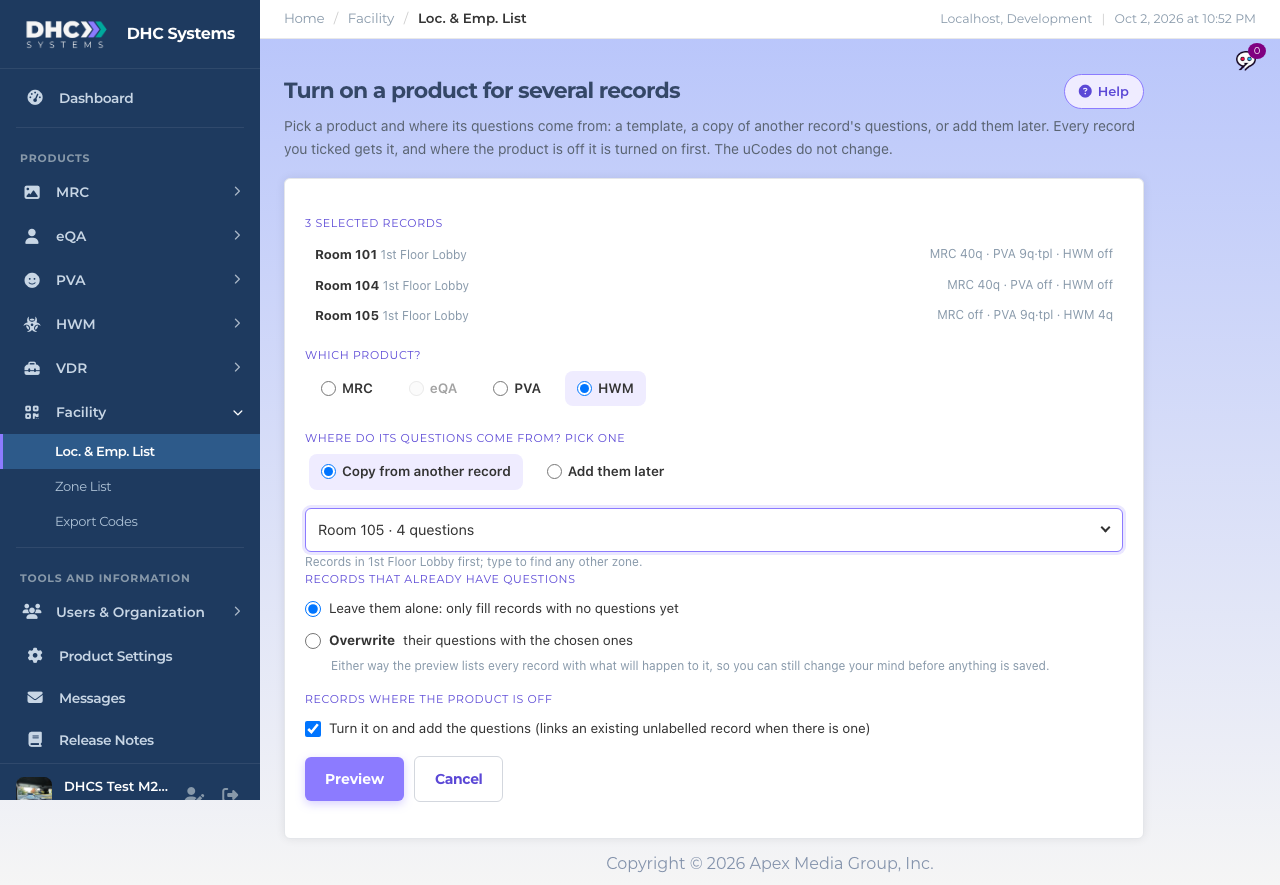
Which product? Pick one of the products your facility uses (only those are listed). Only products that apply to what you ticked can be chosen (eQA for employees, the others for locations).
Where do its questions come from? Pick one:
A template (PVA only, shown when you use PVA): every record is put on one PVA Scan Template. Change the template later and they all follow.
Copy from another record: each record gets its own copy of the questions from a record you pick. Records in the zone you were looking at are listed first; type to find any other.
Add them later: only turns the product on. The uCode says “not ready” for it until questions are added.
Records that already have questions: choose Leave them alone (the default, only fills records with no questions yet) or Overwrite their questions with the chosen ones.
Records where the product is off: leave the box ticked to turn it on and add the questions. If the room or person already exists in that product without a uCode, that record is linked rather than a twin being created.
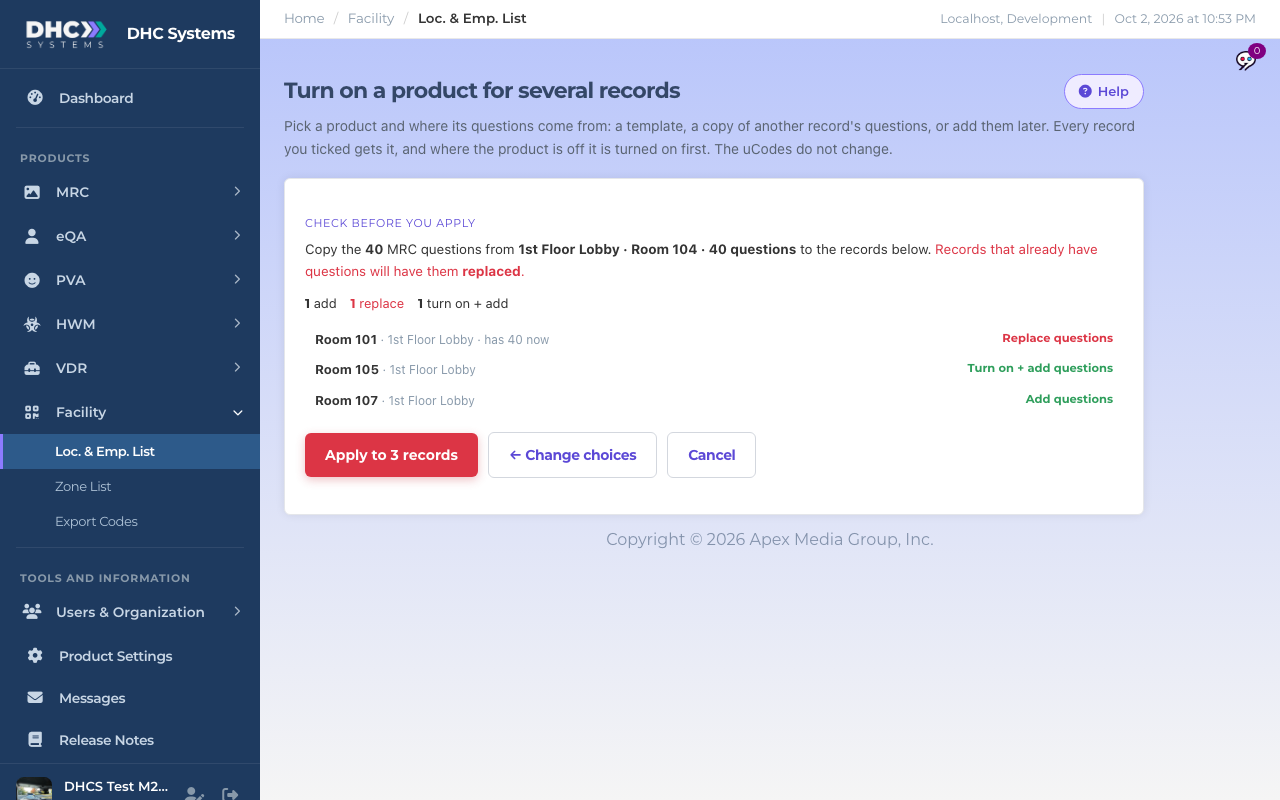
Click Preview. One line per record says exactly what will happen: Add questions, Replace questions, Turn on + add questions, Turn on (link existing), or Skip with the reason.
Click Apply to N records. The result page lists every record as Done, Skipped or Failed.
The choose stepThe preview with Overwrite chosen, so one record shows Replace questions
If the preview left some records alone
With Leave them alone, records that already have questions are listed as kept. A note under the list tells you how many, with a Preview with Replace instead button. One click gives you the same preview with Overwrite, so you can decide with the facts in front of you.
Long lists run in passes
A pass stops after two minutes so the page never times out. Any records it did not reach are listed as “Not reached yet”, and a Continue with the remaining N button finishes them. Nothing is lost between passes.
Who can do this
Directors (M2) can use Select several on any number of records. An M1 account can use the same screen for one record at a time: open the record and click Copy questions from… next to the product.
Tips
The record you copy from is never changed.
PVA locations on a Scan Template keep the template unless you choose Overwrite. With Overwrite and Copy from another record, the location comes off the template and gets its own copy of the questions. Putting a location on a template leaves its own questions stored, so taking it off the template later brings them back.
The same action bar also offers Delete selected, and on the Deleted tab Restore selected.