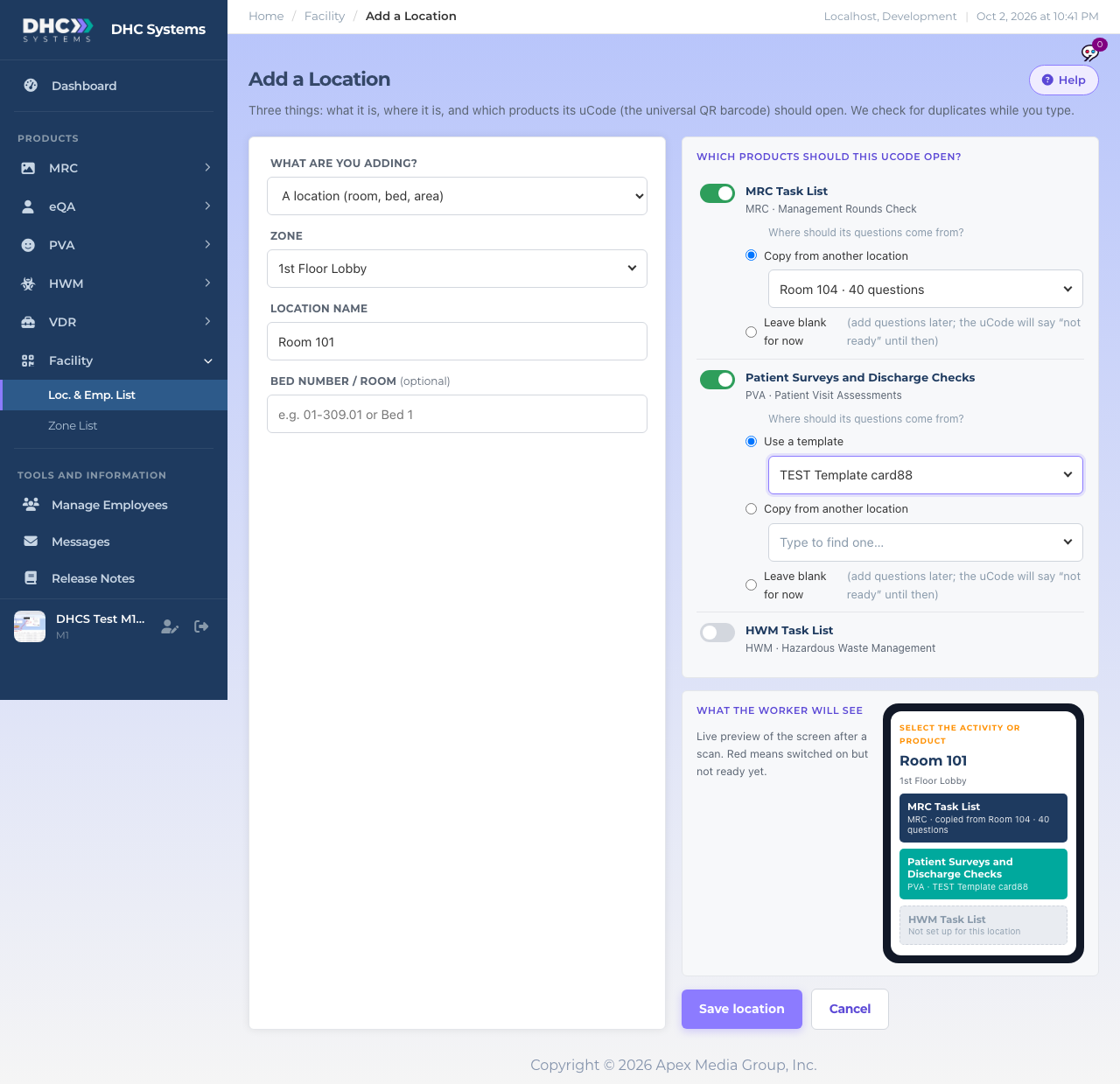
Add a Location or Employee creates one record with one uCode, and switches on the products it should open. Three things on one screen: what it is, where it is, and which products. The page checks for duplicates while you type, so the same room is never added twice.
Record on the left, products and the phone preview on the right
How to add a location
Go to Facility, then Loc. & Emp. List, and click Add a Location or Employee. You can also click Add here on a Zone List row to arrive with the zone filled in.
Leave What are you adding? on A location (room, bed, area).
Pick the Zone from the list. Choose New zone only when the zone truly does not exist yet. If you type a new zone that already exists under a slightly different spelling, the page tells you and asks you to pick it instead.
Type the Location name, for example A1 or 01-309.
Optionally add a Bed Number / Room. Use it when several records share a name in one zone, for example Elevator 1, Bay 1 and Elevator 1, Bay 2. It prints on the uCode under the name.
Watch the box under the name. If an Exact or Close match shows up, open the existing record instead of creating a twin. Only tick Create anyway if it really is a different place.
On the right, switch on each product this uCode should open and say where its questions come from (see below).
Check the phone preview. It is exactly what the worker will see after scanning. Red means a product is on but has no questions yet.
Click Save location. You land on the record page, where you can add questions and print the uCode.
How to add an employee
Set What are you adding? to An employee. This option appears when you use eQA.
Type the Employee name and the Employee ID (badge or payroll ID). The ID is required so two people with the same name are never mixed up. Employees have no zone.
eQA Task List switches on by itself. Choose a standard task list, copy from another employee, or leave blank for now.
Click Save employee.
Where should its questions come from?
The panel on the right lists only the products your facility uses. For every product you switch on, pick one:
Use a template (PVA) or Use a standard task list (eQA): the questions come from a list you keep centrally.
Copy from another location or employee: the record gets its own copy of the questions from a similar record. The list shows records in the chosen zone first.
Leave blank for now: the product is on, but the uCode says “not ready” for it until questions are added from the record page.
Already in a product, but no uCode yet?
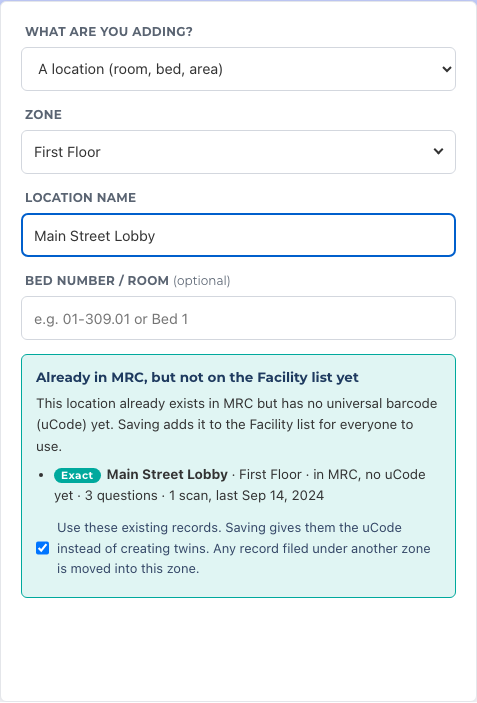
A room or person that was added earlier inside one of your products shows up in the box under the name with the note “no uCode yet”, and that product switches on by itself. Saving gives the existing record the uCode instead of creating a second copy. Its questions and scan history stay as they are. If you had not picked a zone yet, it is filled in from that record. Only untick Use these existing records if it truly is a different record.
A room that already exists in MRC is linked instead of duplicated
Who can do this
M1 accounts and higher.
Tips
Save stays greyed out until a zone is picked, at least one product is on, and every product that is on has its question source chosen. The grey note next to the button tells you what is missing.
If you reach this page from a product’s own Add button, that product is already switched on for you.
Searching the Loc. & Emp. List first is the quickest duplicate check of all. If nothing matches, the Create as new button brings your search text here as the name.