Vendor Reporting (VDR) gives you a clean log of every visit an outside vendor makes to your facilities. Think pest control, uniform or linen service, elevator maintenance, anything where a technician shows up, does a checklist of work, and leaves. The vendor’s technician scans a QR code at your site, fills in a short form on their phone, and the visit lands in your DHC Systems account.
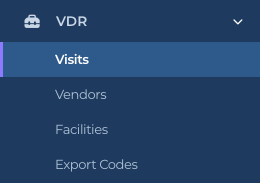
VDR lives in the sidebar like your other products.
Who it is for
Any facility that wants proof a vendor came, when they came, what work order they were on, and what they actually did. Instead of chasing paper service tickets, you get a searchable list, and you decide what each vendor’s checklist asks.
How it works
A Director (M2) sets up each vendor (for example “ABC Pest Control”) and the checklist that vendor’s technicians complete on every visit. See Vendors: add a vendor and its checklist.
The Director adds the facilities (sites) that vendor services. See Facilities: the sites a vendor services.
The Director prints the QR codes from Export Codes and posts a facility code at each site. See Export Codes: print the vendor and facility QR codes.
The vendor’s technician scans the code with their phone camera, enters the work order number, answers the checklist, and taps Complete Visit. No login needed. See Logging a visit from the vendor’s phone.
The visit shows up under Visits for everyone on your account. See Visits: see every vendor visit.
What the vendor sees
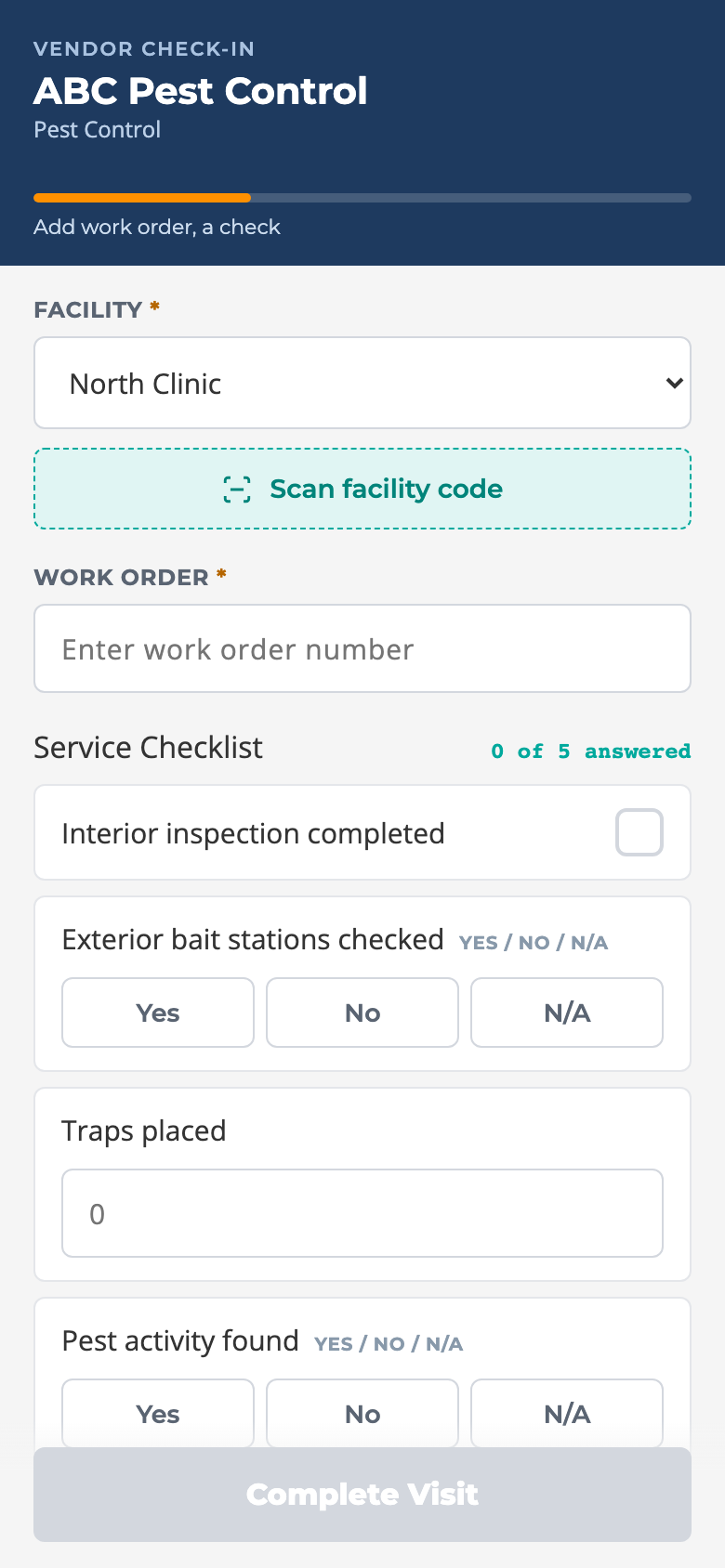
A simple phone page titled Vendor Check-In with your vendor’s name at the top. It asks for the Facility (already picked when they scanned a facility code), the Work Order number, the Service Checklist you built, and an optional Notes box. A progress bar tells them what is still missing. When they submit, they get a “Visit recorded” confirmation.
What the technician sees after scanning a facility code.
What your team sees
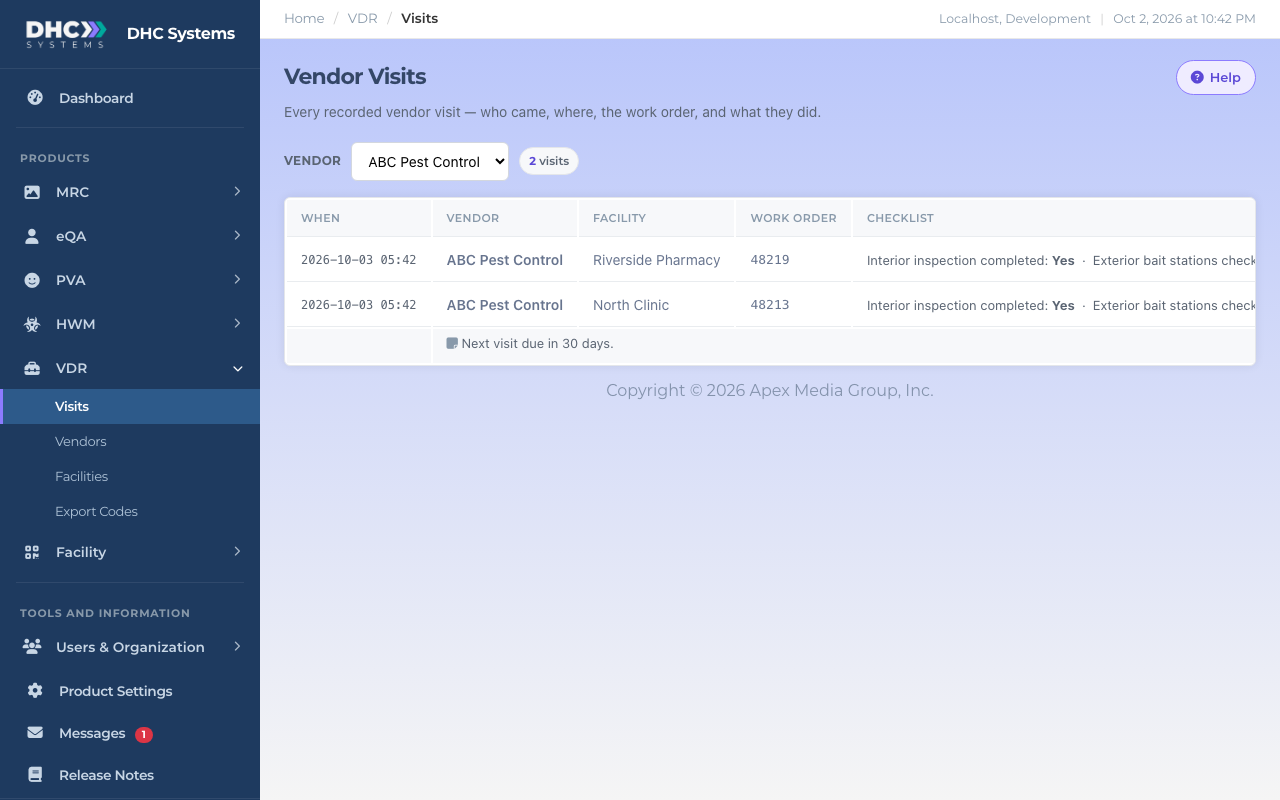
The Visits page lists each visit with the date and time, vendor, facility, work order, every checklist answer, and any notes the technician left. You can filter it to a single vendor.
Every visit, in one place.
Who can do this
VDR follows the standard DHC Systems access model:
IC account (worker): can view Visits, Vendors and Facilities. No edit controls appear.
M1 account: everything an IC can do, plus edit an existing vendor or facility (name, service type, checklist, address, vendor).
Director (M2): everything above, plus add new vendors and facilities, set a facility Active or Inactive, upload a spreadsheet of facilities, and print codes from Export Codes.
The vendor’s technician does not need an account at all. The QR code is their way in.
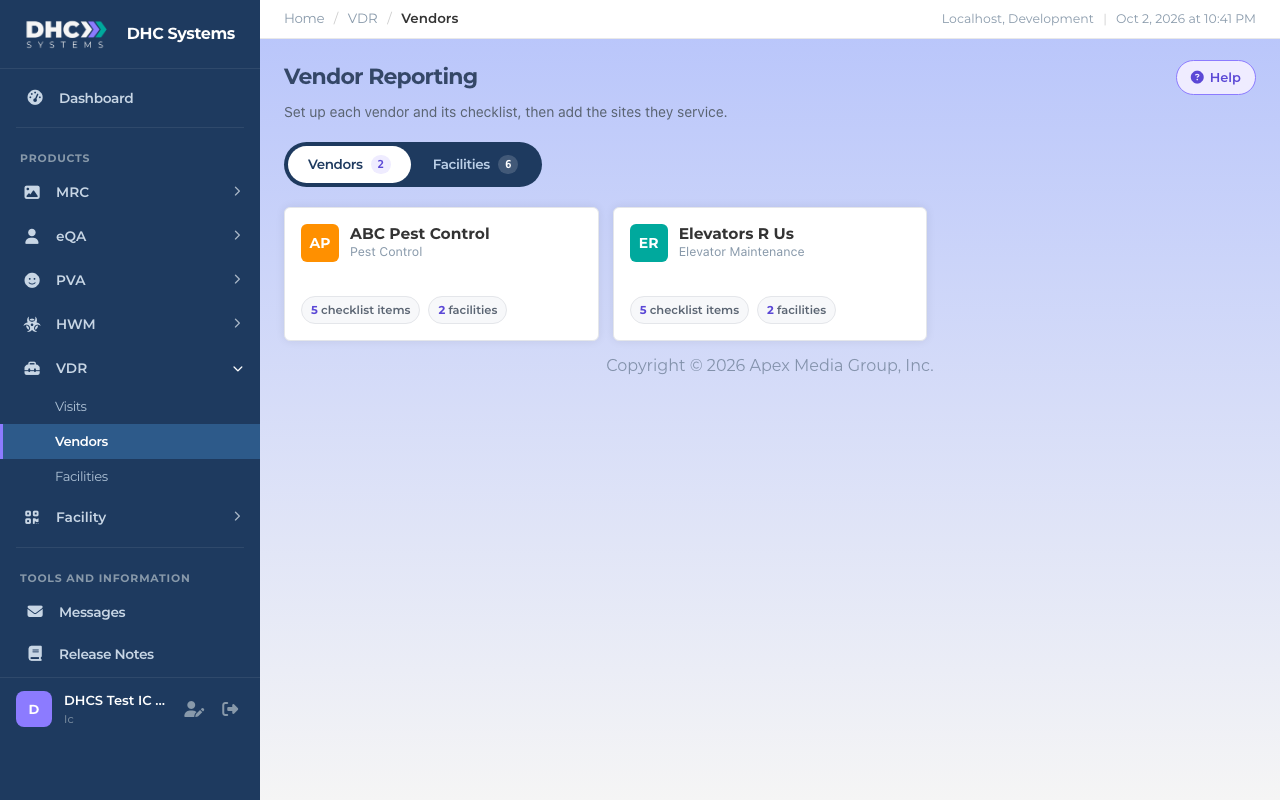
The same page for an IC account: view only.
Tips
Every VDR page has a Help button at the top right. It opens a short explanation of that page.
Keep checklists short. Five to ten items is plenty for most vendors; the limit is 25.
Post the facility codes at your sites. The technician lands straight on the right facility with nothing to pick.