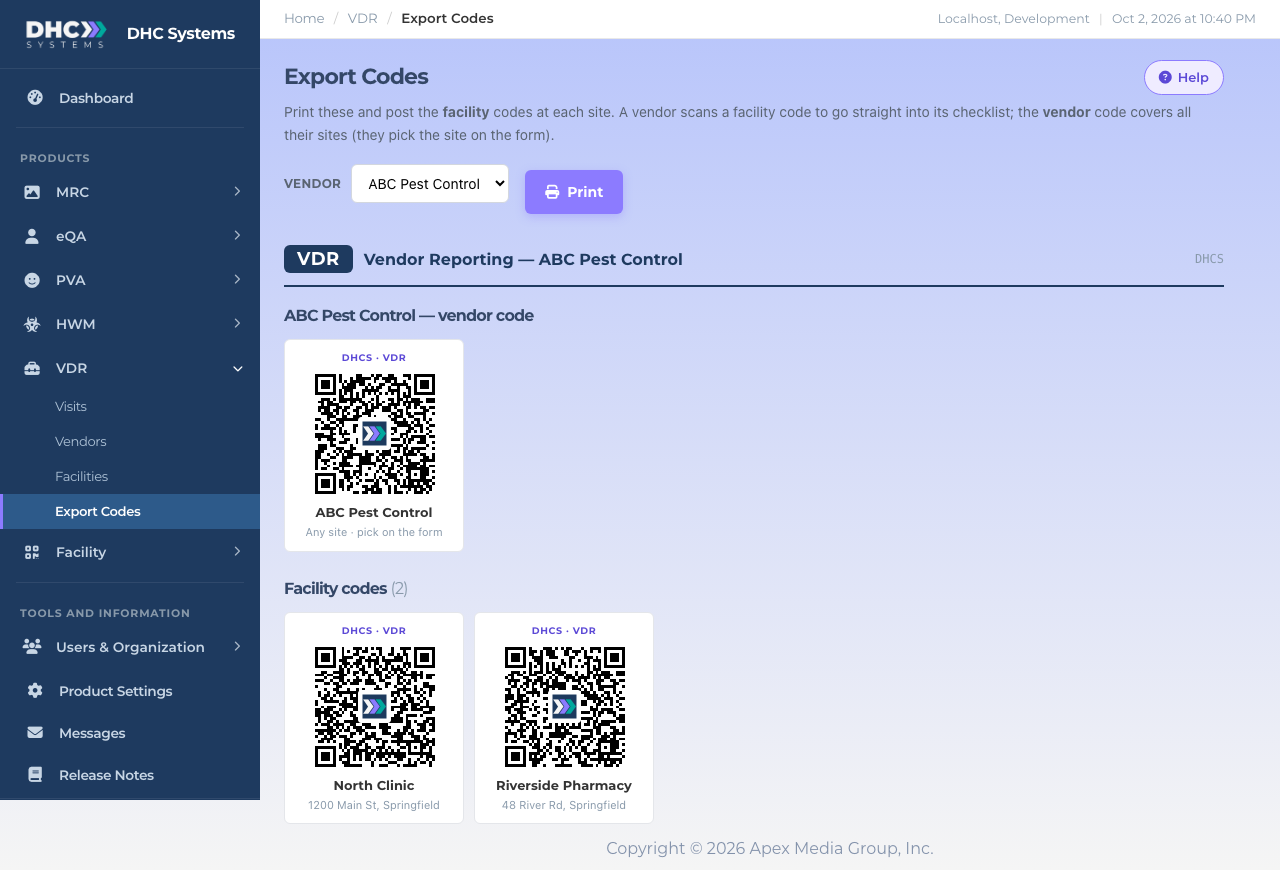
Export Codes is where you print the QR codes that vendor technicians scan. Pick a vendor, click Print, and post the codes at your sites. Open it from the sidebar: VDR, then Export Codes. Only Directors (M2) see this menu item.
One vendor code, then a code for each of its active facilities.
Two kinds of code
Facility code: one per site. A technician scans it and lands on the check-in form with that facility already selected. Nothing to pick. This is the main one to post at each site.
Vendor code: one per vendor. A technician scans it and picks the site from a dropdown. Useful for a site that has no printed code yet, or as a code the vendor carries with them.
A facility code. The name and address print under it.The vendor code covers every site.
How to print codes
Click VDR in the sidebar, then Export Codes.
Choose the vendor in the Vendor dropdown. The page reloads with that vendor’s code at the top and a Facility codes grid below it, one card per active facility.
Click Print. Your browser’s print window opens. The sidebar and buttons are left out of the printout, and each code card stays whole on the page.
Cut out the facility cards and post each one where the technician will see it on arrival, for example by the loading dock or the service entrance.
What is on each card
The label DHCS · VDR on top, so a posted code identifies itself.
The QR code with the DHC Systems logo in the center.
For a facility code: the facility name and its address (or its FAC code if there is no address).
For the vendor code: the vendor name and “Any site · pick on the form”.
Who can do this
Directors (M2) only. IC and M1 accounts do not see Export Codes in the sidebar.
Tips
Added a new facility? Come back here and print just that card. Existing codes keep working.
Inactive facilities are not listed, so retire a site before printing if you do not want its code.
Print at normal size. The codes are designed to scan from a phone at arm’s length; do not shrink them to fit more on a page.
If the page says “No vendors yet”, add a vendor on the Vendors page first.