DHC Systems v4 puts everything in one dark blue sidebar on the left. The old top menu bar from v3 is gone. This article walks you down that sidebar, shows where it hides on a phone, and explains why your sidebar may be shorter or longer than a colleague’s.
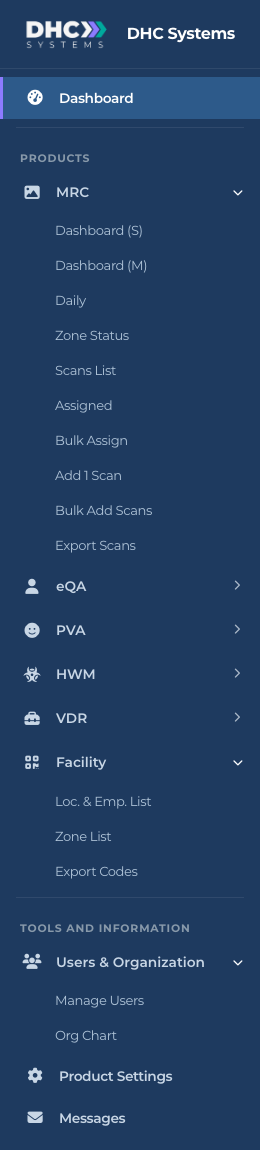
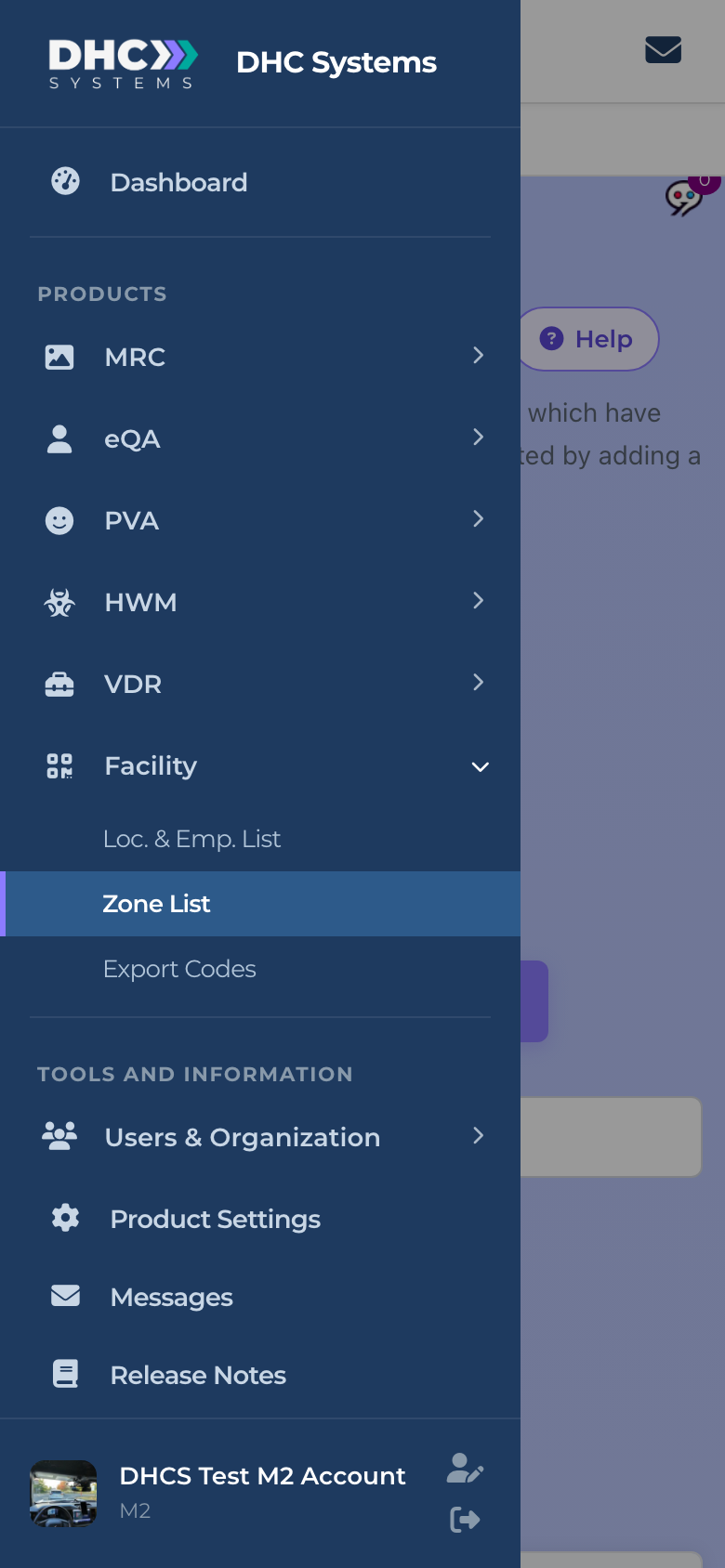
The sidebar as a Director (M2) sees it. MRC, Facility and Users & Organization are expanded here.
The sidebar, top to bottom
DHC Systems logo. Click it any time to get back to the Dashboard.
Dashboard. Your landing page after sign in. One snapshot tile per product. See the article The Dashboard.
Products. One group per product your company uses: MRC, eQA, PVA, HWM and VDR. Click a group name to expand it. Inside you find the report pages (Dashboard (S), Dashboard (M), Daily), the lists, and the add and export pages for that product. Each product has its own section in this guide.
Facility. The home of the uCode, the universal QR barcode that opens every product from one sticker. It holds Loc. & Emp. List, Zone List and, for Directors (M2), Export Codes. Start with the article What is a uCode (Universal Barcode)?.
Tools and Information.Users & Organization (Directors) or Manage Employees (M1 accounts), Product Settings (Directors), Messages for announcements from DHC Systems, and Release Notes, which opens the public what’s new page in a new tab.
Your name and role. The footer shows your photo or initial, your name and your account type. The person icon opens your Profile. The exit icon signs you out.
The sidebar footer: Profile on the left icon, Sign out on the right.
Groups remember whether you left them open or closed, and the group holding the page you are on opens by itself. The current page is highlighted with a light bar on the left.
The breadcrumb bar
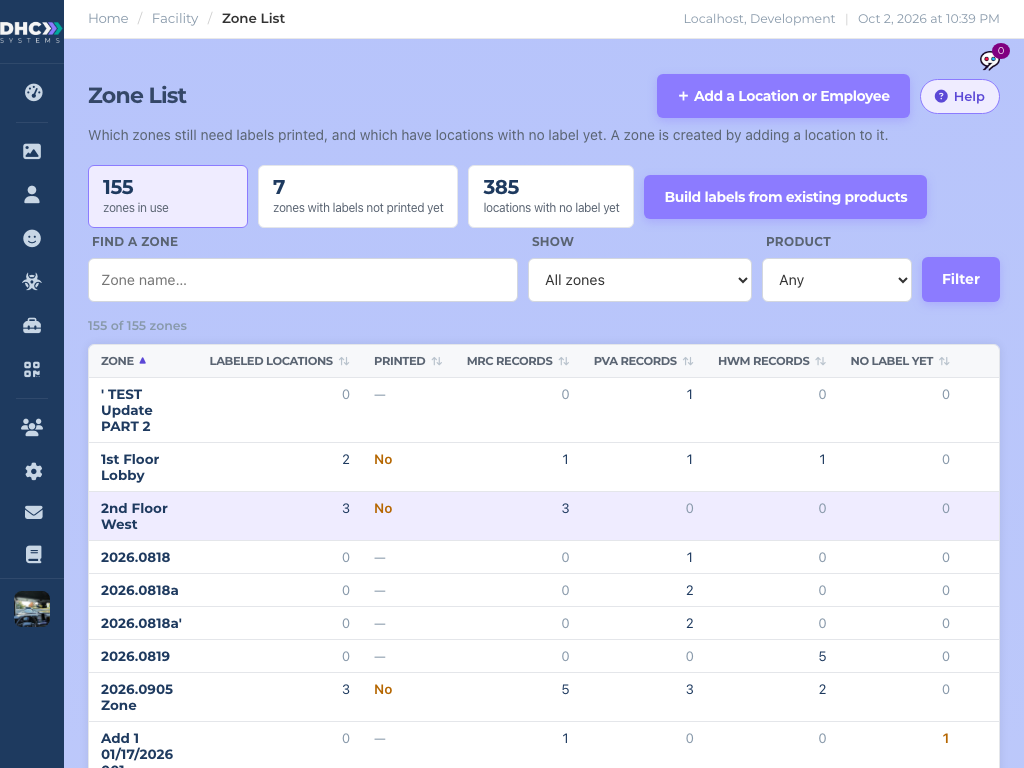
Across the top of every page there is a thin bar. On the left it shows where you are, for example Home / Facility / Zone List. Click Home to return to the Dashboard. On the right it shows your location and the current date and time, so you can tell at a glance that the page is live and in your time zone.
The breadcrumb bar on the Zone List page.
The Help button
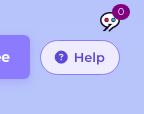
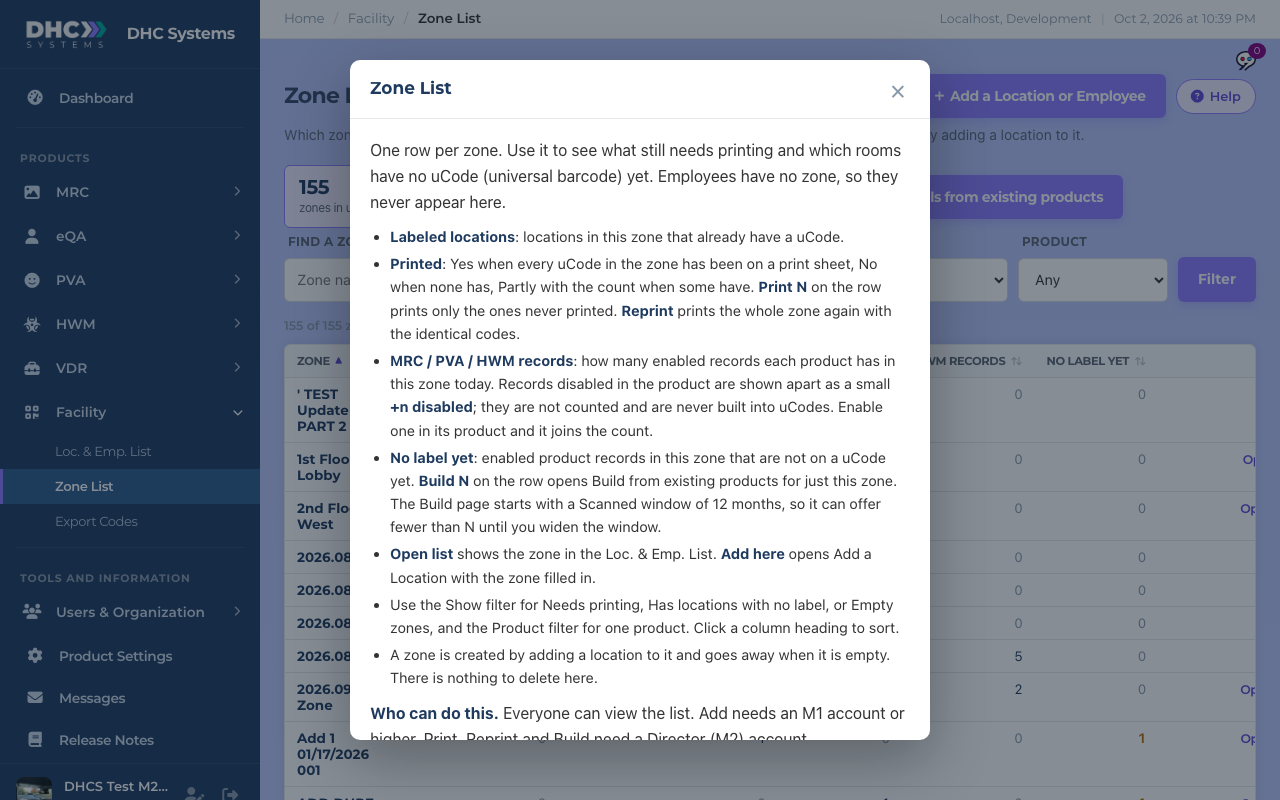
Most pages have a Help button with a question mark in the top right corner, next to the page title. Click it for a short explanation of that exact page: what the columns mean, what the buttons do and who can use them. It is written for the current version, so when the page changes the help changes with it. Close it with the ×, the Escape key, or by clicking outside the box.
The Help button lives next to the page title.The help box for the Zone List page.
The small speech bubble icon near the Help button is FeedbackTrax. Click it to send DHC Systems a comment or a bug report about the page you are on. The number on it is how many comments that page already has.
On a phone
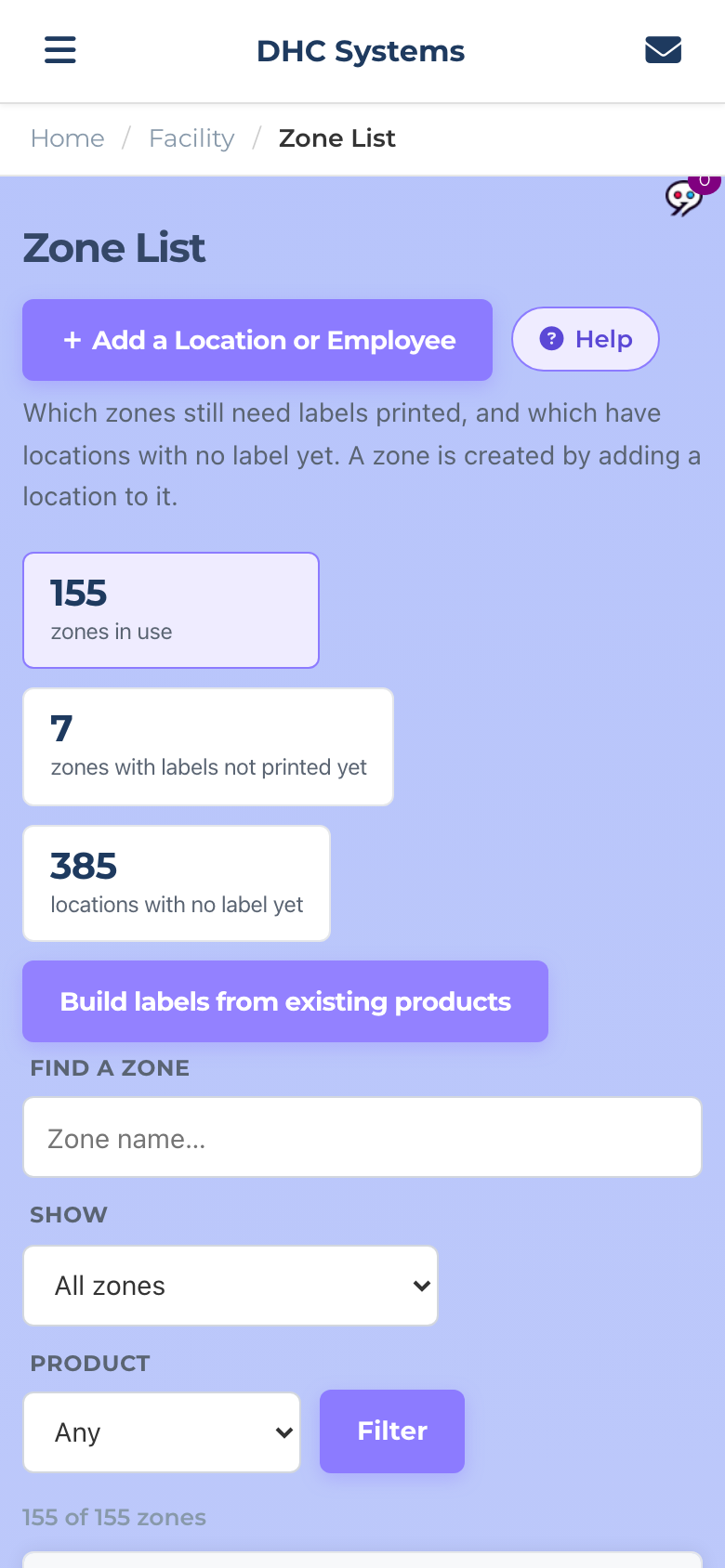
Below about 768 pixels wide the sidebar hides and a white top bar appears. The three lines on the left open the sidebar as a drawer over the page. The envelope on the right opens Messages, and shows a red count when you have unread announcements. Tap a link in the drawer and it closes on its own. Tap the shaded page to close it without choosing anything.
The phone layout. The sidebar is behind the three line button.The drawer after you tap the three lines.
On a tablet the sidebar shrinks to a narrow strip of icons so the page gets the room. Tap any icon to pop the full sidebar out, choose a page, and it tucks back in.
The tablet layout: icons only until you tap one.
Who sees what: IC, M1 and Director (M2)
There are three kinds of client accounts. The sidebar only shows what your account can use, so the three look different. Lists and reports always show your own company only.
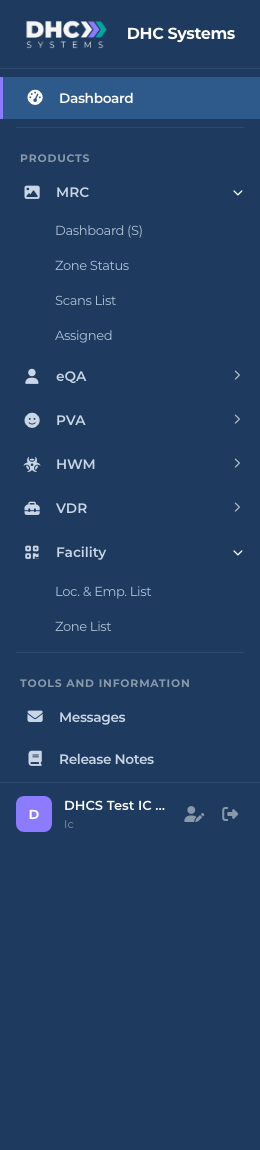
IC account (worker). Sees the Dashboard, the report pages (Dashboard (S)) and the lists for each product, Loc. & Emp. List and Zone List under Facility, and Messages. No add, export or user pages. Scanning a uCode does not need an account at all.
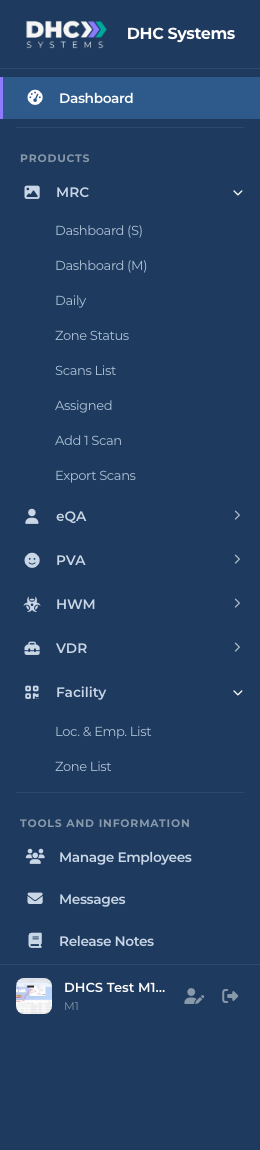
M1 account (manager). Everything an IC sees, plus the manager reports (Dashboard (M) and Daily), the single Add 1 … pages and Export pages inside each product, and Manage Employees for the people who report to them.
Director (M2). Everything, including Bulk Add and Bulk Assign pages, Export Codes under Facility, Users & Organization (Manage Users and Org Chart) and Product Settings.
An IC account’s sidebar.An M1 account’s sidebar.
If you need something you cannot see, ask your Director (M2). They change account types on the Manage Users page (see Managing Users). The change applies the next time you sign in.
Who can do this
Everyone can use the sidebar, breadcrumb bar and Help button. The pages inside depend on your account type as listed above.
Tips
Lost? Click the logo or Home in the breadcrumb bar and start again from the Dashboard.
Collapse the product groups you do not use. The sidebar remembers and stays short.
Read the Help button text first when a page is new to you. It is the most up to date description of that screen.
Expecting a product group that is not there? Your company may not have that product switched on. Your Director (M2) can check with DHC Systems.