Every DHC Systems product is recorded the same way: a worker points a phone camera at a QR code on the wall, a door or a badge, and a short form opens in the browser. No app to install, no sign in, no typing a room number. This article covers that shared flow. The questions on each form are explained in the product sections of this guide.
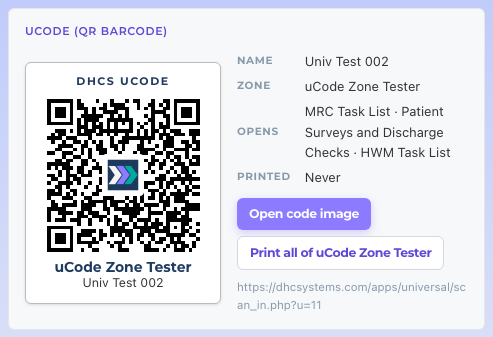
A uCode. One sticker opens every product that is switched on for that location.
How to scan
Open the Camera app on your phone. On an iPhone or any recent Android phone the normal camera reads QR codes by itself. You do not need a separate scanner app.
Hold the phone so the whole QR code is inside the frame, about a hand’s length away. Keep it steady for a second.
A link pops up at the top or bottom of the screen. Tap it. Your browser opens the DHC Systems page for that code.
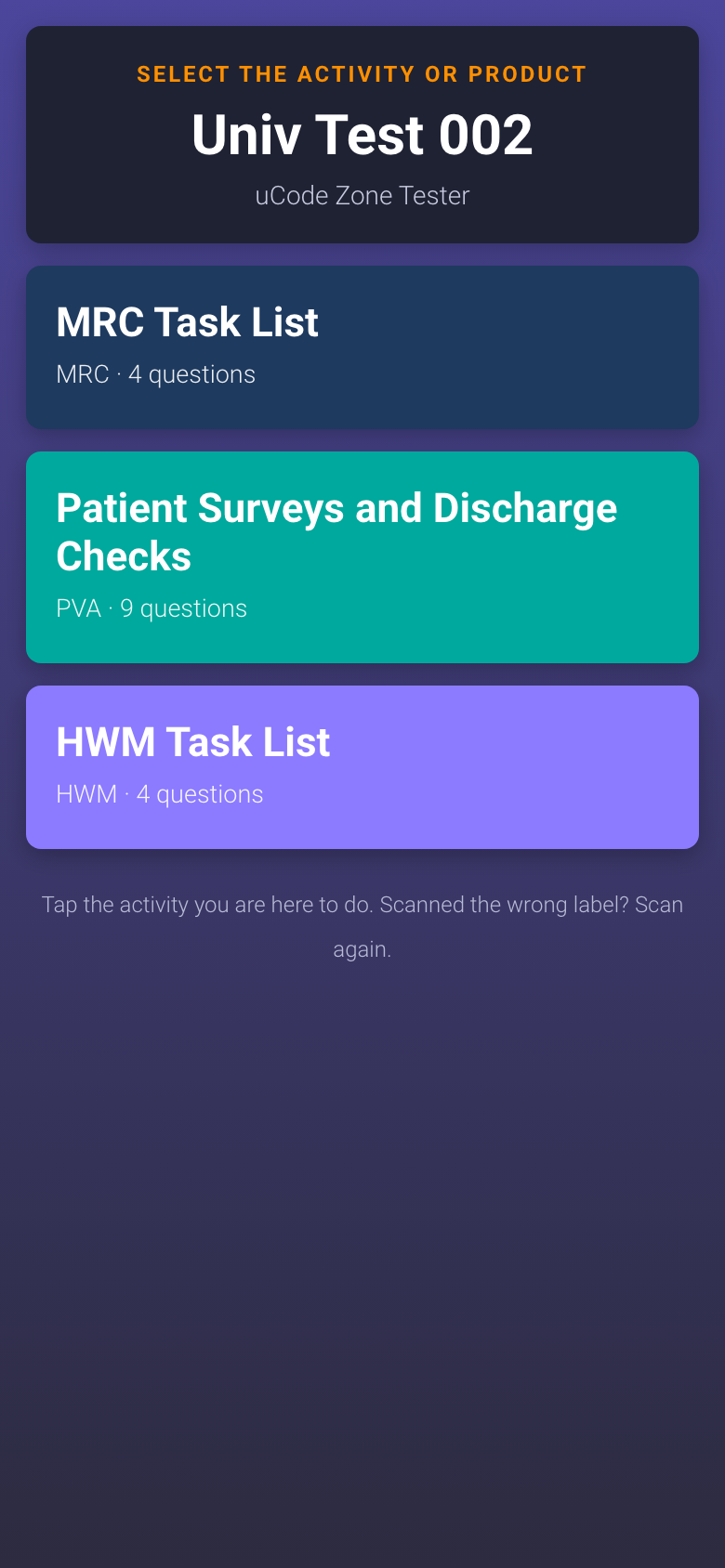
If the code is a uCode with more than one product switched on, you see a menu titled Select the activity or product. Tap the one you are here to do. If only one product is switched on, the form opens straight away and you skip the menu.
Answer the questions, add a photo or a note if the form asks for one, and tap the complete button at the bottom. A thank you page confirms the scan was saved.
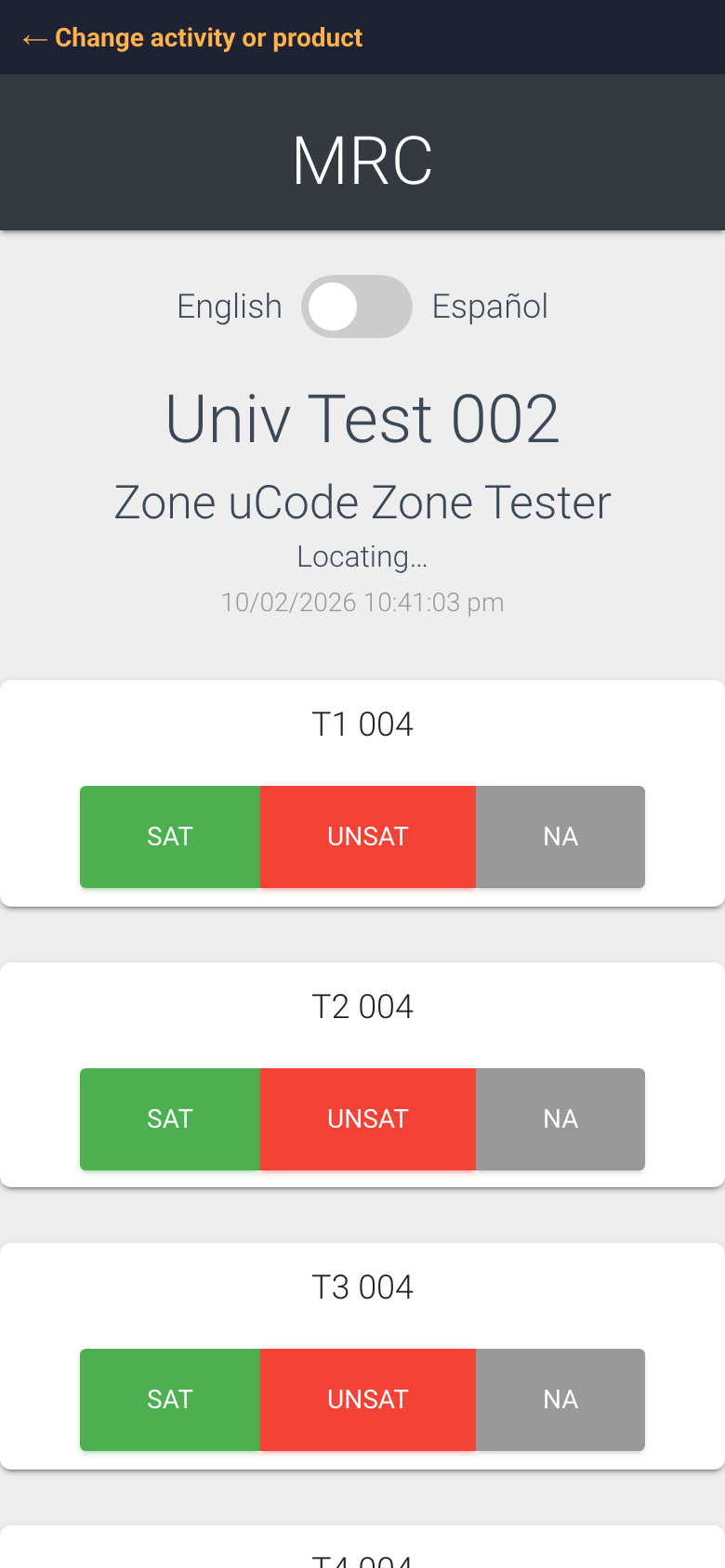
The uCode menu. Each button says which product it is and how many questions it has.The MRC form after you tap MRC Task List. The orange link at the top takes you back to the menu.
uCode menu or straight to the form?
There are two kinds of code you may meet.
A uCode (universal barcode). The sticker says DHCS UCODE, has the DHC Systems logo in the middle, and shows the zone and the location or employee name underneath. It opens a menu when two or more products are switched on for that spot. Grey buttons on the menu mean the product is disabled or not set up for that location, and the button says which. An orange outlined button means the product is on but has no questions yet, so ask your manager to add them.
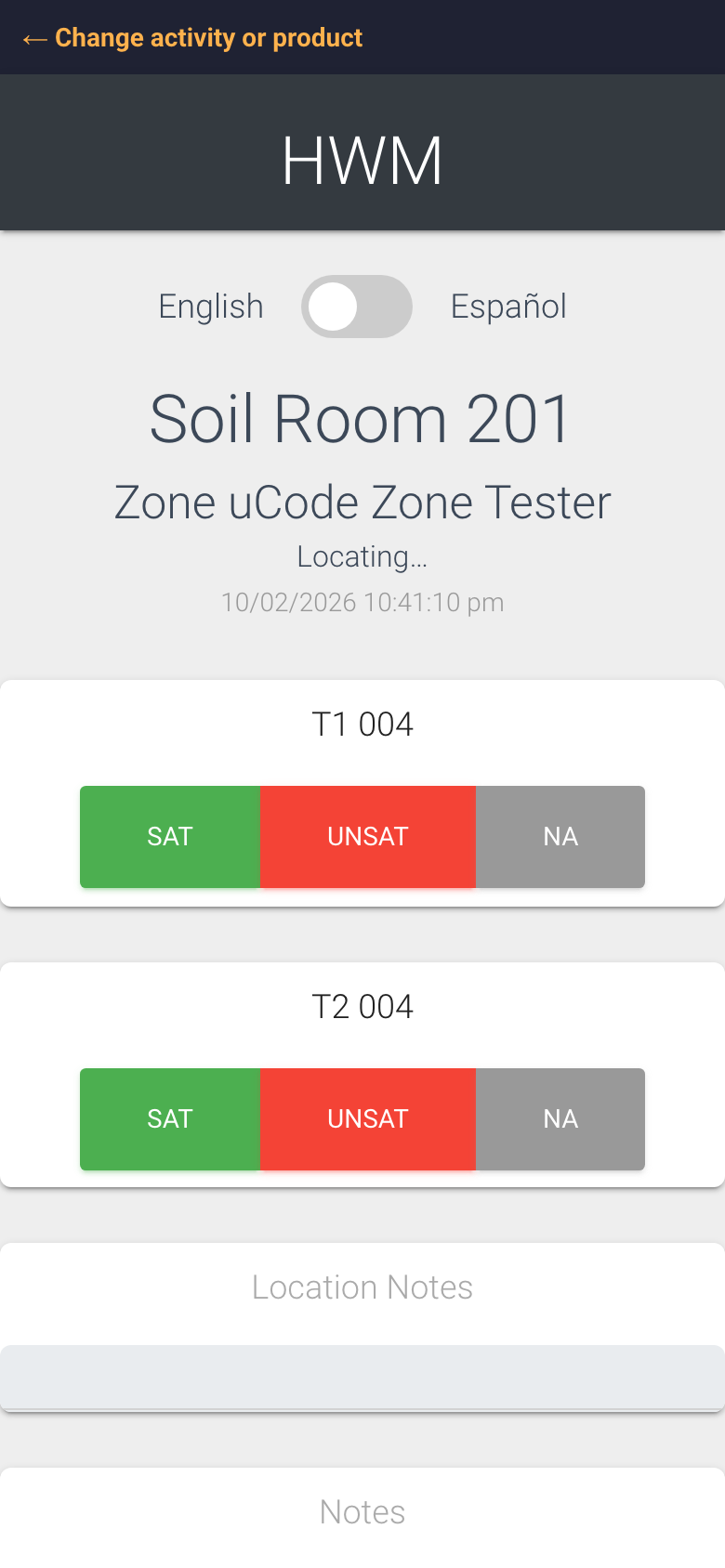
A product specific code. Older stickers printed from inside one product (for example an MRC scan code or an HWM location code) open that product’s form directly. They keep working. Your Director (M2) can replace them with uCodes over time using Build under Facility, see the article Build uCodes from Existing Products.
A location with one product goes straight to the form. The Change activity or product link is still there in case the menu is needed.
On the form the heading shows the location or employee the code belongs to and the date and time of the scan. Locating… under the heading means the browser is asking for your location to record where the scan happened. You can say no, the scan still saves. The English / Español switch changes the language of the form.
What to do if nothing happens
The camera does not show a link. Move closer or further away, and make sure the code is well lit and not covered by glare. On older Android phones open the Google Lens or the QR option inside the camera app, or use the Google app’s camera.
The browser asks to use the camera or your location. Tap Allow. Allowing the camera lets the form take a photo. Allowing location is optional.
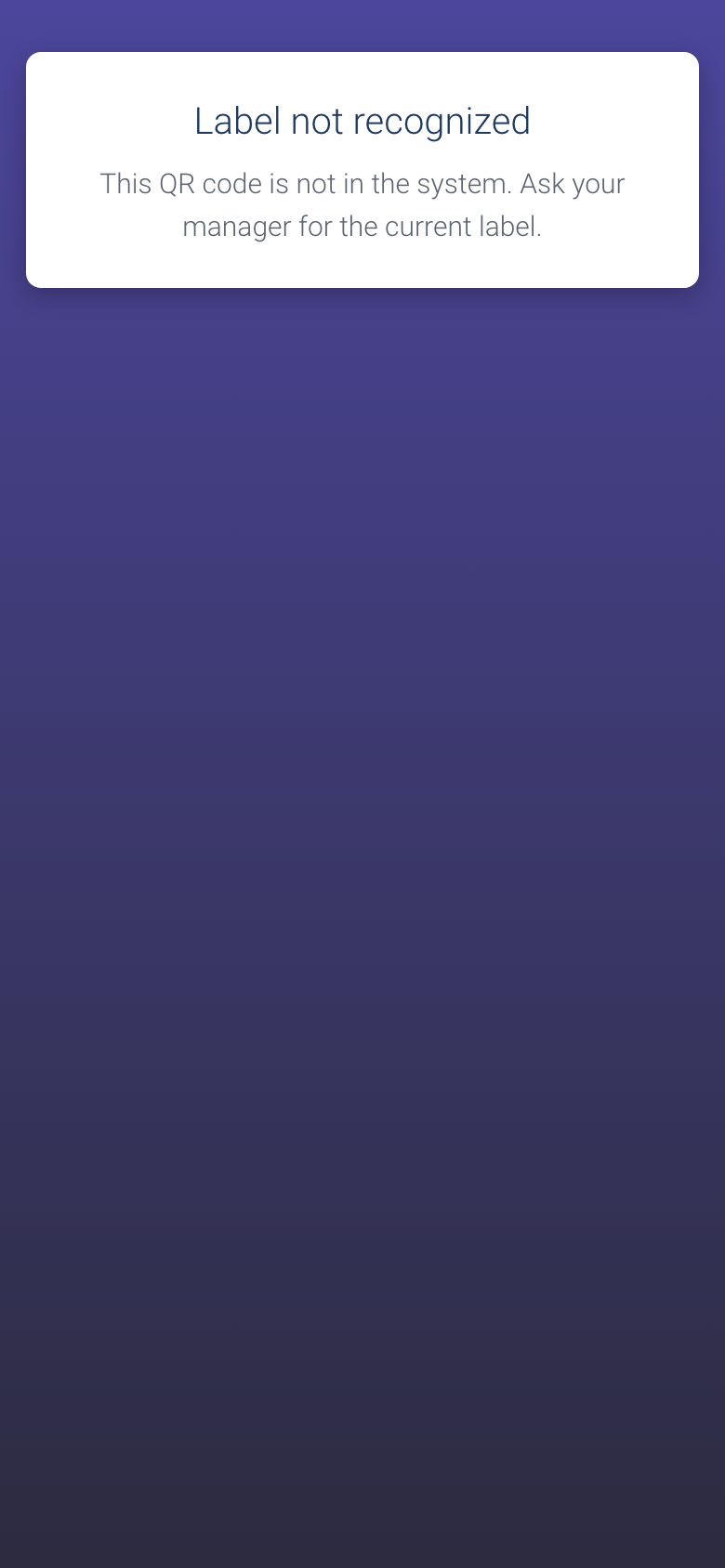
The page says “Label not recognized”. The code is not in the system any more. Ask your manager for the current sticker.
The page says “This label has been deleted” or “Everything on this label is turned off”. Your Director (M2) has disabled this location or its products. Ask them to restore it or print a new code.
The page says “Please try again”. The phone could not reach the server. Check Wi-Fi or mobile data and scan again.
The page loads but the buttons do nothing. Close the tab and scan again. If it keeps happening, try the other browser on your phone (Safari or Chrome) and tell your manager which one failed.
You scanned the wrong code. Just scan the right one. Nothing is saved until you tap the complete button.
What you see when a code is not in the system.
Who can do this
Anyone with the sticker in front of them. Scan pages do not ask you to sign in. Reports and lists do, and they are only for your company’s accounts.
Tips
Safari on iPhone and Chrome on Android are the browsers DHC Systems tests on. Keep your phone’s browser up to date.
Let the thank you page finish loading before you walk away or lock the phone, especially if you attached a photo.
Poor signal? The form still opens from the camera link once it loads. Finish the questions near a window or a Wi-Fi access point if the upload is slow.
Stickers fade and peel. If a code is hard to scan, ask your Director (M2) to reprint it from Export Codes. The replacement is the identical code, nothing else changes.
Scan at the spot, not from the hallway. The scan records the time and, if you allow it, the place, and that is what makes the reports trustworthy.