Directors (M2) look after everyone at their organization from Users & Organization in the sidebar. M1 accounts get a smaller version called Manage Employees for their own team. Here you add people, decide what kind of account they have, say who they report to, and disable accounts when someone leaves. This replaces the v3 “User Management” page.
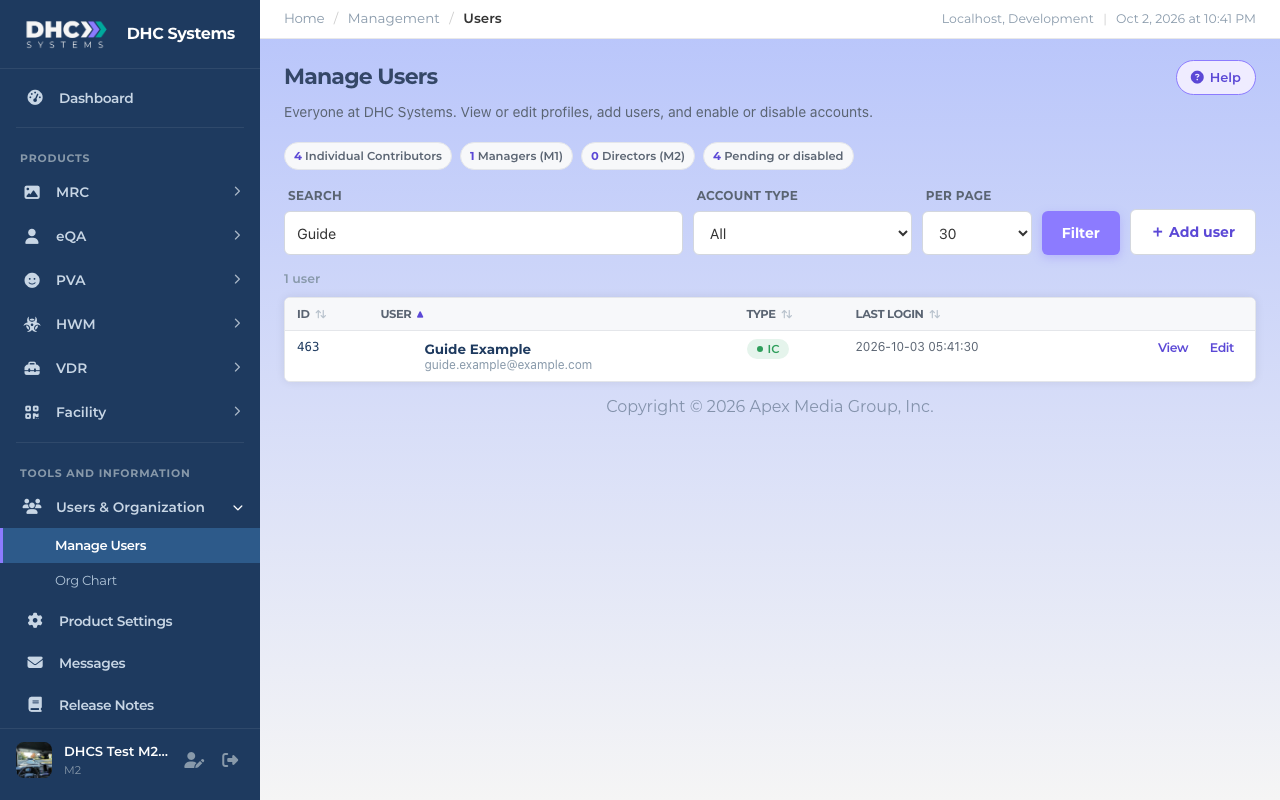
Manage Users, filtered by a search. The pill in the Type column is also the enable and disable switch.
The three account types
Individual Contributor (IC). The worker account and the default for anyone new. Sees the Dashboard, the Dashboard (S) reports and the lists. Cannot add, export or manage anything.
Manager (M1). Adds the manager reports (Dashboard (M), Daily), the Add 1 … and Export pages in each product, and Manage Employees for the people whose manager they are.
Director (M2). Everything, including bulk pages, Export Codes, Manage Users, Org Chart and Product Settings.
Disabled accounts show as Disabled. A person who registered themselves but has not been set up yet shows as PENDING and cannot sign in until you give them a type. Both are counted in the Pending or disabled figure at the top of the page.
How to find someone
Open Users & Organization then Manage Users.
Type part of a name, email or login in Search. Two words narrow the match, so “jordan lee” finds Jordan Lee.
Pick an Account type to see one role at a time. Choose Disabled to review disabled accounts.
Click Filter. Click a column header to sort, and Per page to show more rows.
Last login shows the date, time and address of the person’s most recent sign in, handy for checking who is actually using the system.
How to add a user
This is the quickest way to get a new person in. The account works the moment you save it, no approval step.
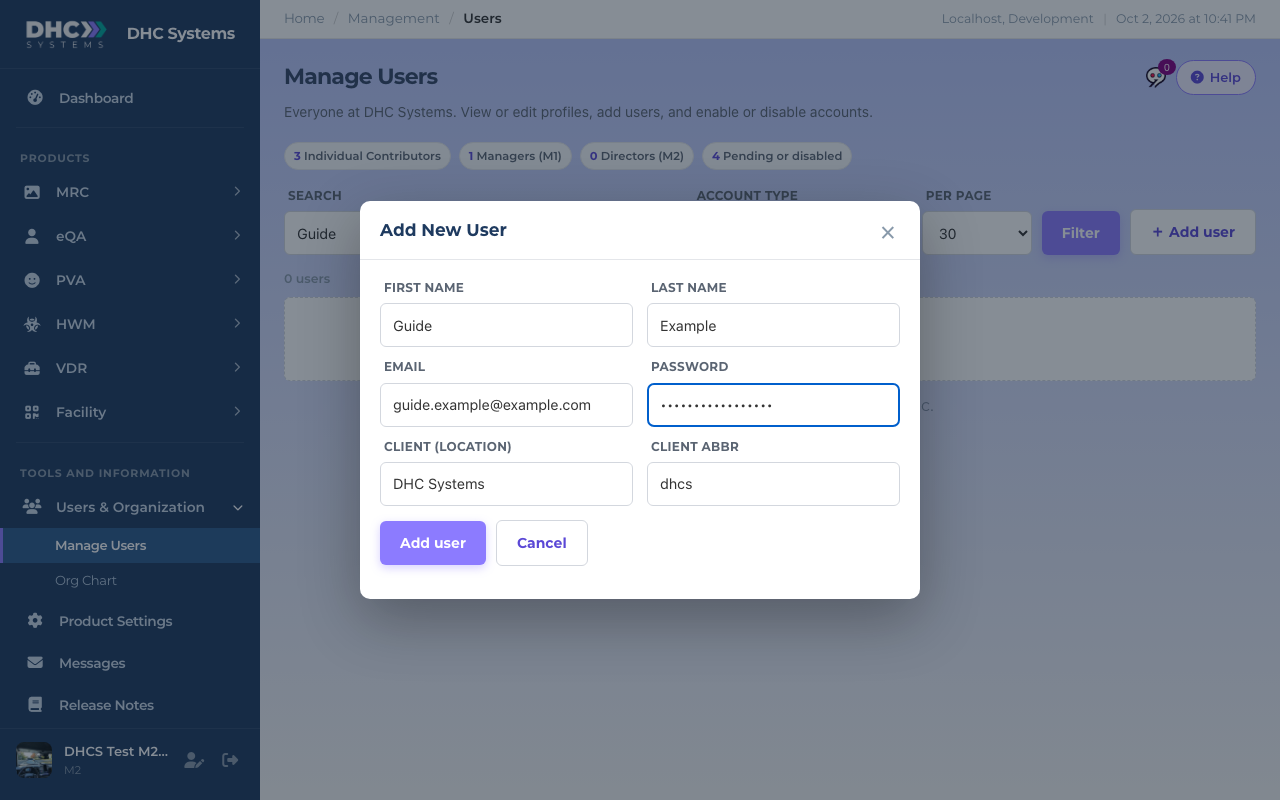
Click + Add user. The Add New User box opens.
Fill in First name, Last name and Email. The email is what they will sign in with and must not already be in use.
Type a starting Password of at least 8 characters (letters, numbers and _ ! @ $ # % ^ & * – . + =). Tell the person what it is, and ask them to change it using Forgot Password? on the sign in page when they are ready.
Client (location) is pre filled with your organization. Leave Client abbr as it is, it cannot be changed.
Click Add user. A green note confirms it and the list refreshes.
The Add New User box. New people start as Individual Contributors.
New users always start as Individual Contributor (IC). To make someone a Manager or Director, edit them after adding, see the next section.
How to edit a user: account type, manager, employee ID
Find the person and click Edit (or View to look without changing anything).
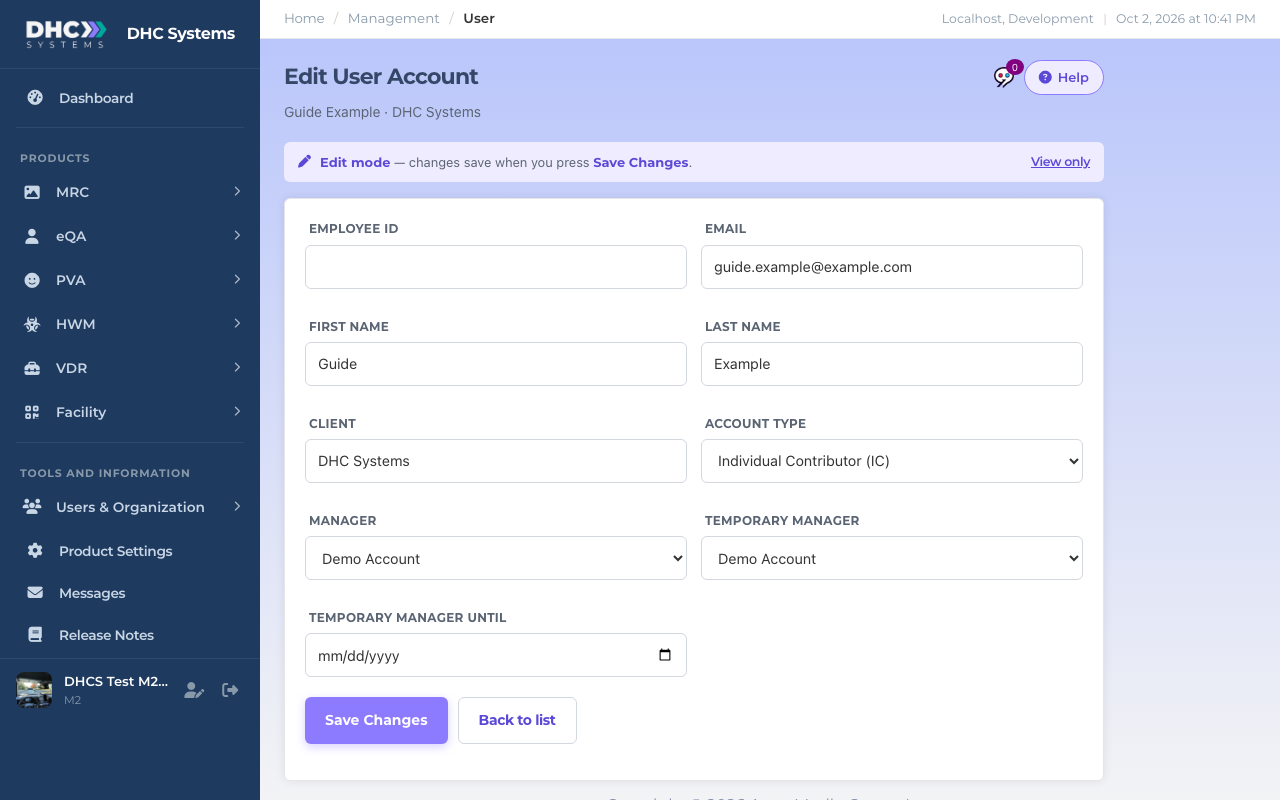
The banner at the top says whether you are in Edit mode or View only. Use the link on its right to switch.
Change what you need: Employee ID (the number your HR system uses), Account type (IC, M1 or M2), Manager (who this person reports to; the list shows your M1 accounts and Directors), Temporary manager and Temporary manager until (cover for leave or a rotation; until that date the person shows up on the temporary manager’s team instead).
Click Save Changes. You see “User updated successfully” and go back to the list.
Edit User Account. Name, email and client are shown for reference only.
Name, email and client are greyed out here. People change their own name and email on their Profile page. A new account type takes effect the next time the person signs in.
How to disable or re-enable a user
Disabling blocks sign in and takes the person out of the Org Chart. Nothing they recorded is removed, and you can turn the account back on later.
Find the person in the list.
Click the coloured pill in the Type column (it says IC, M1, M2 or Disabled).
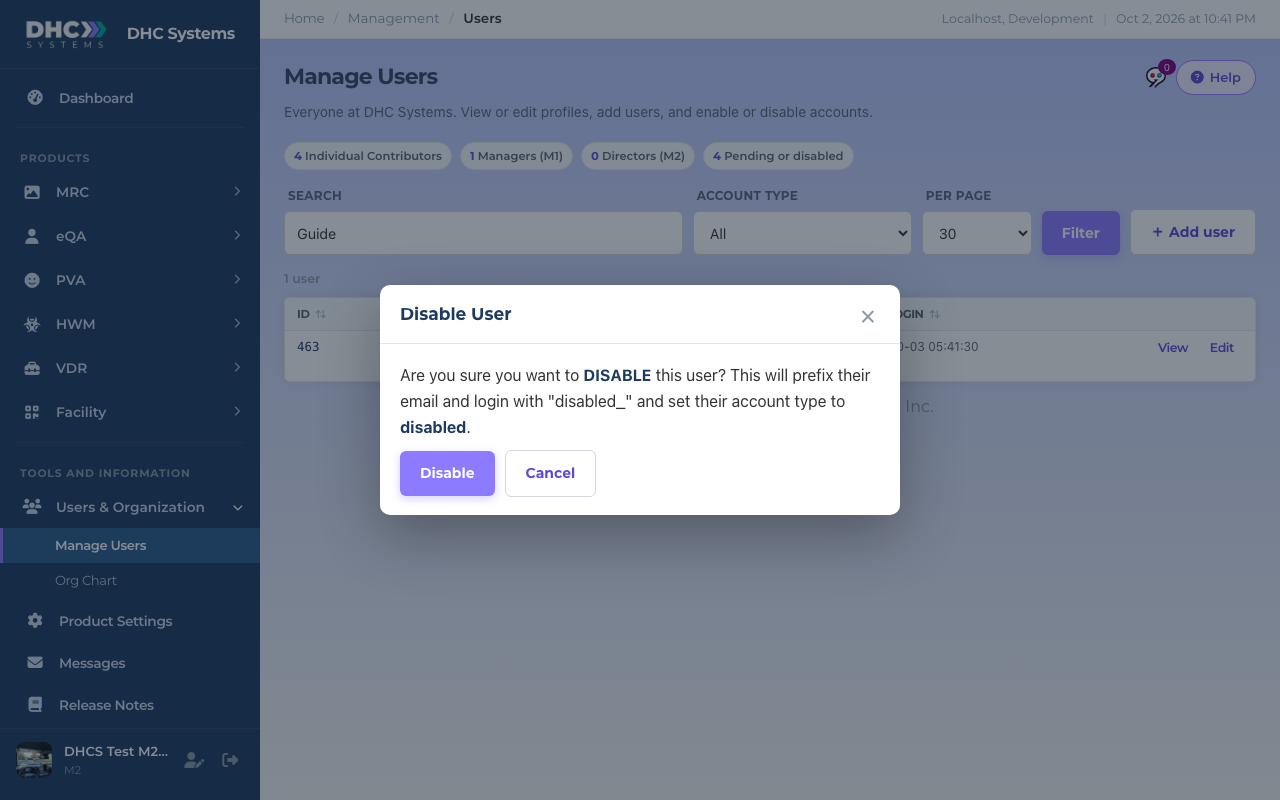
Read the Disable User (or Enable User) box and click Disable (or Enable). Cancel backs out.
The confirmation before an account is disabled.
Two things to know. Disabling puts “disabled_” in front of the person’s email and login, which is how you will recognise them in the Disabled filter. Re-enabling removes that prefix and sets the account type back to IC, so give them their M1 or M2 type again afterwards if they need it.
Passwords
You set the first password when you add a user. After that, passwords are the user’s own. You cannot see or change them from Manage Users. Someone who is locked out should use Forgot Password? on the sign in page, which emails them a reset link. If their email on the account is wrong, fix it on their behalf by asking them to update their Profile, or email gmgllc@outlook.com.
The Org Chart
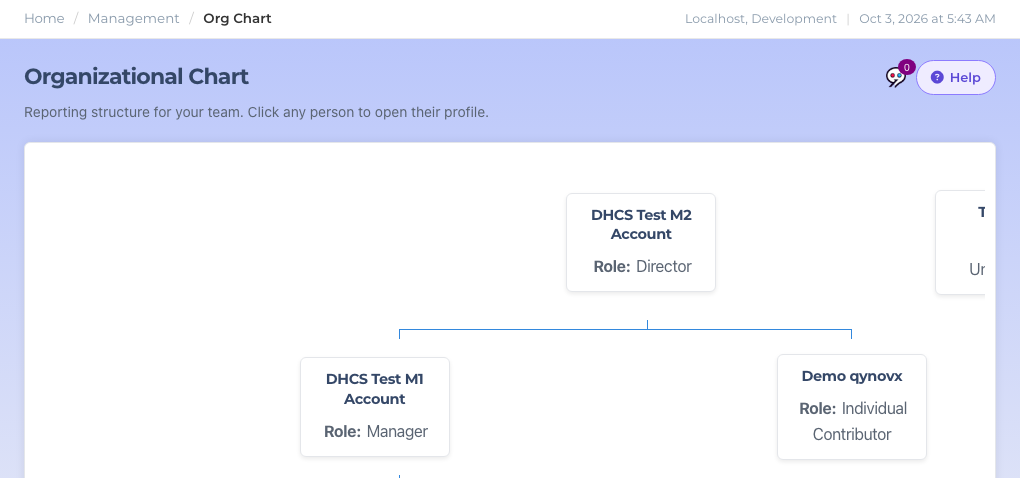
Users & Organization then Org Chart draws your reporting structure: Directors at the top, Managers under them, and team members under their manager. Click any card to open that person’s account page. People with no manager appear at the top level as Unassigned, and the chart scrolls sideways when the team is wider than the screen. To move someone, change their Manager on the edit page, the chart follows.
The Org Chart. Reporting lines come from each person’s Manager field.
Manage Employees for M1 accounts
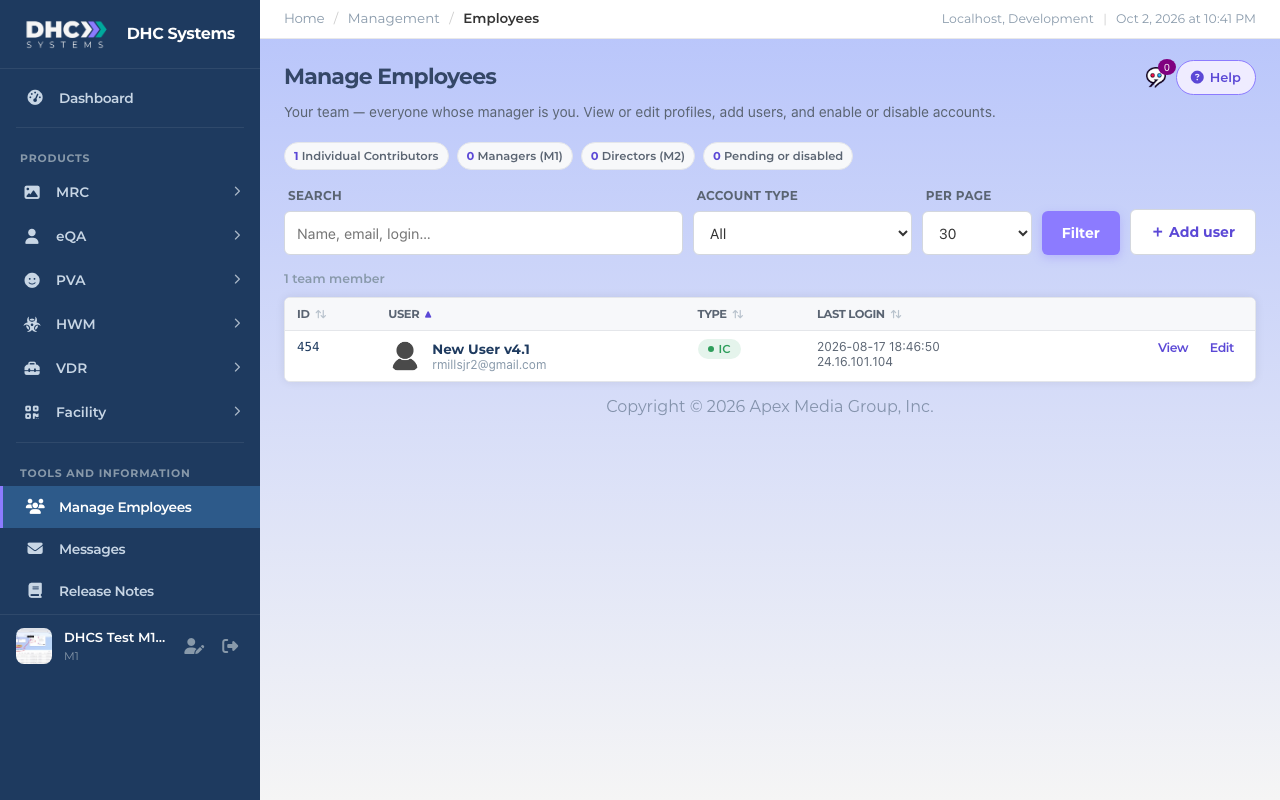
M1 accounts see Manage Employees in the sidebar instead of Users & Organization. It is the same list, limited to people whose manager is you, including anyone temporarily assigned to you. You can search, add users, view and edit, and disable or re-enable your own team. On the edit page an M1 account can change the Employee ID and the Temporary manager; the Account type and Manager fields are for Directors.
Manage Employees, the M1 view.
Who can do this
Directors (M2) can do everything on this page for everyone in the organization. M1 accounts can manage their own team through Manage Employees, except changing account types and managers. IC accounts do not see these pages.
Tips
Add the person yourself rather than sending them to Register. Your account works immediately; a self registered one waits to be set up.
Give every user an Employee ID. Several reports and lists can match people by it.
Set a Manager for everyone. It drives the Org Chart, the Manage Employees view and the manager reports.
Use Temporary manager for holidays instead of changing the real manager and forgetting to change it back. It expires on its own.
Every add, edit, enable and disable is written to the activity log, so you can always find out who changed what.