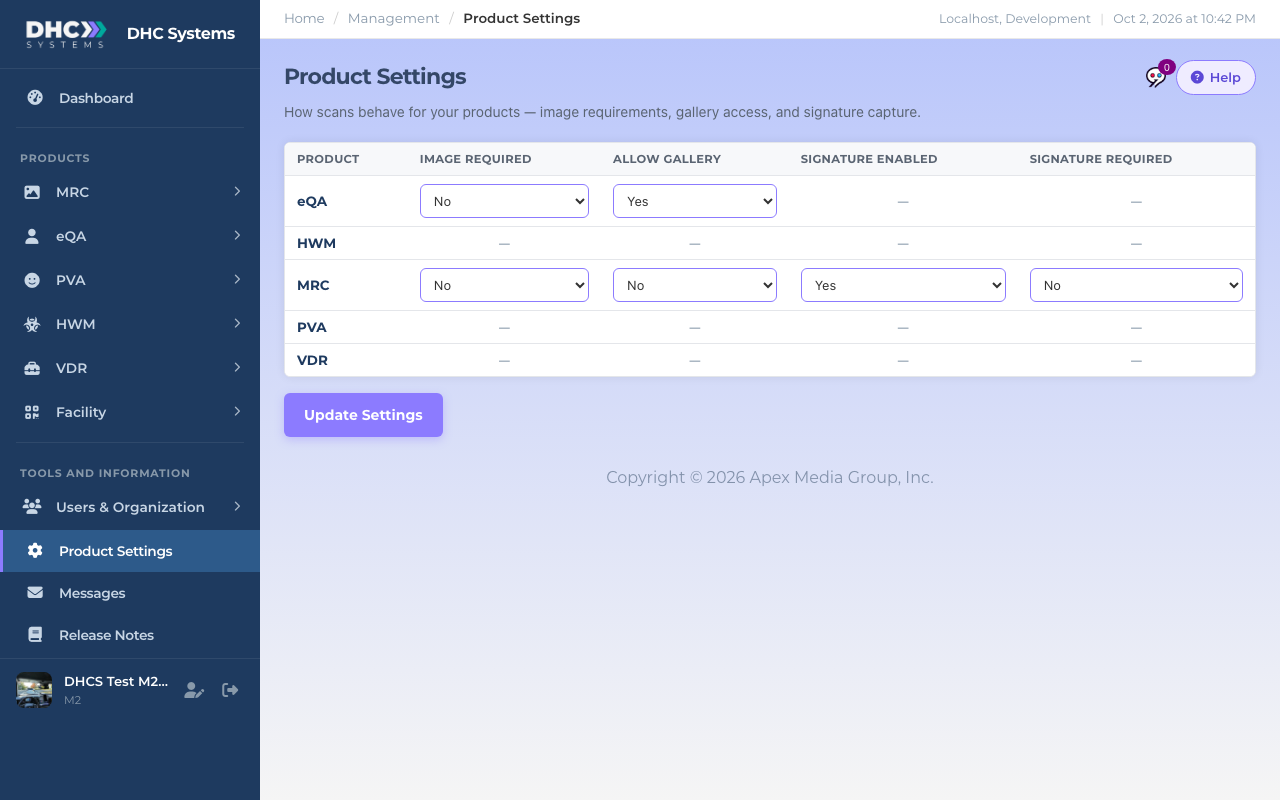
Product Settings is where a Director (M2) decides how scans behave for the whole organization: whether a photo is compulsory, whether workers may pick a photo from their phone’s gallery, and whether the MRC form asks for a signature. One row per product, four settings, one Update Settings button. Changes apply to the next scan anyone makes.
Product Settings. A dash means that setting does not apply to that product’s scan page.
What each setting does
Image required.Yes means the worker cannot complete the scan until a photo is attached. No makes the photo optional. Applies to MRC and eQA.
Allow gallery.Yes lets the worker choose between taking a photo now or picking one already on the phone. No allows the camera only, so the picture has to be taken on the spot. Applies to MRC and eQA. Some older Android phones ignore the camera only restriction; Image required works everywhere.
Signature enabled.Yes shows a signature pad at the bottom of the MRC form. No hides it. MRC only.
Signature required. Only available when Signature enabled is Yes. Yes blocks completion until the pad has been signed. MRC only.
Where you see a dash instead of a drop down, that product’s scan page does not have the feature. The PVA survey forms have no photo upload. HWM scans currently always offer an optional photo, so its two image settings are not editable yet. Hover over a dash for the reason. A product marked Read only is managed by DHC Systems and cannot be changed here.
How to change a setting
Open Product Settings in the sidebar.
Change the Yes / No drop downs you need. For MRC, set Signature enabled to Yes first and the Signature required drop down unlocks.
Click Update Settings. A small message confirms “Settings updated successfully.”
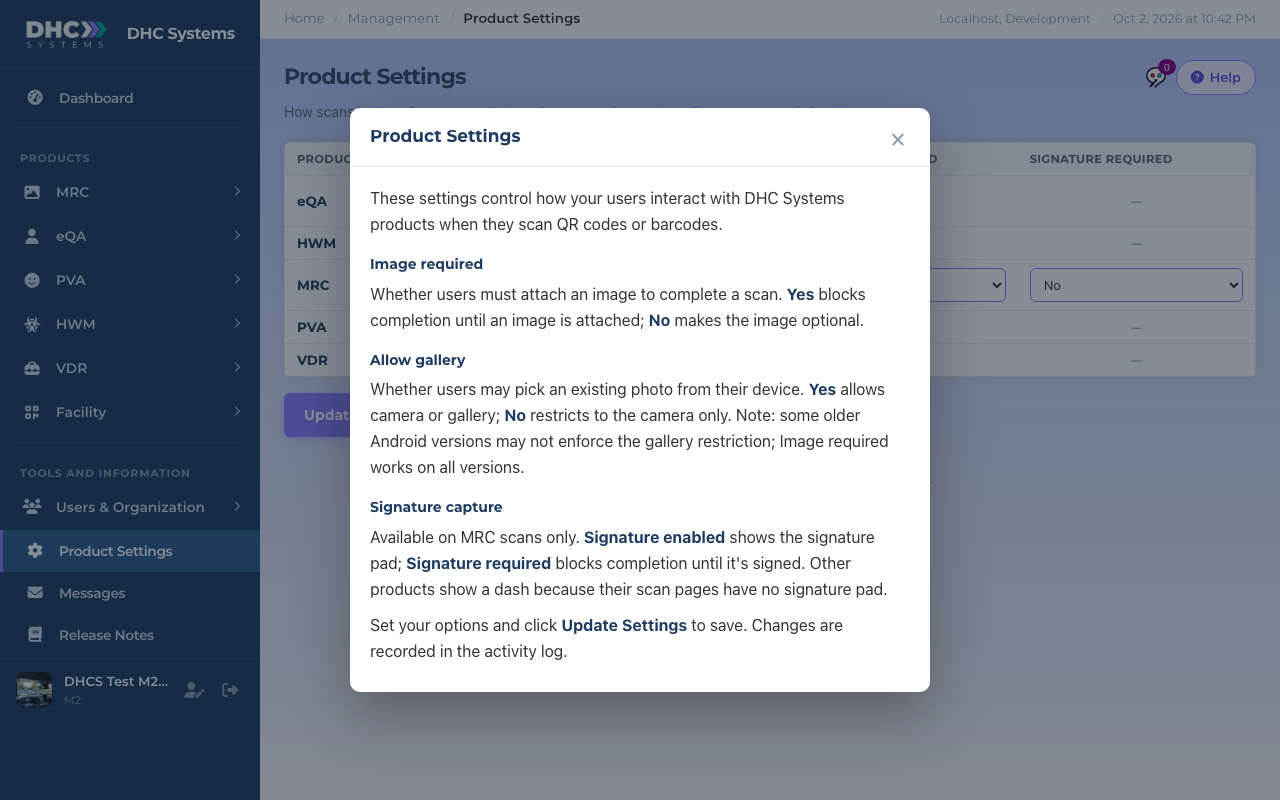
The page’s own Help box repeats these definitions.
The new behaviour starts with the next scan. Workers already part way through a form finish it under the old rules.
Who can do this
Directors (M2) only. M1 and IC accounts do not see Product Settings in the sidebar. Every change is recorded in the activity log with who made it and the old and new values.
Tips
Turn on Image required when photos are your proof, for example room readiness. Leave it at No for fast rounds where a photo would slow people down.
Allow gallery: No is the setting to use when you want to be sure the picture was taken at the time of the scan.
Try a change on one test scan with your own phone before announcing it to the team.
Settings are per product, not per location. If you need a rule for one zone only, talk to DHC Systems.