Everything for eQA Task List is under eQA in the left sidebar. Click eQA to open or close the group. What you see inside depends on your account type: a worker (IC account) sees the reports and lists, an M1 account can also add and edit, and a Director (M2) gets everything including bulk add and the ability to disable records.
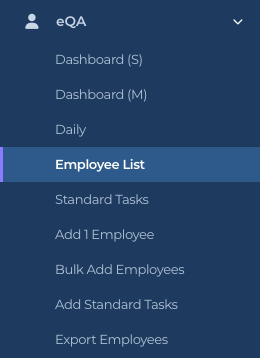
The full eQA menu as a Director (M2) sees it
What each link does
Dashboard (S). Today’s snapshot: QAs by hour, checks by Sat and UnSat, and the Sat Ratio gauge. See “eQA Dashboard (S)”.
Dashboard (M). Today’s manager view: the same tiles plus QAs by employee, who did the checking, and Fast QAs. See “eQA Dashboard (M)”.
Daily. The full report with a date range and the daily, manager, employee and details tabs. See “eQA Daily Report”.
Employee List. Everyone being QA’d, with their title, checks, manager, director and last QA. Opens on the Active view.
Standard Tasks. Your reusable lists of checks and how many employees are on each.
Add 1 Employee. Adds one person with their uCode and puts them on a standard task list. This opens the Facility add page with “An employee” already chosen.
Bulk Add Employees. Director (M2) only. Upload a spreadsheet of employees. Also a Facility page.
Add Standard Tasks. Create a new standard task list.
Export Employees. Print the eQA QR code sheets for your employees.
Who sees what
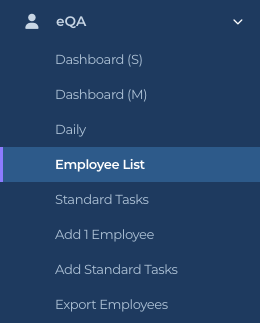
An M1 account sees everything except Bulk Add Employees
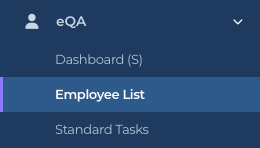
IC account (worker): Dashboard (S), Employee List and Standard Tasks. Lists are read only.
M1 account: all three reports, both lists, Add 1 Employee, Add Standard Tasks and Export Employees. Can add and edit employees and standard task lists.
Director (M2): everything above plus Bulk Add Employees, and the ability to disable or enable employees and standard task lists from the Status column.
A worker’s eQA menu
Finding your way around a page
The breadcrumb at the top of the page (Home / eQA / Employee List) tells you where you are. Click eQA in it to go back to the dashboard.
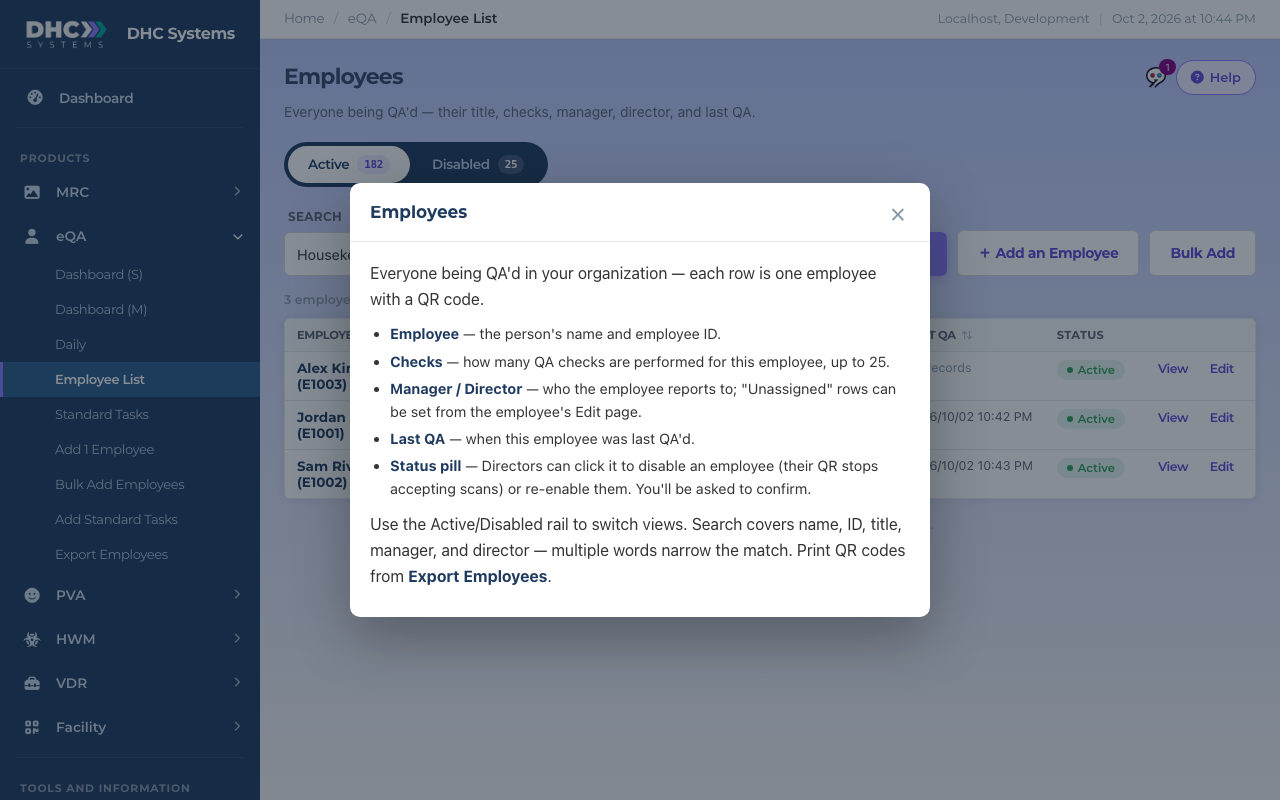
Every eQA page has a Help button at the top right. Click it for a short explanation of that page’s columns and buttons, then click the × to close it.
Help on the Employee List
List pages share the same layout: an Active / Disabled switch with counts, a Search box, Per page (30, 100 or 250), a Filter button, and View and Edit links on each row.
Click any column header with the small arrows to sort by it. Click again to flip the order.
On a phone the sidebar collapses behind a menu button. The report pages switch to a phone layout on their own.
Tips
Add 1 Employee and Bulk Add Employees are shared with the Facility group, so the sidebar highlights Facility while you are on them. That is normal. When you save, you land on the employee’s record.
The Dashboard page at the very top of the sidebar is the company-wide dashboard for every product. The eQA ones are inside the eQA group.