Daily is the full eQA report. Pick a date range and it shows QAs and checks by day, by manager and by employee, plus the detail of every single QA including its photo. Use it for weekly reviews, for a specific employee’s history, or to find out what happened on one day. It is for M1 accounts and Directors (M2). Open it from eQA, then Daily.
Tabs on the left, date range on the right
How to run the report
Click eQA in the sidebar, then Daily. Wait a few seconds for the Power BI report to load.
Set the dates with the two boxes at the top right. Click a box to pick from a calendar, or type the date straight in. The left box is the start, the right box is the end. The page updates on its own; there is no Run button.
Pick a tab next to the report title: daily, manager, employee or details. The date range stays the same when you switch tabs.
Hover over any chart point or table row for the numbers. Click a bar or a row to filter the rest of the page to that person or day; click it again to clear.
Keep the toggle on Power BI
The daily tab
This is the tab that opens first. Everything is for the date range you set.
Daily QA’s (top left). QAs per day across the range. Gaps are days with no checking.
Daily Checks by Sat vs Unsat (below it). The checks inside those QAs per day. Green is Sat, red is Unsat, grey is NA.
QA’s and Images (teal tiles). QAs completed and photos or videos attached in the range.
Checks (teal), Sat (green), Unsat (red) and NA (grey) tiles. All checks answered in the range and how they split.
Sat Ratio (gauge). Sat divided by Sat plus UnSat for the range.
QA’s by Employee (bar chart). Employees checked in the range, most QAs first.
Fast QA’s (table). Pairs of QAs by the same manager only seconds apart: both timestamps, the Time Diff. in seconds, both employee names and the manager’s ID under Check By.
QA’s By (table). One row per manager: Check By Name, By ID, QA’s, Checks and their Sat Ratio, with a Total row.
The other tabs
manager. The same numbers organised around the person doing the checking. Use the name search and list to pick one or more managers, then read their QAs by day and by hour. A manager with no QAs in the range is not in the list.
employee. The same numbers organised around the person being checked. Start typing in the employee search, click a name to filter, click it again to unselect.
details. A list of each individual QA in the range. Click a row to see that QA’s answers, notes and the attached photo in the details card beside it. This is where you go when someone asks “what exactly was marked UnSat on Tuesday?”.
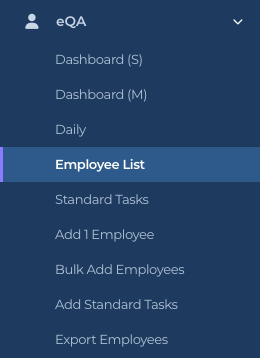
Daily is the third link in the eQA group
Print Page and Help
Two buttons sit above the report. Print Page prints the report page you are looking at, in landscape, with the sidebar and menus left out. In the Chrome print dialog open More settings and tick Background graphics so the colored tiles print. Help opens a short guide to the page without leaving it: how to read the charts, how the filters work, and what to do if the data looks out of date. For anything else, ask Sage from the sidebar.
Print Page and Help sit above every product report.
Who can do this
M1 accounts and Directors (M2). Workers (IC accounts) see Dashboard (S) only. You only ever see your own company’s data.
Tips
The report opens with a recent default range. Check the dates before you read the tiles.
Type dates as month/day/year, for example 10/1/2026.
Hover over the top right corner of a table and use the … menu to export its rows to Excel.
Reports can be a little slow in the first few seconds after you log in. Wait, do not click twice.