Once a Standard Task list exists you can change its checks, put employees on it, and move people from one title to another. One thing to know up front: editing the list changes the template only. Employees already on that title keep the checks they have until the title is re-applied to them from their own record. Open the list from eQA, then Standard Tasks.
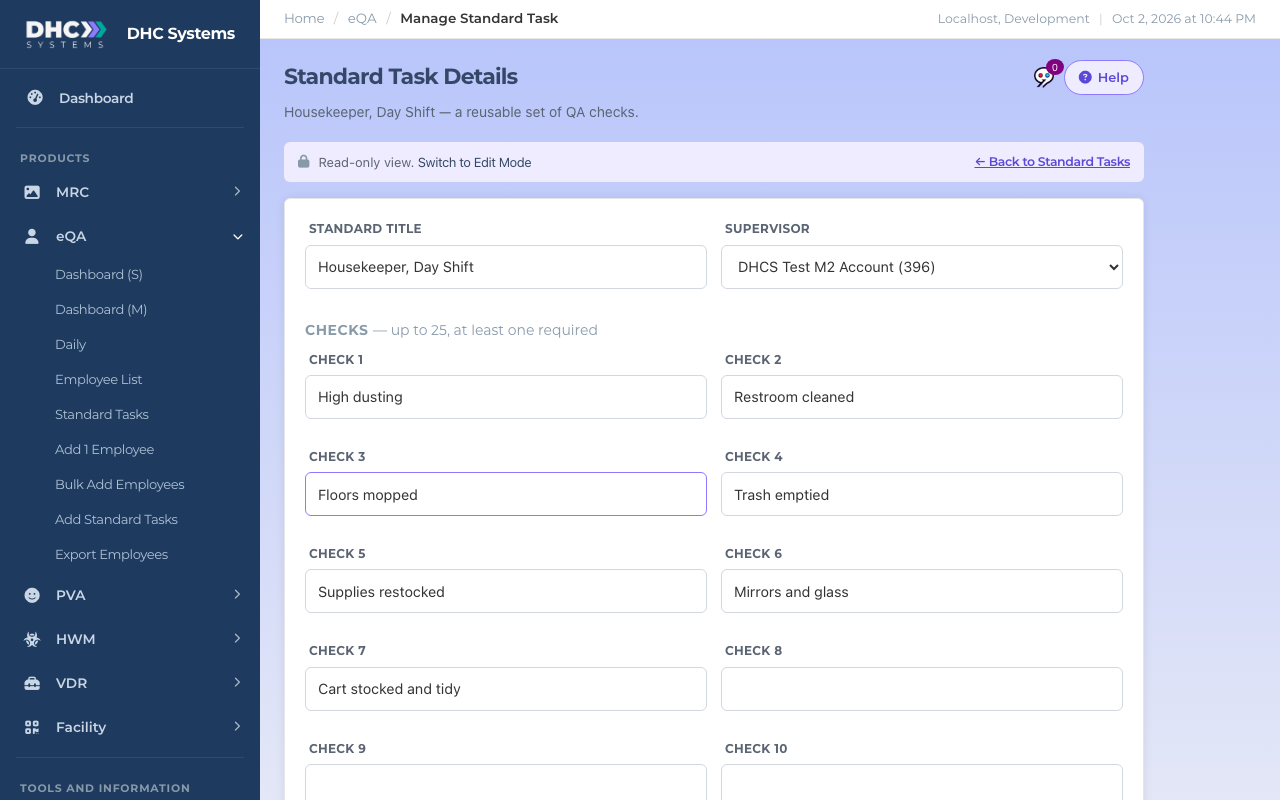
View shows the list read only, with a Switch to Edit Mode button
How to edit a Standard Task list
On the Standard Tasks page click Edit on the row (or View, then Switch to Edit Mode).
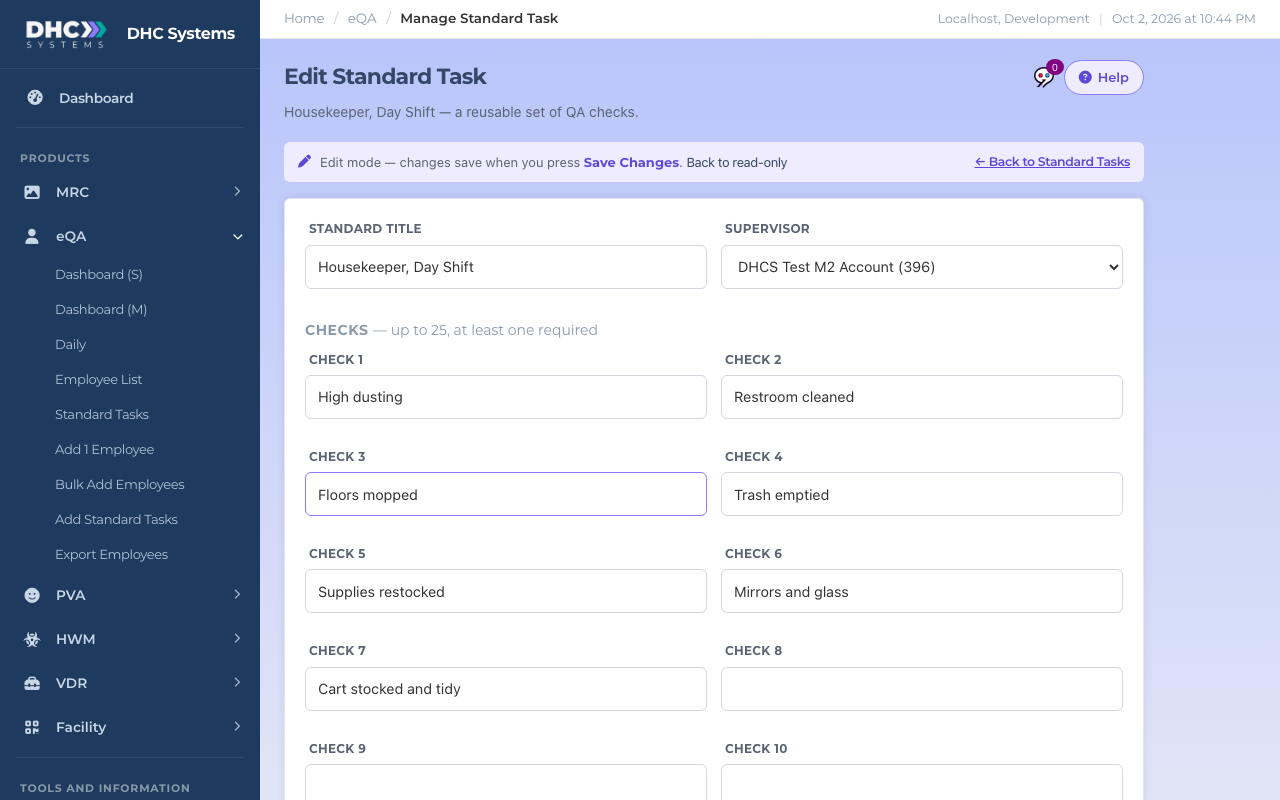
Change the Standard Title, any of the Check boxes, or the Notes. Click Show all 25 checks if the slot you want is hidden. Clear a box to remove that check.
Click Save Changes. You land back on the list with a “Changes saved” message.
Edit mode: change the checks, then Save Changes
How to put an employee on a Standard Title
This is also how you give a new employee their checks if they were added without a title, and how you move someone from one title to another.
Go to eQA, Employee List and click Edit on the person’s row.
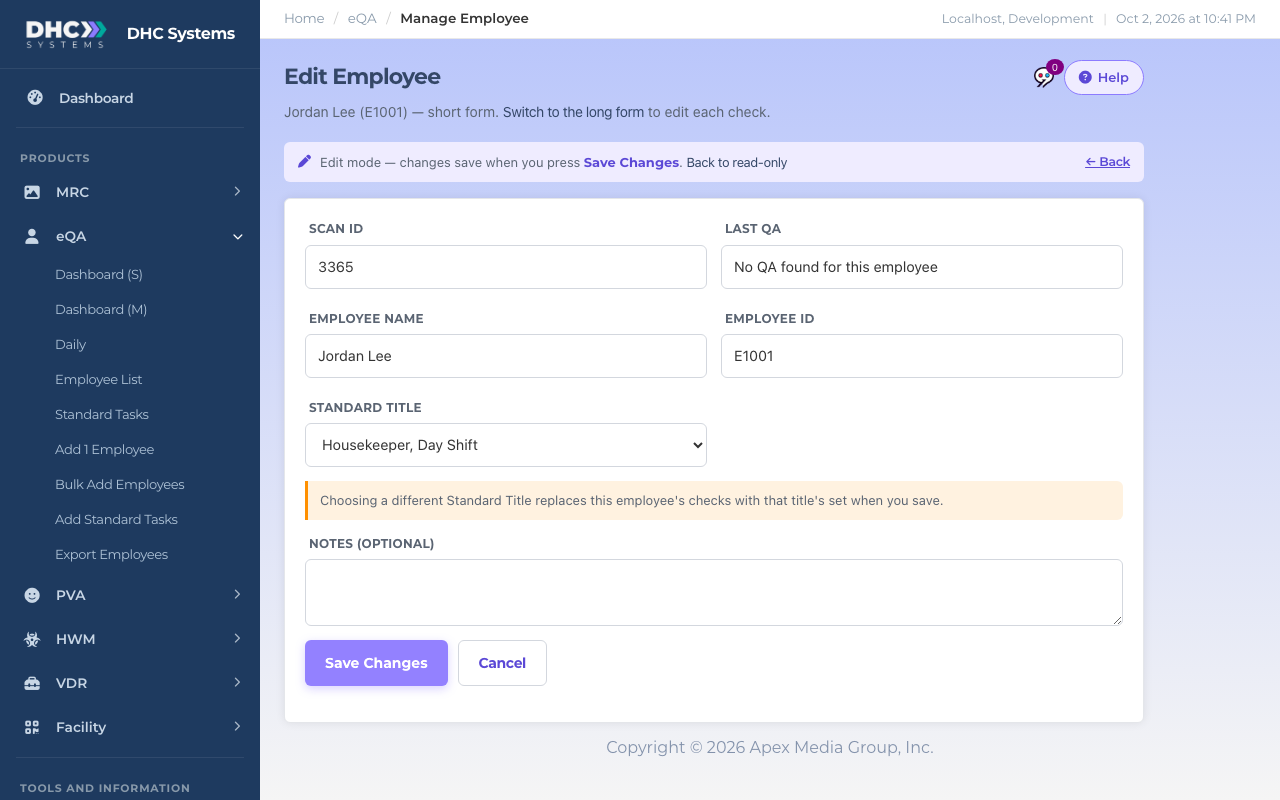
In Standard Title, pick the title you want. Only active titles are offered. If their current title has since been disabled it still shows, marked “(disabled)”, so nothing changes behind your back.
Pick the title; the warning under it tells you the checks will be replaced
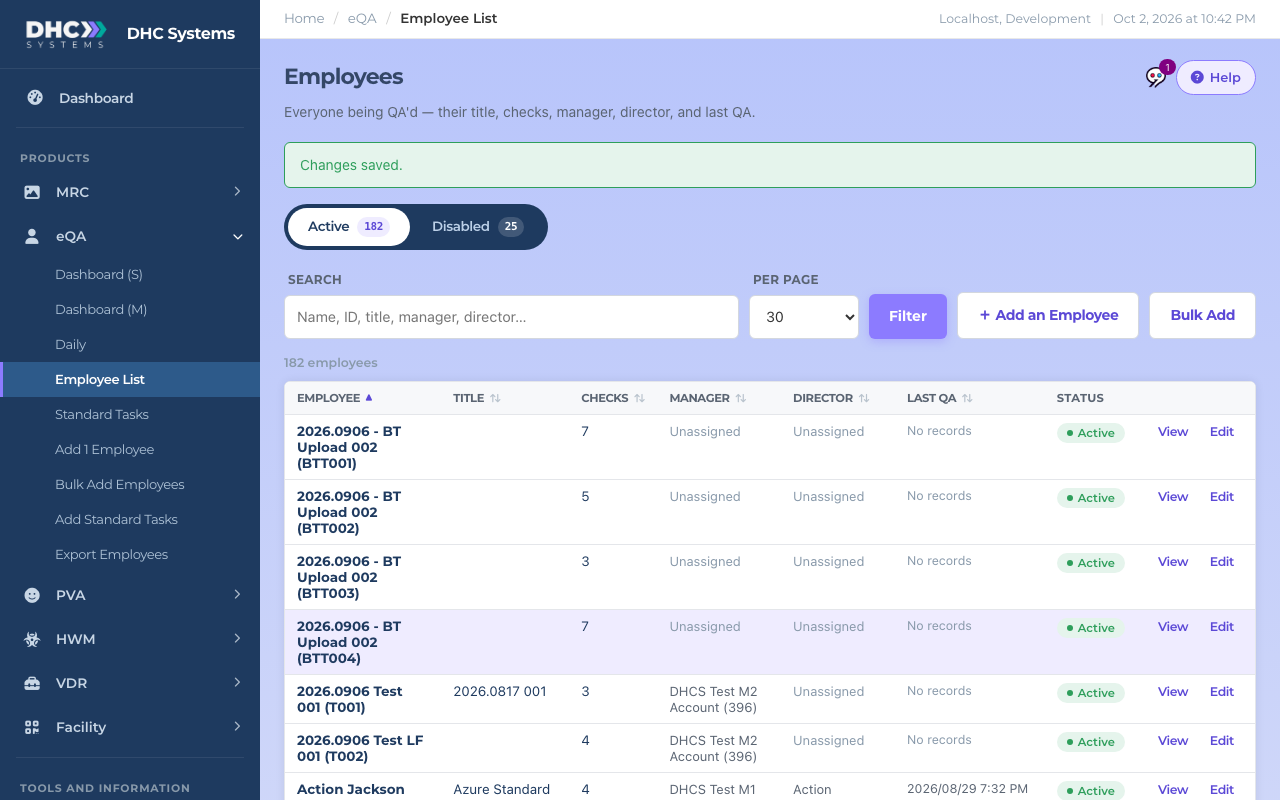
Click Save Changes. The employee’s checks are replaced with that title’s checks, and the Employee List shows the new Title and Checks count.
Back on the list with the change confirmed
How to push an edited list out to the people already on it
After you change a list, anyone already on that title still has the old checks. To update them, open each person’s record, pick a different title, save, then pick the right title again and save. The second save copies the current checks. For a handful of people this takes a minute; for a whole department, ask us and we will update them in one go.
How to find employees with no title
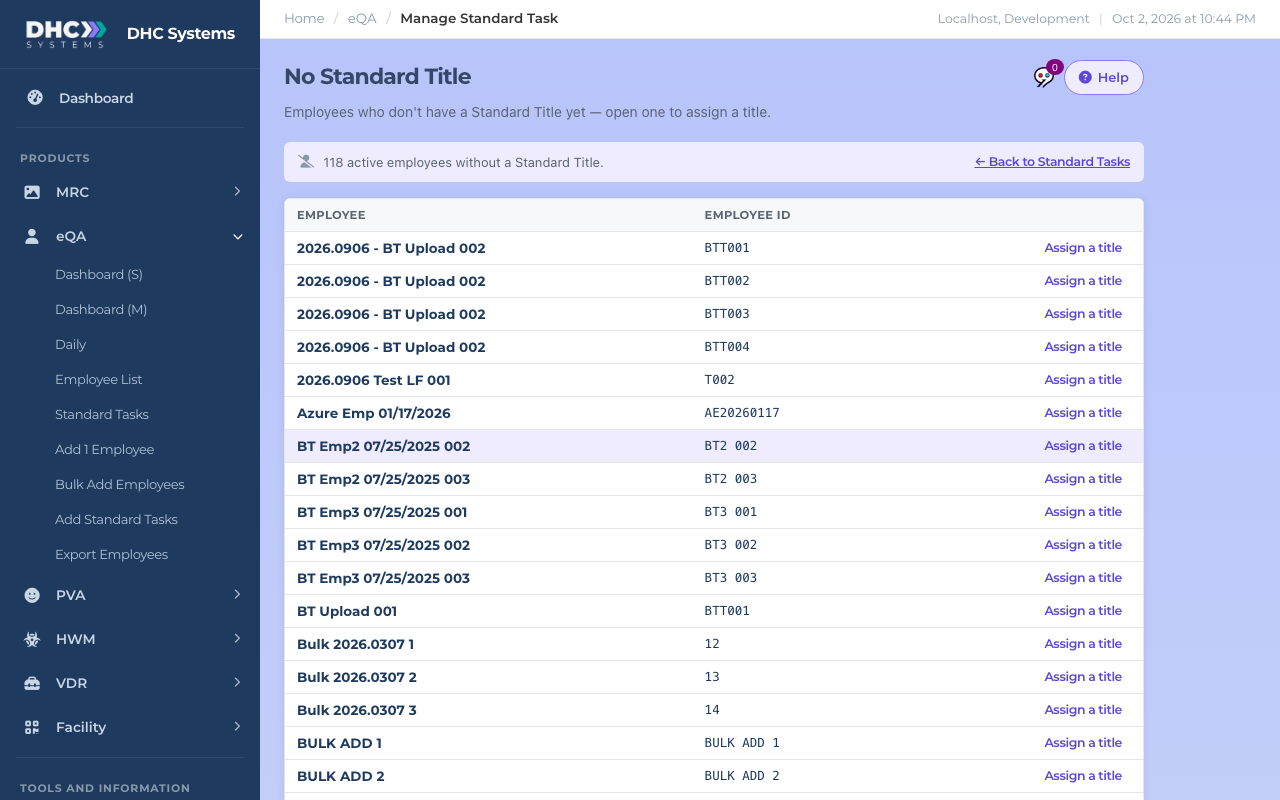
On the Standard Tasks page, click View on the italic “no standard title assigned” row.
You get the No Standard Title page: every active employee without a title, with their Employee ID.
Click Assign a title on a row. It opens that person’s Edit page with the Standard Title dropdown ready.
Everyone here needs a title before they are QA’d
How to disable or enable a list (Director only)
On the Standard Tasks page click the Active pill on the row.
Read the confirmation (“Disable Housekeeper, Day Shift? It stops being assignable until re-enabled.”) and click Disable.
The title moves to the Disabled view. Employees already on it are not changed; it just cannot be picked for anyone new. To bring it back, open the Disabled view, click the pill and click Enable.
The same Active / Disabled switch sits above the Standard Tasks list
Who can do this
M1 accounts and Directors (M2) can edit lists and assign titles. Only a Director (M2) can disable or enable a list. Workers (IC accounts) can view only.
Tips
Before a big edit, check the Employees count on the row. That is how many records will need the title re-applied.
Someone who needs one extra check that the rest of the title does not? Use the long form on their record instead of making a new title. See “eQA Employee List”.
Every save on these pages is written to the activity log with who changed what, so it is safe to let several managers maintain the lists.