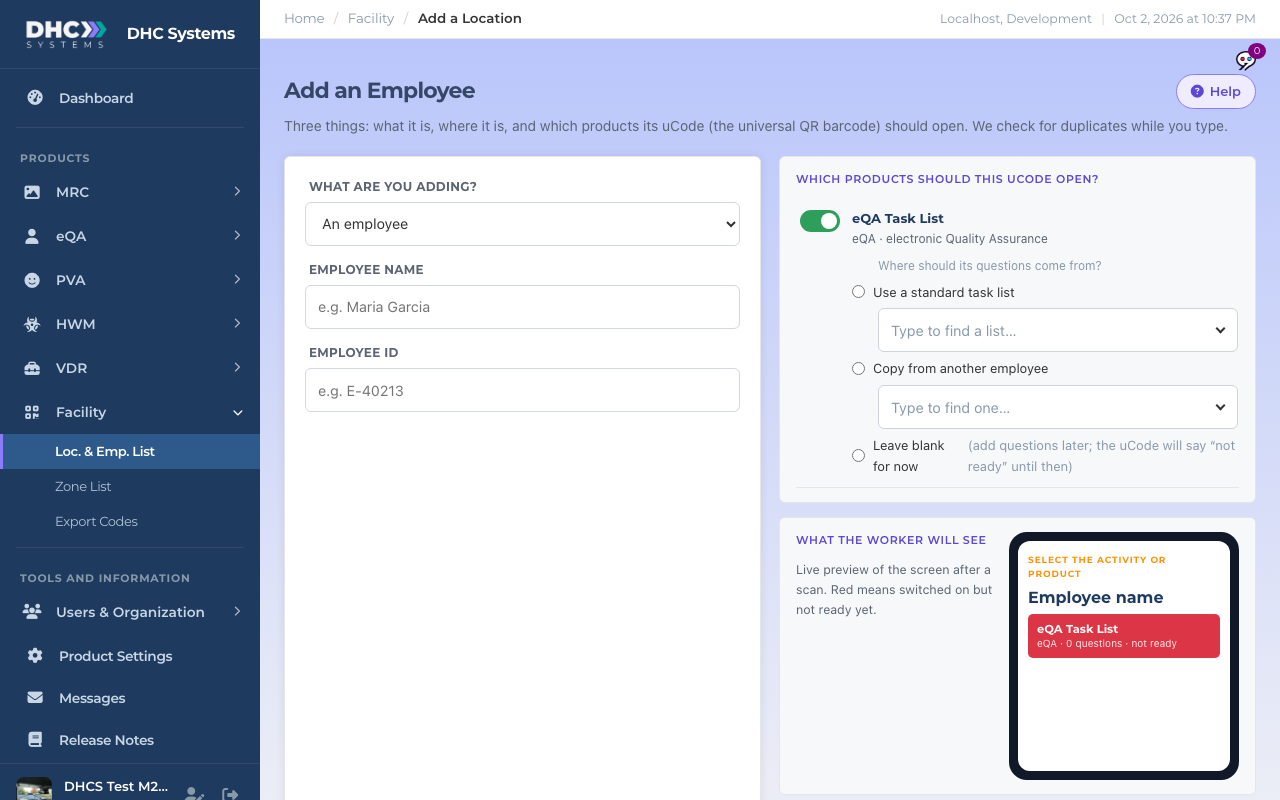
Add 1 Employee adds one person, creates their uCode (the QR barcode for their badge) and puts them on a standard task list, all on one screen. It is the Facility “Add a Location or Employee” page with “An employee” already chosen. The full page is covered in the Facility article “Adding a Single Location or Employee”; this article covers only the eQA parts.
Opened from the eQA sidebar, the page is already set to An employee with eQA on
How to add an employee
Click eQA, then Add 1 Employee (or + Add an Employee on the Employee List).
Type the Employee name.
Type the Employee ID, their badge or payroll number, for example E1001. It is required so two people with the same name are never mixed up, and it prints under the name on the uCode.
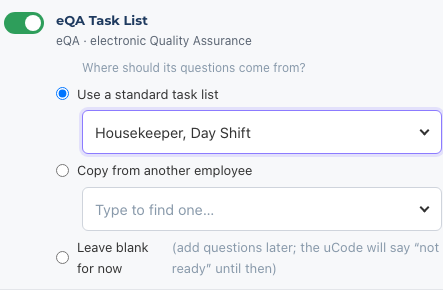
In Which products should this uCode open?, leave eQA Task List switched on. Under Where should its questions come from? choose Use a standard task list and pick the title, for example Housekeeper, Day Shift. Start typing in the box to filter the list.
The eQA card: switch, source of questions, and the standard task list
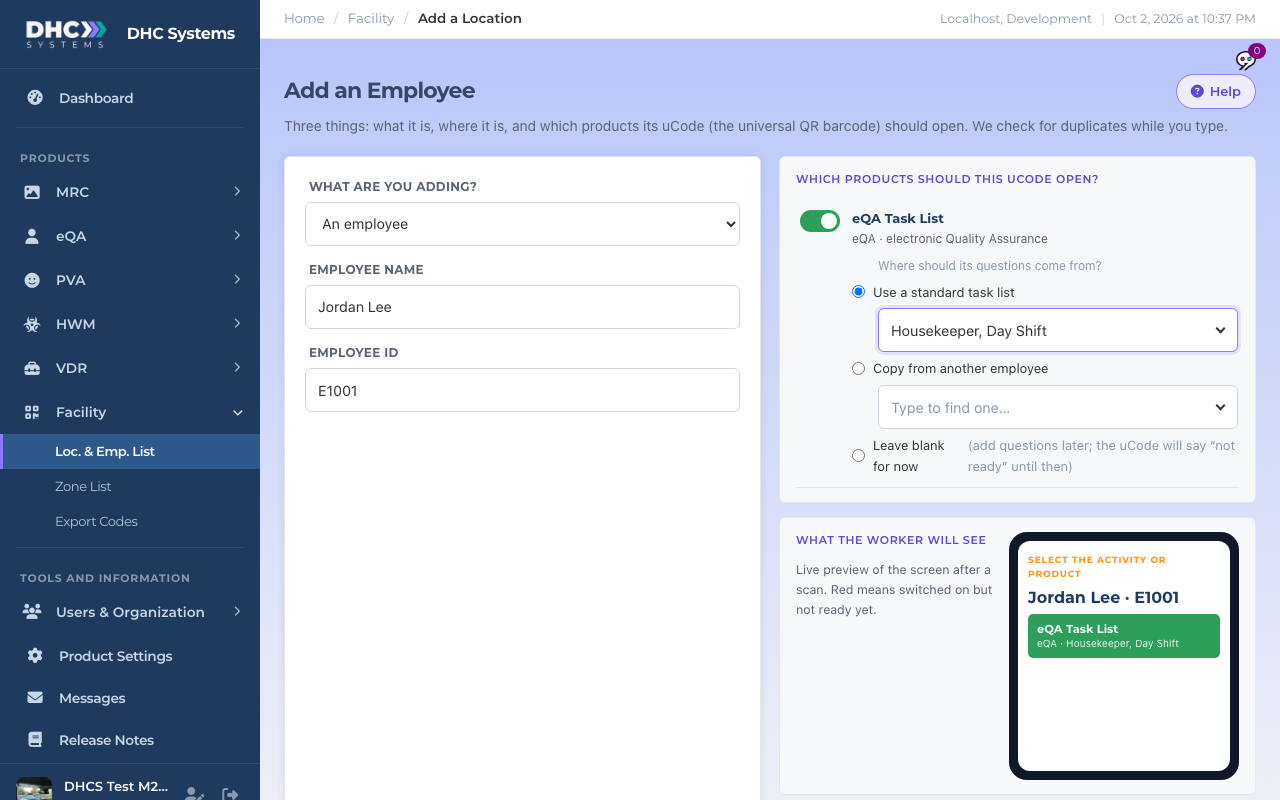
Check the phone preview under What the worker will see. It should show the person’s name and ID and a green eQA Task List button with the title under it. Red means switched on but not ready.
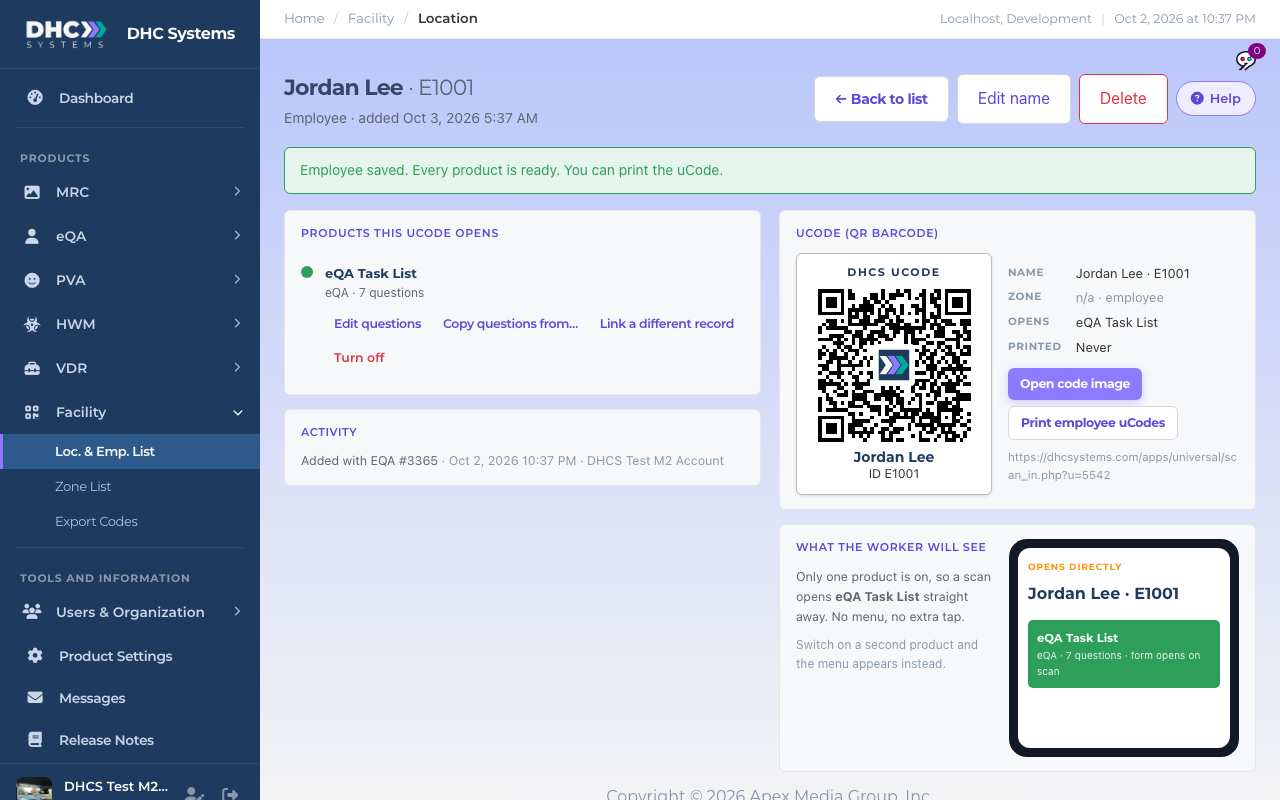
Click Save employee. You land on the new employee’s record with “Employee saved. Every product is ready. You can print the uCode.”
Everything filled in, preview green, ready to save
After saving
The record page shows the uCode, the products it opens and a Print employee uCodes button. The new person also appears on the eQA Employee List.
Saved: the record, the uCode and what the worker will see
Check the Employee List before the first scan. Open eQA, Employee List and look at the new row. If the Title is blank or Checks shows 0, click Edit, pick the Standard Title and click Save Changes. That copies the checks onto the record so the phone form is not empty. See “eQA Standard Tasks: Editing a List and Assigning It to Employees”.
The other choices on the eQA card
Copy from another employee. Takes a copy of another person’s current checks. Good for one-off roles.
Leave blank for now. Creates the person with no checks. The uCode says “not ready” for eQA until you add checks from their record.
Who can do this
M1 accounts and Directors (M2). Workers (IC accounts) do not see Add 1 Employee.
Tips
The page checks for duplicates while you type. If the person already exists in eQA but has no uCode yet, it offers to use that record instead of making a twin. Say yes.
Make the standard task list first. If the one you need is not in the dropdown, open Add Standard Tasks in a new tab, create it, then come back and reload.