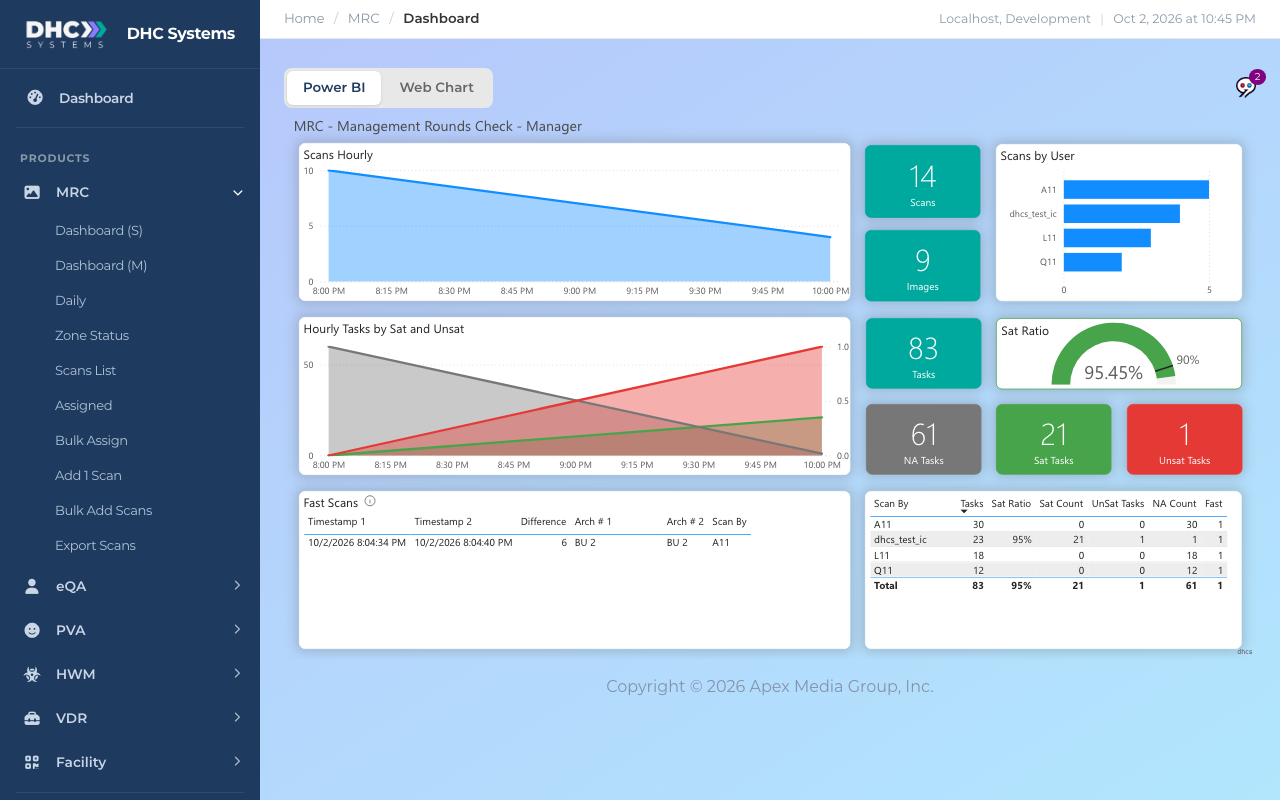
Dashboard (M) is Dashboard (S) with the manager’s questions answered: who scanned, how many tasks were marked NA, and did anyone rush through their rounds. It covers today only. Use Daily when you need a date range.
The manager view for today
How to open it
Click MRC in the sidebar, then Dashboard (M).
Wait a few seconds for the report to load.
Click any bar in Scans by User to filter the whole page to that person. Click it again to clear.
What each part means
Scans Hourly: checks logged per hour today.
Hourly Tasks by Sat and Unsat: task answers per hour. Green is Sat, red is UnSat, grey is NA.
Scans and Images tiles: total checks today and how many had a photo or video.
Tasks tile: every task answer given today. It equals Sat Tasks plus Unsat Tasks plus NA Tasks.
Sat Ratio gauge: Sat divided by (Sat plus UnSat). NA is left out. The marker is the 90% target.
Scans by User: one bar per Employee ID, longest first. This is the quickest way to see who is carrying the rounds today.
Fast Scans table: pairs of checks by the same person that happened within about a minute of each other. Columns are Timestamp 1, Timestamp 2, Difference (seconds), Arch # 1, Arch # 2 and Scan By. A six-second gap between two rooms is worth a conversation.
Scan By table (bottom right): one row per person with Tasks, Sat Ratio, Sat Count, UnSat Tasks, NA Count and Fast (their fast-scan count). The Total row matches the tiles.
Who can do this
M1 accounts and Directors (M2). Workers do not see Dashboard (M) in the sidebar.
Tips
A high NA Count for one person and a low one for everyone else usually means they are tapping NA to get through the list. Pair it with the Fast Scans table.
On a phone the same link opens a phone-sized manager dashboard.
Names in Scans by User are whatever people typed in Employee ID Number on the phone. If you see the same person under two spellings, remind them which ID to use.