Zone Status answers one question all day long: what still needs a check? It counts every active room, marks it scanned or not scanned since midnight at your facility, and rolls that up by zone. Open it in the morning, and again before shift change.
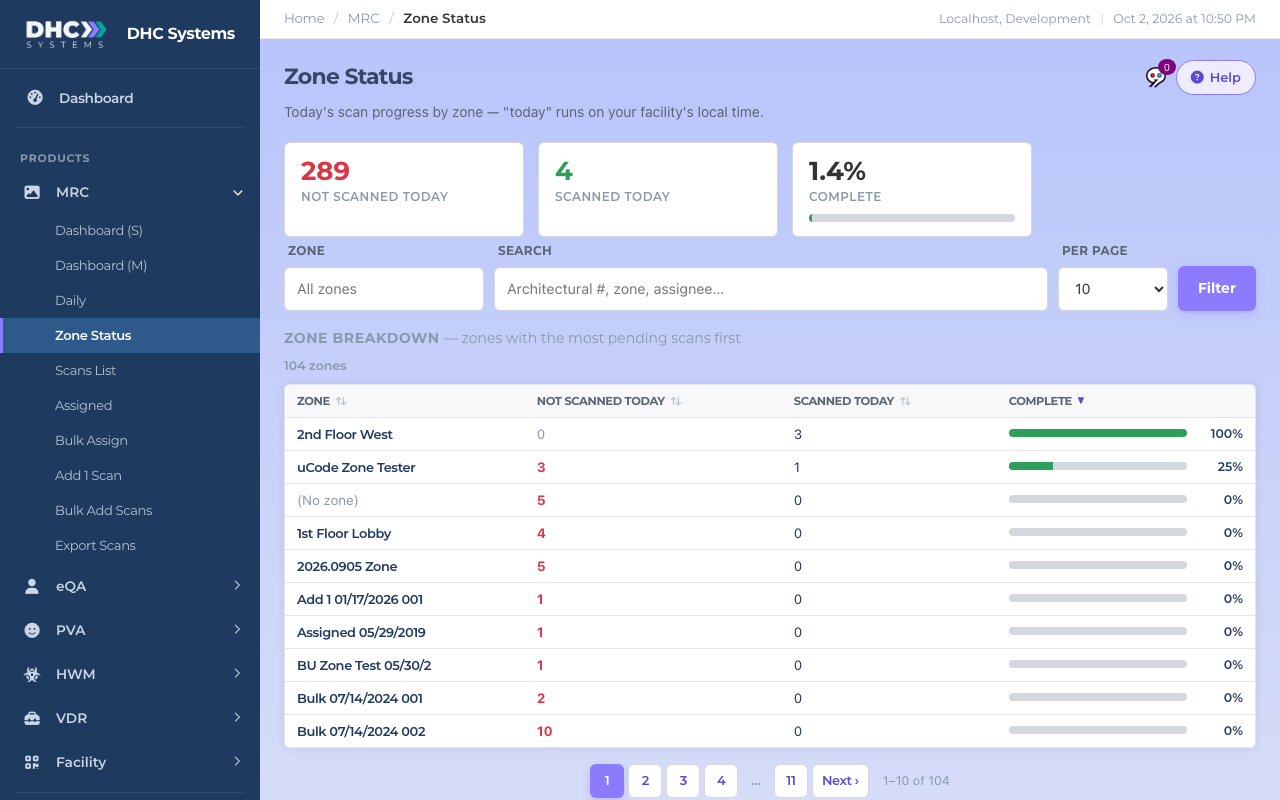
Zone Status with the breakdown sorted by Complete
How to read the board
Click MRC, then Zone Status.
Look at the three tiles. Not scanned today is red while anything is pending and green when it reaches zero. Scanned today counts rooms with at least one check. Complete is the percentage, with a progress bar.
Read Zone breakdown. By default the zones with the most pending rooms sit at the top. Click any column header to re-sort, for example Complete to see the best zones first.
Click a zone name to focus the whole page on that zone. The tiles, the breakdown and the detail list all narrow to it.
The tiles update every time you reload
How to see the rooms behind the numbers
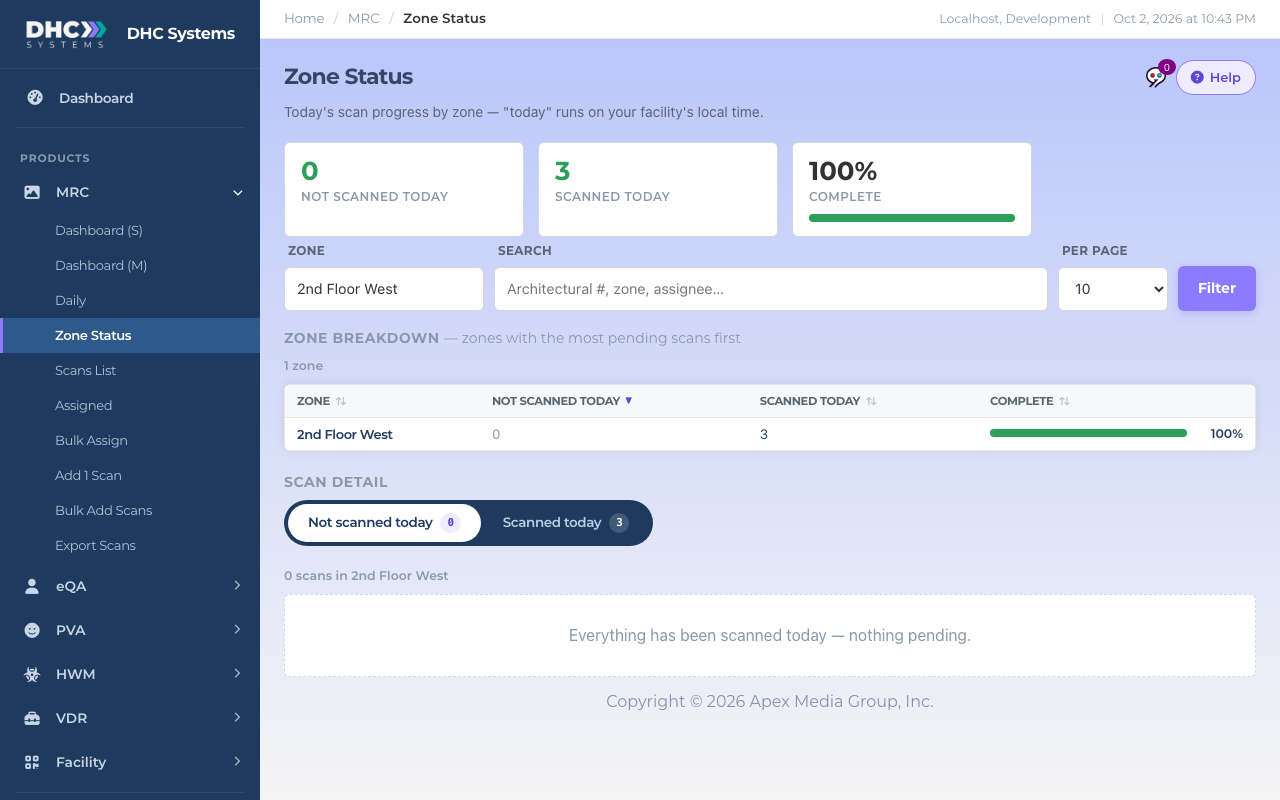
Scroll to Scan detail. The rail has two views: Not scanned today and Scanned today, each with a count.
In Not scanned today, every row has an Incomplete pill and a note of how long ago it was last checked. Never scanned in red means no check has ever been logged for that room.
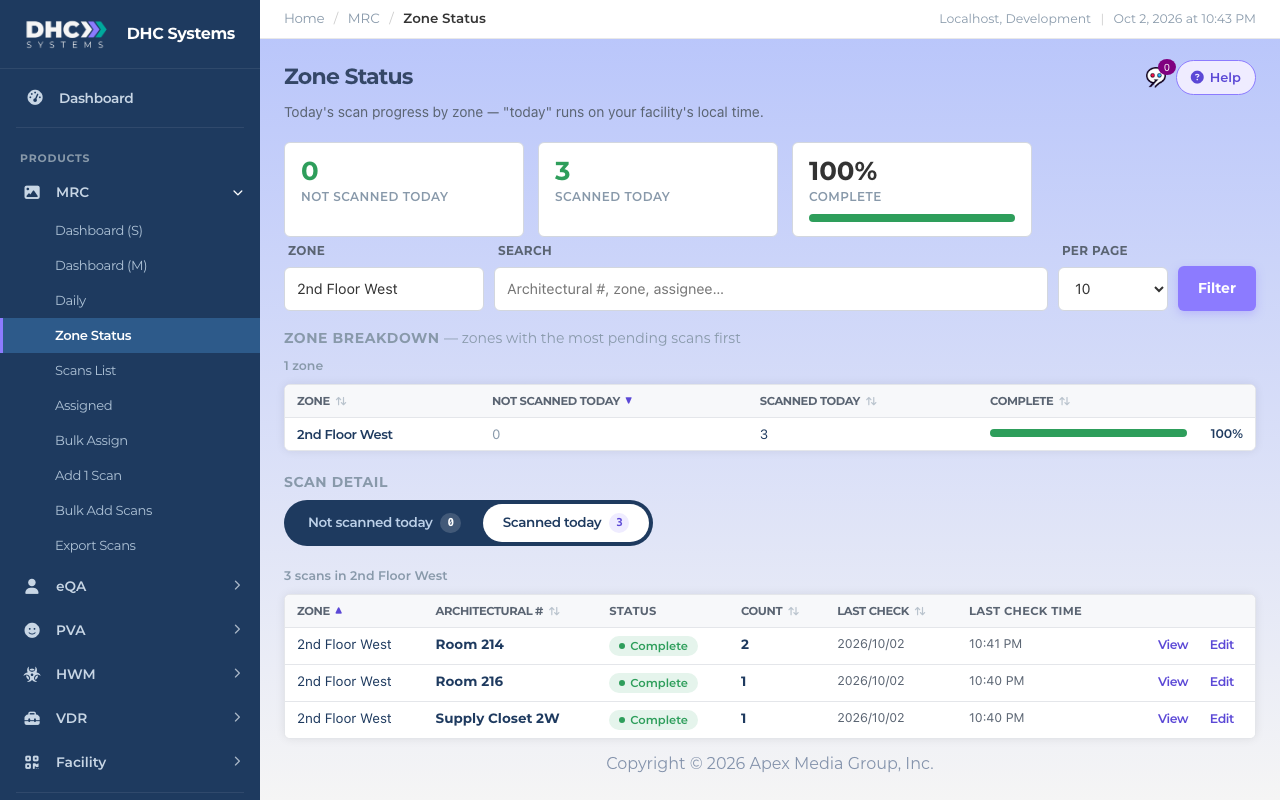
In Scanned today, rows show a Complete pill, the Count of checks so far today, and the Last check date and time.
Click View to open the room’s Scan Status card with its latest check, photo and signature. M1 accounts and Directors (M2) also see Edit, which opens the room’s tasks and assignment.
Focused on one zone, Scanned today viewThe same zone with nothing pending
How to filter
Zone is a type-to-search box. Start typing, then click a zone or press Enter. Pick All zones to clear it.
Search matches Architectural #, zone, assignee and Scan ID. Type two words to narrow the match, for example 214 West.
Per page defaults to 10 rows because this is a glance page. Raise it when you want the full list.
Click Filter to apply the Search box. The Zone and Per page choices apply as soon as you pick them.
Type to find a zone
What the columns mean
Zone breakdown: Zone, Not scanned today (red when above zero), Scanned today, and Complete as a bar and a percentage. Rooms with no zone show as (No zone).
Scan detail: Zone, Architectural #, Status pill, Count (checks today), Last check date and Last check time.
Who can do this
Everyone can open Zone Status and use View. Edit appears for M1 accounts and Directors (M2). Disabled rooms are left out of every number on this page.
Tips
“Today” is the calendar day at your facility, so the board resets at your local midnight, not 24 hours after each check. The Assigned page is the one that uses a rolling 24 hours.
On a phone the zone breakdown becomes a stack of cards, each with the percentage and a bar. Tap a card to focus on that zone.
If a room is pending that should not exist any more, a Director (M2) can disable it from the Scans List. It drops off this board straight away.