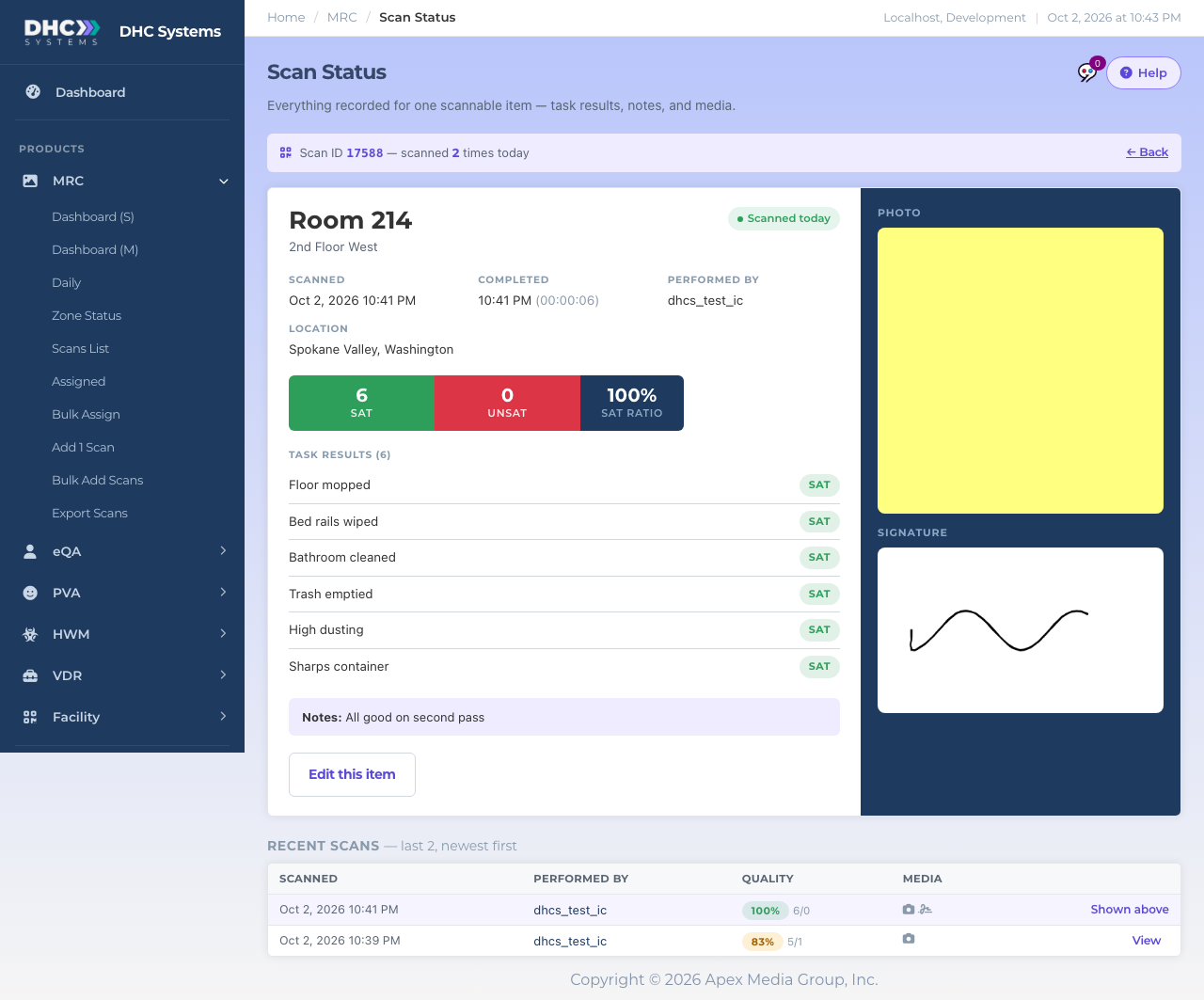
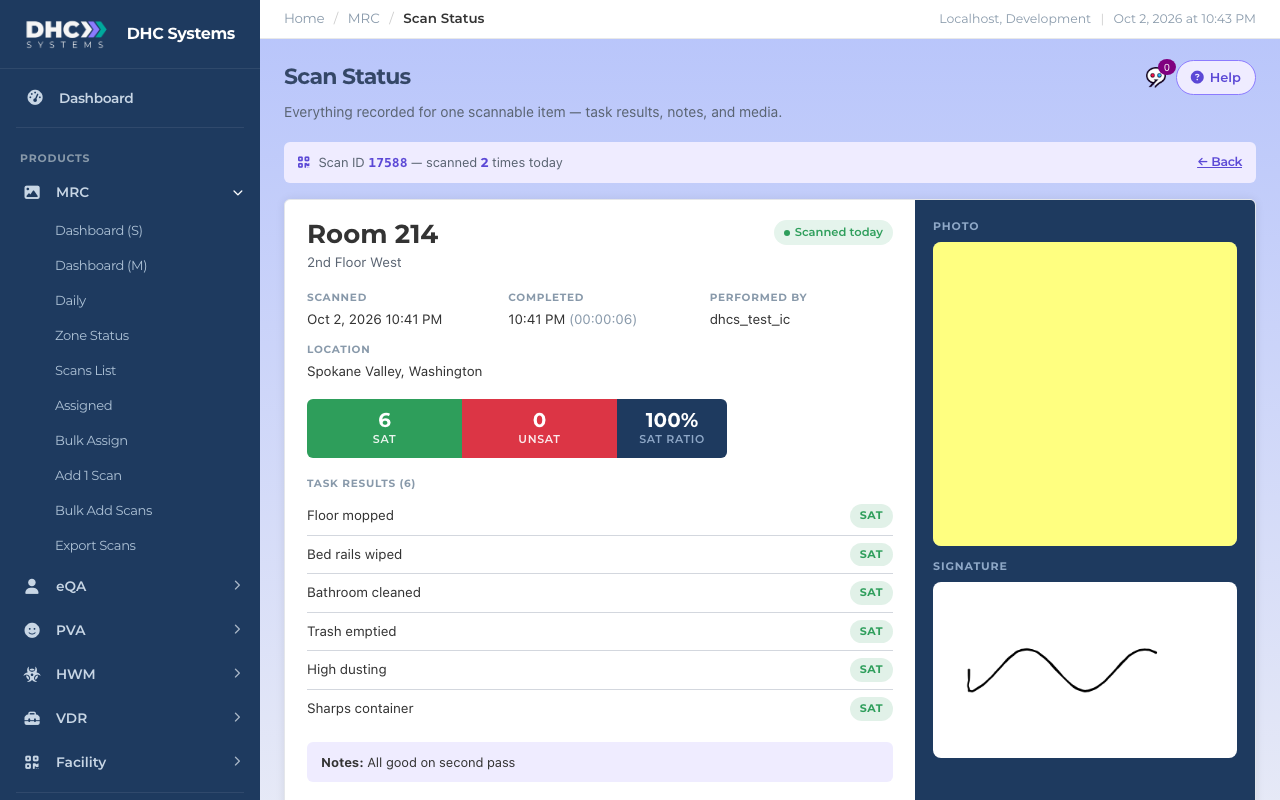
The Scan Status card is the proof page for one room. It shows the latest check in full, with the photo and signature if there were any, and the recent checks underneath so you can step back in time. You reach it from Zone Status by clicking View on a room.
Room 214 after two checks today
How to open it
Go to MRC, then Zone Status.
Find the room in Scan detail and click View.
The bar under the title tells you the Scan ID and how many times the room has been scanned today. Back returns you to Zone Status.
What the card shows
Scanned: when the check started. Completed: when Submit was tapped, with how long the check took in brackets.
Performed by: the Employee ID Number the worker typed.
Location: the city the phone reported, when location was available.
Sat, Unsat and Sat ratio tiles: the quality of this one check. Sat ratio is Sat divided by (Sat plus Unsat). NA tasks are listed but left out of the ratio.
Task results: every task on the room with its answer, in the order the worker saw them.
Notes: what the worker typed.
Photo and Signature on the right. A dashed box means none was captured. Older media is archived off the server on a schedule, and those checks say “archived” instead.
Recent scans: the last few checks, newest first, with Scanned, Performed by, Quality (the ratio as a coloured chip plus Sat/Unsat counts) and Media icons for photo and signature. Click View on a row to feature that older check on the card. The featured one says Shown above.
The card header and quality tiles
Who can do this
Everyone can open the card. M1 accounts and Directors (M2) also get Edit this item, which opens the room’s tasks and assignment.
Tips
This card is the fastest answer to “was that room actually cleaned at 3 pm”. Open it, read the time, look at the photo.
A check with Sat 0, Unsat 0 and every task NA means the worker tapped NA all the way down. Check Dashboard (M) for their NA count.