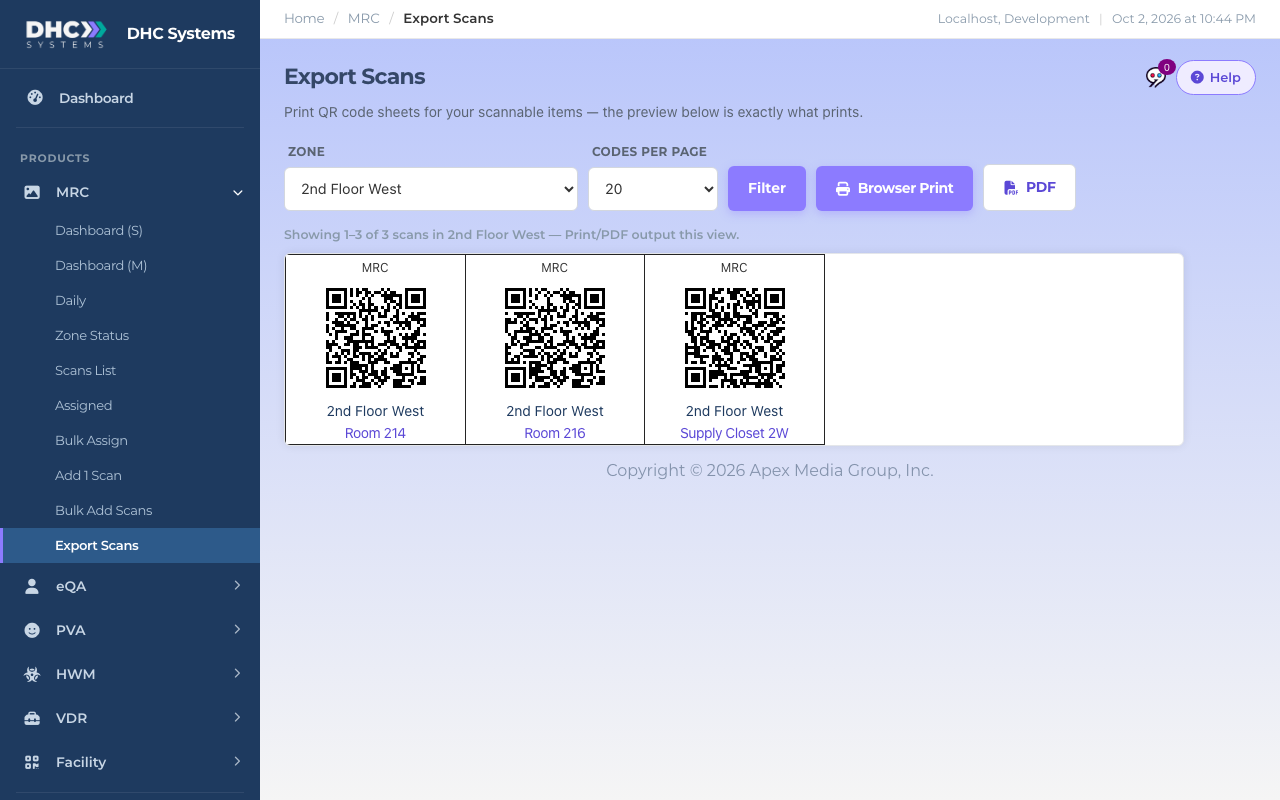
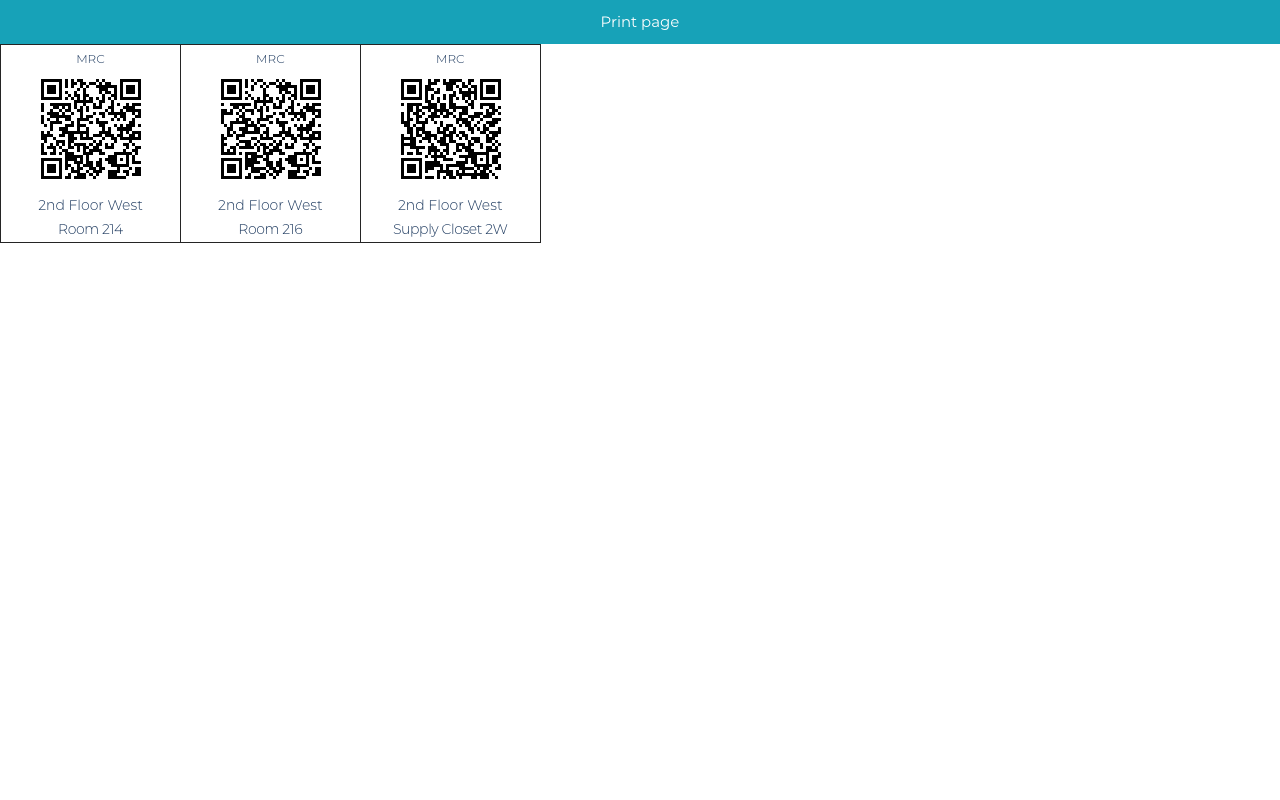
Export Scans prints the QR codes for your MRC rooms, five across, with the zone and room name under each one. These are MRC-only codes: scanning one opens the MRC checklist straight away. If your rooms have uCodes (one code that opens every product), print those from Facility’s Export Codes instead. See Printing and Reprinting uCodes (Export Codes).
The preview is exactly what prints
How to print a sheet
Click MRC, then Export Scans.
Pick a Zone, or leave All zones. The preview reloads straight away.
Set Codes per page. This is how many codes are in one print batch, up to 1000. The count line tells you which codes are showing, for example Showing 1 to 20 of 86 scans.
Click Browser Print. A clean print view of exactly what is in the preview opens in a new tab. Use your browser’s print command from there.
Or click PDF to download the same batch as a file you can send to a print shop.
Use the page numbers under the preview to move to the next batch and print again.
Zone, batch size, printThe print view
What is on each code
A small MRC label at the top.
The QR code. It encodes the room’s permanent Scan ID, so a printed code keeps working after you rename the room.
The zone and the room name underneath. In the preview the room name is a link to the room’s details.
Who can do this
M1 accounts and Directors (M2).
Tips
Codes print in zone, then room name order, so a sheet for one zone comes out in walking order.
Disabled rooms are left out automatically. Disable a room before printing rather than throwing codes away.
The grid has hard borders so you can cut along them. Laminate codes in wet areas.