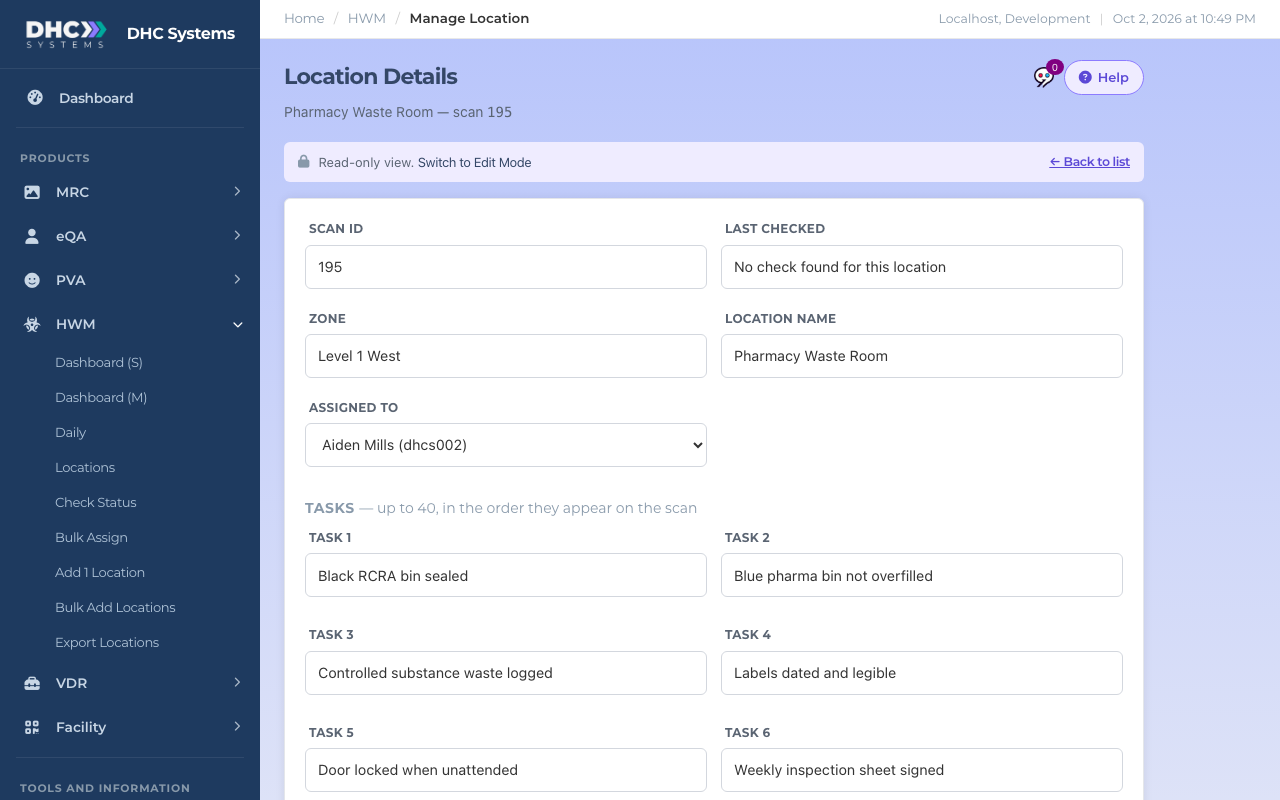
Each HWM location has a record page with everything behind its code: zone, name, who it is assigned to, the task list a worker answers, and a note that shows on the phone. You open it with View or Edit from Locations or Check Status.
A location opened with View
How to edit a location
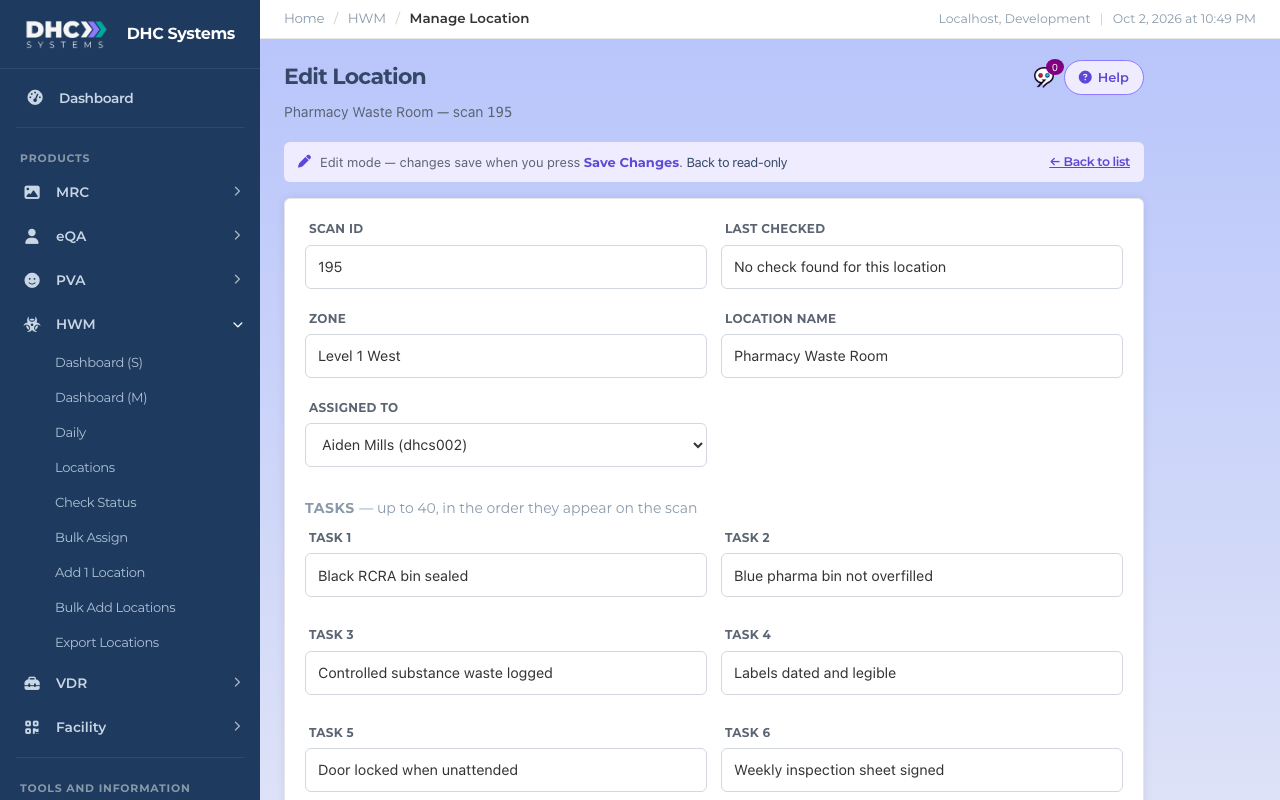
On Locations, click Edit on the row. If you opened it with View, click Switch to Edit Mode instead. The heading changes to Edit Location.
Change the Zone or Location name if needed. The name is required.
Pick a person in Assigned to, or choose Unassigned.
Type or change the Tasks. Task 1 is answered first on the phone, then Task 2, and so on. Empty slots are skipped.
Add a Notes line if the worker needs a reminder at that location, for example “Use the red bin by the sink”.
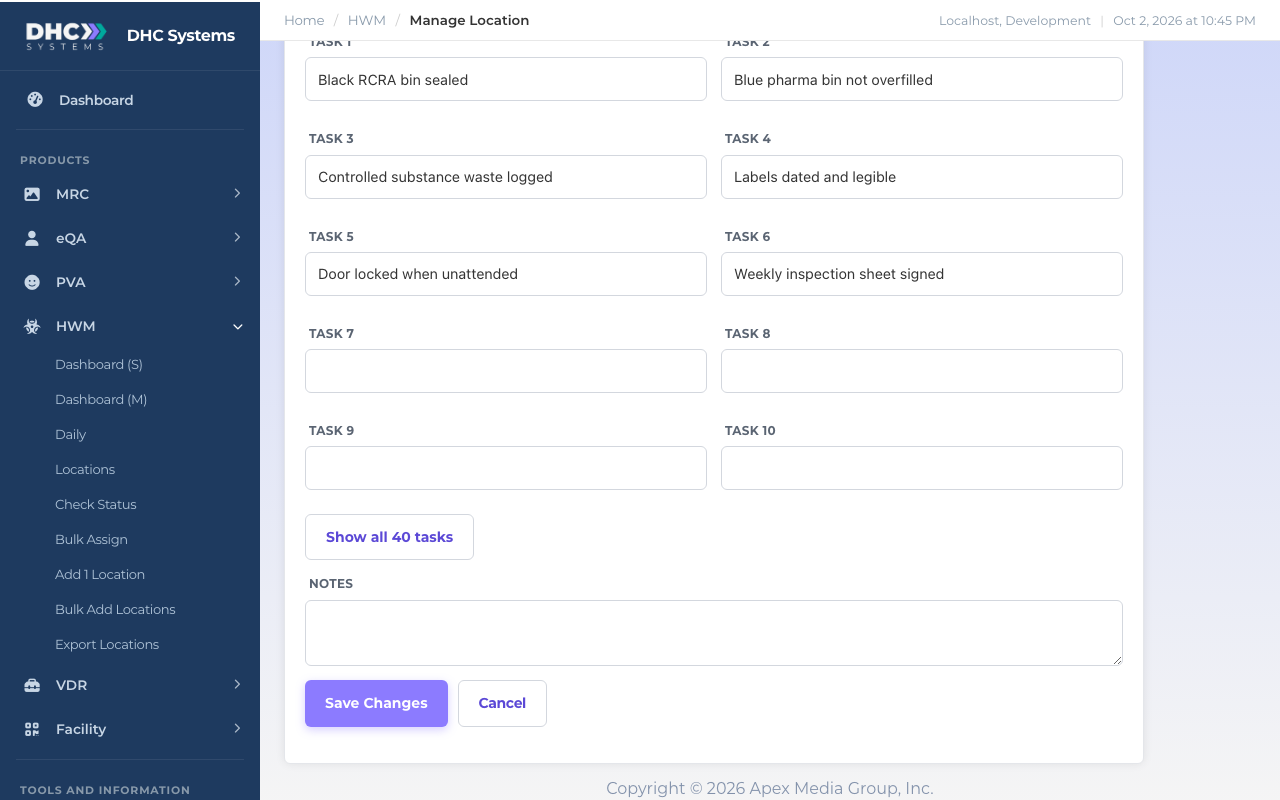
Click Save Changes. You see “Changes saved.” at the top. Click Back to list when you are done.
Edit mode: every field is openTasks, Notes and Save Changes
What the fields mean
Scan ID: the permanent number behind this location’s code. It never changes, so printed codes keep working after a rename.
Last checked: date and time of the most recent scan, or “No check found for this location”.
Zone and Location name: what prints on the code and shows on the phone. A rename here also updates the uCode and the other products that share it.
Assigned to: the responsible person. Only users with an Employee ID are listed. Their ID fills in on the phone when they scan.
Tasks: up to 40 checklist items, each up to 50 characters. The page shows the first 10 slots, or as many as are filled; click Show all 40 tasks to reveal the rest.
Notes: up to 140 characters, shown read-only to the worker under the tasks as “Location Notes”.
Who can do this
Everyone can View. M1 accounts and Directors (M2) can switch to Edit Mode and save. Every saved change is recorded in the activity log.
Tips
Changing tasks only affects future scans. Checks already submitted keep the task names they were answered with.
To remove a task, clear its box and save. Empty slots are simply skipped on the phone.
If you reached this page from a uCode record, the back link says “Back to the label” and returns you there instead of the list.
Print this location’s code from Export Locations, or print its uCode from Facility, Export Codes.