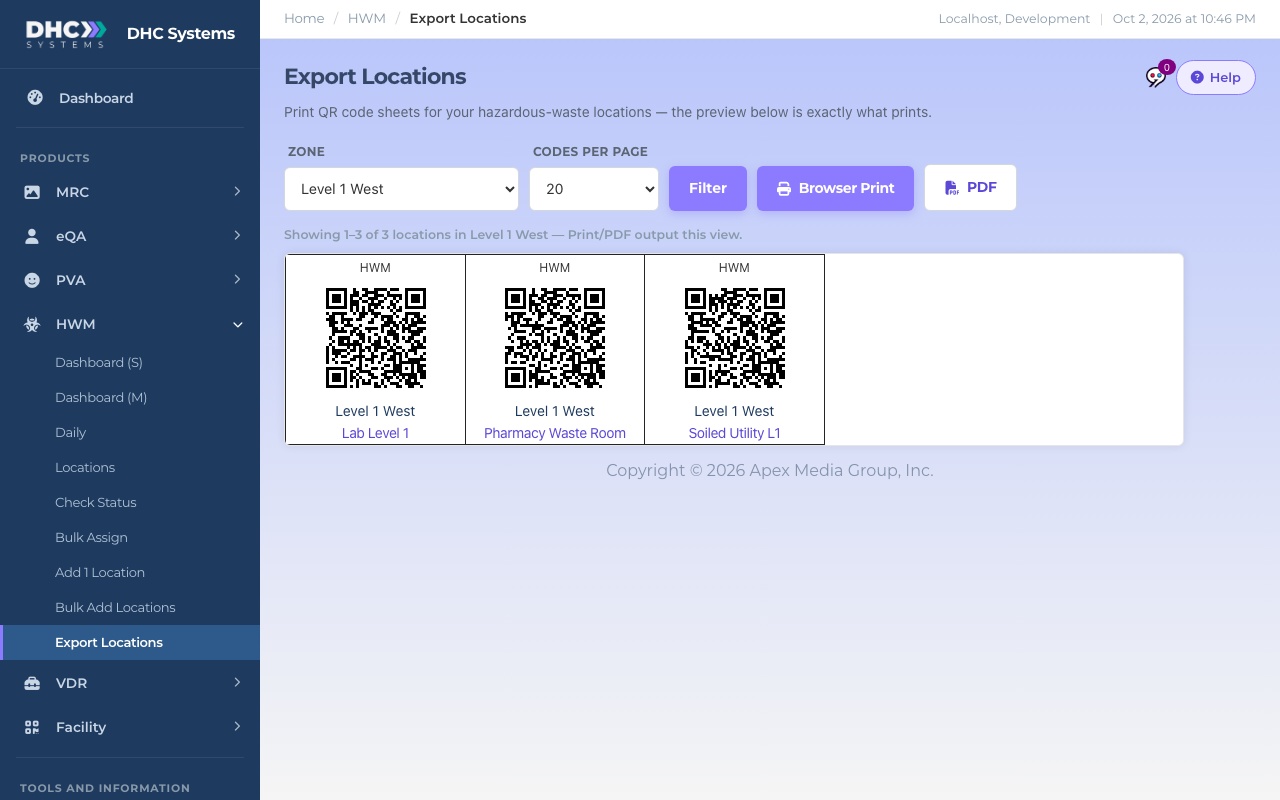
Export Locations prints a sheet of HWM QR codes, five across, each with the zone and location name under it. What you see on the page is exactly what prints. Open it from HWM, then Export Locations.
The preview is the print
How to print the codes
Pick a Zone, or leave it on All zones.
Set Codes per page (20 up to 1000) and click Filter. The line under the bar says how many locations are showing.
Zone, Codes per page, then Browser Print or PDF
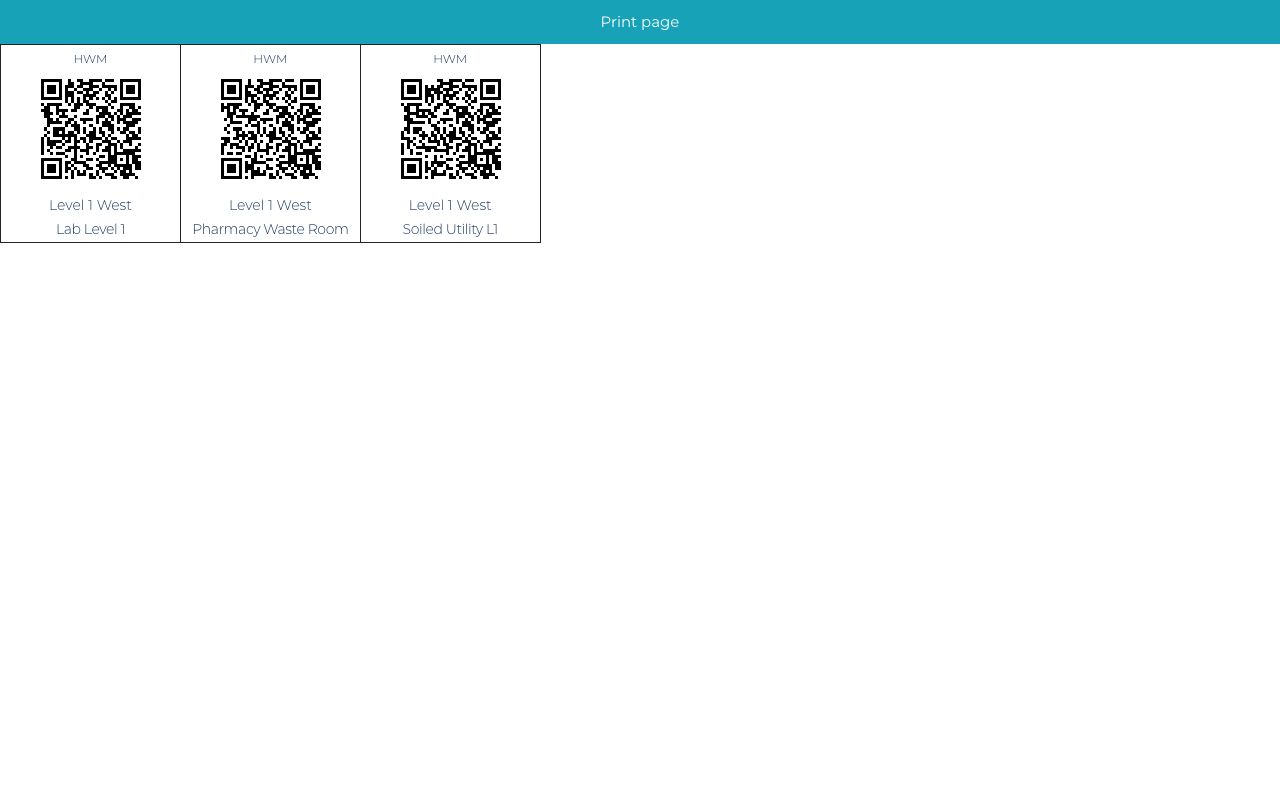
Click Browser Print. A clean print page opens in a new tab with just the codes.
Use your browser’s print command. In Chrome, open More settings and tick Background graphics so the borders print.
Cut the codes out and place each at its location.
Browser Print opens a page with only the codes
How to save a PDF instead
Filter the page the same way.
Click PDF. A PDF of the same view is built and opens in a new tab.
Download it from the viewer to print later or send to a print shop.
What is on each code
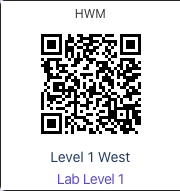
One code as it prints
The word HWM at the top, so you can tell it from other products’ codes.
The QR code itself. It encodes the location’s permanent Scan ID, so it keeps working after a rename.
The zone and the location name. Click the name on screen to open the location’s record.
HWM codes or uCodes?
This page prints HWM-only codes: scanning one goes straight to the HWM check. If the location also has other products, print its uCode from Facility, Export Codes instead. One uCode on the door opens every product that is on for that room. See “Printing and Reprinting uCodes (Export Codes)”.
Who can do this
Directors (M2).
Tips
Disabled locations are left off the sheet automatically.
Codes are ordered by zone, then location, so a sheet for one zone comes out in walking order.
Reprinting is safe. A new print of the same location is the same code.