A hazardous waste check takes under a minute on any phone. Scan the code on the wall with your camera, tap an answer for each task, tap Submit. No app to install and no login; you only need an internet connection.
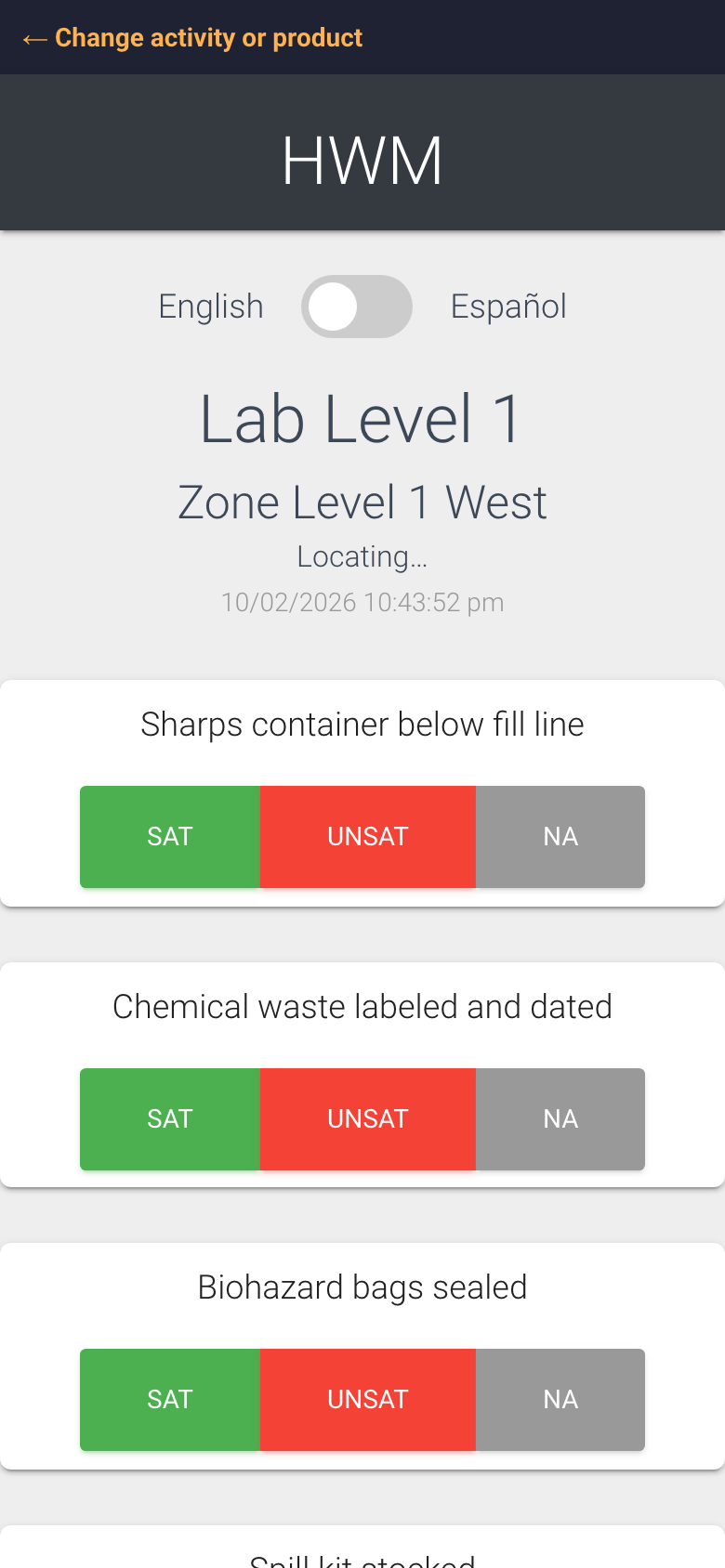
The check page right after scanning
How to complete a check
Open your phone camera and point it at the code. Tap the link that pops up.
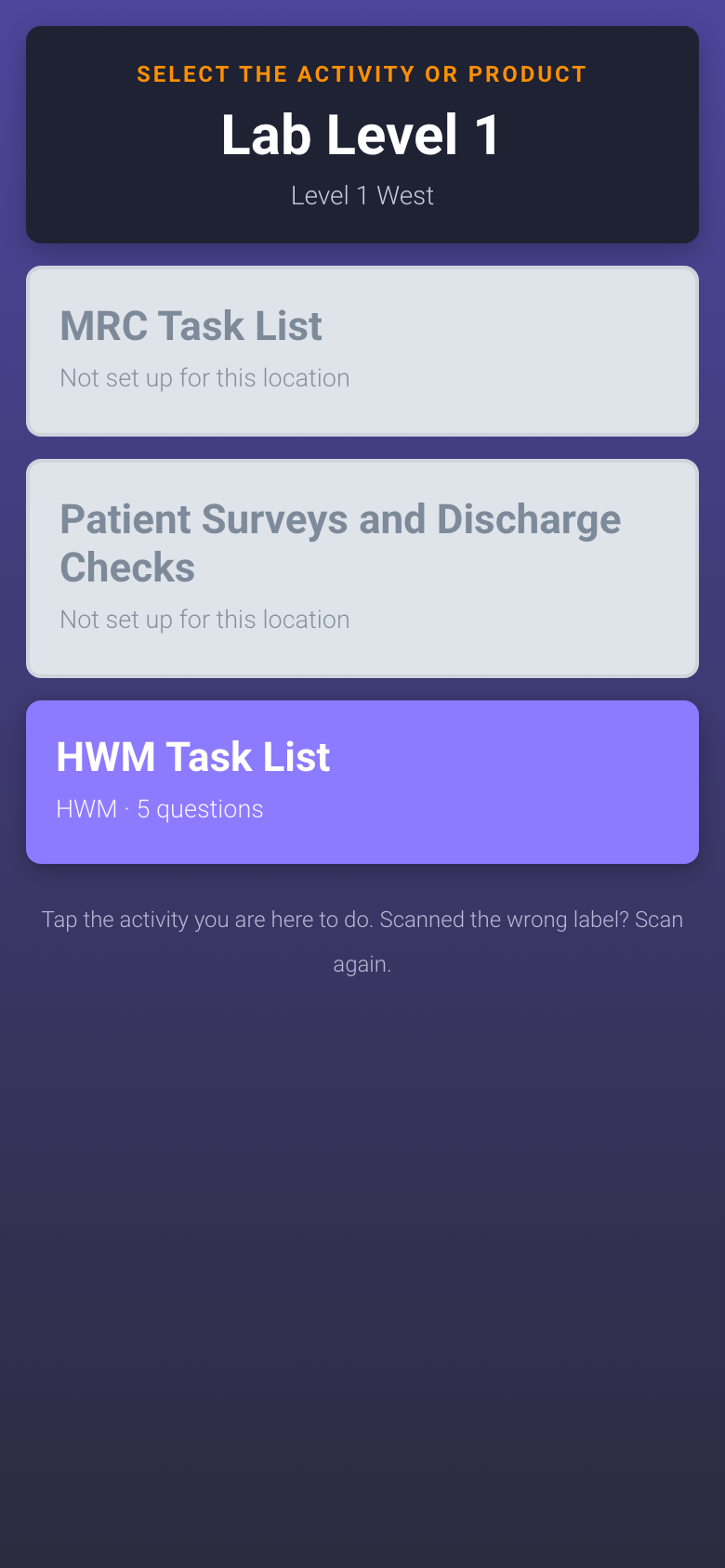
If the code is a uCode with more than one product, a menu titled “Select the activity or product” appears. Tap HWM Task List. If HWM is the only product on that code, you go straight to the check.
Check the location name and zone at the top. If it is the wrong room, scan again.
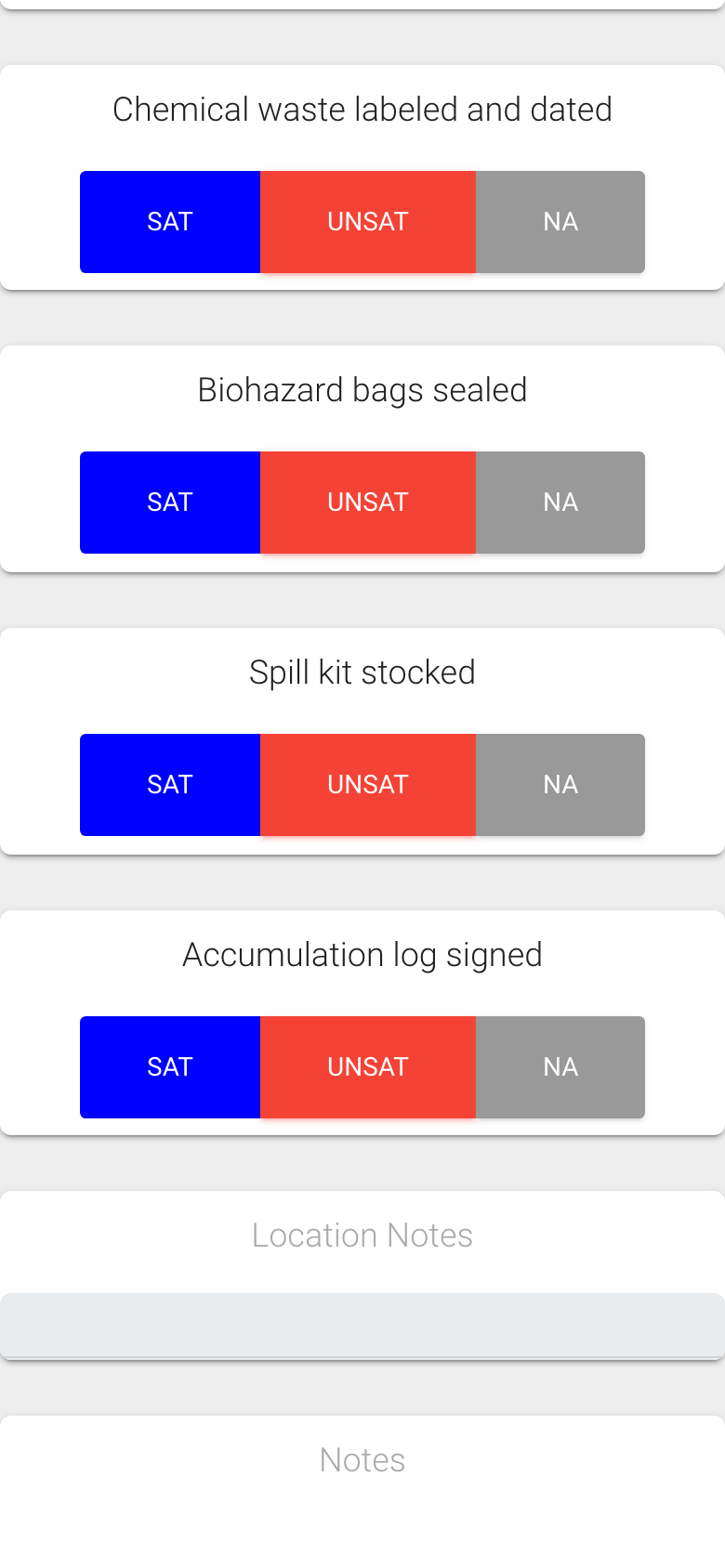
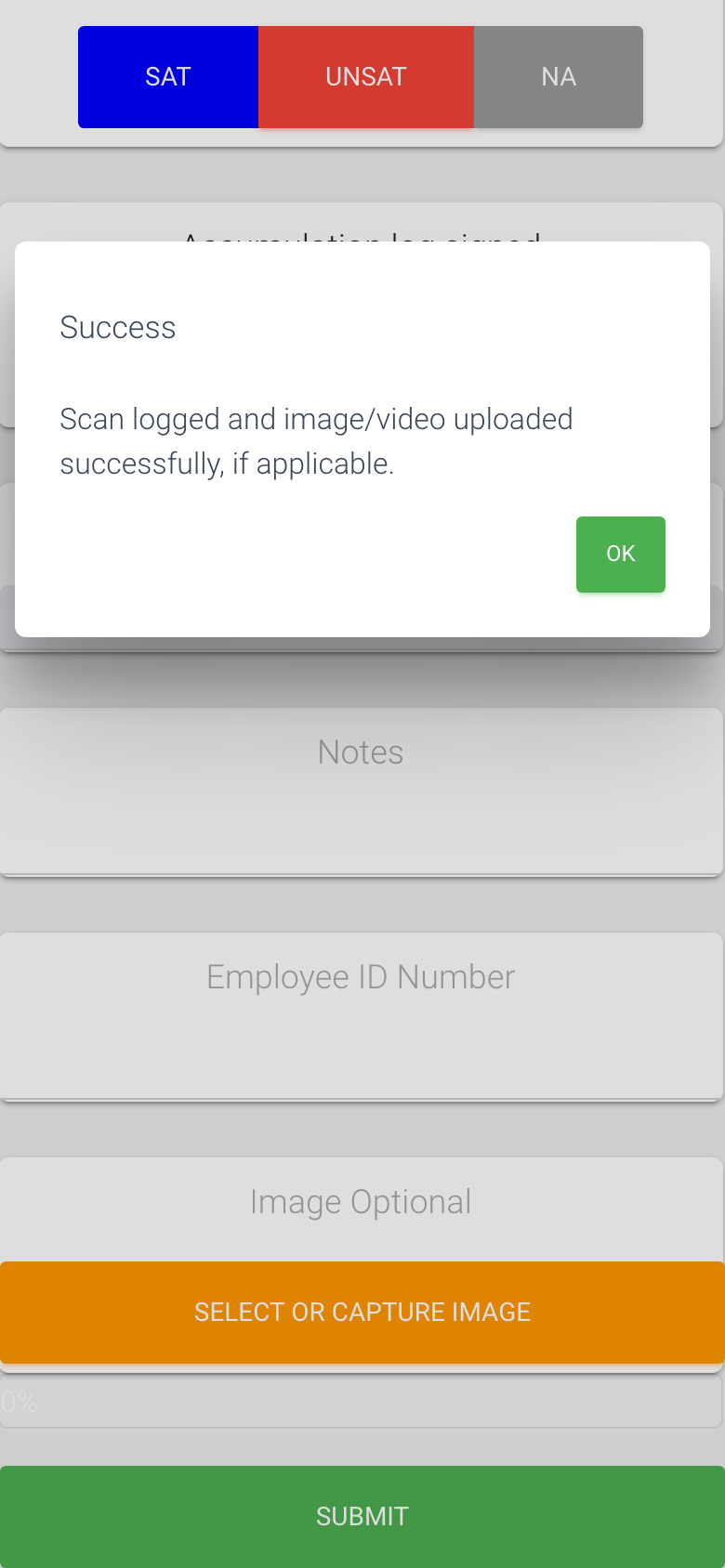
For each task, tap Sat (fine), UnSat (needs attention) or NA (does not apply today). The answer you tapped turns blue.
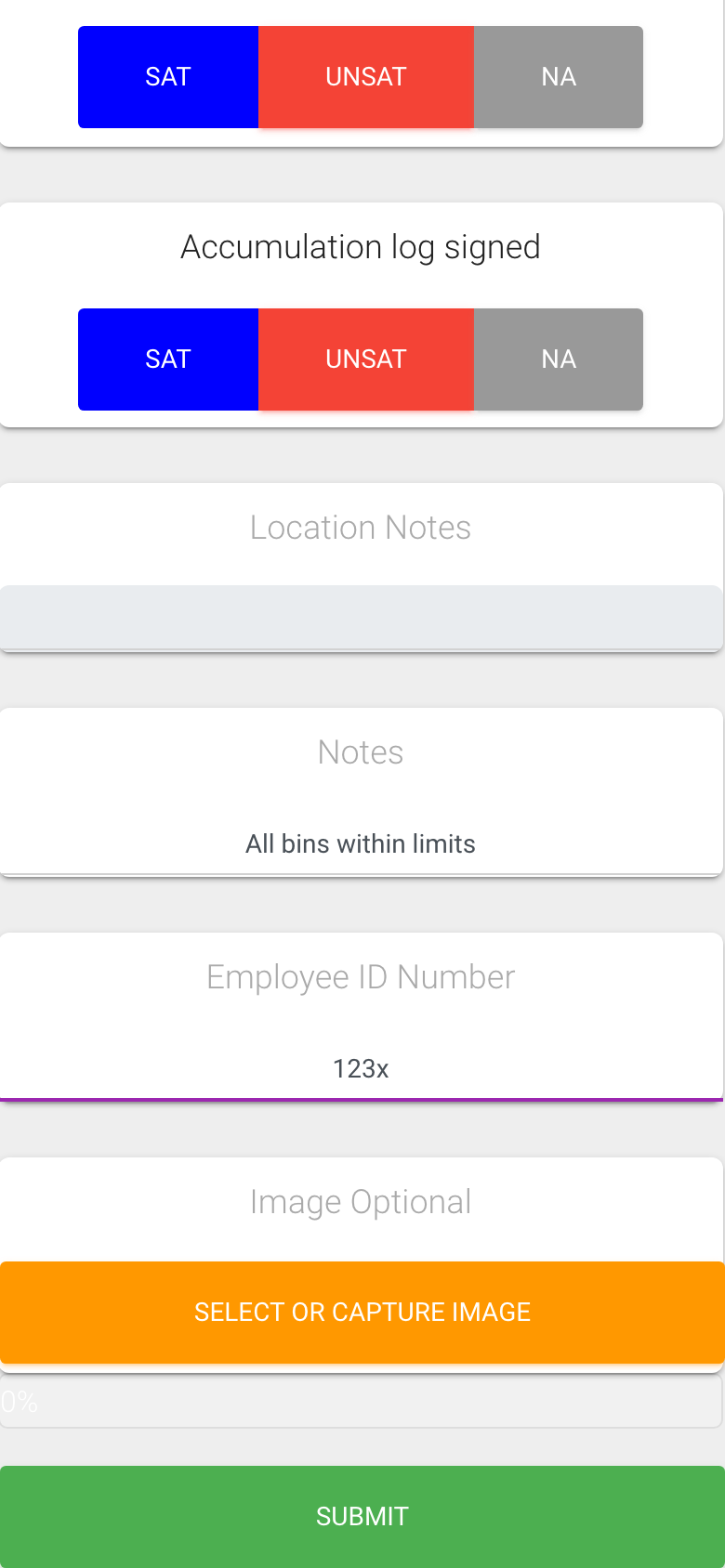
Read any Location Notes your manager left, and type your own Notes if there is something to say, for example what you fixed.
Check Employee ID Number. It is already filled in if the location is assigned to you; otherwise type your ID.
Optional: tap Select or Capture Image to take a photo or video or pick one from your phone. Images under 10 MB work best.
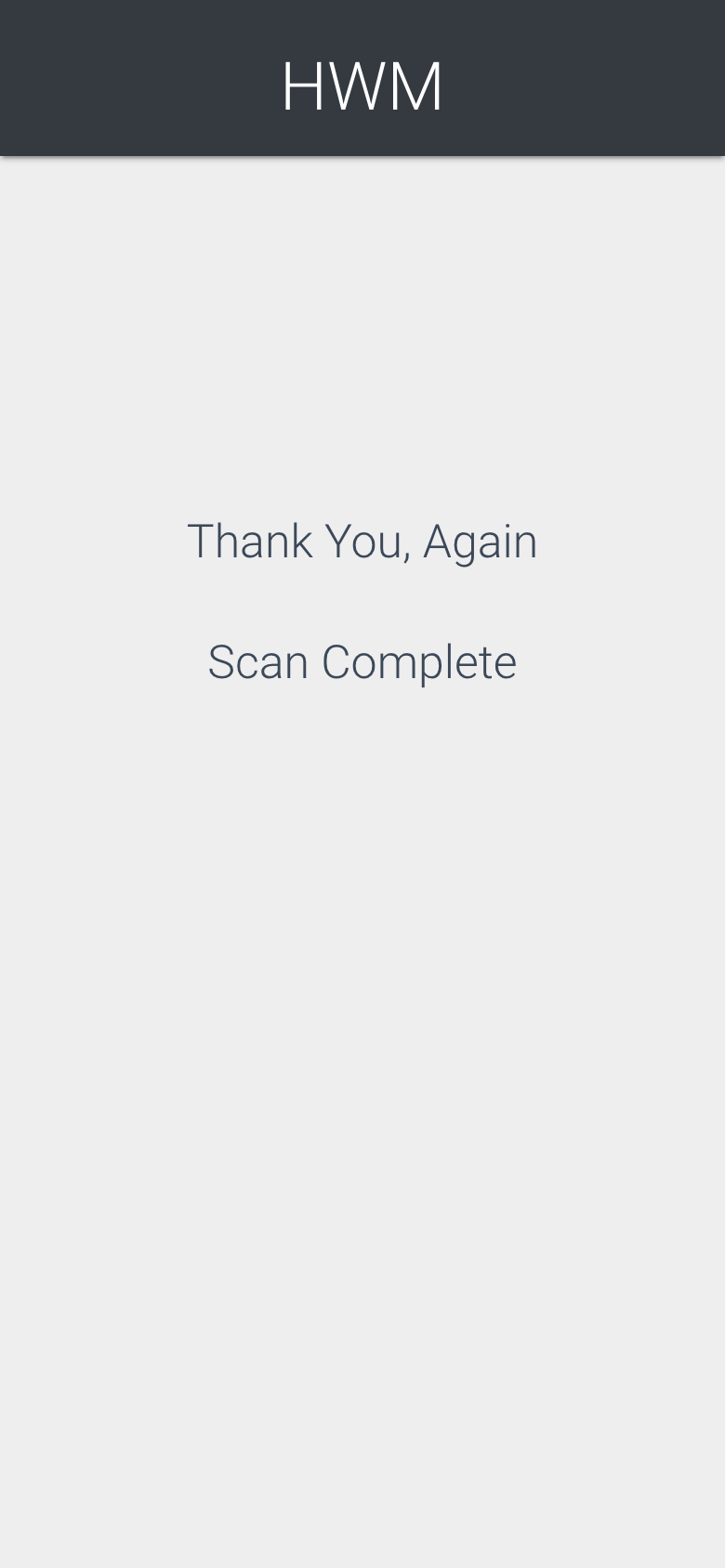
Tap Submit. Wait for the Success message and tap OK. The screen says “Scan Complete”. You are done.
When a uCode has several products, pick HWM Task ListTapped answers turn blueNotes, your ID, the photo button and SubmitSuccess, tap OKScan Complete
What is on the screen
Change activity or product (top bar): goes back to the uCode menu if you tapped the wrong product. Only shown when you arrived through a uCode.
English / Español switch: translates the page, including your task names, into Spanish. Your answers are saved the same either way.
The date and time under the zone is your check-in time, in the facility’s local time.
Location Notes: a read-only reminder set by your manager for this room.
Image Optional: a photo is a nice-to-have. If your organization has asked for photos to be required, the heading reads “Image Required” in red and Submit waits for one.
Who can do this
Anyone with the code in front of them. You do not need an account to submit a check, but your Employee ID is what puts the check under your name on the reports.
Tips
Do not refresh or go back after tapping Submit. If the page ever asks you to scan again, just scan the code again.
Tapping Submit twice does not create two checks. The system keeps the first.
Weak signal? Finish the tasks, then move to better reception before Submit. The page keeps your answers until you submit.
The “Locating…” text under the zone is the phone asking for your location. You can allow or decline; the check submits either way.