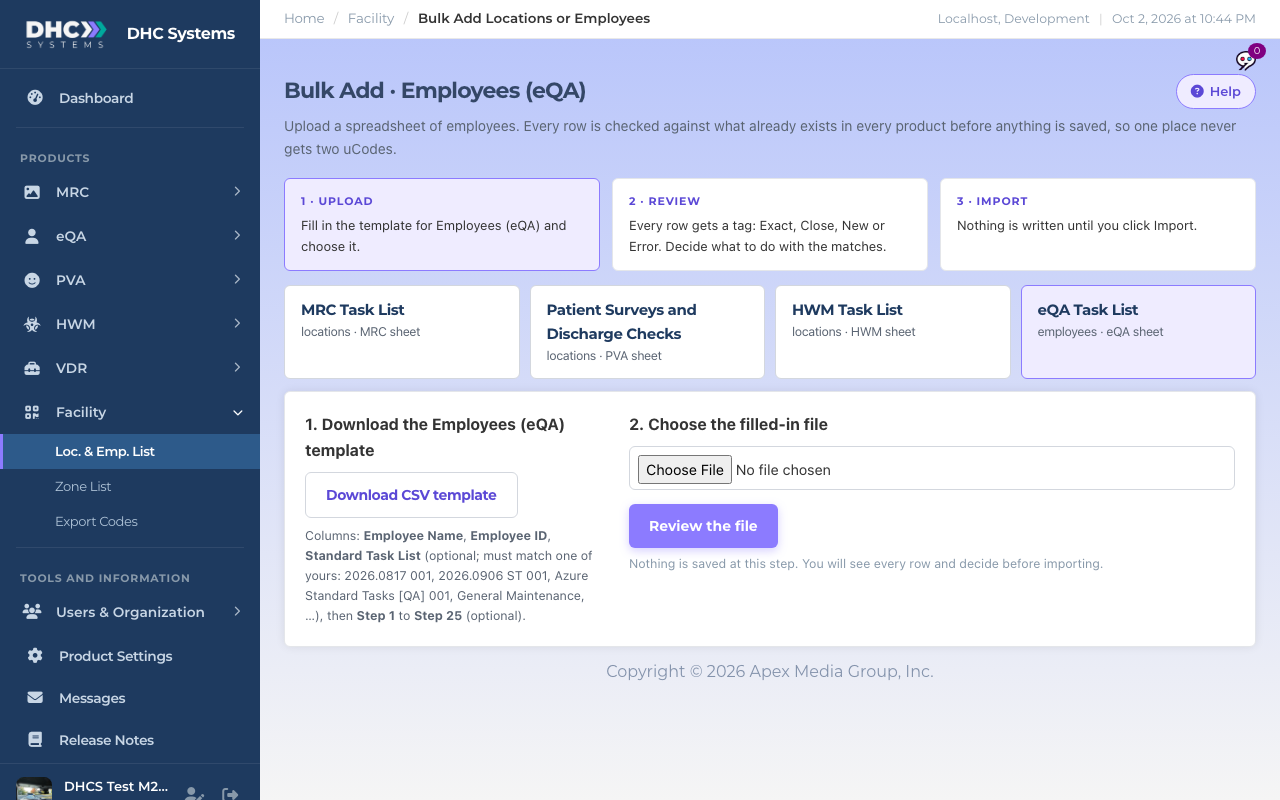
Bulk Add Employees adds a whole list of people from a spreadsheet: name, Employee ID, the standard task list they belong on, and optionally their own checks. It is the Employees (eQA) sheet on the Facility Bulk Add page. The three-step upload, review and import flow is explained in the Facility article “Bulk Add Locations or Employees from a Spreadsheet”; this article covers the eQA sheet only.
Bulk Add with the eQA sheet selected
How to bulk add employees
Click eQA, then Bulk Add Employees. The eQA Task List sheet is already selected (it is highlighted in the row of sheet buttons).
Make sure the eQA Task List sheet is the one highlighted
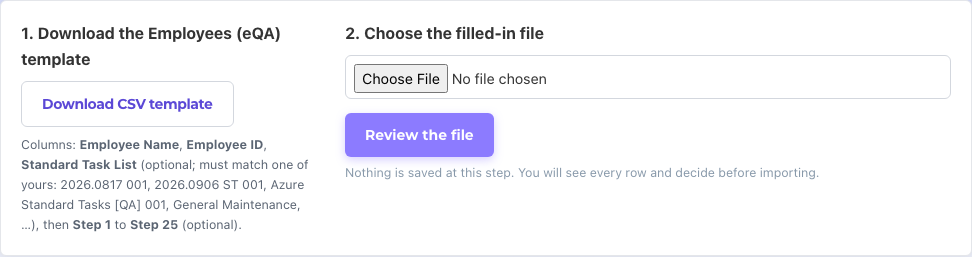
Click Download CSV template. The columns are Employee Name, Employee ID, Standard Task List and Step 1 to Step 25. The template comes with one example row; replace it.
Fill in one row per person. Name and Employee ID are required. In Standard Task List type the Standard Title exactly as it appears on your Standard Tasks page (the page lists the first few for you). Leave the Step columns empty when you use a title; fill them in only for someone who needs their own checks.
Save the file as CSV, then click Choose File, pick it and click Review the file.
Download the template, fill it in, choose it, review
On the review screen every row is tagged Exact, Close, New or Error. Exact means that person already exists; keep “Same person, attach” so they get a uCode instead of a twin. Fix any Error rows in the spreadsheet and upload again.
Click Import. Nothing is written before this step.
After importing
Open eQA, Employee List and spot-check a few rows. Each new person should show the Title you gave them and a Checks count above 0. If a row shows a blank Title or 0 checks, click Edit, pick the Standard Title and Save Changes; that copies the checks onto the record. Then print the codes from Export Employees or Facility Export Codes.
Who can do this
Directors (M2) only. M1 accounts add people one at a time with Add 1 Employee.
Tips
Employee IDs must be unique. The review step catches a repeat and a near-duplicate name so you can decide before anything is saved.
Keep the Standard Task List spelling exact, including commas, for example Housekeeper, Day Shift. Wrap it in quotes in the CSV if your spreadsheet program does not do it for you.
The review screen has a choice for people who already exist: keep the checks they already have, or replace them with the sheet’s. Keep is the default and the safe one.