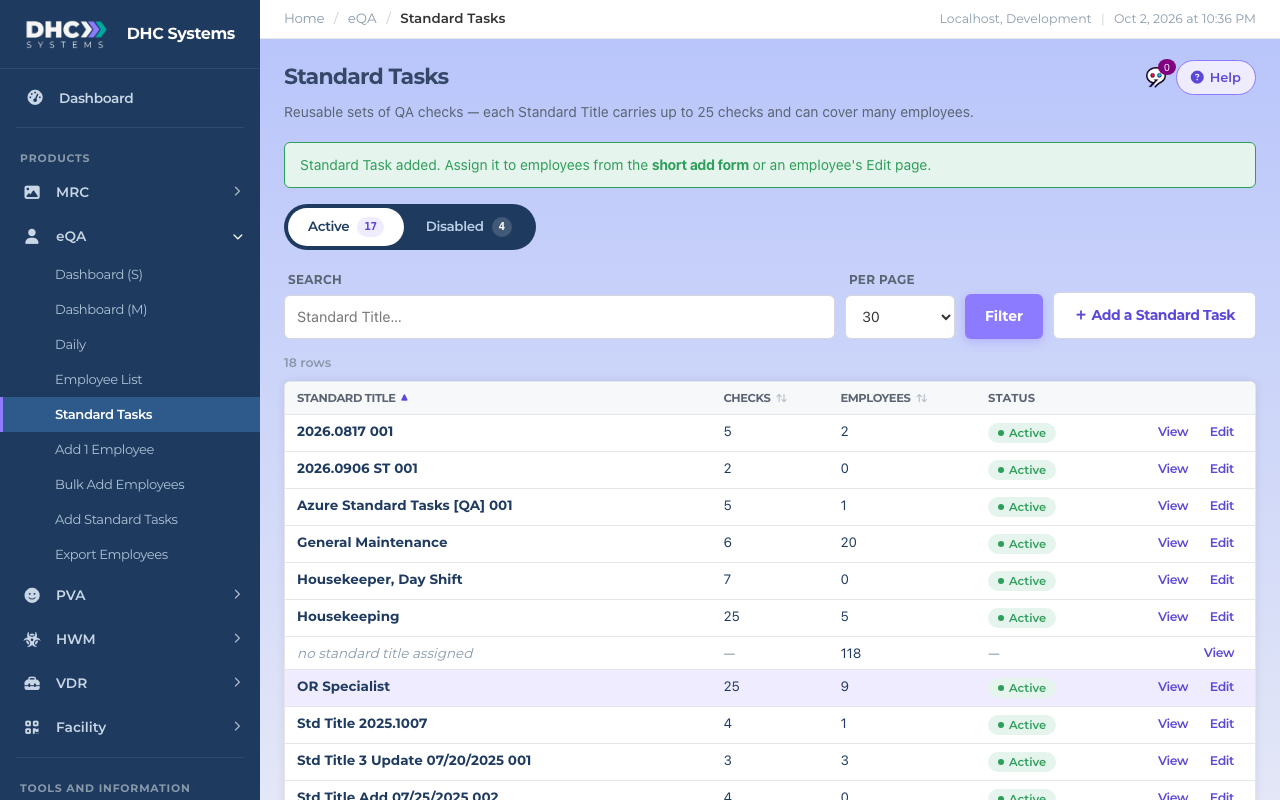
A Standard Task is a reusable list of checks with a name, the Standard Title. Put employees on that title and every one of them is QA’d against the same checks, so results are comparable and new hires are set up in seconds. Make your Standard Tasks before you add employees. Open the list from eQA, then Standard Tasks.
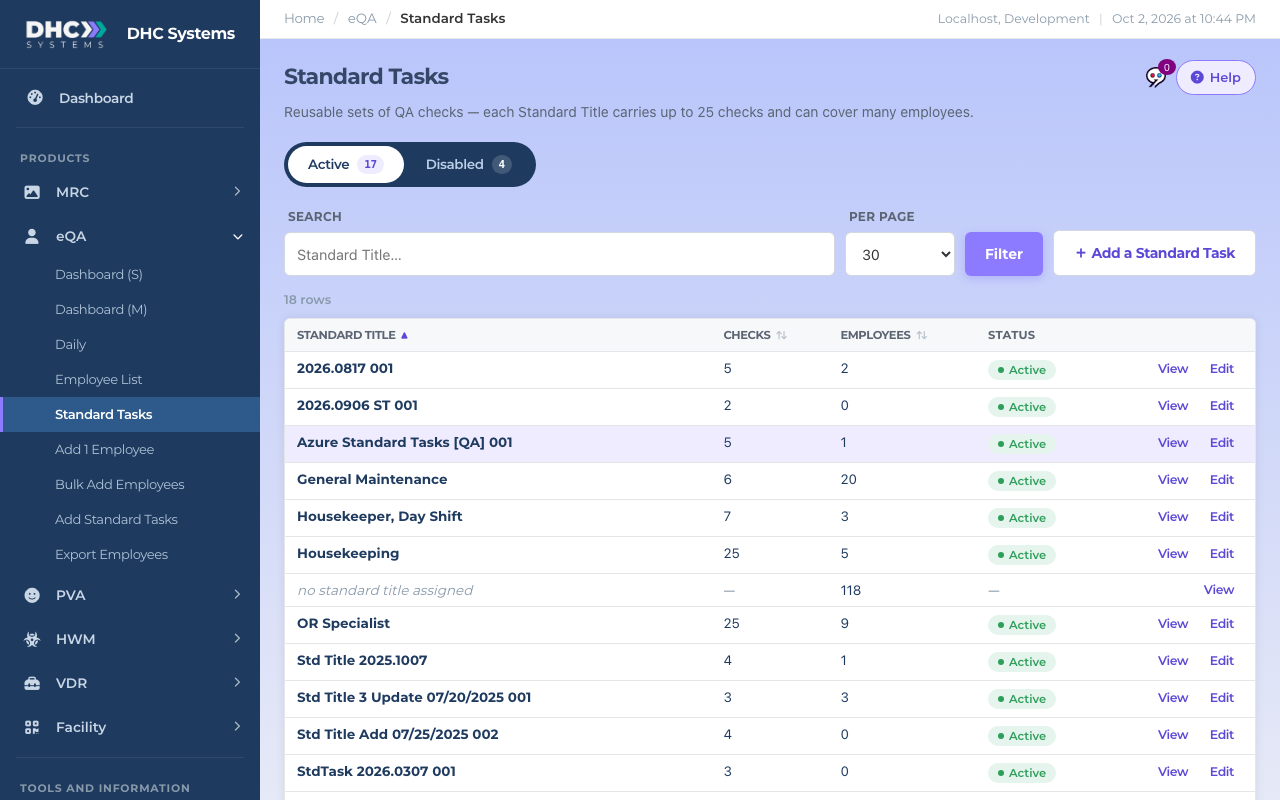
Each row is one reusable list of checks
What the columns mean
Standard Title. The name of the list, for example “Housekeeper, Day Shift”. Keep it short; it has to fit in 40 characters and it shows up on the Employee List as the Title.
Checks. How many checks the list carries, from 1 to 25.
Employees. How many active employees are on this title right now.
Status. Active or Disabled. Only active titles can be assigned.
The italic row “no standard title assigned” is not a list. It counts employees who have no Standard Title yet; click its View to see who they are and assign one. See “eQA Standard Tasks: Editing a List and Assigning It to Employees”.
One title, seven checks, three people
How to add a Standard Task list
Click + Add a Standard Task at the right of the filter bar, or Add Standard Tasks in the sidebar.
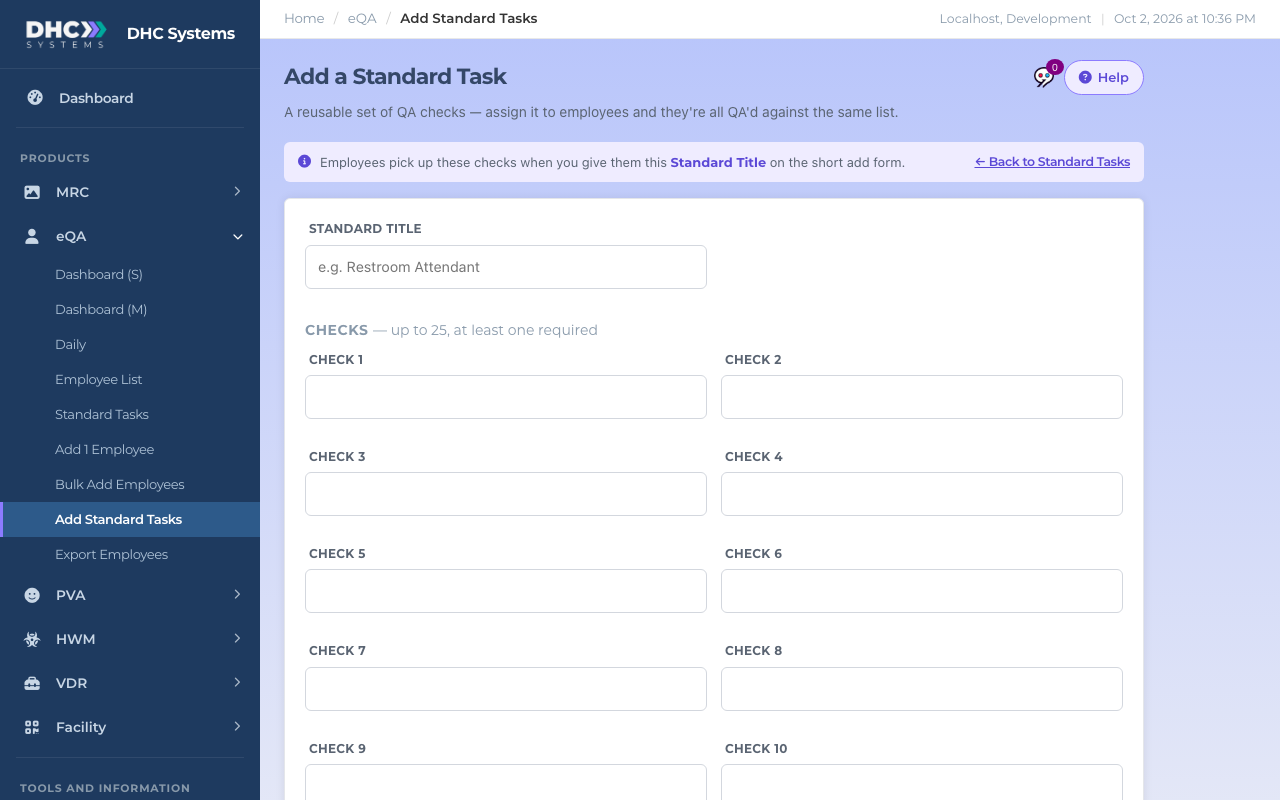
The form opens with ten check slots showing
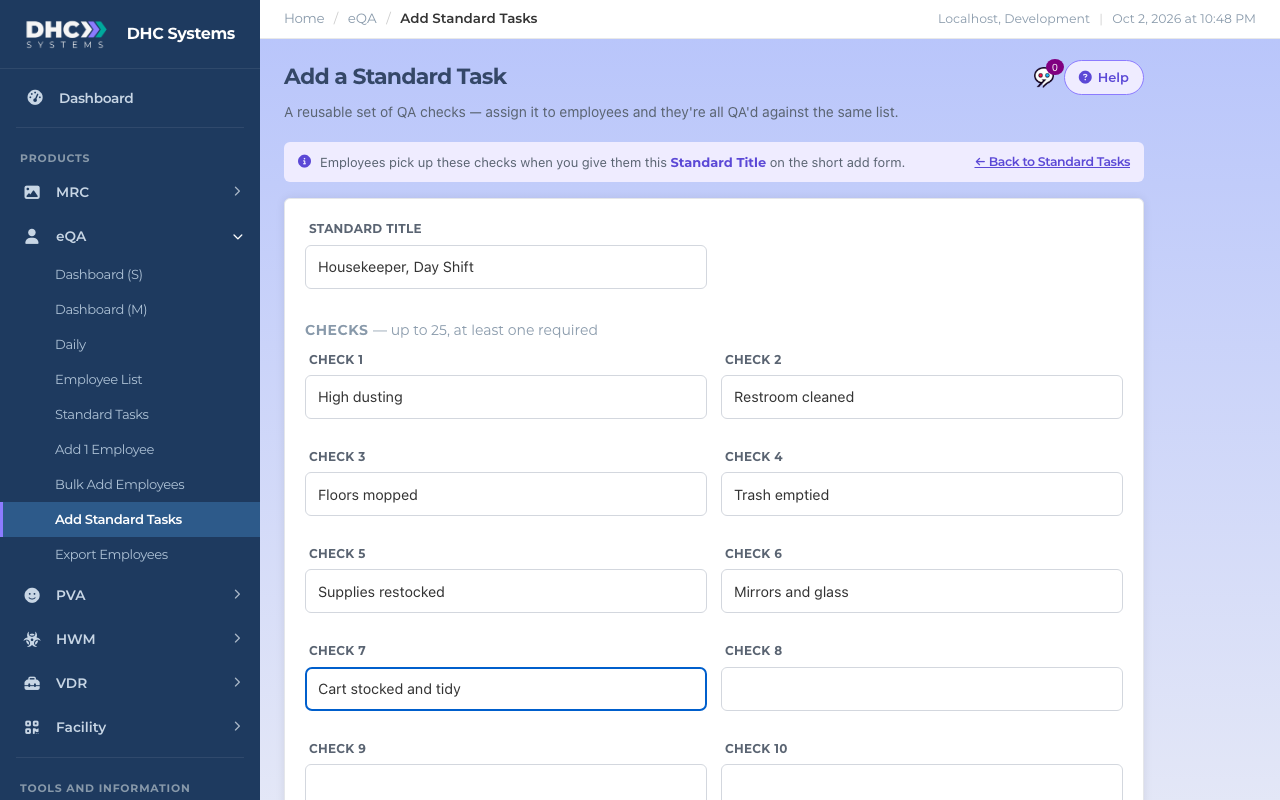
Type the Standard Title, for example Housekeeper, Day Shift.
Type one check per box, Check 1, Check 2 and so on, in the order the manager should see them on the phone. Each check can be up to 30 characters, so write it like a short label: “Restroom cleaned”, “Trash emptied”. At least one check is required.
Seven checks typed in, ready to add
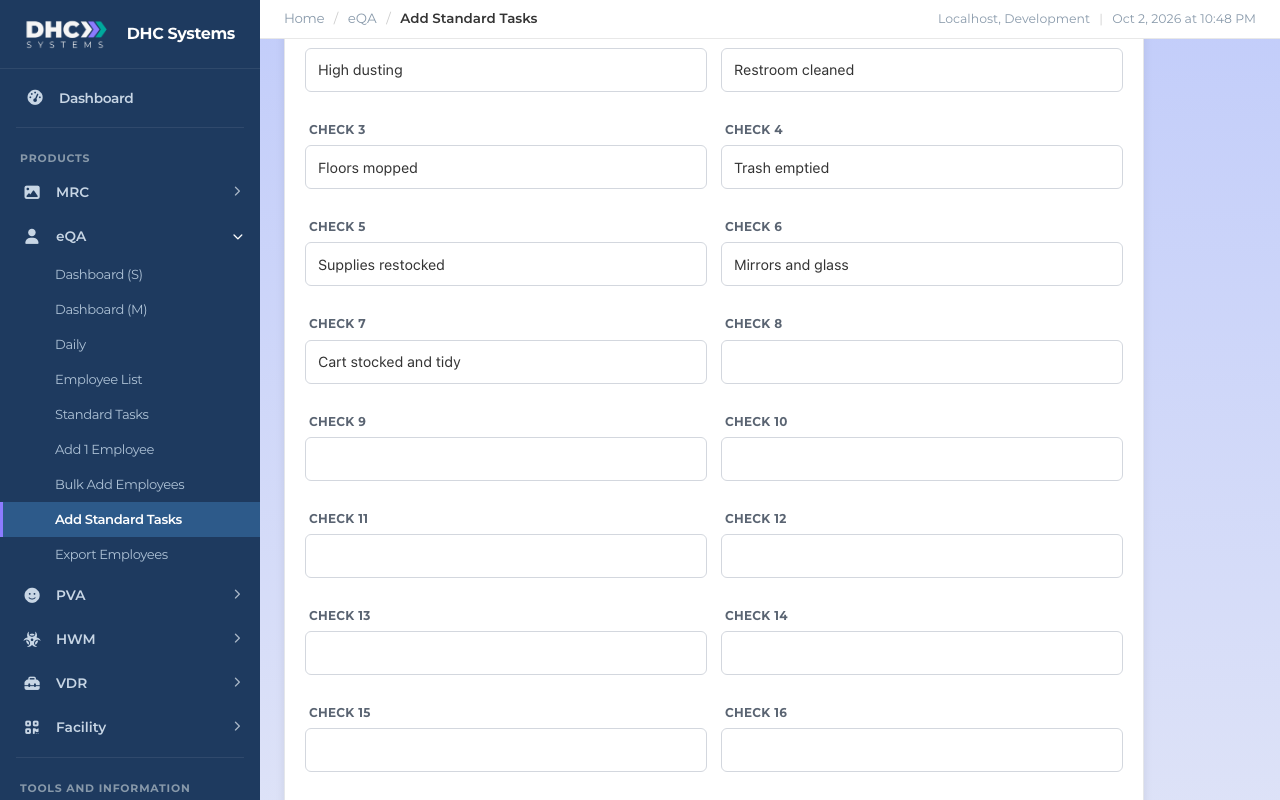
Need more than ten? Click Show all 25 checks to reveal Check 11 to Check 25.
All 25 slots revealed
Add Notes (optional) if you want a reminder for yourself or other managers, up to 140 characters. Notes stay on the record; they are not shown on the phone form.
Click Add Standard Task. You land on the Standard Tasks list with a “Standard Task added” message, and the new title is ready to assign.
Added, and now ready to assign to employees
Who can do this
Everyone can view the Standard Tasks list. M1 accounts and Directors (M2) can add and edit lists. Only a Director (M2) can disable or enable one.
Tips
Make one title per role and shift rather than one giant list. Seven to twelve checks is a comfortable number to answer on a phone.
Write checks as the finished state (“Floors mopped”) so Sat and UnSat read naturally.
Use the Search box on the list to find a title by name. Several words narrow the match.
If you make a mistake, open the title and edit it. Nothing is deleted in eQA; a list you no longer want can be disabled by a Director (M2).