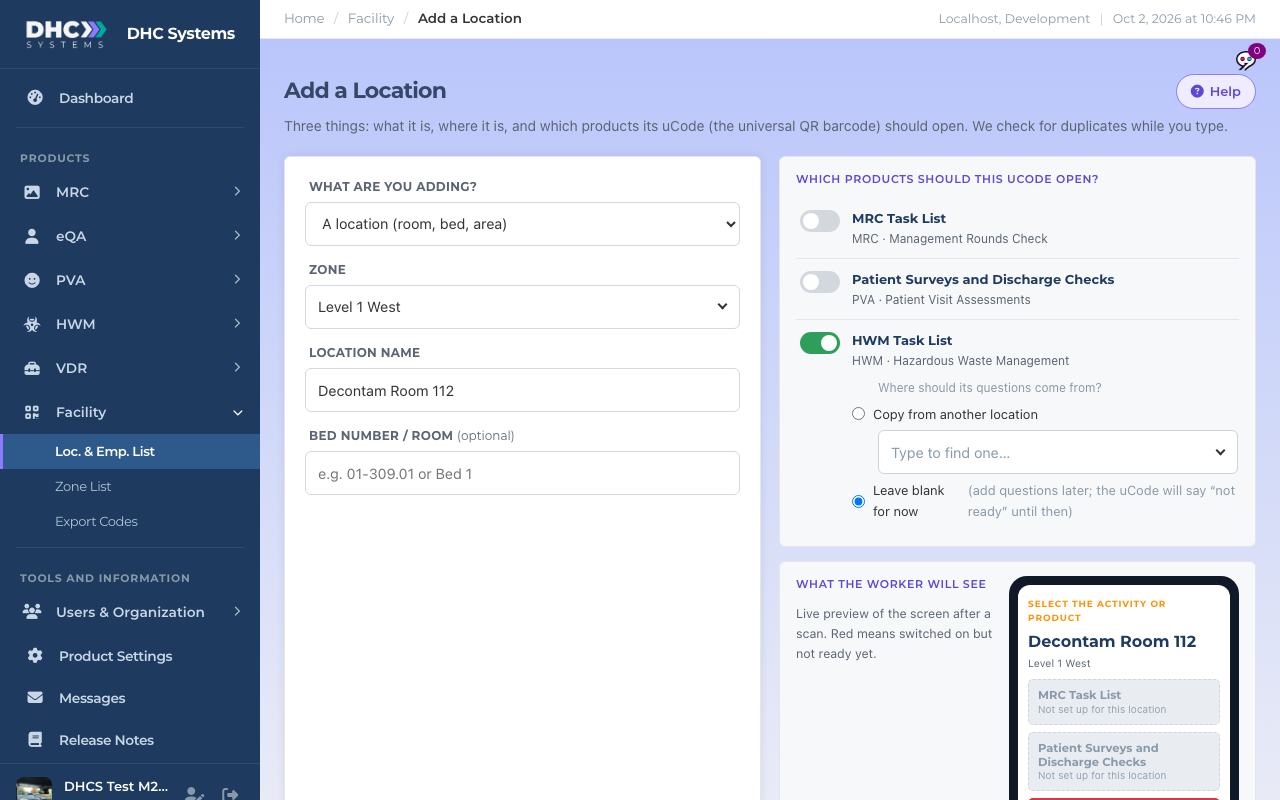
Add 1 Location in the HWM menu opens the Facility Add a Location page with HWM Task List already switched on. One form creates the location, its uCode and its HWM record together. The full page is covered in “Adding a Single Location or Employee”; this article is only the HWM part.
Add a Location with HWM already on
How to add an HWM location
Go to HWM, then Add 1 Location. You can also click Add a Location on the Locations page.
Pick the Zone, or choose New zone and type it.
Type the Location name. If the box under it shows an existing match, open that record instead of making a twin.
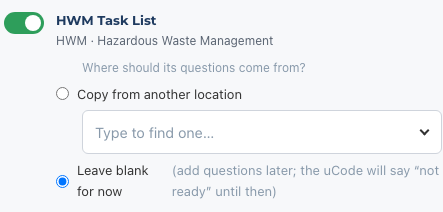
Under HWM Task List, answer “Where should its questions come from?”:
Copy from another location: pick a similar room and its tasks are copied in. Rooms in the same zone are listed first.
Leave blank for now: save first, add tasks afterwards.
Click Save location. You land on the uCode record page.
If you left the tasks blank, click the HWM edit link on that record (or Edit on the Locations list) and fill in the tasks. See “HWM Location Record: View and Edit”.
The only HWM-specific choice on the page
Who can do this
M1 accounts and Directors (M2).
Tips
Copying from a similar room is faster than typing. Edit the differences afterwards.
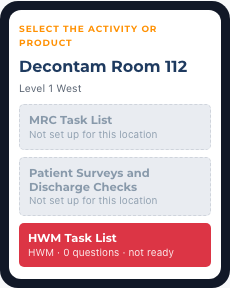
The phone preview on the right shows HWM in red with “not ready” until the location has at least one task. That is normal when you chose Leave blank for now.
The preview turns red until tasks exist
Other products can be switched on in the same form. One code on the door then opens HWM and, for example, MRC.