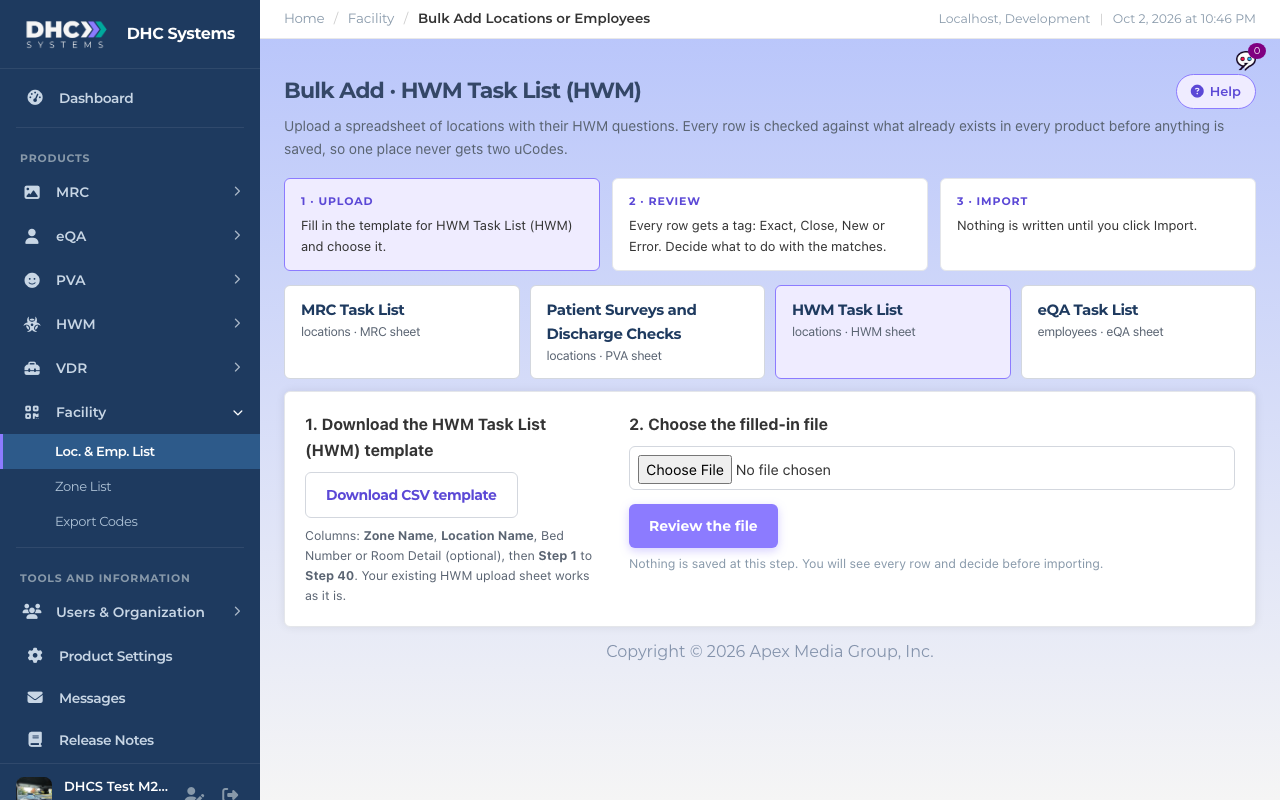
Bulk Add Locations in the HWM menu opens the Facility Bulk Add page with the HWM Task List sheet selected. You fill in one row per location with its tasks, upload, review, import. The general page is covered in “Bulk Add Locations or Employees from a Spreadsheet”; this is the HWM part.
Bulk Add with the HWM sheet selected
How to bulk add HWM locations
Go to HWM, then Bulk Add Locations. The HWM Task List card is highlighted.
Make sure the HWM Task List card is the highlighted one
Click Download CSV template. Columns: Zone Name, Location Name, Bed Number or Room Detail (optional), then Step 1 to Step 40. An HWM upload sheet from before works as it is.
Fill in one row per location. Each Step column is one task, in the order the worker will see them. Leave unused Step columns empty.
Save the file as CSV, click Choose File and pick it, then click Review the file. Nothing is saved yet.
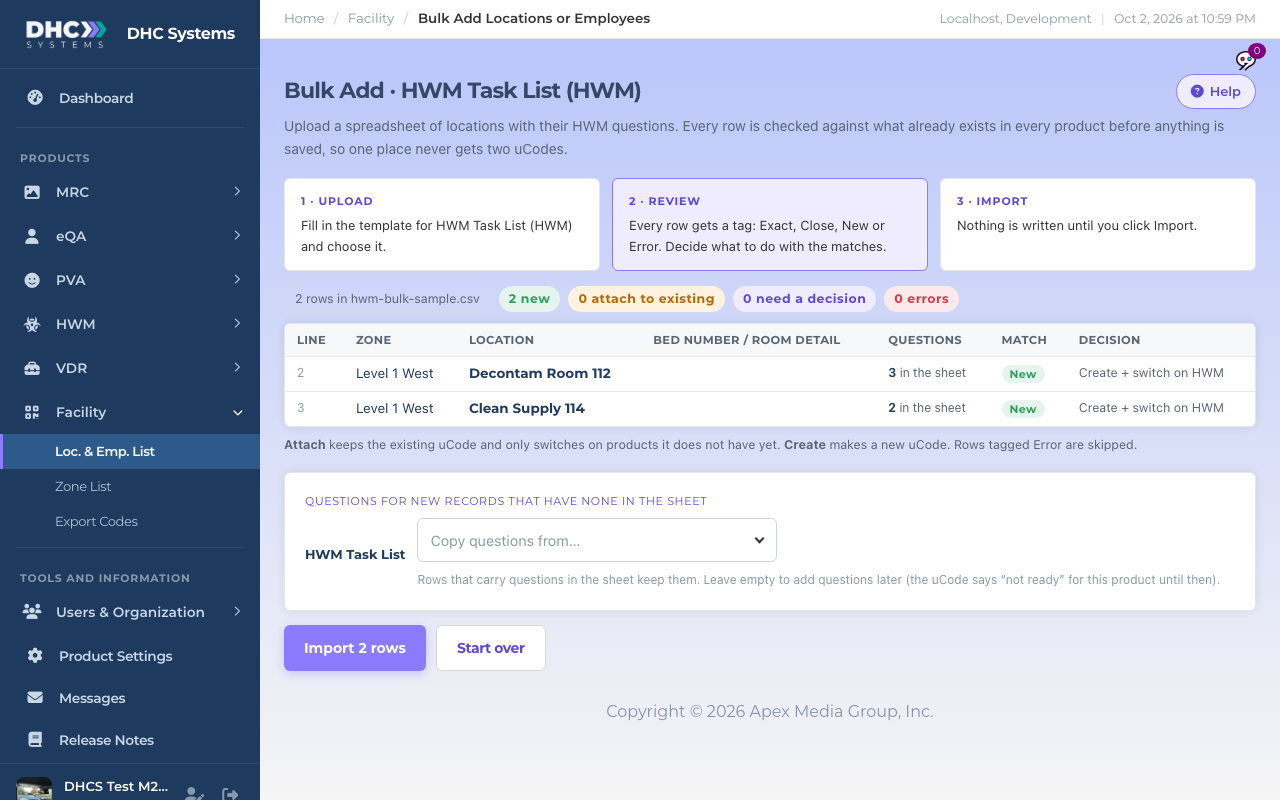
Check the review. Every row gets a tag: New, Exact (already exists, so it attaches to the existing uCode), Close (looks like an existing room, you decide) or Error (something to fix in the sheet). The Questions column shows how many tasks each row carries.
Rows with no Step columns filled can borrow tasks: pick a room under Copy questions from, or leave it empty to add tasks later.
Click Import N rows. The new locations appear on the Locations list with their uCodes and tasks.
Review before anything is saved
Who can do this
Directors (M2).
Tips
Use the exact zone names you already have. A zone spelled differently becomes a new zone.
Keep each Step under 50 characters so it fits on the phone.
After importing, print the codes from Export Locations (HWM-only sheet) or Facility, Export Codes (uCodes).