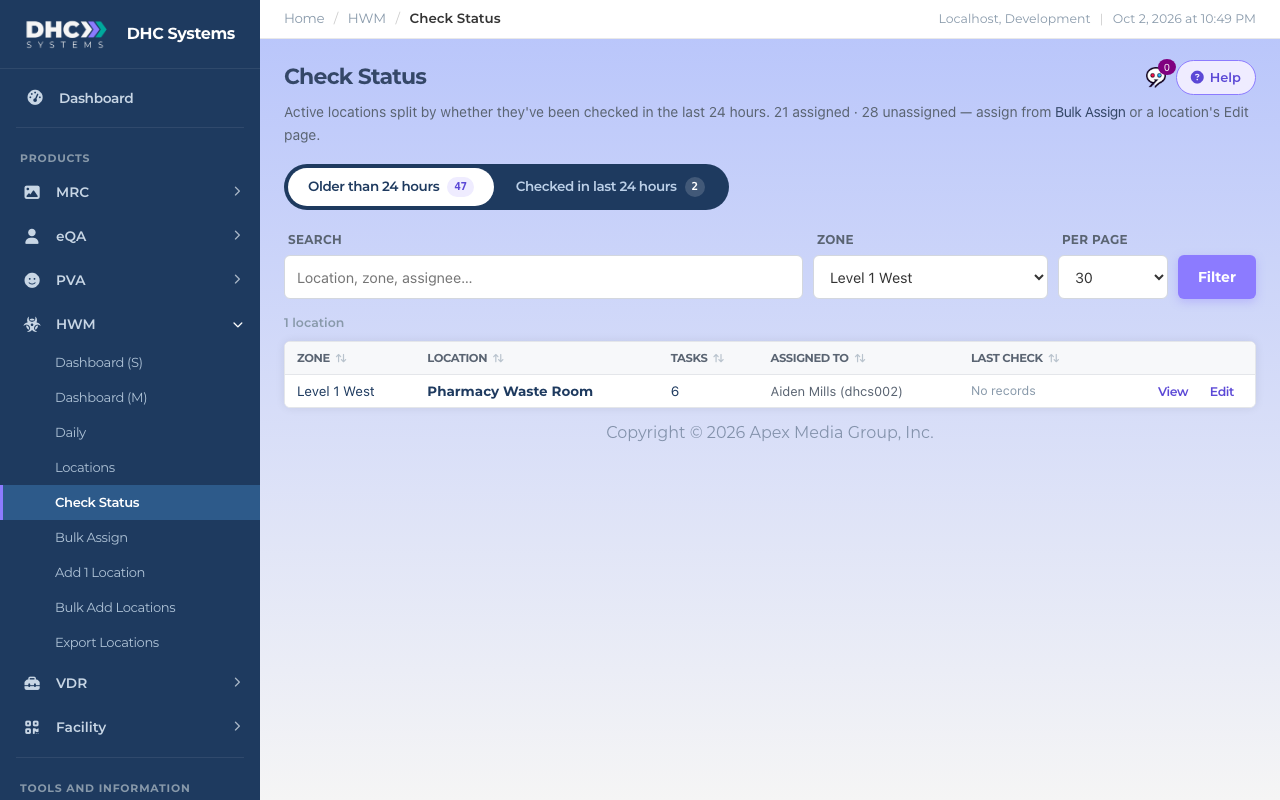
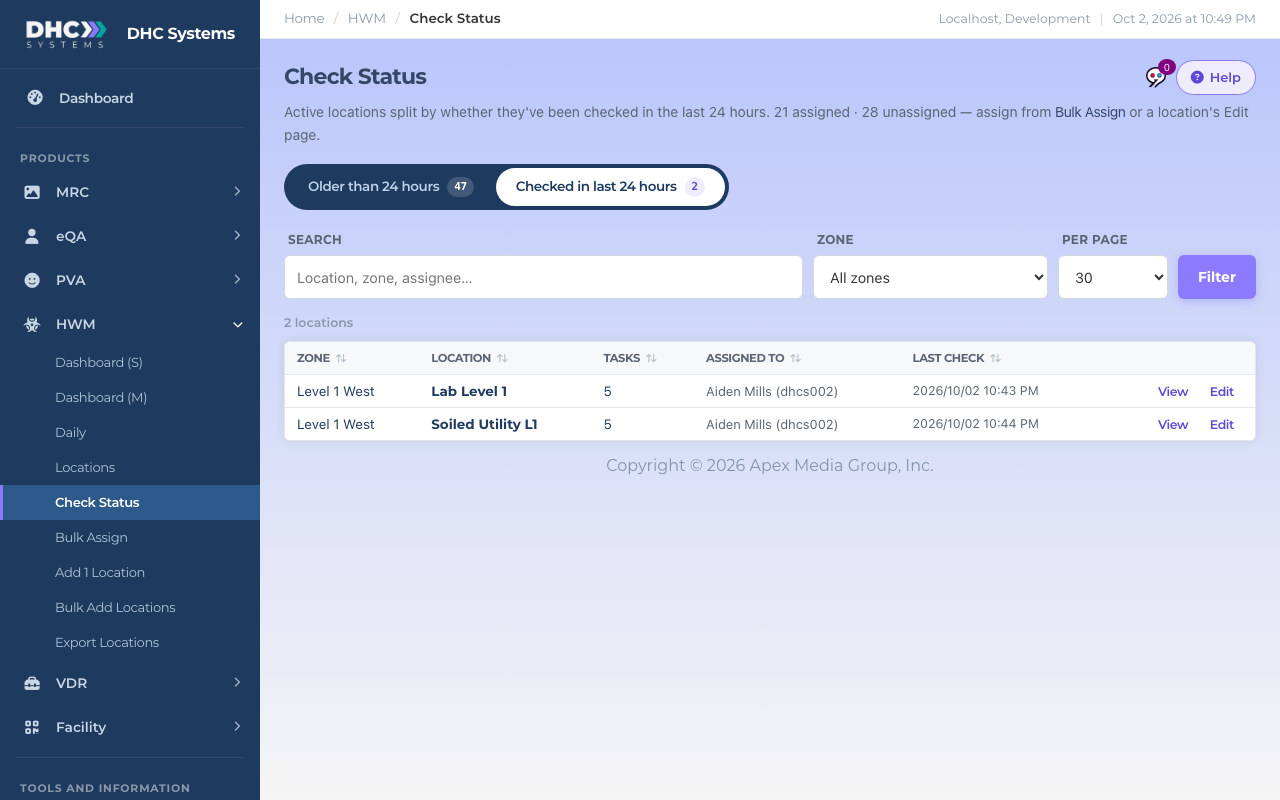
Check Status answers one question: which locations still need a check today? Every active location sits in one of two lists, Older than 24 hours or Checked in last 24 hours. Open it from HWM, then Check Status.
Older than 24 hours: these still need a check
How to use it
Open Check Status. It lands on Older than 24 hours, the list that needs attention. The pill shows how many.
The two lists and their counts
Narrow it with Zone or Search to the area you are responsible for, then click Filter.
Click Checked in last 24 hours on the rail to see what is already done.
Click View to open a location, or Edit to change its tasks or assignee.
Checked in last 24 hours: on track
What the columns mean
Zone, Location, Tasks: the same as on the Locations list.
Assigned to: who is responsible, or “Unassigned”. The line under the title counts assigned and unassigned locations and links to Bulk Assign.
The assigned and unassigned counts
Last check: the most recent scan. “No records” means never scanned, which always lands in Older than 24 hours.
Who can do this
Everyone can open Check Status. M1 accounts and Directors (M2) see the Edit button. Disabled locations are not shown here; manage those from Locations.
Tips
The 24 hours is a rolling window from right now, not from midnight. A location checked at 3 pm yesterday drops into Older than 24 hours at 3 pm today.
An empty Older than 24 hours list says “Every location has been checked within 24 hours”. That is the goal.
Sort by Last check to see the longest-overdue locations first.