Everything in HWM is reached from the HWM group in the left sidebar. Click HWM to open or close the group. The items you see depend on your account type.
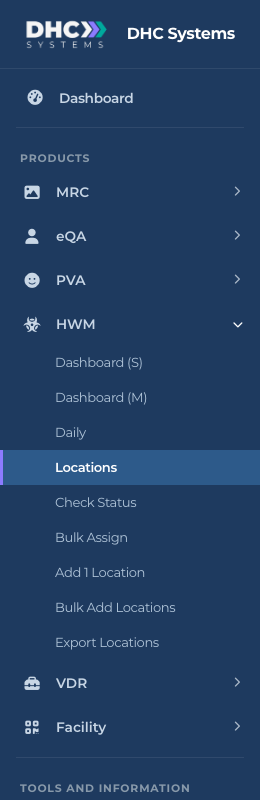
The full HWM group as a Director (M2) sees it
What each item does
Dashboard (S): today’s snapshot. Checks, Sat, UnSat and the Sat Ratio at a glance.
Dashboard (M): the manager view of today, by hour, by location and by person.
Daily: history over a date range, with tabs for zone, location, user and the scan-by-scan details.
Locations: every HWM location with its zone, tasks, assignment and last check. Open a location to view or edit it.
Check Status: the same locations split into “Older than 24 hours” and “Checked in last 24 hours”.
Bulk Assign: hand many locations to one person at once.
Add 1 Location: create one location with its uCode (opens the Facility Add page with HWM already switched on).
Bulk Add Locations: upload a spreadsheet of locations and their tasks.
Export Locations: print the HWM QR code sheet.
Who sees what
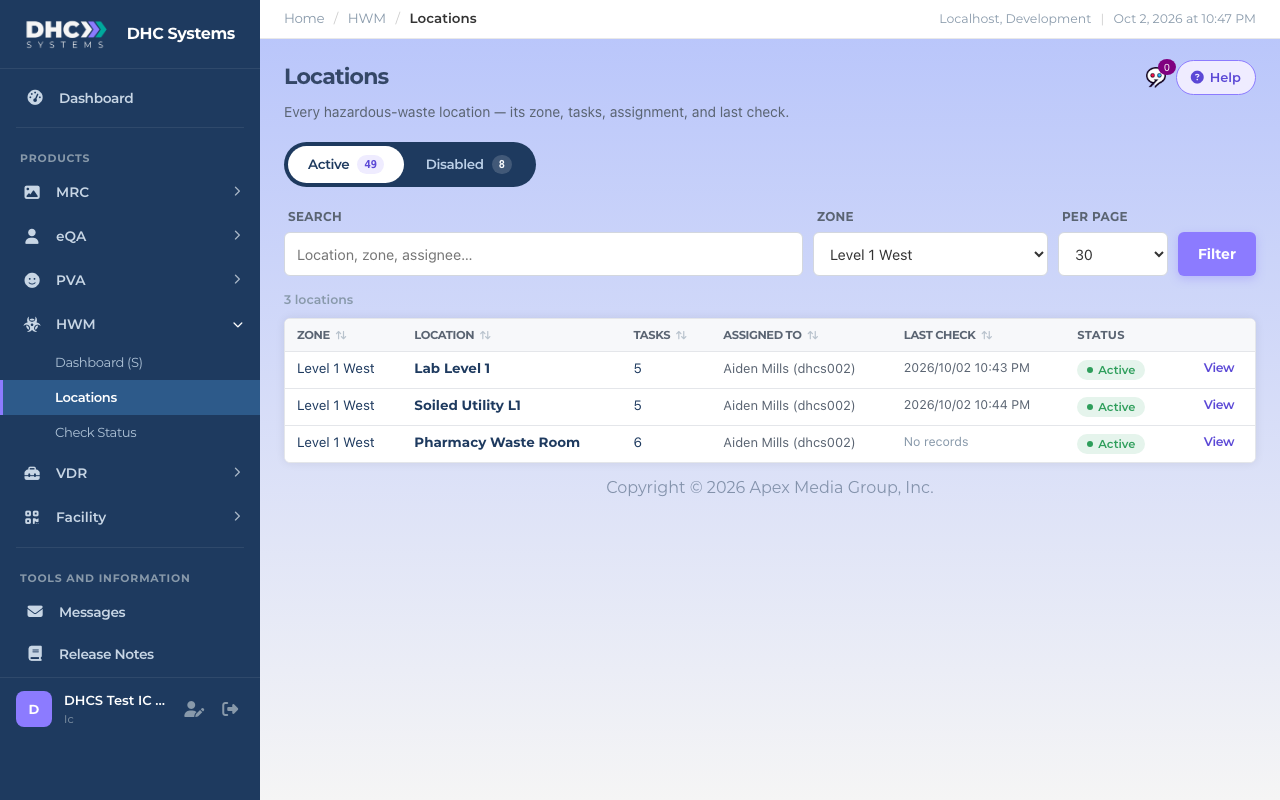
Workers (IC accounts) see Dashboard (S), Locations and Check Status. Lists are read-only for them.
M1 accounts also get Dashboard (M), Daily and Add 1 Location, and can edit locations.
Directors (M2) see everything above plus Bulk Assign, Bulk Add Locations and Export Locations, and can disable or enable locations.
A worker’s view: shorter menu, View only
Getting around on a phone
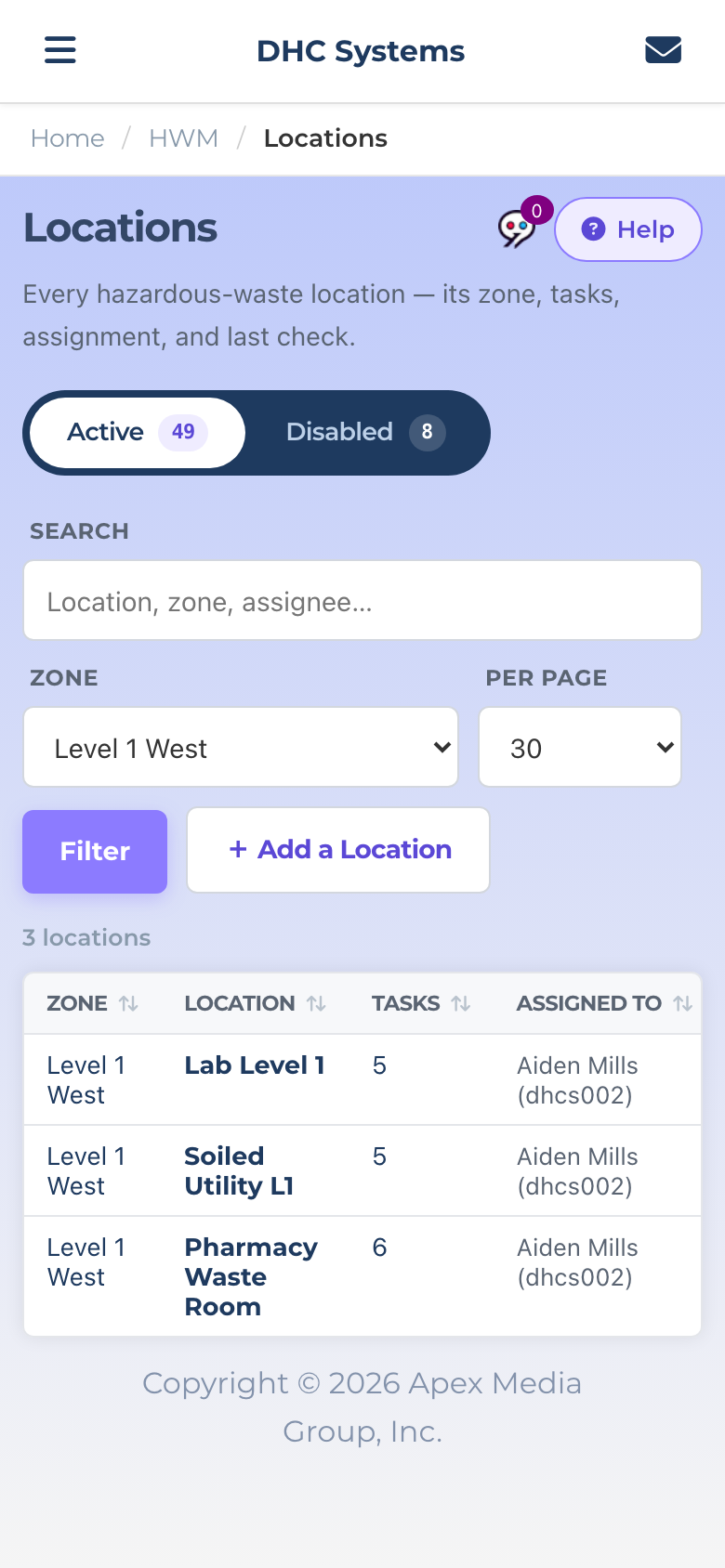
On a phone the sidebar hides behind the menu icon at the top left. Tap it, tap HWM, then the page you want. The breadcrumb under the header (Home / HWM / Locations) always tells you where you are.
HWM on a phone: menu icon top left, filters stacked
The Help button
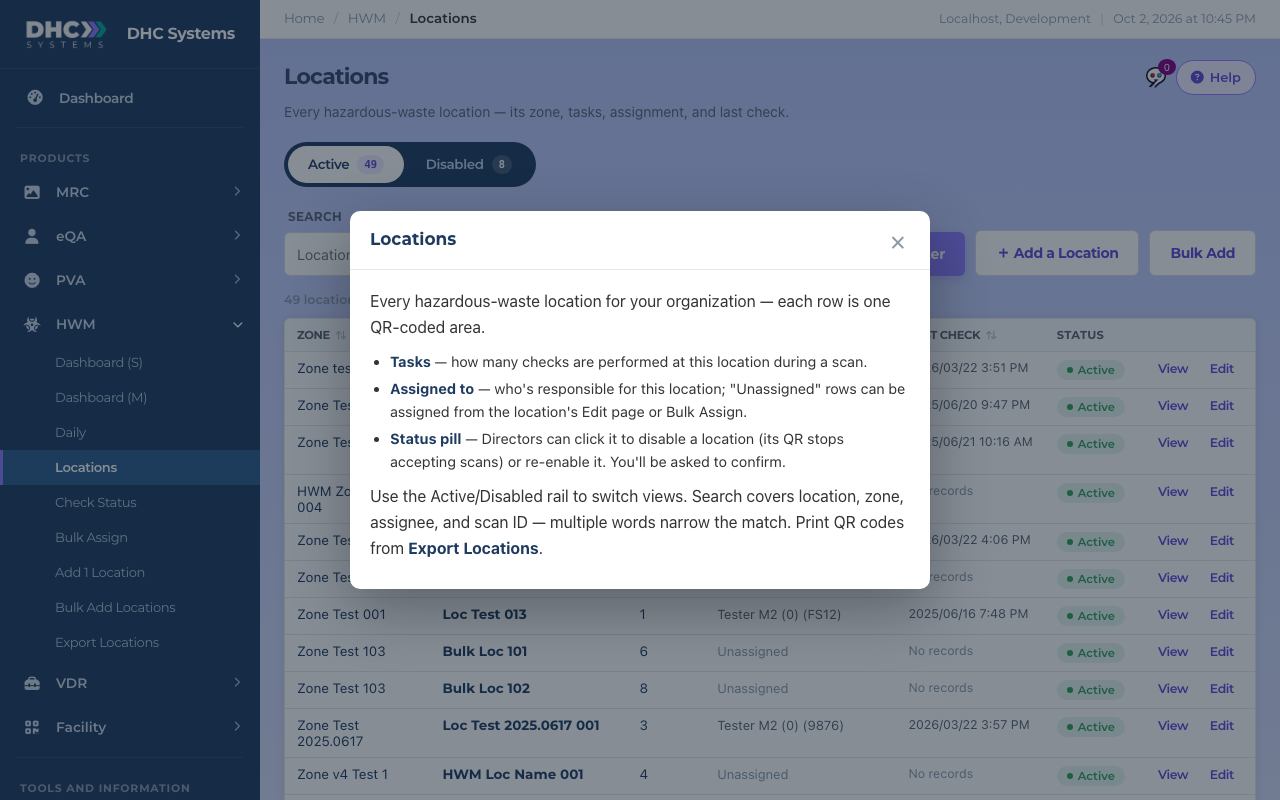
Every HWM page has a Help button in the top right. It opens a short note about that page: what the columns mean and what the buttons do. It is the quickest answer when something on screen is unclear.
Help on the Locations page
Tips
The HWM group stays open while you are on any HWM page, and the current page is highlighted.
If you expect to see an item and do not, ask your Director (M2). Access is set per account type.