HWM Task List (Hazardous Waste Management) tracks the hazardous waste checks that happen around your facility. A worker scans the code on the wall, taps Sat or UnSat for each item, and the result lands on your dashboard with a timestamp, the person’s ID and an optional photo. These are the words you will see everywhere in HWM.
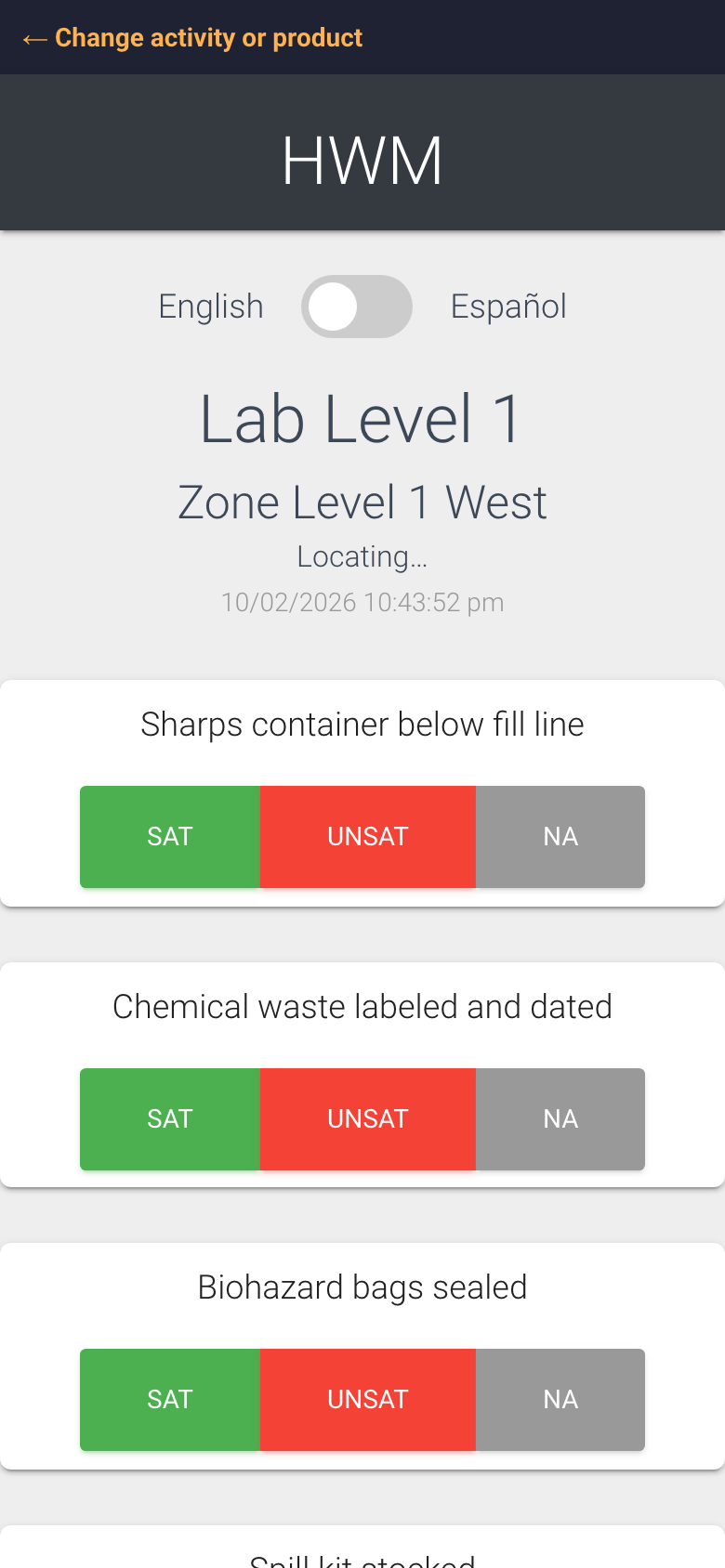
A check on the phone: the location, its zone, and the first tasks
The words
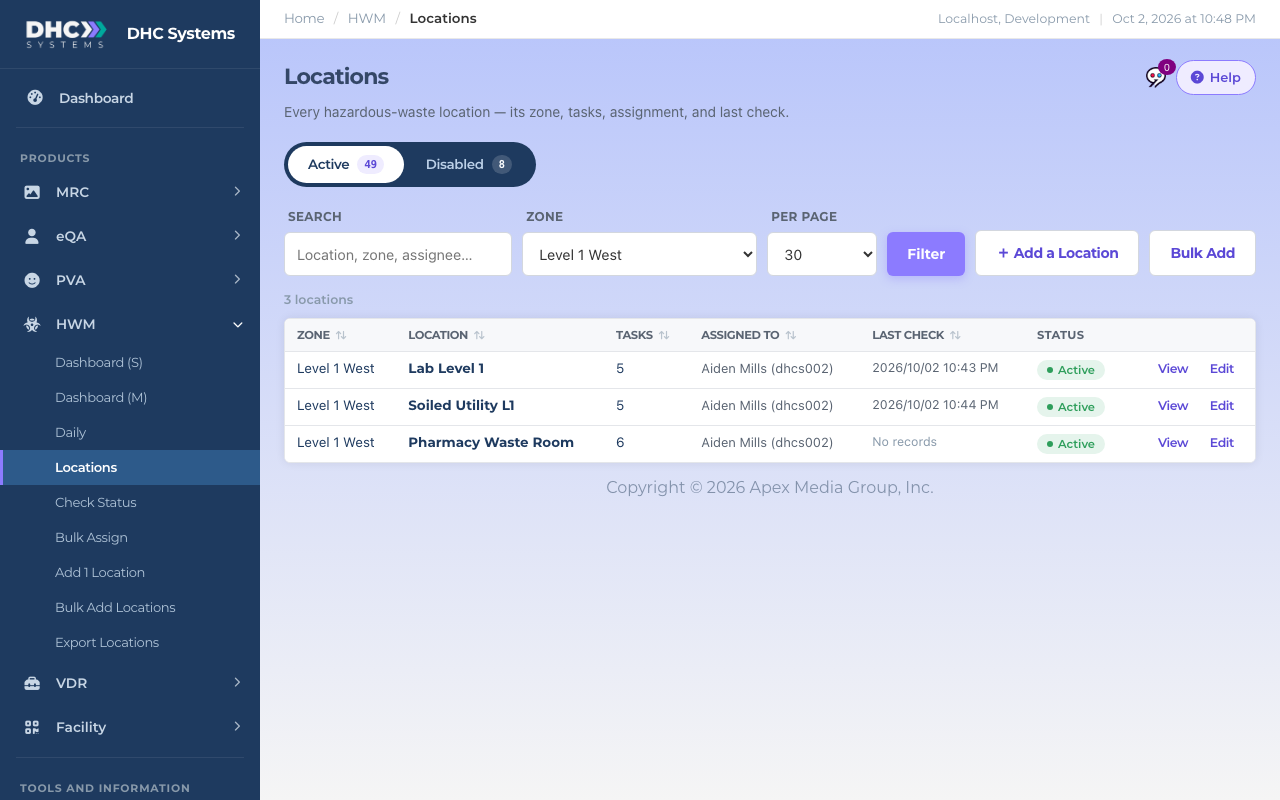
Location: the room or area where a check happens. Examples: Lab Level 1, Soiled Utility L1, Pharmacy Waste Room. Each location has its own code and its own list of tasks.
Zone: a group of locations, usually a floor, wing or department, for example Level 1 West. Zones drive the filters on every HWM list and report.
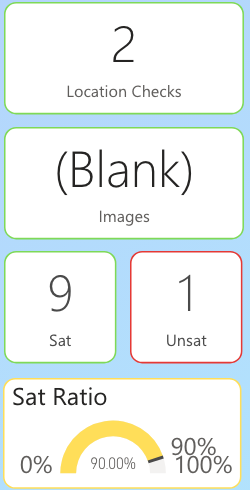
Check: one scan of a location. The worker opens the code, answers the tasks and taps Submit. One check can hold up to 40 tasks. Reports count checks as “Location Checks”.
Task: one item on the checklist for that location, for example “Sharps container below fill line”. Tasks are set up once per location and appear in the same order on every scan. Reports count these as “Tasks”.
Sat, UnSat, NA: the three answers for a task. Sat means satisfactory, UnSat means something needs attention, NA means the item did not apply this time.
Sat Ratio: Sat tasks divided by all answered tasks, shown as a percentage. 90% means nine of ten tasks passed.
Checks, Sat, Unsat and Sat Ratio as they appear on the dashboard
Last check: the date and time the location was most recently scanned. “No records” means it has never been scanned.
Assigned to: the person responsible for a location. Their Employee ID fills in on the phone automatically when they scan. Locations can also be Unassigned.
Active and Disabled: a disabled location keeps its history but its code stops accepting scans and it drops off the lists. You can enable it again later.
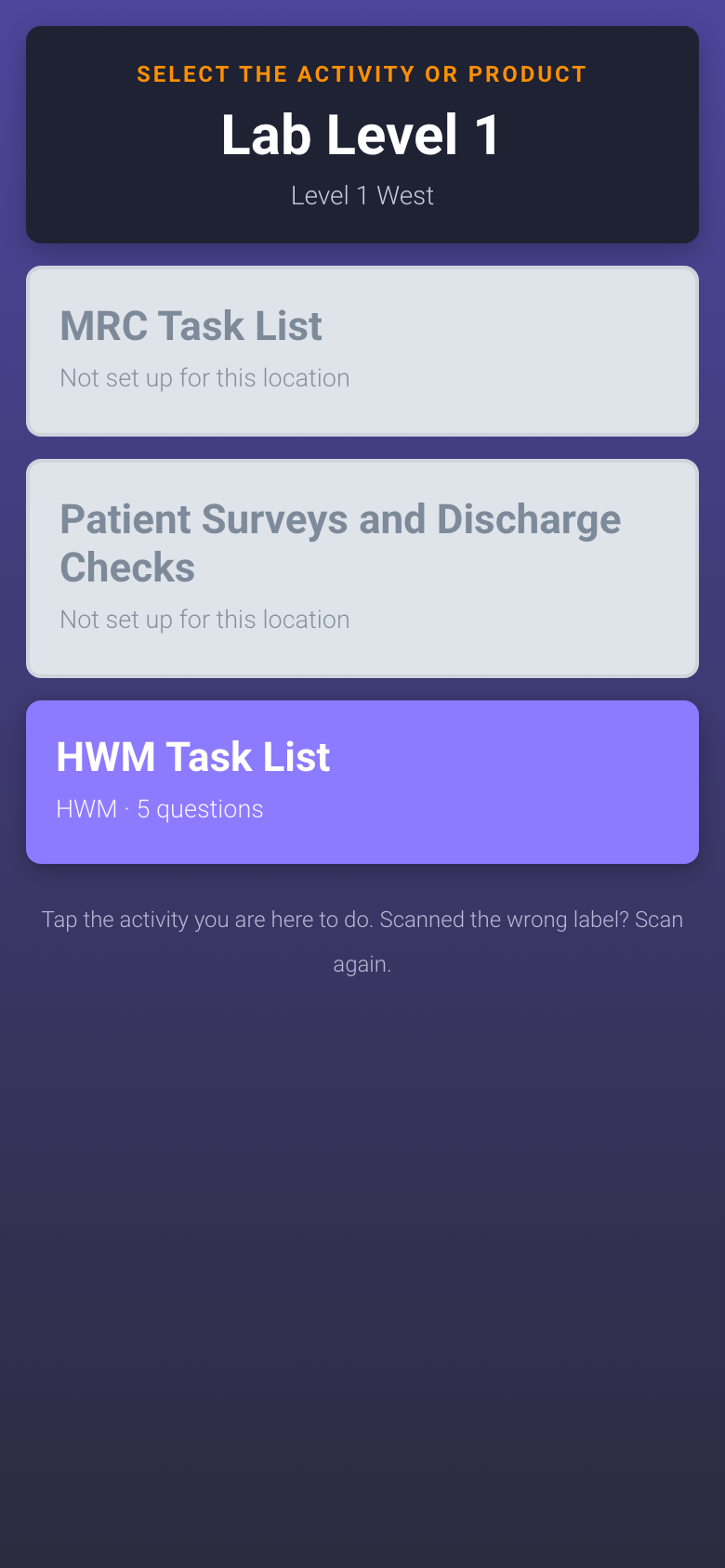
uCode: the universal QR barcode. One code on the door opens every product that is switched on for that place, HWM included. HWM locations are added through the Facility pages so they get a uCode. See “What is a uCode (Universal Barcode)?”.
A uCode asks which product you are here for
Scan ID: the permanent number behind a location’s code. Renaming the location never changes it, so printed codes keep working.
The Locations list uses most of these words in its column headings
Who can do this
Everyone. Workers (IC accounts) see the words on the phone and on the Dashboard (S). M1 accounts and Directors (M2) see them on the lists and reports as well.
Tips
Keep task names short and specific. They have to be readable on a phone, and they become the names you see on your reports.
Pick zone names once and reuse them. A spelling difference creates a second zone and splits your reports.