DHC Systems uses Messages to tell you about maintenance windows, new features and anything that affects your organization. Messages are one way, from DHC Systems to you. To reply or ask a question, use the FeedbackTrax speech bubble on any page or email gmgllc@outlook.com.
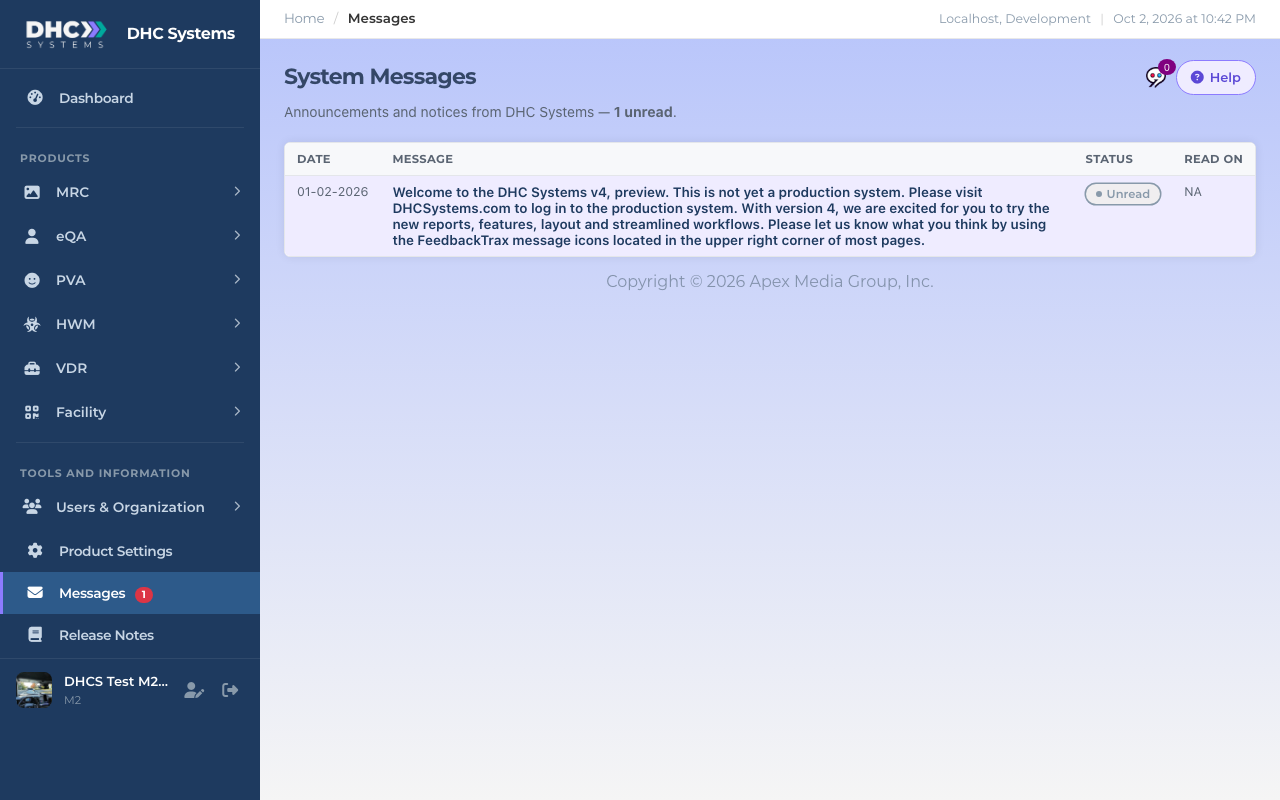
The Messages page with one unread announcement. Note the red count in the sidebar.
Where you will notice a new message
In the sidebar.Messages shows a red number for each unread announcement.
On a phone. The envelope in the white top bar carries the same red number. Tap it to open Messages.
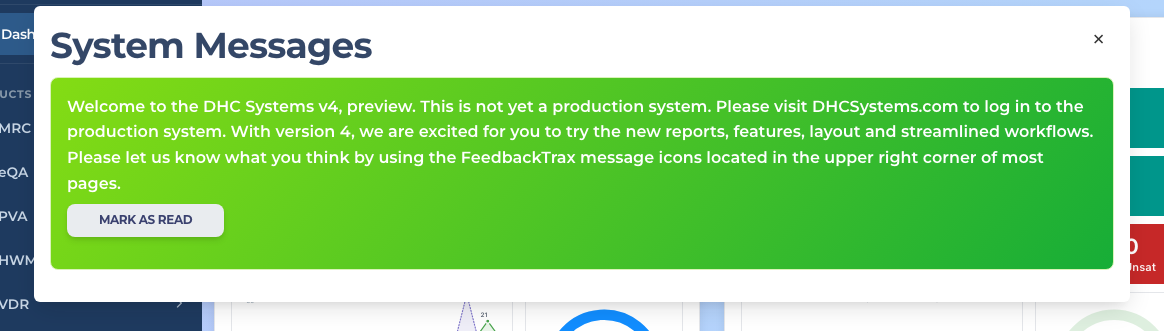
On the Dashboard. While you have something unread, a System Messages box pops up over the Dashboard when it loads. It shows the full text with a Mark as Read button and fades away by itself after a few seconds. Click the × to dismiss it sooner. It comes back on the next visit until the message is read.
The unread count next to Messages.On a phone the count sits on the envelope.The Dashboard pop up for an unread announcement.
How to read and mark messages
Click Messages in the sidebar (or the envelope on a phone). The page lists every current announcement for your organization, newest first. Unread ones are in bold.
Read the Message column. The Date column is the day the announcement went live.
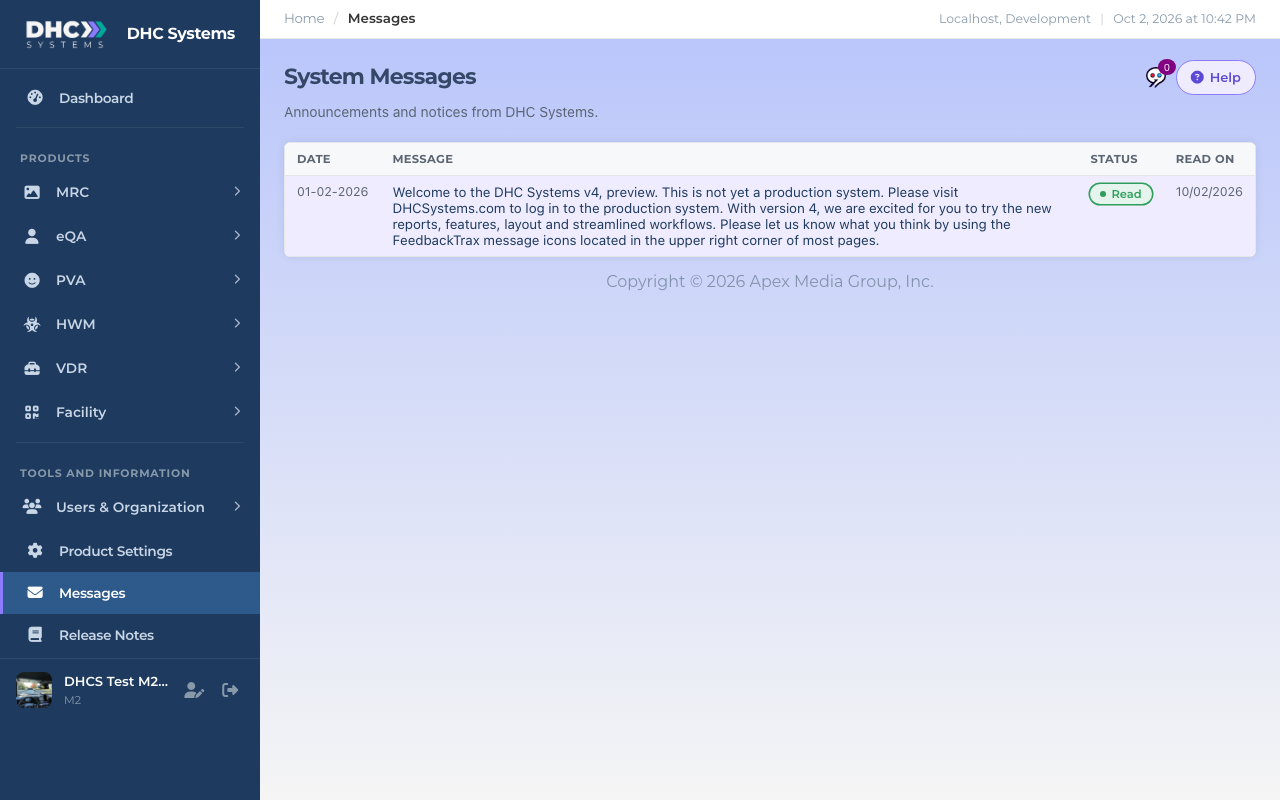
Click the grey Unread pill in the Status column to mark it Read. The pill turns green, the bold goes away, Read on fills in with today’s date, and the red count in the sidebar drops.
Changed your mind? Click the green Read pill and it goes back to Unread, so it stands out again later.
The same message after you mark it Read.
You can also click Mark as Read on the Dashboard pop up. It does the same thing.
What the columns mean
Date: the day the announcement went live.
Message: the announcement text. Bold means unread.
Status: Unread (grey) or Read (green). Click it to switch.
Read on: the date you marked it read, or NA.
Messages have a start and an end date set by DHC Systems. They appear only while they are current and disappear from the list when they expire, read or not. Read status is per person: marking a message read does not hide it from your colleagues.
Who can do this
Everyone. IC accounts, M1 accounts and Directors (M2) all see the same announcements for their organization and keep their own read status.
Tips
Clear the red count once a week. A long list of unread messages makes a real alert easy to miss.
Planned maintenance is announced here first. If scanning behaves oddly, check Messages before you report a problem.
New feature notes point to the Release Notes link at the bottom of the sidebar for the details.