Add 1 Scan in the MRC sidebar opens the Facility page Add a Location with MRC Task List already switched on. The room gets one uCode that can open MRC and, later, any other product you turn on. The full walkthrough of that page is in the Facility article Adding a Single Location or Employee. This article covers only what is MRC-specific.
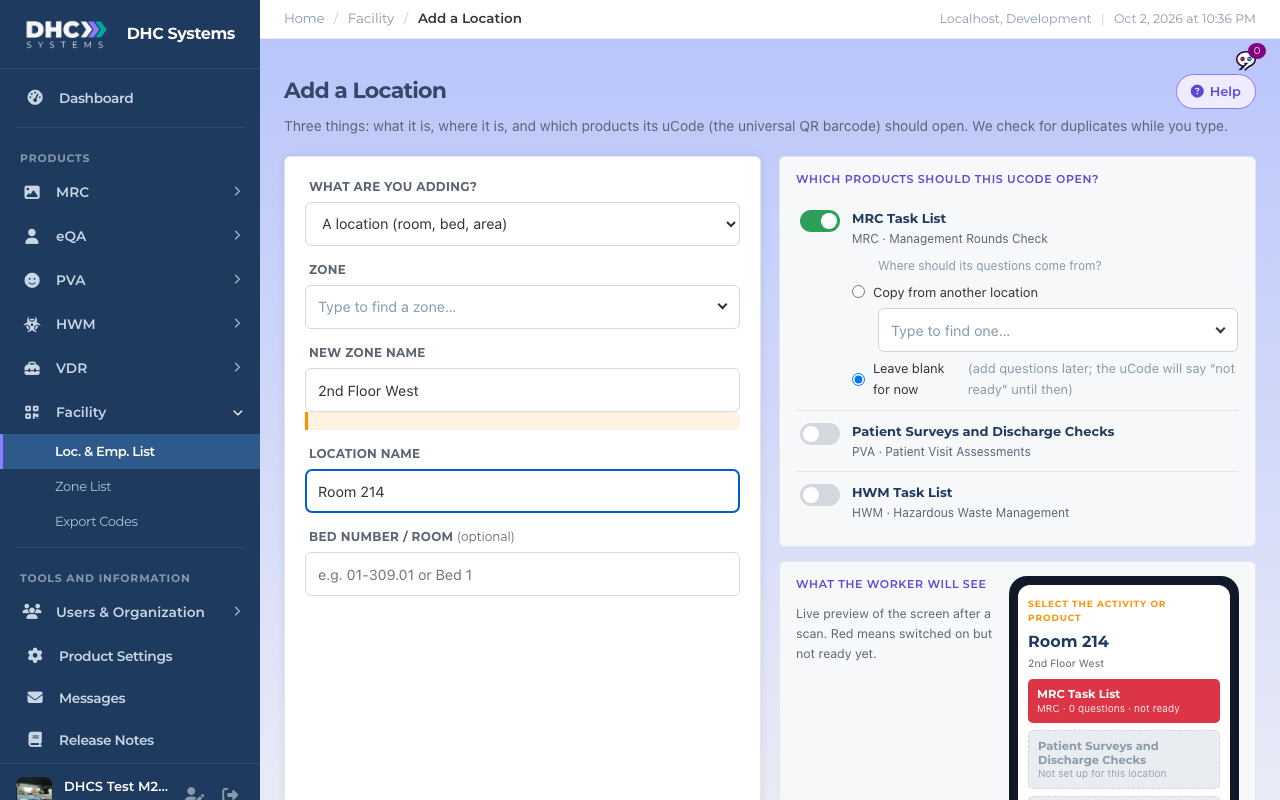
Add 1 Scan with a new zone and Room 214 typed in
How to add a room for MRC
Click MRC, then Add 1 Scan.
Pick the Zone, or choose New zone and type its name, for example 2nd Floor West.
Type the Location name. This becomes the room’s Architectural # in MRC.
Under Which products should this uCode open?, MRC Task List is on. Choose where its tasks come from:
Copy from another location: pick a similar room and its task list is copied. Rooms in the same zone are listed first.
Leave blank for now: the room is created with no tasks, and the phone preview shows MRC in red as not ready until you add them.
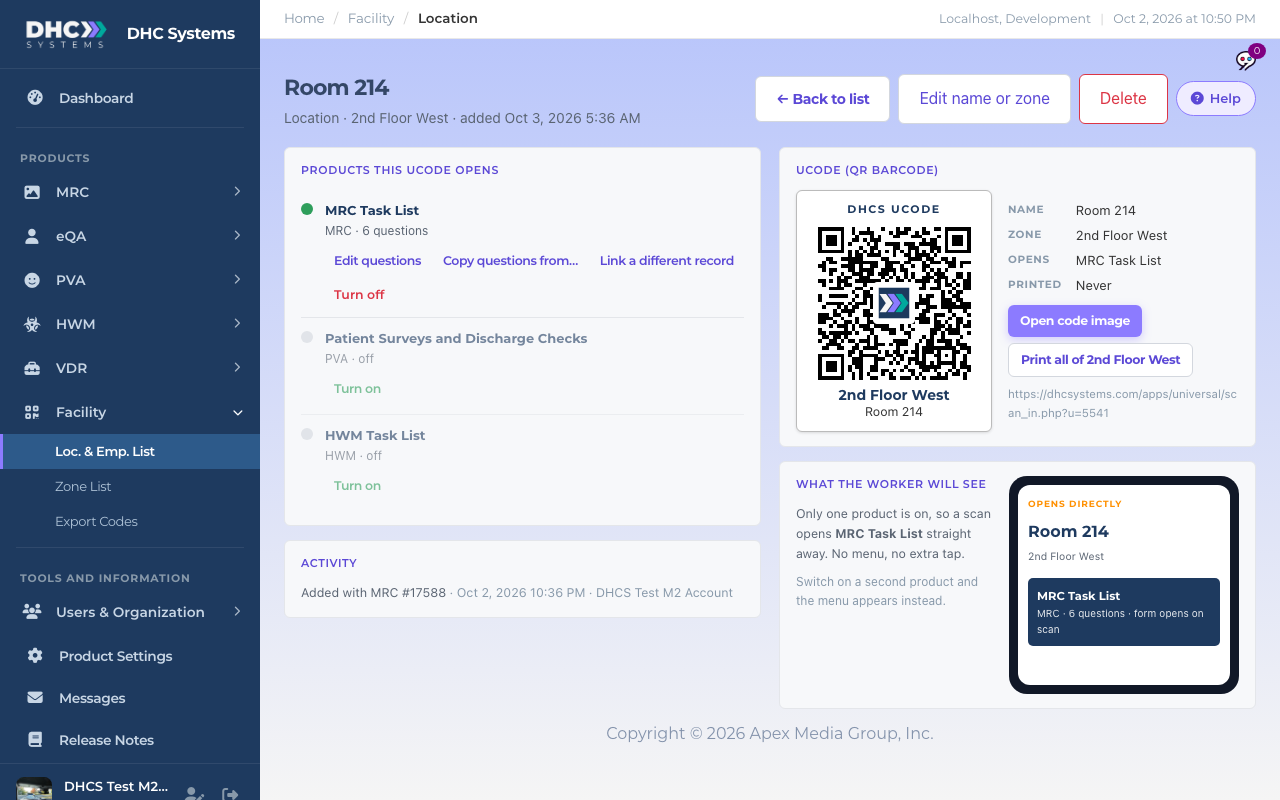
Click Save location. You land on the room’s record page.
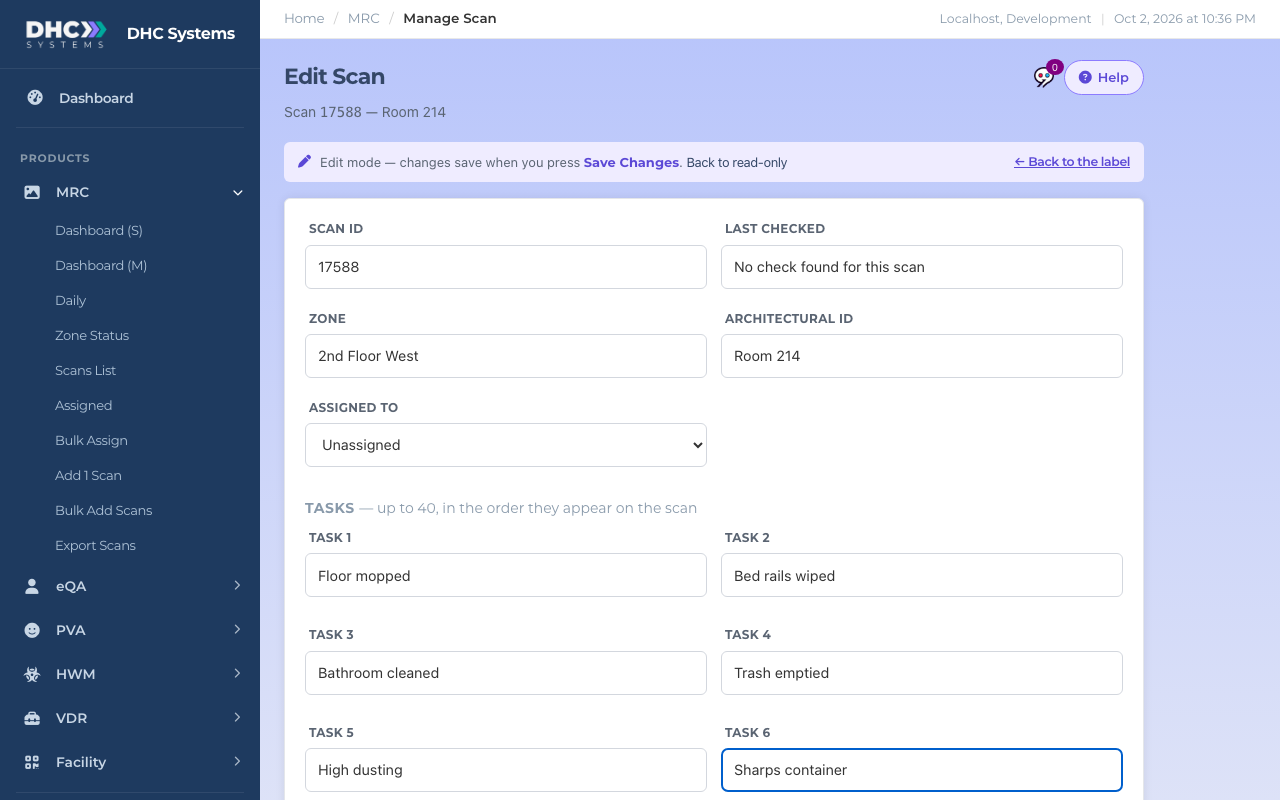
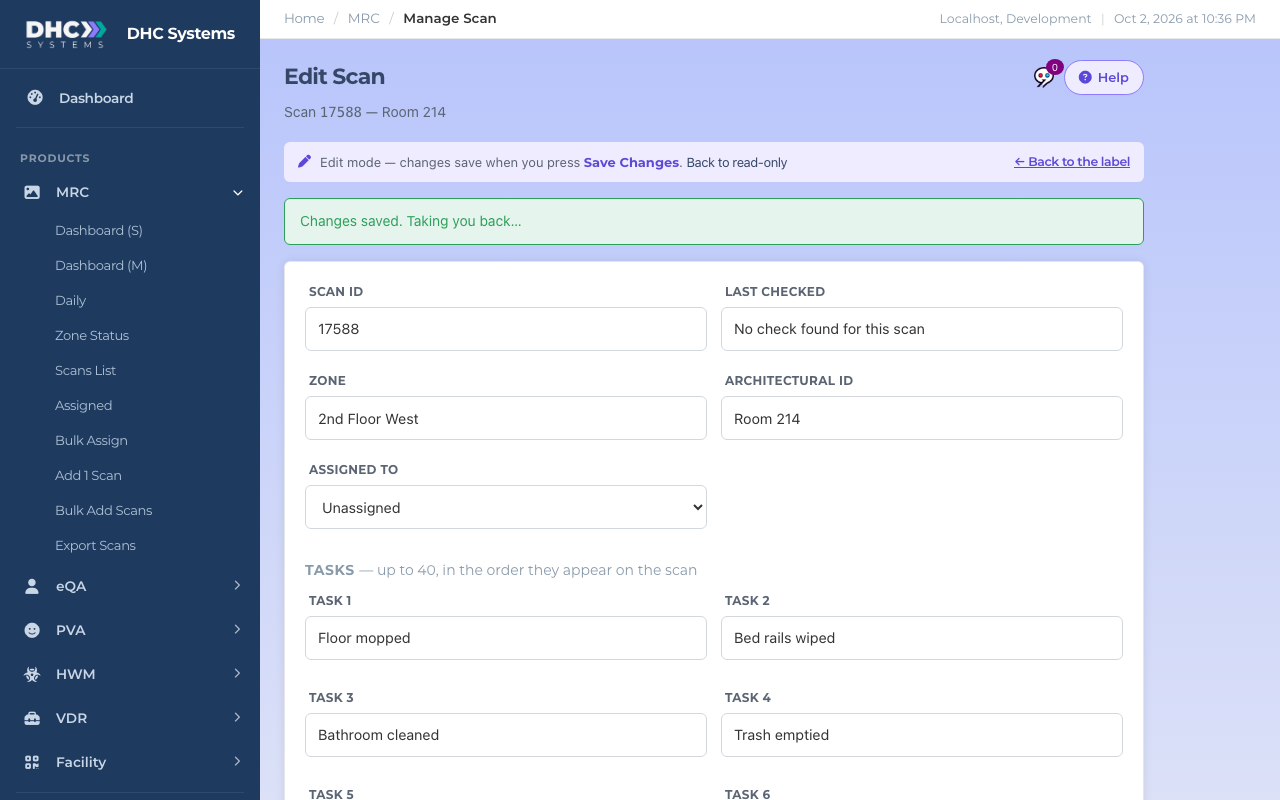
On the record page, under MRC Task List, click Add questions (or Edit questions if you copied). The MRC Edit Scan page opens. Type the tasks, pick an assignee if you like, and click Save Changes. You are returned to the record page.
The record page once tasks are inTyping the tasksSaved, heading back to the record page
Who can do this
M1 accounts and Directors (M2).
Tips
If the box under the name says a room with this name already exists in MRC with no uCode yet, leave Use these existing records ticked. Saving gives the old MRC room a uCode instead of creating a twin, and its scan history stays.
Tasks print on the phone as buttons, so keep them short: Floor mopped, Trash emptied. Up to 40 per room.
Print the code from the record page (Open code image or Print all of [zone]) or from Facility’s Export Codes. See Printing and Reprinting uCodes (Export Codes).