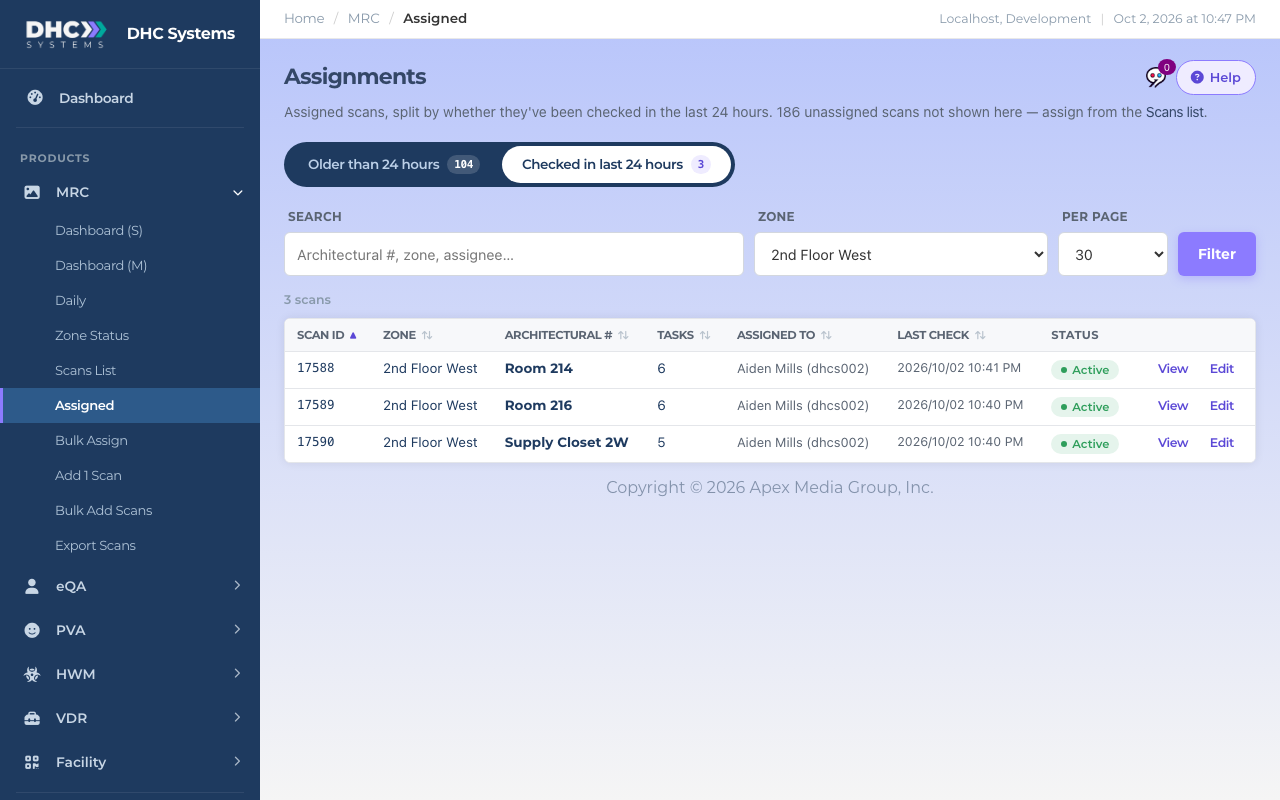
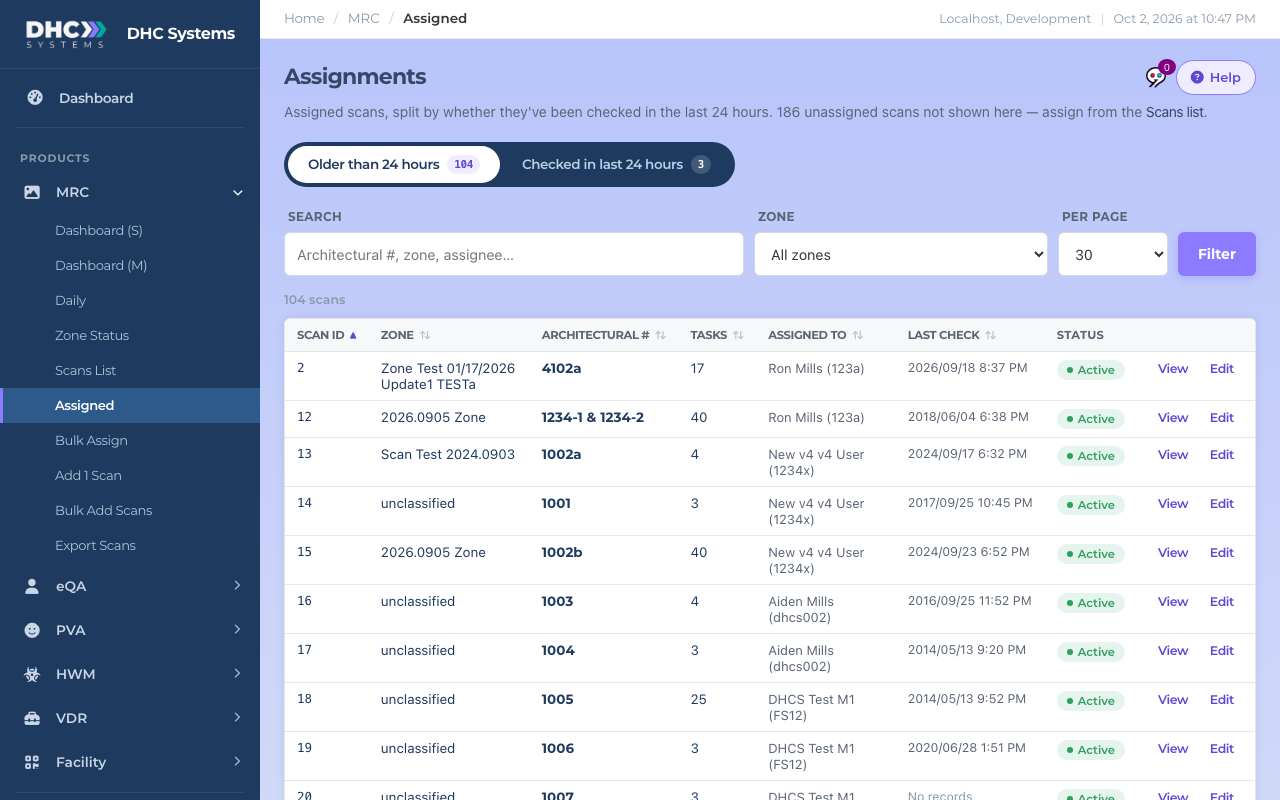
Assigned shows the rooms that have a named person responsible for them, split by whether they have been checked in the last 24 hours. The Older than 24 hours view is your overdue list. Rooms with nobody assigned are not here; assign them first from the Scans List or Bulk Assign.
Rooms checked in the last 24 hours
How to find overdue rooms
Click MRC, then Assigned. The page opens on Older than 24 hours.
Read the count on the rail. Each row is an assigned room with no check in the last 24 hours, or no check ever (No records).
Sort by Assigned to to group the list by person, or type a name in Search to see one person’s rooms.
Click Checked in last 24 hours on the rail to see the rooms that are on track.
Switch between overdue and on-trackThe overdue view
How to filter
Search matches Architectural #, zone, assignee and Scan ID. Two words narrow the match.
Zone reloads the list as soon as you pick one.
Per page sets how many rows you see at once. Click Filter to apply the search.
What the columns mean
Scan ID, Zone, Architectural # and Tasks: the same as on the Scans List.
Assigned to: the person’s name and employee ID.
Last check: when the room was last scanned. This is what decides which view the row is in.
Status: always Active here, because disabled rooms are left out. A Director (M2) can click the pill to disable the room; you are asked to confirm.
View opens the room’s details. Edit (M1 accounts and Directors) opens its tasks and assignment.
Who can do this
Everyone can open Assigned. Edit appears for M1 accounts and Directors (M2). Only a Director can use the status pill.
Tips
The note under the title tells you how many unassigned rooms are not shown, with a link to the Scans list. If that number is large, run Bulk Assign.
This page uses a rolling 24 hours. Zone Status uses the calendar day at your facility. A room scanned yesterday at 4 pm is on track here but pending there until it is scanned again today.