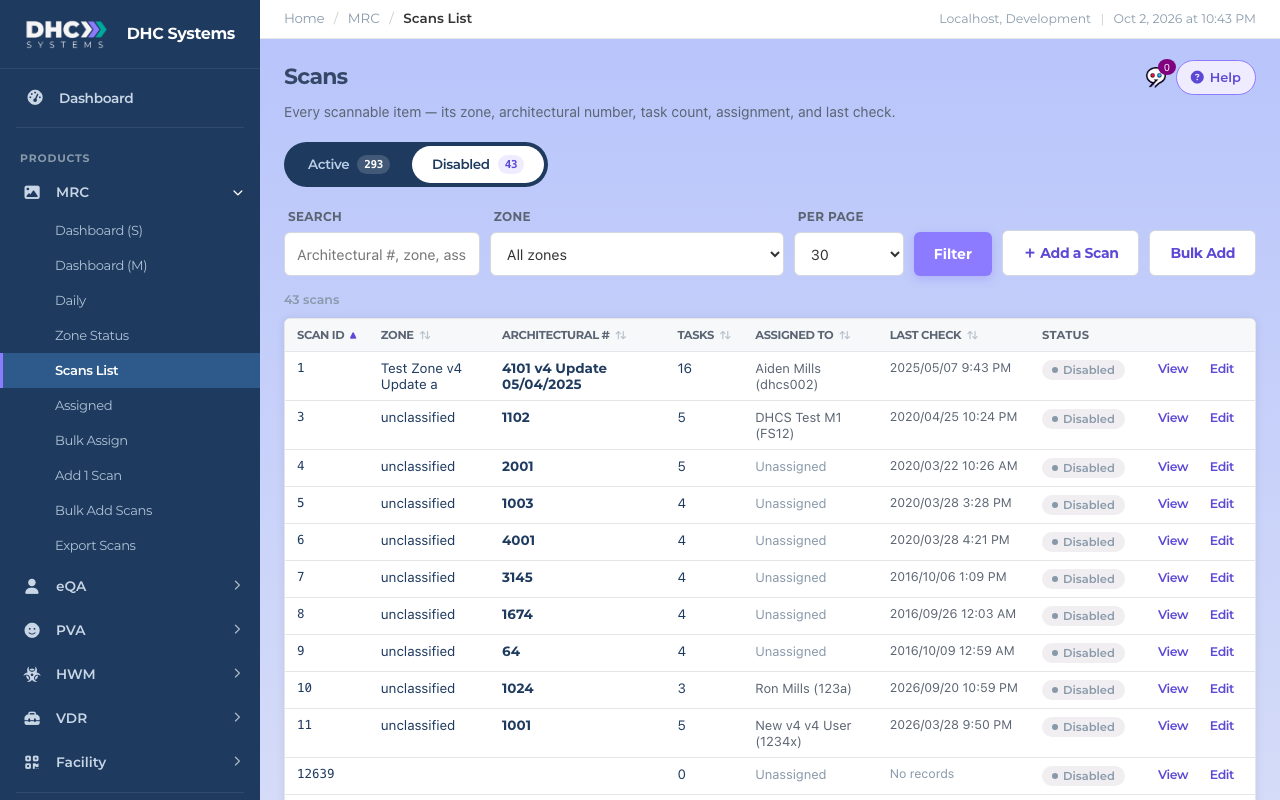
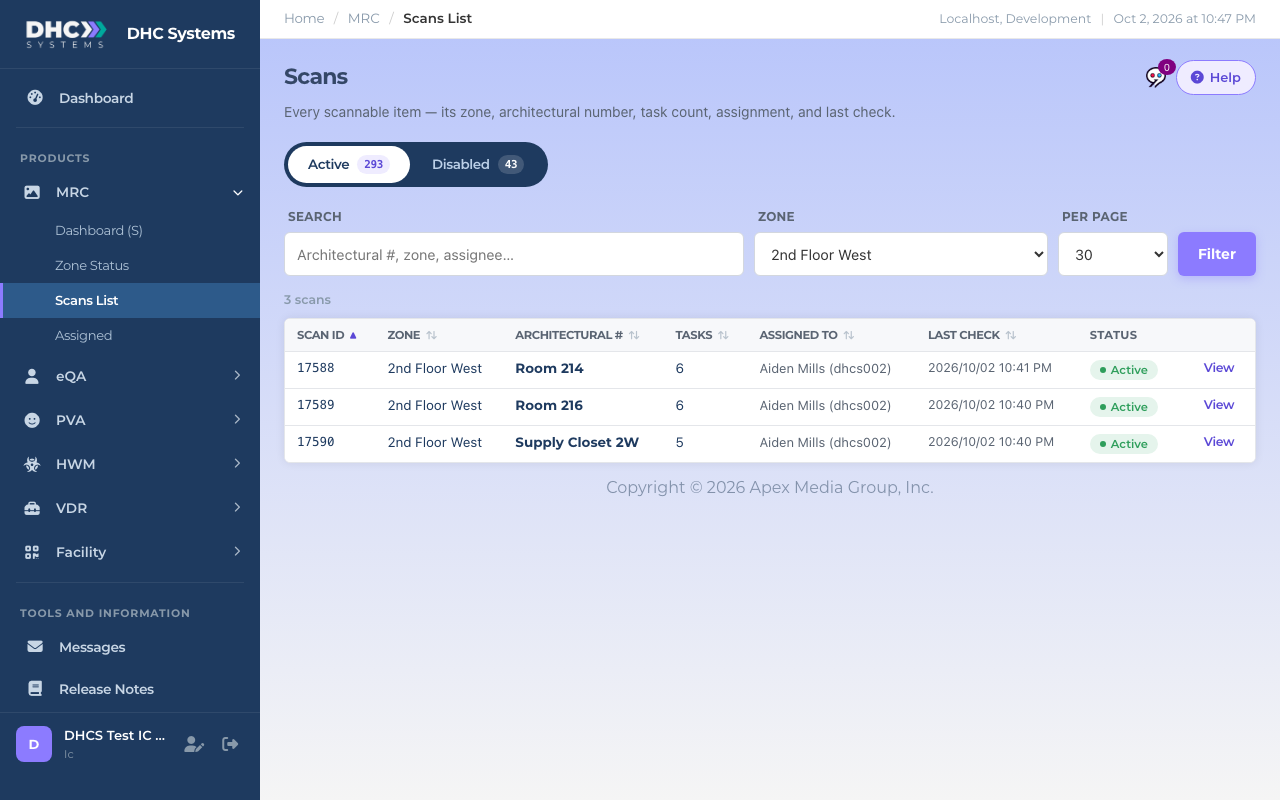
Scans List is the master list of every room (every “scan”) set up for MRC. From here you open a room to see or change its tasks and who it is assigned to, and Directors (M2) disable rooms that should no longer accept scans.
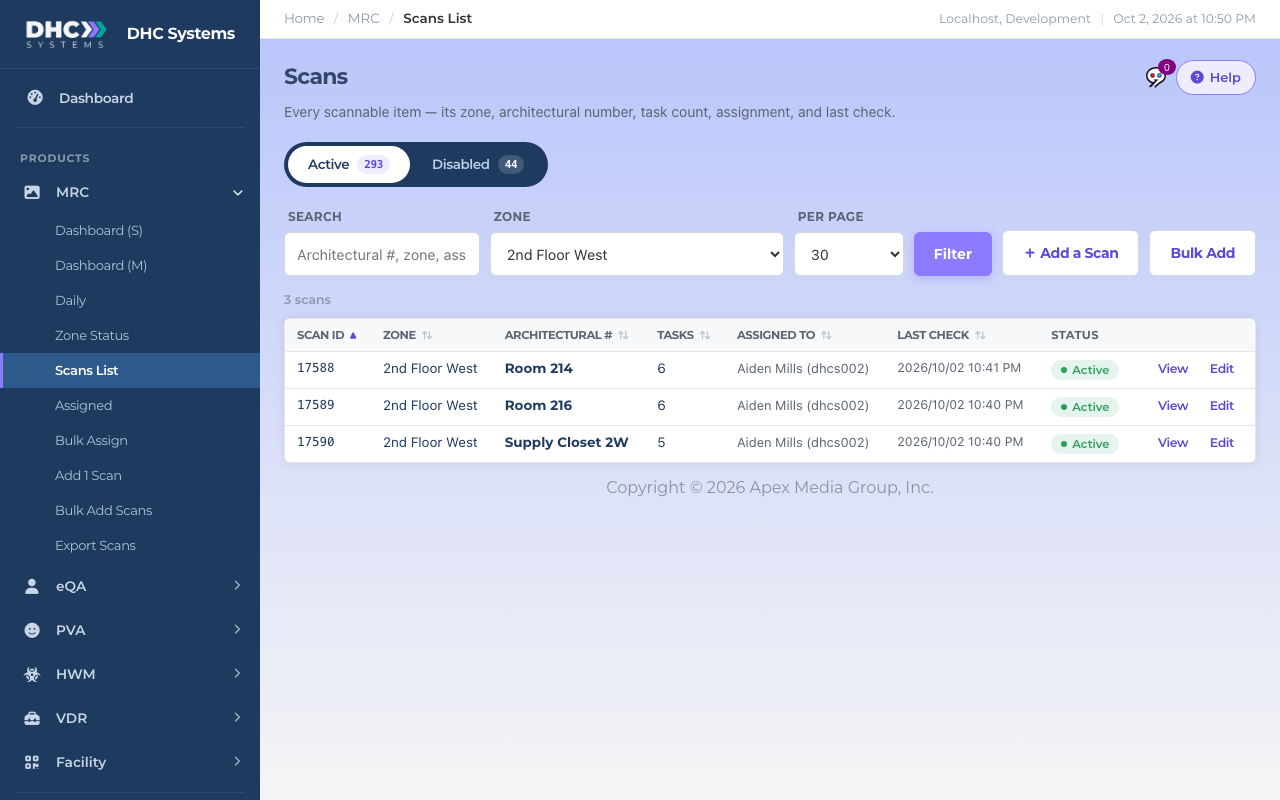
The list filtered to one zone
How to find a room
Click MRC, then Scans List. It opens on the Active view.
Type in Search. It matches Architectural #, zone, assignee and Scan ID. Two words narrow the match, for example Supply 2W.
Or pick a Zone. The list reloads as soon as you choose one.
Click Filter to apply the search. Change Per page (30, 100 or 250) for longer lists.
Click any column header to sort. Click again to flip the order.
The filter bar
What the columns mean
Scan ID: the room’s permanent number. It is what the QR code encodes, so it never changes even if you rename the room.
Zone and Architectural #: where the room is and what it is called.
Tasks: how many checklist items the worker sees after scanning.
Assigned to: the person responsible, or Unassigned in grey.
Last check: the most recent check logged, or No records.
Status: Active or Disabled.
How to view or edit a room
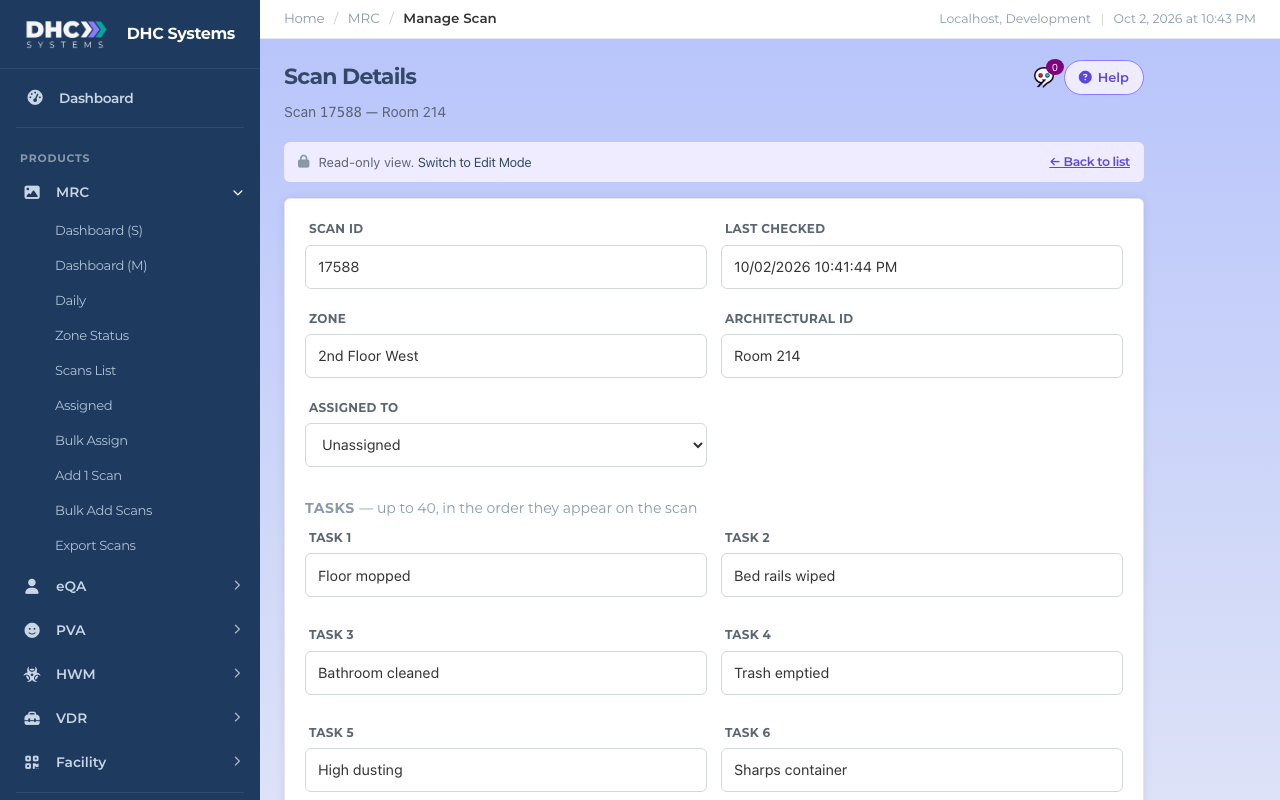
Click View on the row. The Scan Details page opens read-only, showing Scan ID, Last checked, Zone, Architectural ID, Assigned to, the tasks and Notes.
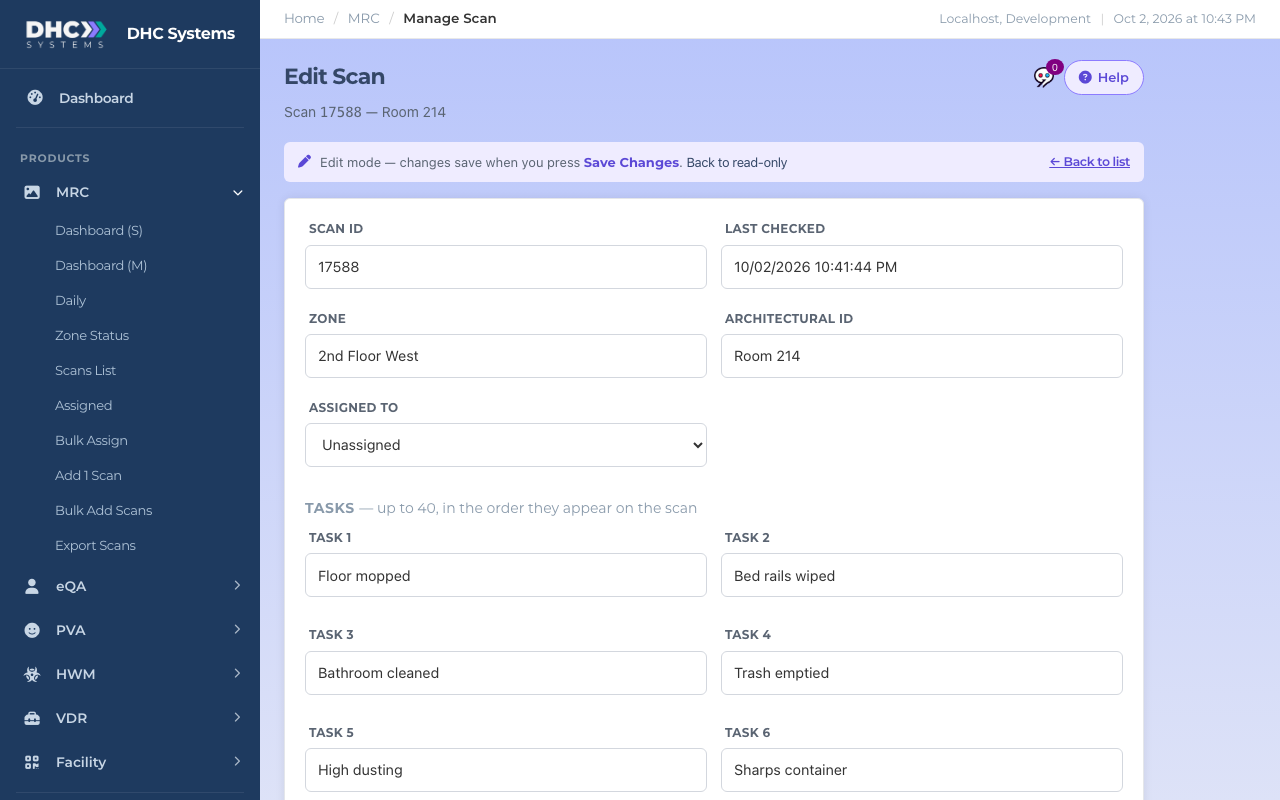
Click Switch to Edit Mode (or click Edit on the list to land there directly). The heading changes to Edit Scan.
Change the Zone or Architectural ID if the room has moved or been renamed. Renaming here also updates the room’s uCode and its other products.
Pick someone under Assigned to, or choose Unassigned to clear it. Only users with an employee ID appear in the list.
Type the tasks in Task 1 to Task 10. They show on the phone in this order. Need more? Click Show all 40 tasks. Each task can be up to 30 characters.
Add Notes for other managers if you like (up to 140 characters). Workers do not see these.
Click Save Changes. You see Changes saved and are taken back to the list. Cancel leaves without saving.
Read-only view of a roomEdit mode
How to disable or re-enable a room
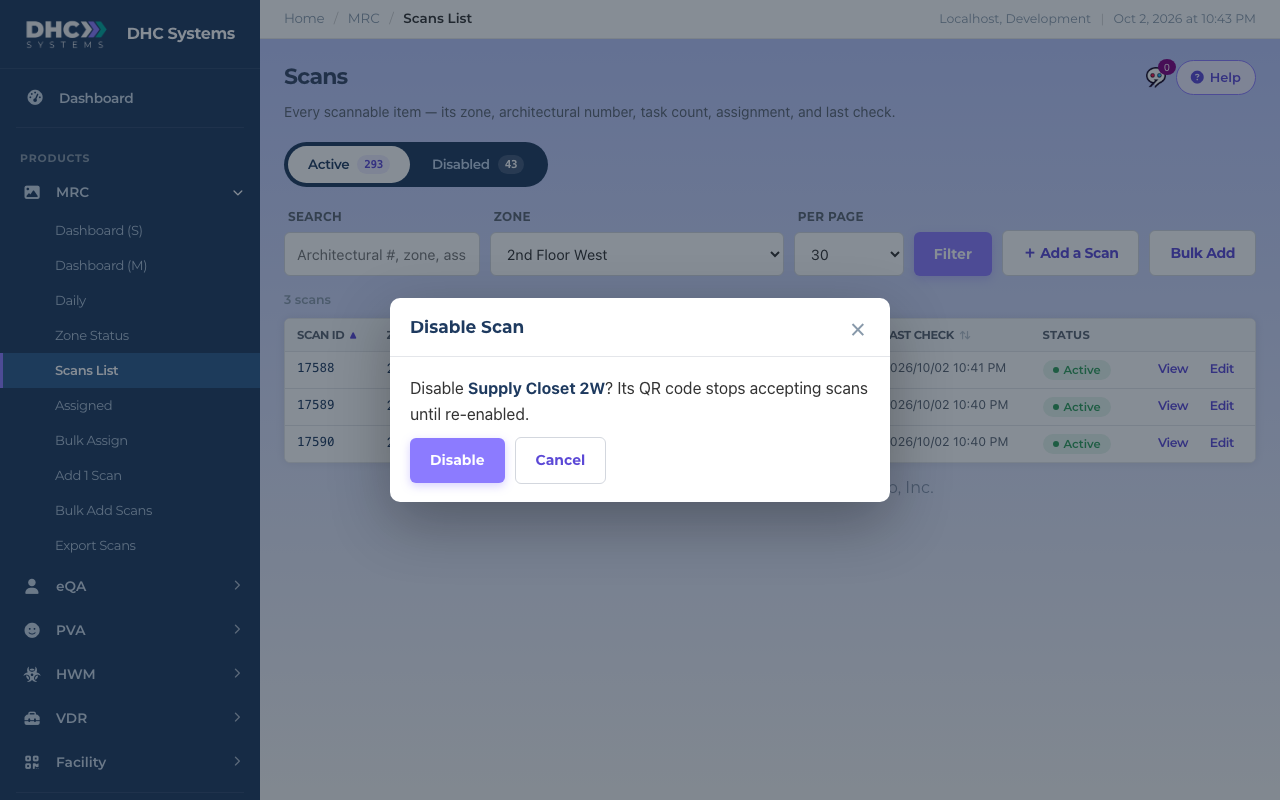
As a Director (M2), click the Active pill on the row.
A Disable Scan box asks you to confirm. It explains that the QR code stops accepting scans until re-enabled. Click Disable, or Cancel to back out.
The room moves to the Disabled view. Its history is kept, and it is left out of Zone Status, Assigned and Export Scans.
To bring it back, open the Disabled view, click the Disabled pill and confirm Enable.
Switch between active and disabled roomsConfirm before disablingDisabled rooms keep their history
Who can do this
Everyone can open the list and View a room. M1 accounts and Directors (M2) can Edit and use Add a Scan. Only Directors (M2) see Bulk Add and can click the status pill to disable or re-enable.
The worker’s read-only view
Tips
The Add a Scan and Bulk Add buttons open the Facility pages with MRC already selected. See MRC Add 1 Scan and MRC Bulk Add Scans.
Every edit is recorded in the activity log, field by field, so you can always find out who changed a task name.
When a worker scans the uCode of a disabled room, MRC shows as turned off and cannot be opened. Disable, do not rename, when a room is gone.
To print codes, use Export Scans (MRC-only codes) or Facility’s Export Codes (uCodes that open every product).