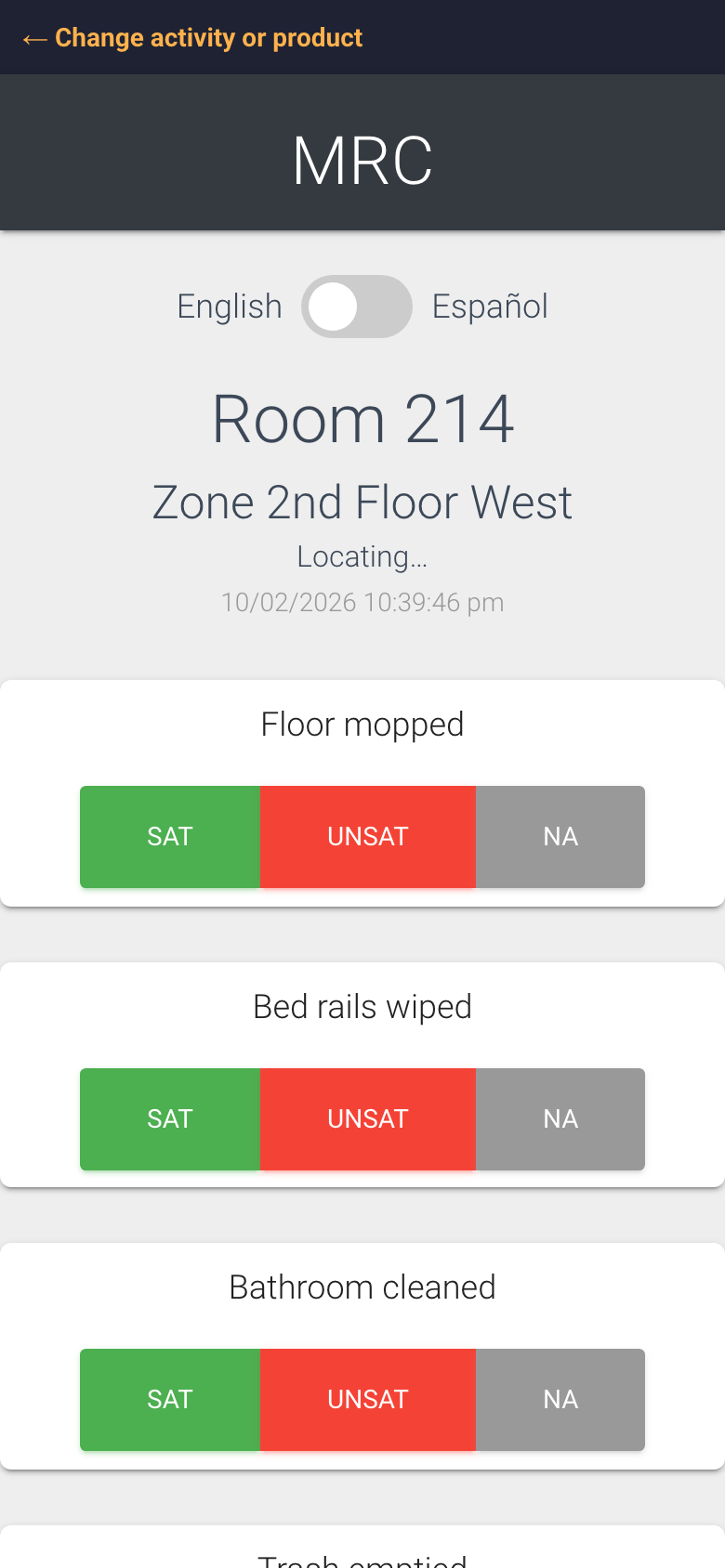
MRC Task List (Management Rounds Check) is real-time tracking of the rounds your team makes through the facility. A worker scans the code on a room, marks each task Sat or UnSat, adds a photo if needed, and the check is logged with a timestamp. Here are the words you will meet on every MRC page and report.
What a worker sees after scanning Room 214
Places and codes
uCode: the universal QR barcode on the wall. One uCode can open MRC, PVA and HWM for the same room. Read What is a uCode (Universal Barcode)? in the Facility section for the full story.
Scan: in MRC, a “scan” is a scannable item, usually a room or area. Every scan has a Scan ID, its permanent number. The Scans List is the list of these items. The word is also used for the act of checking a room, so “3 scans today” means three checks were logged.
Architectural # (also shown as Architectural ID): the name of the room or area, for example Room 214 or Supply Closet 2W. It is what prints under the QR code and what the worker sees at the top of the check.
Zone: a group of rooms, usually a wing or floor, for example 2nd Floor West. Zones drive the Zone Status board and the Zone filter on every list.
Assigned to: the person responsible for a room. Rooms with nobody show as Unassigned.
Doing the check
Task: one item on the checklist for a room, such as Floor mopped or Trash emptied. A room can have up to 40 tasks. They appear on the phone in the order they are listed on the record page.
Sat: the task was satisfactory. UnSat: it was not. NA: the task did not apply this time, for example an empty room with no bed to make.
Notes: free text the worker types, for example what was wrong and what they did about it.
Employee ID Number: who did the check, as typed by the worker. Ask your team to enter the same ID every time so the reports group their work correctly.
Image (photo or video) and Employee Signature: optional proof attached to the check. Your Director (M2) can make either one required in Product Settings.
Last check: the date and time of the most recent check logged for a room.
Reporting words
Scans (tile): how many checks were logged in the period. Images: how many of those had a photo or video.
Tasks: how many task answers were given. Sat Tasks plus UnSat Tasks plus NA Tasks equals Tasks.
Sat Ratio: Sat divided by (Sat plus UnSat). NA answers are left out, so an empty room does not pull the score down. 100% means every task that applied was satisfactory. The gauges on the dashboards show a 90% target line.
Scanned today and Not scanned today: whether a room has had at least one check since midnight at your facility. “Today” follows your facility’s local clock, not a rolling 24 hours.
Complete and Incomplete: the status pills on the Zone Status board. Complete means scanned today.
Older than 24 hours and Checked in last 24 hours: the two views on the Assigned page. This one is a rolling 24-hour window.
Fast Scans: two checks by the same person very close together, within about a minute. A run of fast scans usually means someone is scanning codes without doing the work. The Dashboard (M) and the Daily report list them.
Scans by User: a bar chart or table of how many checks each Employee ID logged.
Active and Disabled: a disabled room stays in the system with its history, but MRC is turned off on its uCode and it drops off Zone Status, Assigned and Export Scans.
Tips
Keep task names short. They have to fit on a phone button row, and the record page allows 30 characters each.
Agree on one Employee ID format with your team before rollout. The reports can only group by what people type.