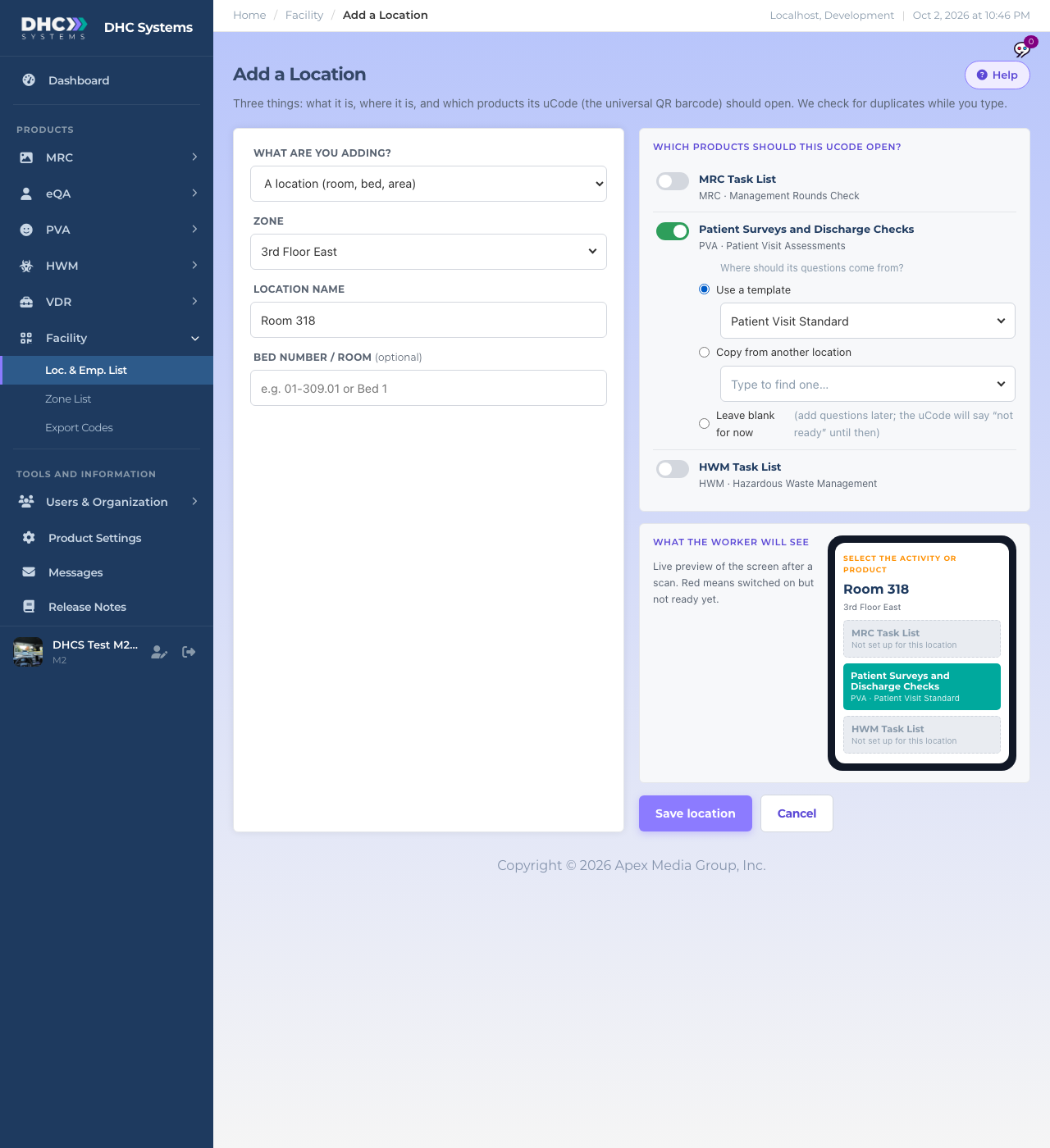
Add 1 Location under PVA opens the Facility add page with Patient Surveys and Discharge Checks already switched on. One form adds the room, gives it a uCode and sets where its PVA questions come from. The full walkthrough of that page is in the Facility article “Adding a Single Location or Employee”. This article covers the PVA specific part.
Watch: adding one location with PVA switched on (1:44)Adding a room with PVA on and a template chosen
How to add a room
In the sidebar click PVA, then Add 1 Location.
Pick the Zone, or choose + New zone… and type a new one.
Type the Location name, for example Room 318. If a similar room already exists the page tells you while you type.
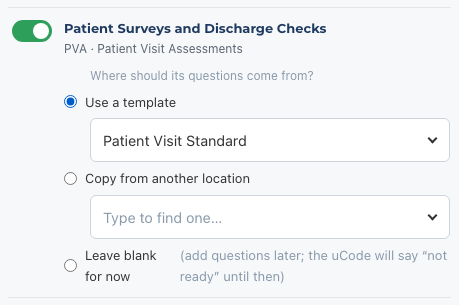
On the right, Patient Surveys and Discharge Checks is already switched on. Under Where should its questions come from? pick one:
Use a template, then choose the Scan Template. This is the recommended choice.
Copy from another location, then pick a room whose own questions you want copied.
Leave blank for now. The uCode will say “not ready” for PVA until questions are added.
The three ways to give the new room its questions
Switch on any other products this room should have, such as MRC Task List.
Check the What the worker will see preview, then click Save location.
You land on the room’s uCode record page. From there you can print the uCode, or go back to Locations where the new room shows the template name in the Questions from column.
Who can do this
M1 accounts and Directors (M2).
Tips
The room’s Type in the Locations list shows unassigned for rooms added this way. That does not affect scanning or reports.
Adding several rooms at once? Use Bulk Add Locations instead.