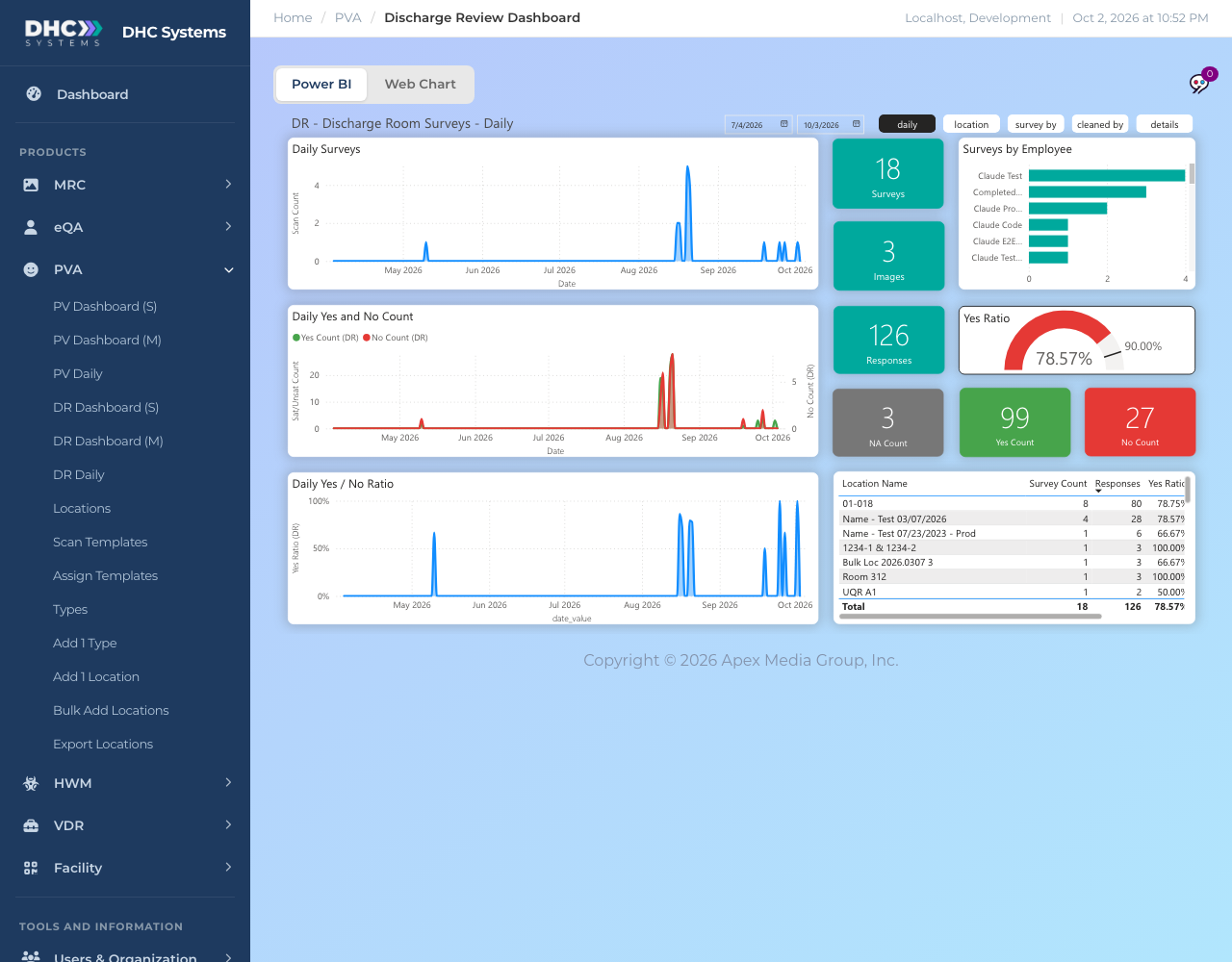
DR Daily is the history page for discharge checks. Pick a date range, then flip between a daily trend view, locations, who completed the checks, who cleaned the rooms, and the row by row details with every answer and photo. It is where you review a week of room turnovers or look up one check.
The daily view over the last three months
How to open it
In the sidebar click PVA, then DR Daily.
Wait for the report to draw.
Set the range with the two date pickers at the top. The page opens on roughly the last three months.
Use the tabs beside the date pickers: daily, location, survey by, cleaned by, details.
What is on the page
daily (the opening view): Daily Surveys, Daily Yes and No Count and Daily Yes / No Ratio, one point per day. Beside them the range totals: Surveys, Images, Responses, Yes Ratio, NA Count, Yes Count, No Count. On the right, Surveys by Employee and a per room table.
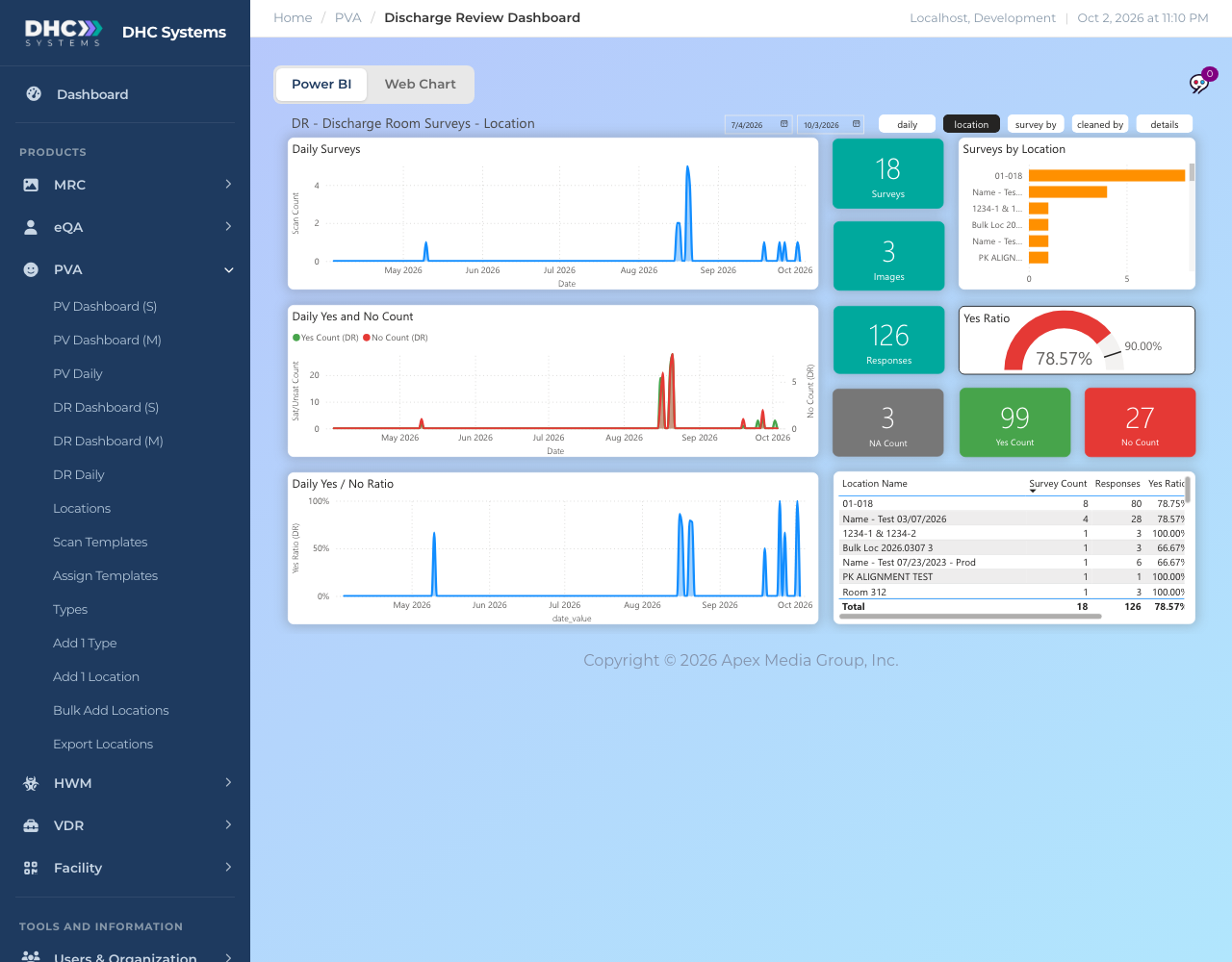
location: swaps the chart and table on the right for Surveys by Location views.
The location tab compares rooms
survey by: bars per Completed By Name.
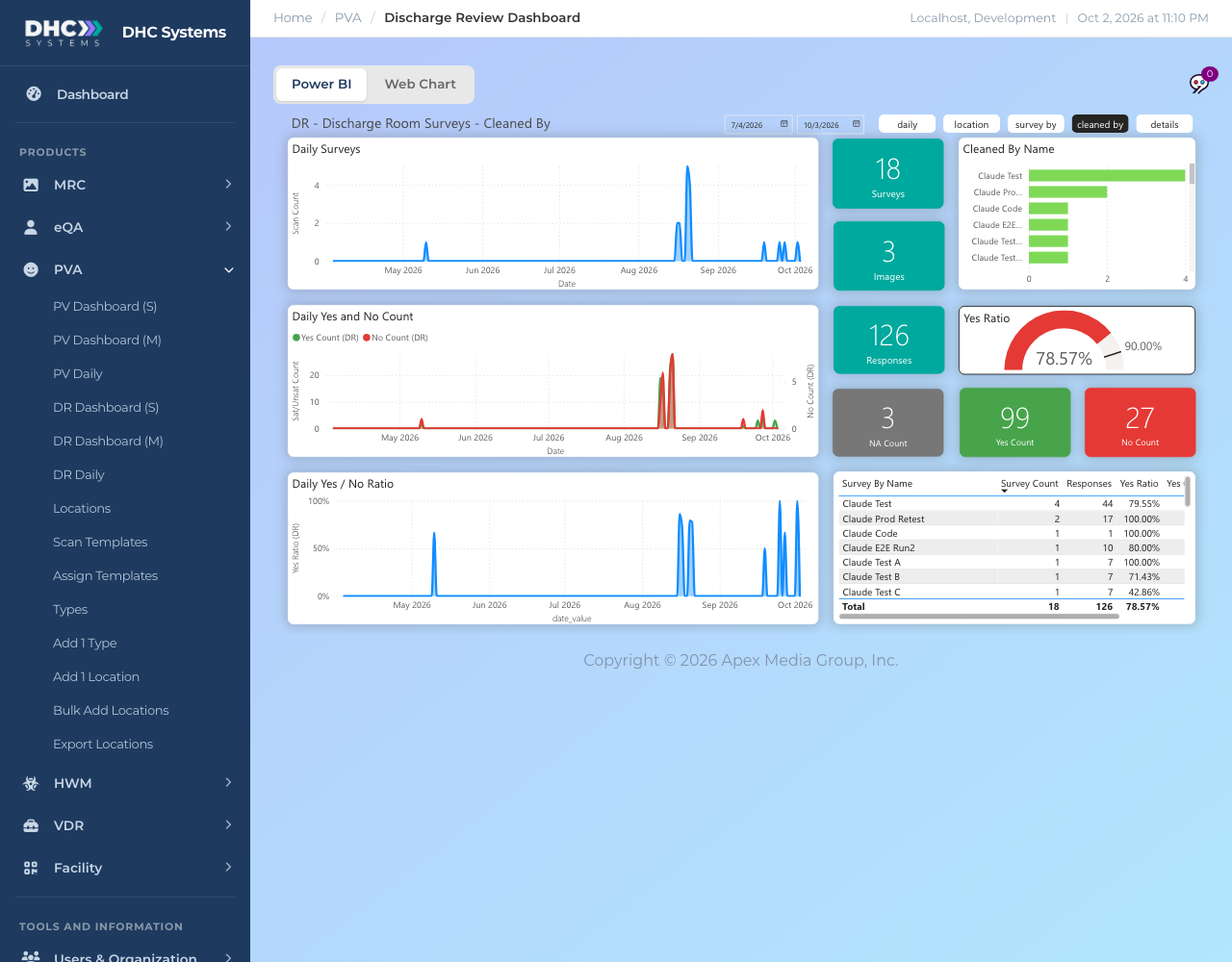
cleaned by: bars per Cleaned By Name, so you can see room turnovers per cleaner.
The cleaned by tab
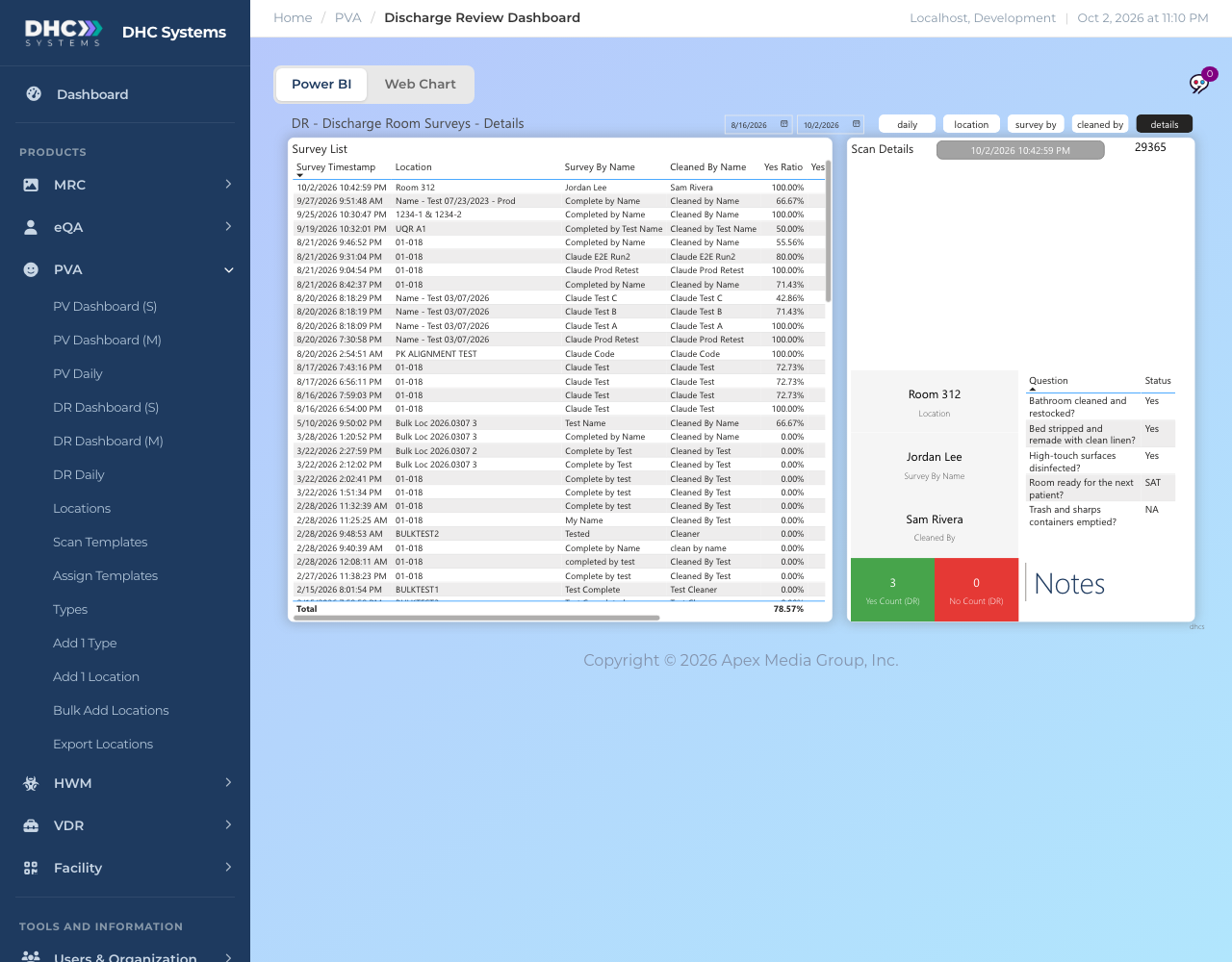
details: a Survey List with one row per check (Survey Timestamp, Location, Survey By Name, Cleaned By Name, Yes Ratio) and a Scan Details panel. Click a row and the panel shows the room, who checked, who cleaned, each Question with its Status, the Yes and No counts, the Notes and the photo if one was uploaded.
The details tab: pick a row, read the whole check
Who can do this
M1 accounts and Directors (M2).
Tips
Looking for one check? Go to details, sort Survey Timestamp and click the row. The panel shows exactly what the worker answered.
Shorten the date range first if the details list is slow.
Click a bar to filter the whole page to that person or room. Click again to clear.