A Location Type is a room category, such as Patient Room, Exam Room or Waiting Area, together with a standard set of Patient Visit and Discharge questions for rooms of that kind. Types are the older way to give rooms standard questions. Scan Templates do that job better today, but Types still categorize your rooms and still carry a question set, so this page explains both.
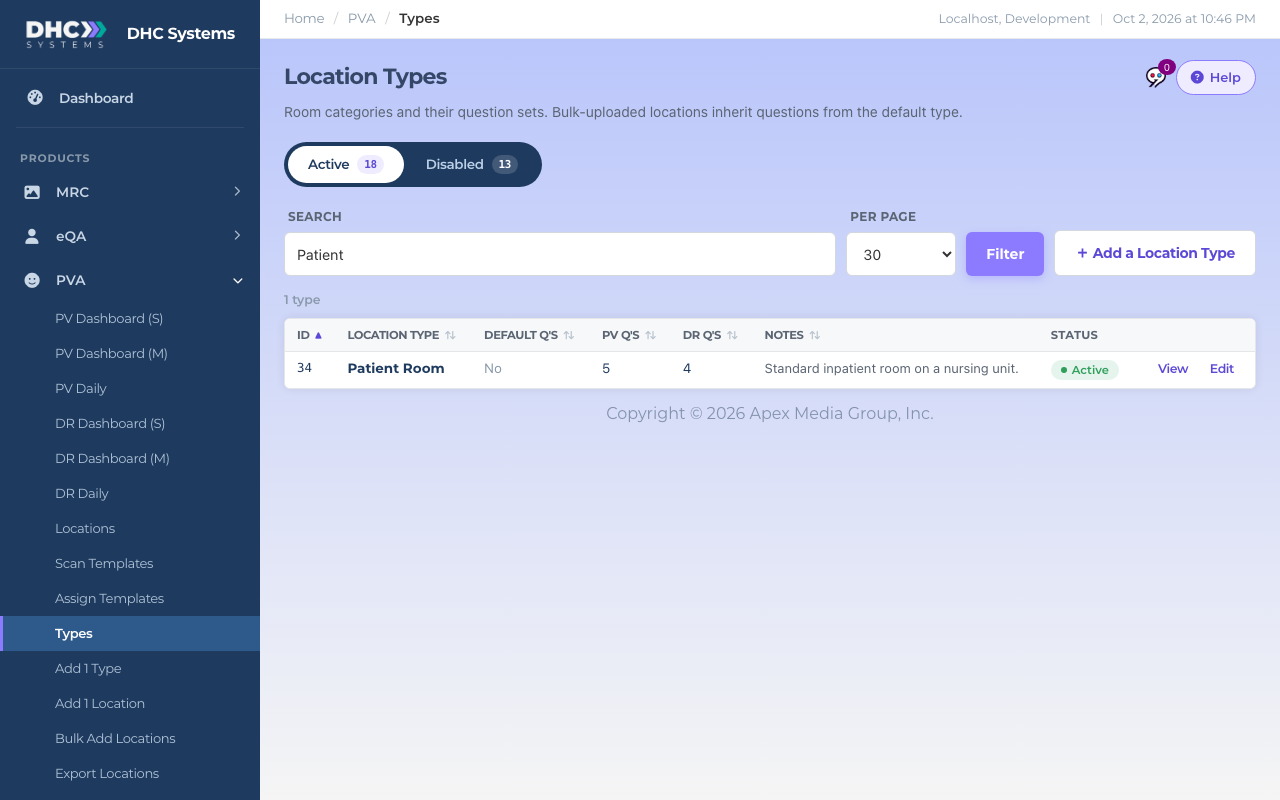
The Types list, searched for Patient
What the columns mean
ID: the number the system gave the type when it was created.
Location type: the name.
Default Q’s: Default or No. Exactly one type should be the default. The default type’s questions were what the older bulk upload copied onto new rooms. If there is no default, or more than one, a red banner at the top of the page says so.
PV Q’s and DR Q’s: how many Patient Visit and Discharge questions the type defines.
Notes: free text about the type.
Status: Active or Disabled. Directors (M2) can click the pill to switch it.
View and Edit: open the type’s full question set.
The Active / Disabled rail switches views, and Search matches the type name and notes.
How to add a type
In the sidebar click PVA, then Add 1 Type. (Or click + Add a Location Type on the Types page.)
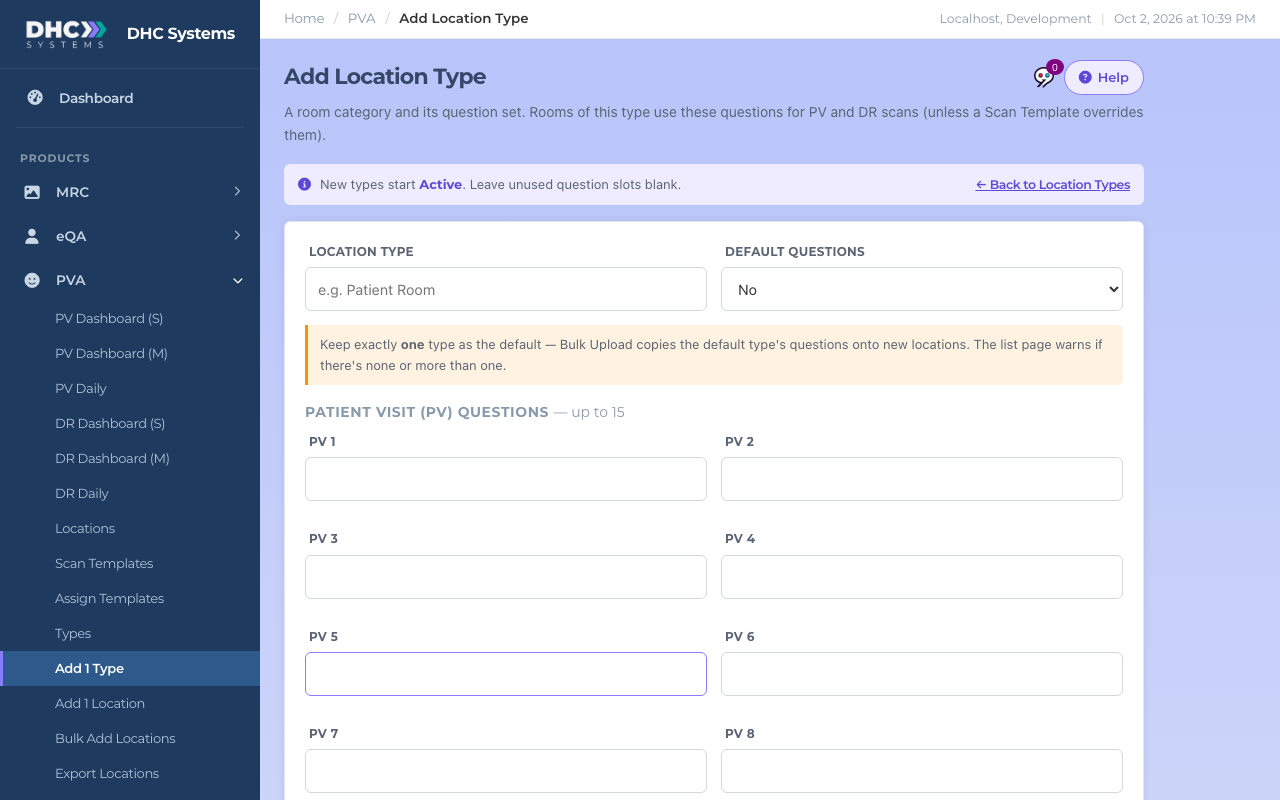
The Add Location Type form
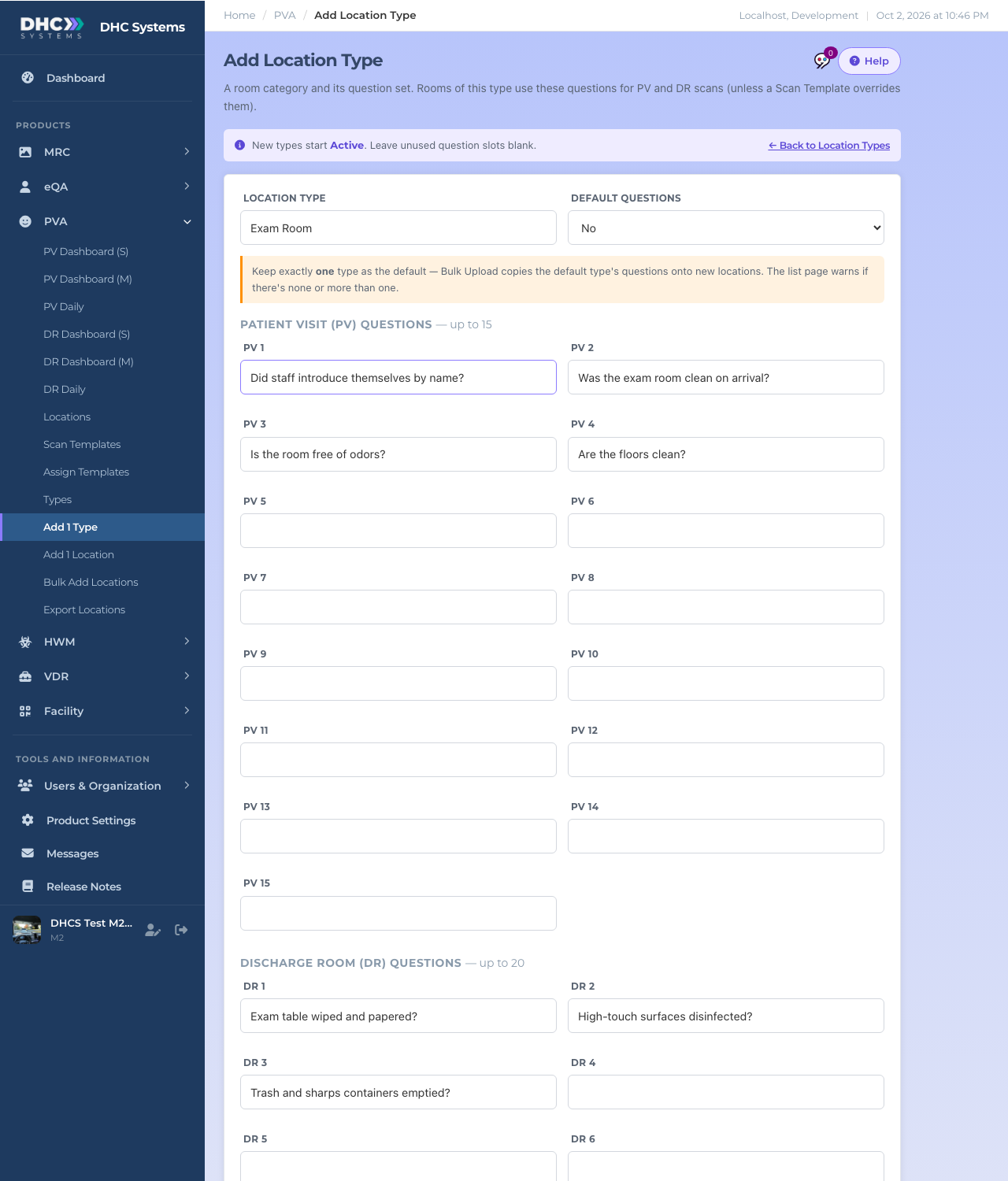
Type the Location type name, for example Exam Room.
Leave Default questions on No unless this type should become the one default.
Fill in the Patient Visit (PV) questions, up to 15, one per box. Leave the boxes you do not need blank.
Fill in the Discharge Room (DR) questions, up to 20.
Add Notes if you like.
A type ready to save
Click Add Location Type. The page reloads with a success message and the new type is Active.
How to edit a type
Open Types and click Edit on the row (or View, then Switch to edit mode).
Editing a type
Change the name, Status, Default questions, the PV and DR questions or the notes.
Click Save Changes.
Editing a type does not change rooms that already exist. It only affects what the type hands out in future. Rooms on a Scan Template ignore the type’s questions altogether.
How to disable a type
Click the type’s Active pill and confirm. A disabled type is hidden from the choices offered when creating rooms. Click the grey Disabled pill in the Disabled view to bring it back.
Types and Scan Templates
Use a Scan Template when you want a question set that is shared by many rooms and edited in one place, with the richer response types (N/A, pick lists, short text). Use a Type to label what kind of room it is. In v4 the Add 1 Location and Bulk Add Locations pages take questions from a Scan Template or from your spreadsheet, not from the default type.
Who can do this
Everyone signed in can read the Types list. M1 accounts and Directors (M2) can add and edit types. Only a Director (M2) can disable or enable one.
Tips
Keep one, and only one, type marked as the default so the red banner stays away.
Sort the list by PV Q’s or DR Q’s to find types with no questions.