A Scan Template is one named set of questions, the Patient Visit questions and the Discharge questions together, that any number of rooms share. Put fifty rooms on the same template, edit the template once, and all fifty rooms ask the new questions on the next scan. This is the normal way to manage PVA questions in v4.
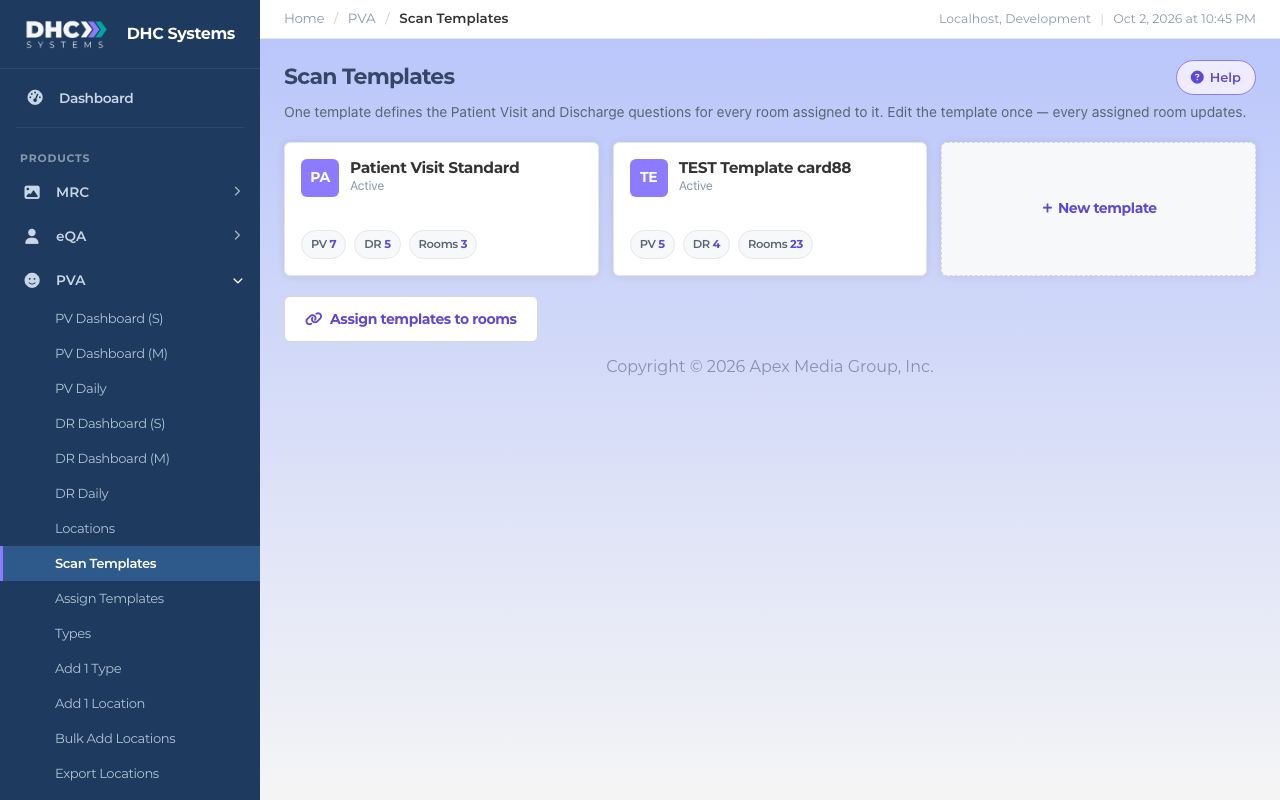
The Scan Templates page: one card per template
What you see on the Scan Templates page
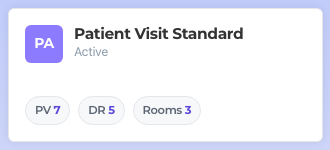
Each card is one template. The small line under the name says Active or Disabled. The three counters are:
PV: how many Patient Visit questions the template has.
DR: how many Discharge questions it has.
Rooms: how many locations are currently assigned to it.
The card for a template with seven PV and five DR questions, used by three rooms
Click a card to open the template. Directors (M2) also see a + New template card. The Assign templates to rooms button at the bottom takes you to the Assign Templates page.
Patient Visit questions vs Discharge questions
One template carries both lists, and they are kept apart on purpose:
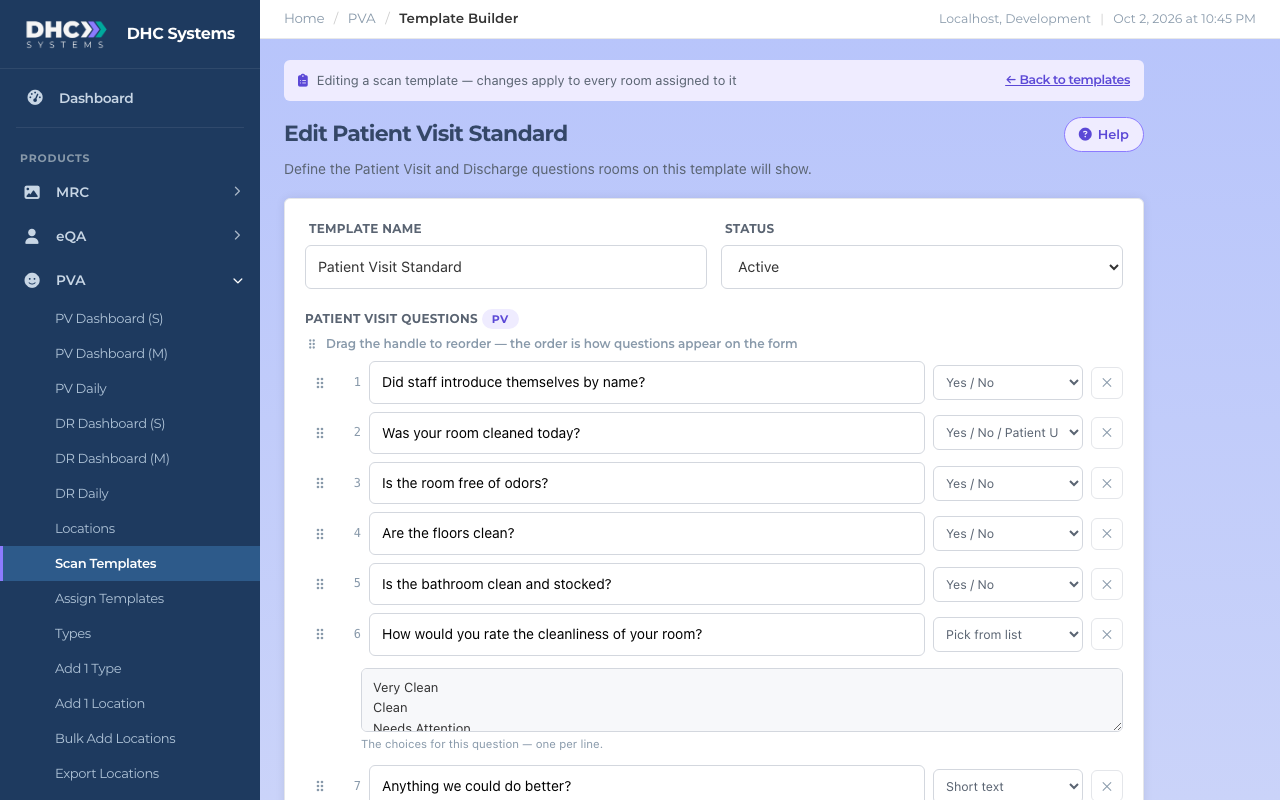
Patient Visit questions (the PV list) are asked while the patient is in the room. They are usually about the patient’s experience: was the room cleaned today, did staff introduce themselves, is the bathroom stocked. Up to 20 questions.
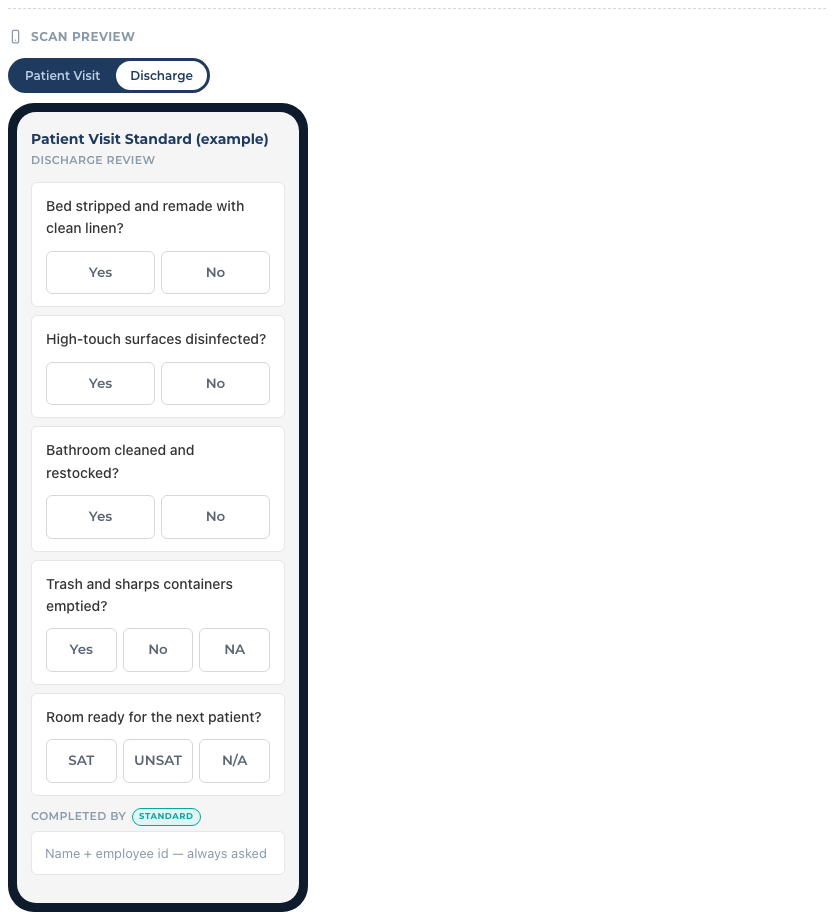
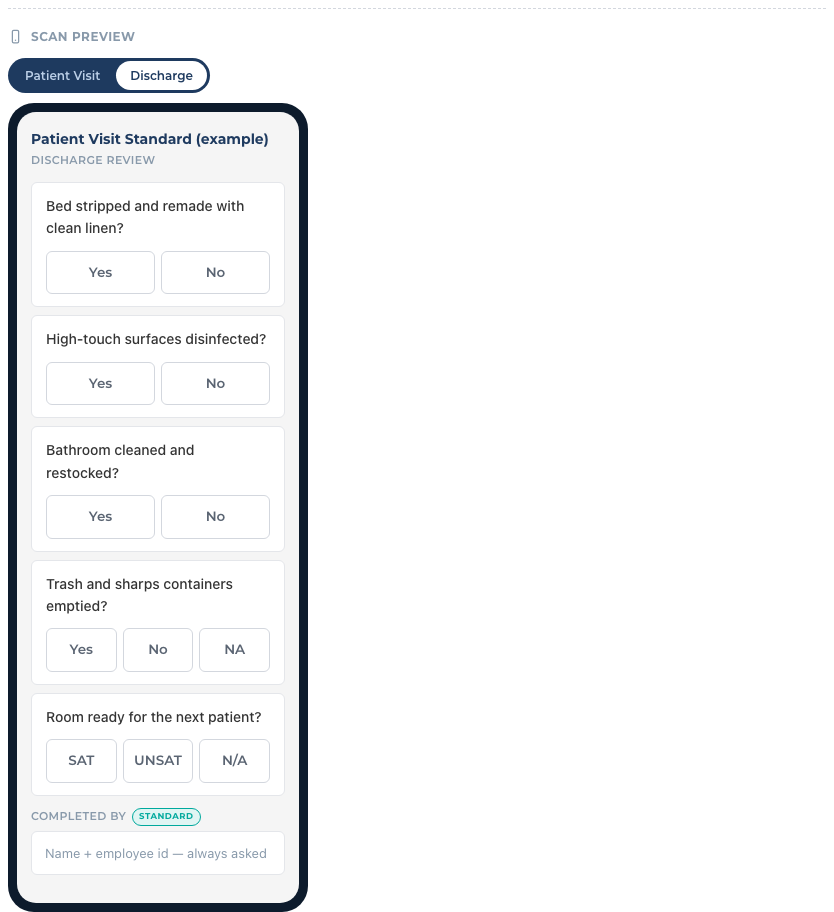
Discharge questions (the DR list) are asked after the patient leaves and the room is turned over. They are about the room: bed stripped and remade, high touch surfaces disinfected, trash removed. Up to 35 questions.
When a worker scans a room they pick Patient Visit or Discharge Room and only see that list. The phone always adds Completed By Name, Completed By ID and Notes at the bottom, so never add those as questions. Discharge checks also ask Cleaned By Name.
How to create a template
In the sidebar click PVA, then Scan Templates.
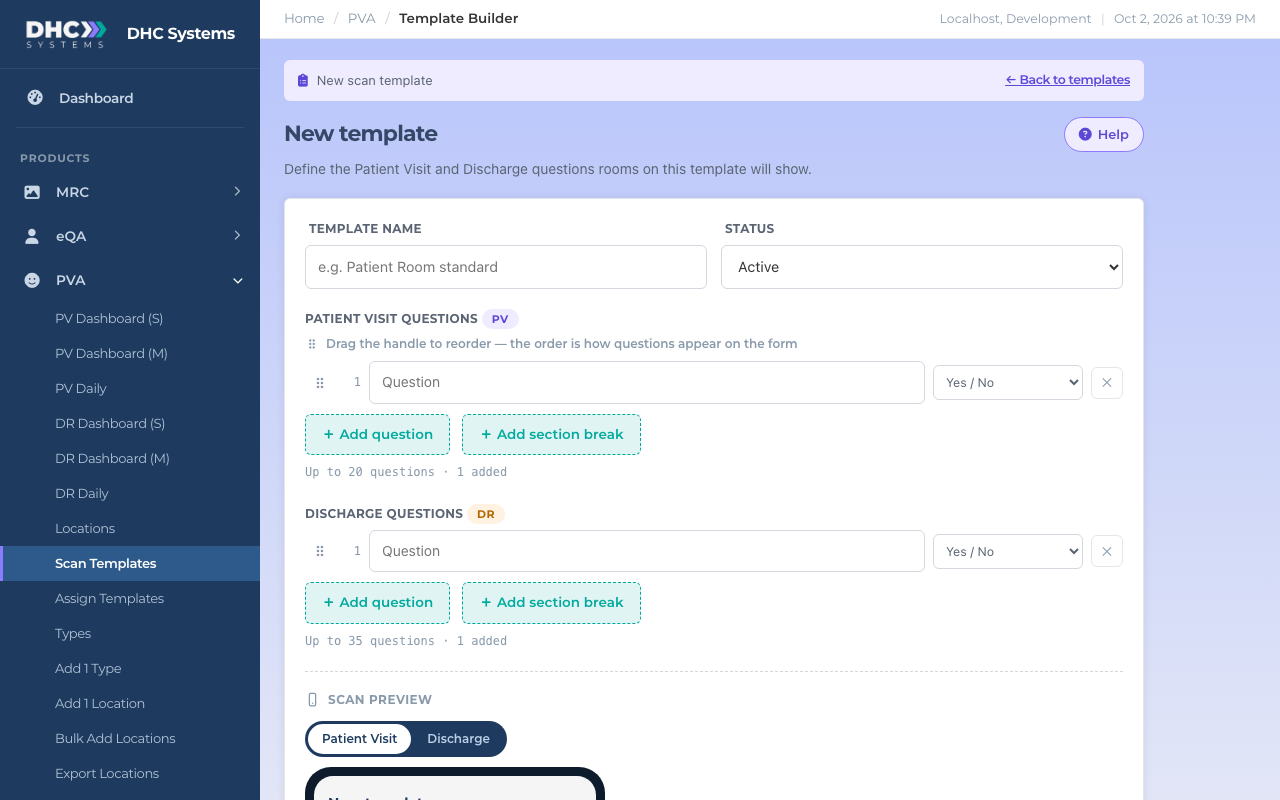
Click the + New template card. The builder opens with one empty question row in each list.
A fresh template before anything is typed
Type a Template name people will recognise, for example Patient Room Standard or ER Patient Visit.
Leave Status on Active.
Under Patient Visit questions, type your first question in the row. Pick how it is answered in the drop down to its right (see Response types below). Yes / No is the default.
Click + Add question for each further question. Click + Add section break to drop in a heading that groups the questions after it. Section breaks do not count toward the question limit.
Do the same under Discharge questions.
Drag the dotted handle at the left of a row to change the order. The order on screen is the order on the phone.
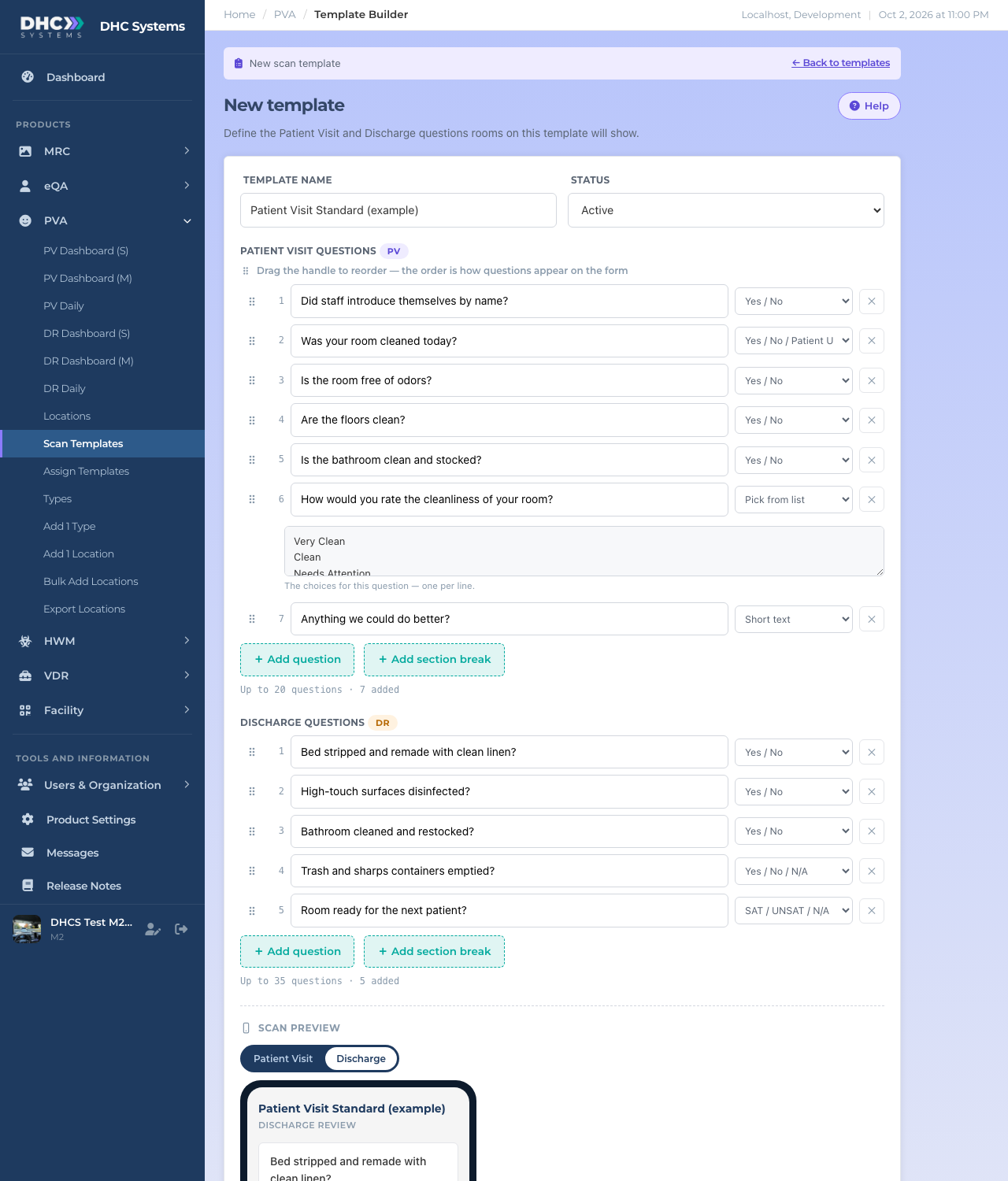
Scroll to Scan Preview and flip between the Patient Visit and Discharge tabs to see exactly what the phone will show.
A finished template just before saving
Click Save template. You land back on the Scan Templates page with a “Template saved.” message and the new card.
Response types
Each question has its own answer style, chosen in the drop down beside it:
Yes / No: two buttons. The standard.
Yes / No / N/A, Yes / No / Unable to Determine, Yes / No / Unable to Ask, Yes / No / Patient Unsure, Yes / No / Unable to Assess: a third grey button for the cases where a plain Yes or No would be wrong. Third button answers are kept out of the Yes ratio in reports.
SAT / UNSAT / N/A: satisfactory or unsatisfactory, the style used in MRC and eQA.
Pick from list: a drop down. A box appears under the question. Type one choice per line, for example Very Clean, Clean, Needs Attention, Unable to Ask.
Short text: the worker types an answer. Good for a comments question.
Section break: not a question. A bold heading on the phone with an optional line of description under it.
The preview shows each response type the way the phone willFlip to the Discharge tab to check the DR list
How to edit a template
Open Scan Templates and click the template’s card.
The purple bar at the top reminds you that changes apply to every room assigned to the template.
Editing an existing template
Change wording, response types, order, add or remove rows. The ✕ at the end of a row removes it.
Click Save template.
Edits apply to future scans only. Surveys already submitted keep the questions they were answered with.
How to disable a template
Directors (M2) see a Status drop down at the top of the builder. Set it to Disabled and save. Rooms still pointed at a disabled template fall back to their own room questions, so check the Assign Templates page and move those rooms to another template first.
Who can do this
Anyone signed in can open Scan Templates and read a template. An M1 account can edit templates and assign rooms to them. A Director (M2) can also create new templates and disable them.
Tips
Make one template per kind of room (Patient Room, ER Room, Waiting Area) rather than one per room.
Keep questions short and answerable in one glance. The phone shows the question in large type above the buttons.
Put the question your reports care about most near the top. Workers answer top to bottom.
Name the template after the rooms it serves, not after a date. You will edit it in place for years.