Everything in DHC Systems starts at the sign in page. This article covers logging in, getting back in when you forget your password, registering a brand new account, and keeping your Profile up to date. You only need a web browser. There is nothing to install.
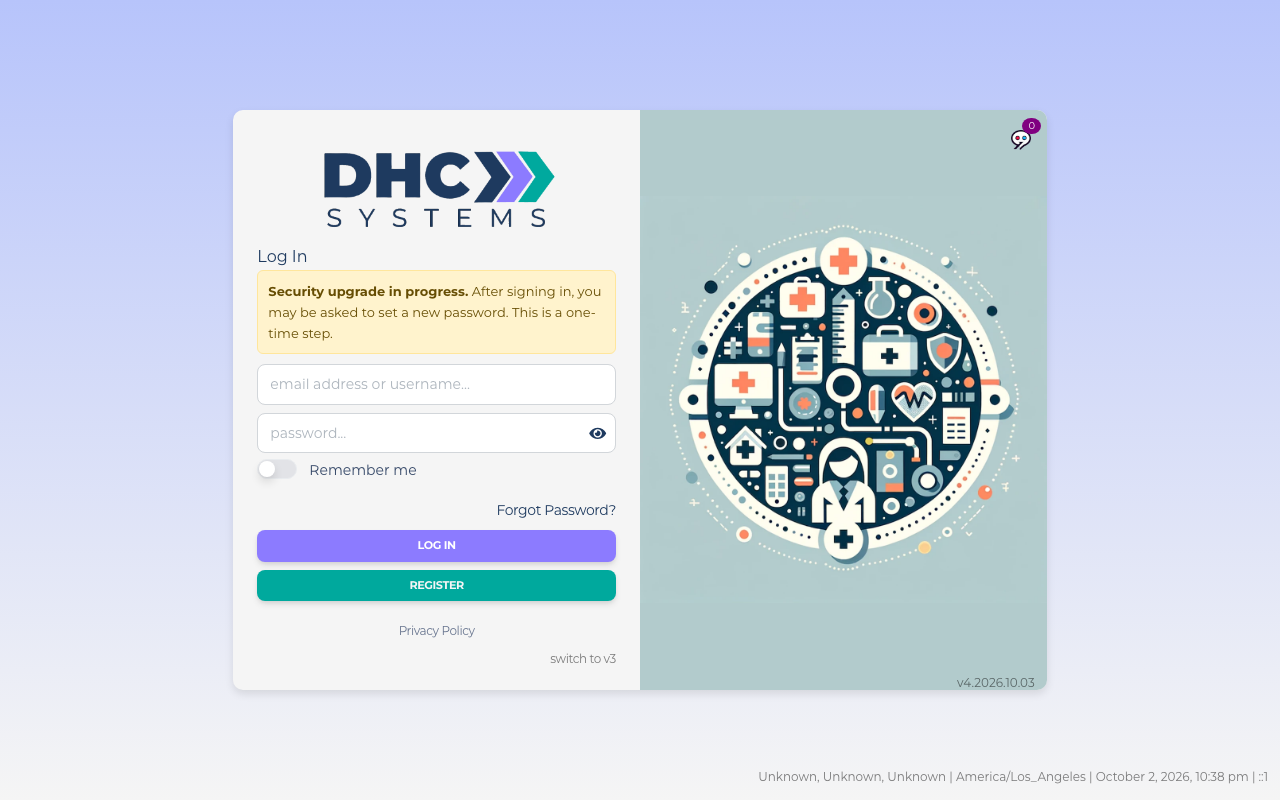
The v4 sign in page. The yellow note about the security upgrade is normal.
How to sign in
Open your browser and go to the DHC Systems sign in page your manager gave you. The page title says Log In.
Type your email address in the first box. Some older accounts still have a separate username. If yours does, that works too.
Type your password. Click the eye icon on the right of the password box to show what you typed.
Turn on Remember me if this is your own device and you want the page to remember your email next time.
Click Log In. You land on the Dashboard.
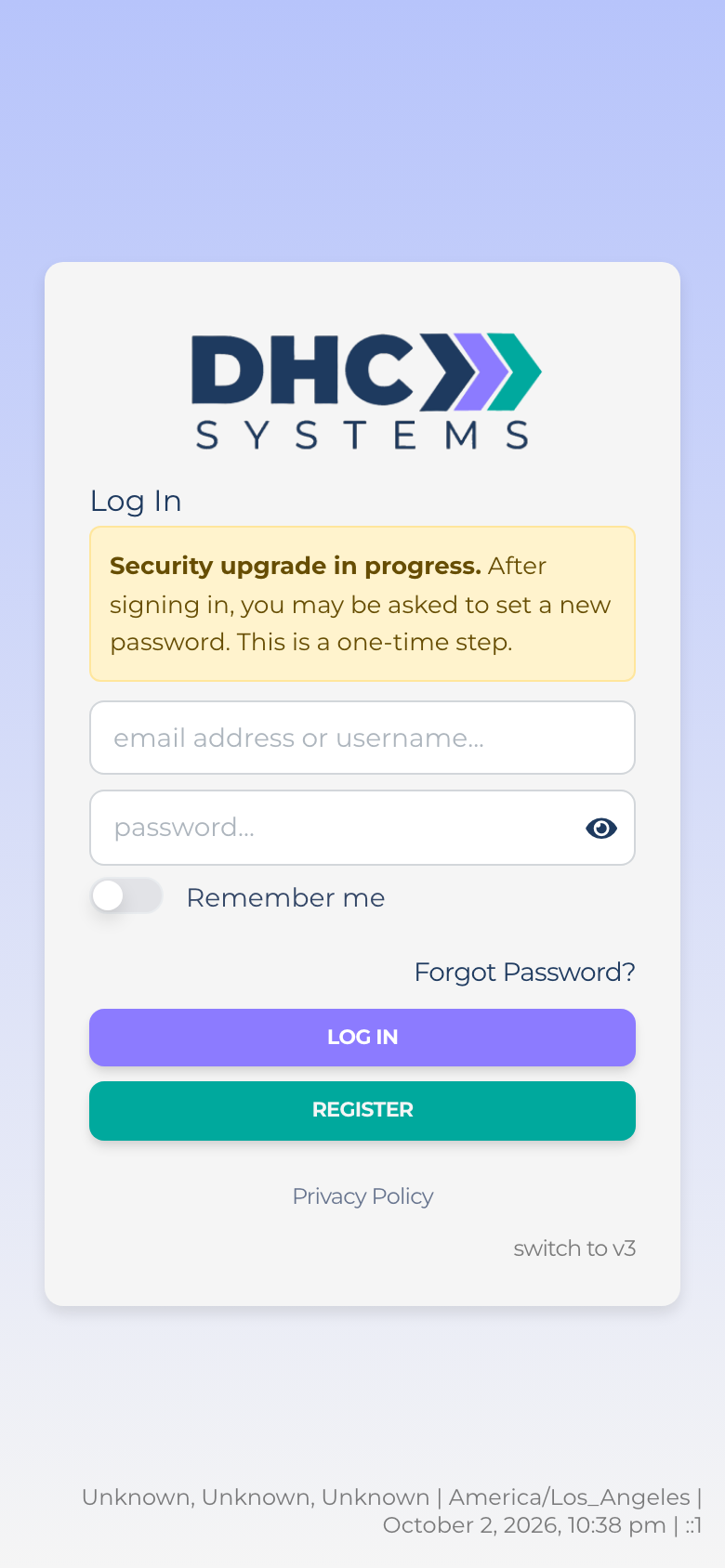
On a phone the same form fills the screen.
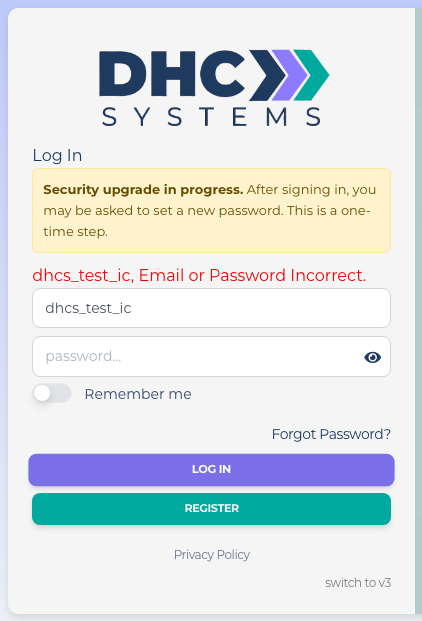
If you type the wrong email or password, the page reloads with a red message above the form. Check your typing and try again. If you still cannot get in, use Forgot Password? below.
The message you see after a wrong password.
Two other messages are worth knowing:
Your account has not yet been provisioned. Please contact your location’s administrator. Your account exists but has not been set up for your company yet. Ask your Director (M2) to finish it, or email gmgllc@outlook.com.
Security Upgrade. The first time you sign in after the 2026 security upgrade you may be sent to a page that asks for a new password. This is a one time step. Pick a password of at least 8 characters and click Upgrade Password. After that you sign in normally.
How to reset a forgotten password
You need access to the email address on your account. The reset link goes there.
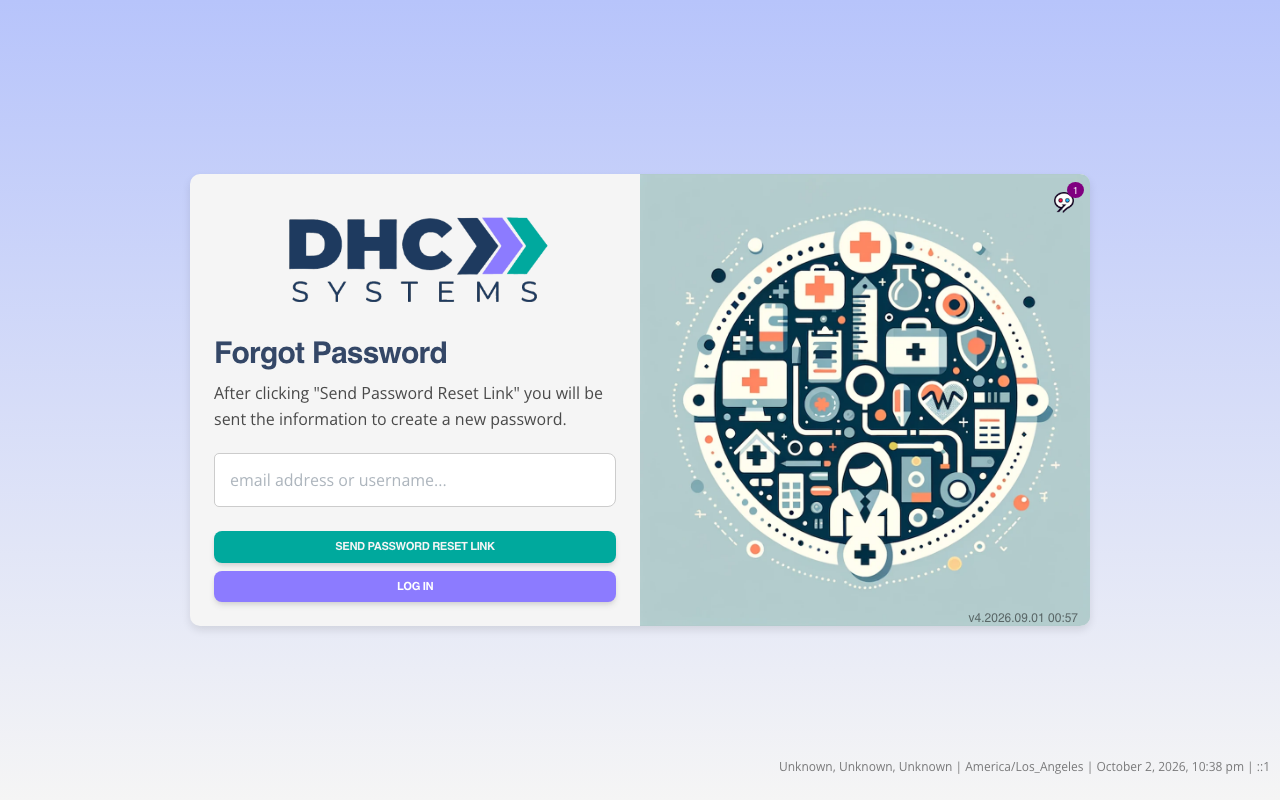
Enter your email and click Send Password Reset Link.
On the Log In page click Forgot Password?.
Type your email address (or username) and click Send Password Reset Link.
The page tells you that a link is on its way if an account matches. The wording is the same whether or not it found your account, on purpose. Give it up to 10 minutes and check your spam folder.
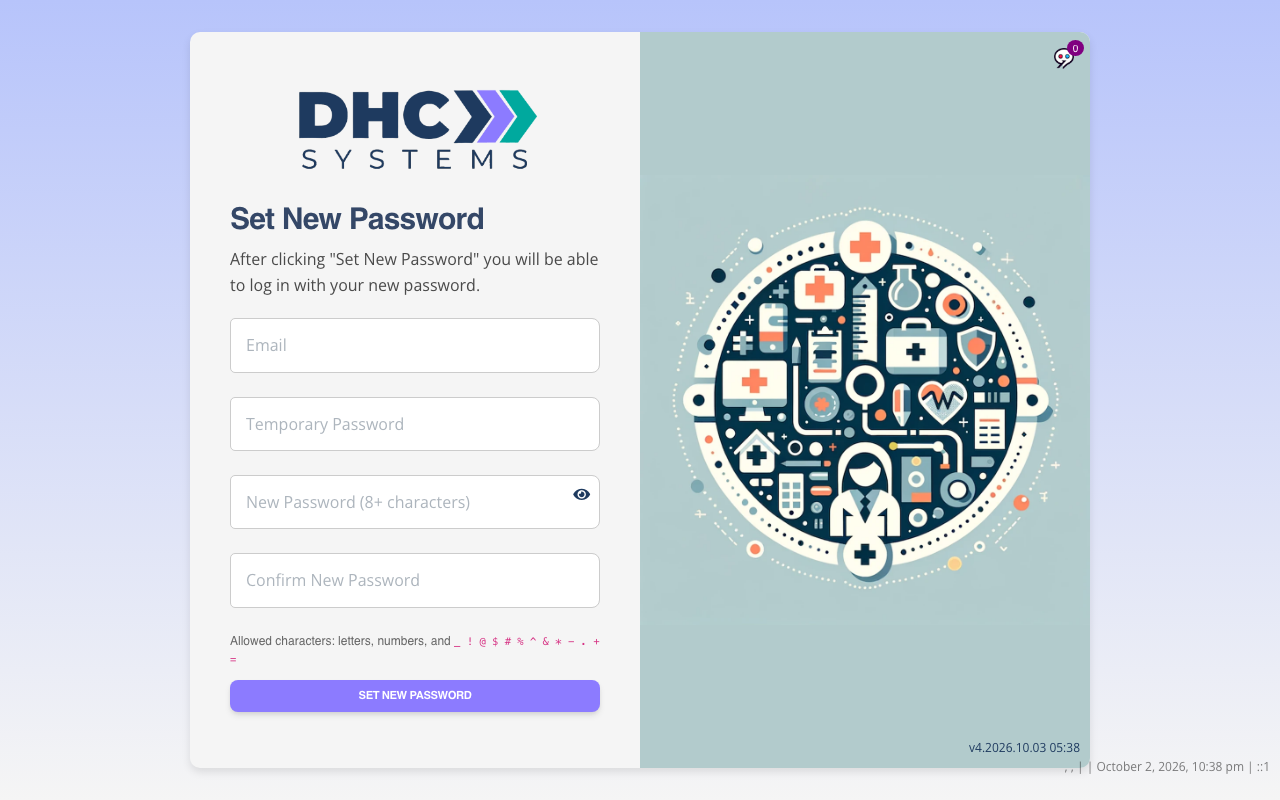
Open the email titled DHC Systems Password Reset and click the link. It opens the Set New Password page with your temporary password already filled in.
Type your email, then your new password twice. It must be at least 8 characters and can use letters, numbers and these characters: _ ! @ $ # % ^ & * – . + =
Click Set New Password. You go back to the Log In page with a green confirmation. Sign in with the new password.
The reset page. The temporary password comes from the email link.
Directors cannot see or change your password for you. The reset email is the way to get a new one.
How to register a new account
Most people never need this. Your Director (M2) can create your account for you from Manage Users (see the article Managing Users), and that account works right away. Use Register only if your manager asks you to.
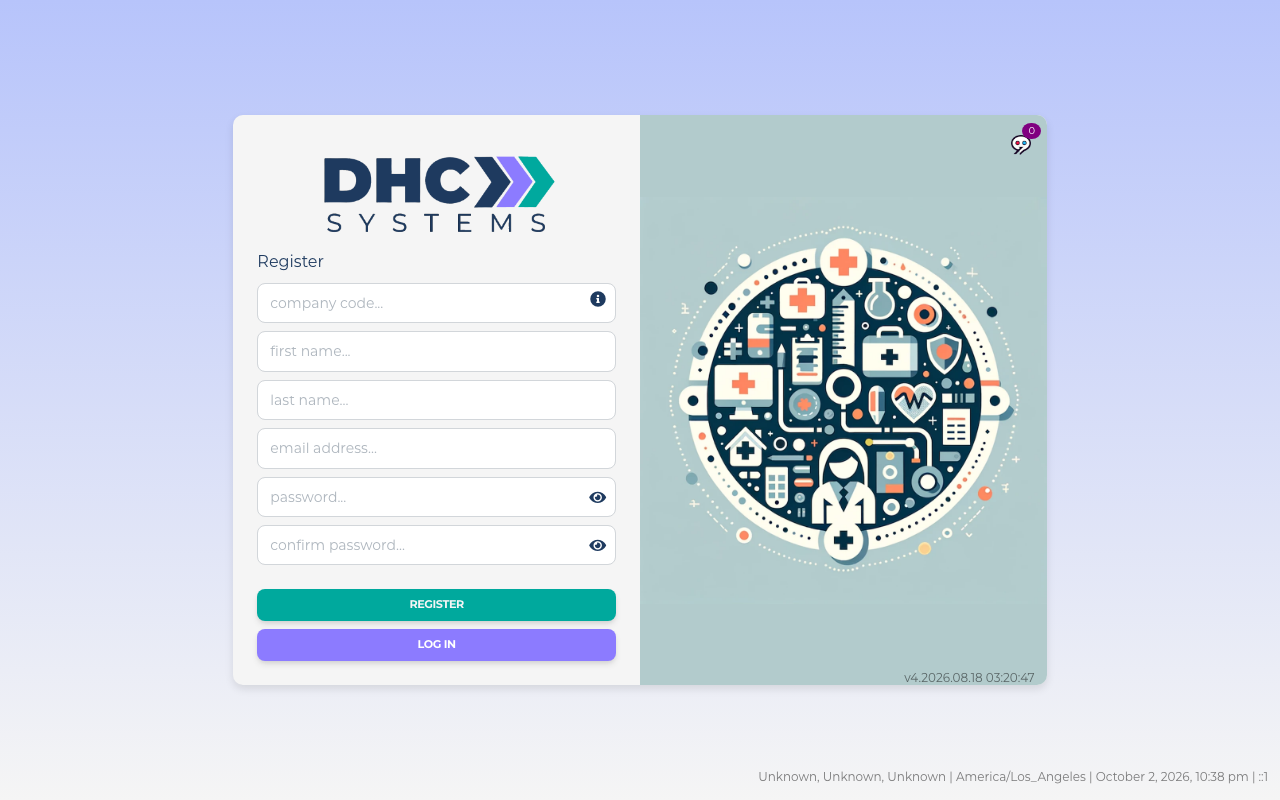
The Register page. The info icon next to company code reminds you to get it from your management.
On the Log In page click Register.
Fill in the company code your management gave you, your first and last name, your email address, and a password twice. The password rules are the same as above.
Click Register. You return to the Log In page with a Registration complete message.
Your account now waits for your Director (M2) or DHC Systems to attach it to your company and give it a role. Until then signing in shows the “not yet been provisioned” message. If you hear nothing within a working day, email gmgllc@outlook.com.
Your Profile
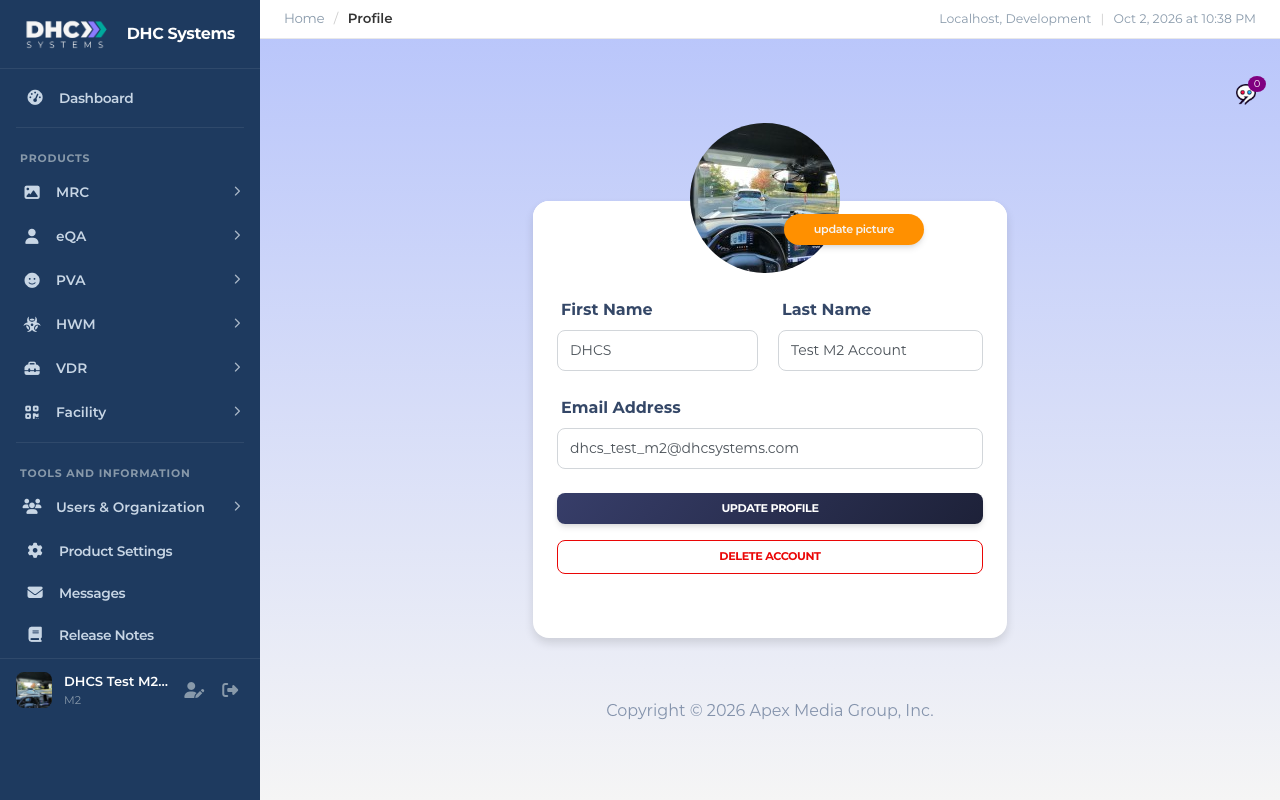
The Profile page holds your name, your email address and your photo. Open it from the person icon in the bottom left corner of the sidebar, next to your name.
Your Profile. The orange button sits on the photo.
To change your name or email, edit First Name, Last Name or Email Address and click Update Profile. A small Update Successful box confirms it. Your email is also what you sign in with, so make sure it is one you can read.
To change your photo, click the orange update picture button on the photo, choose a JPG, PNG or GIF from your device, and the page saves it straight away. It is cropped to a square and shown in the sidebar footer and in the Manage Users list.
Adding a photo for the first time. New accounts have no photo yet. Until you add one the sidebar shows your first initial in a circle, and the Dashboard may greet you with a small Edit Your Profile box that says “Finish setting up your profile by adding a photo.” Click Edit Profile to go to the Profile page, or Close to do it later.
Delete Account is for leaving the organization. It asks “Are you sure?” and makes you wait a few seconds before you can click Yes. It disables your account and signs you out. Only your Director (M2) can turn it back on, so do not click it to “reset” anything.
Signing out
Click the exit icon in the bottom left corner of the sidebar, to the right of your name. On a phone, open the menu with the three lines in the top left first. Always sign out on shared devices.
Who can do this
Everyone. Signing in, resetting your own password and editing your own Profile work the same for IC accounts, M1 accounts and Directors (M2).
Tips
Bookmark the sign in page on your phone’s home screen. You will use it for the Dashboard and reports. Scanning a uCode does not need you to be signed in.
Use the eye icon before you click Log In if your phone keeps autocorrecting the password.
If the reset email never arrives, your account may have an old or misspelled email on it. Your Director (M2) can check it in Manage Users, and you can fix it yourself on the Profile page once you are in.
There is still a switch to v3 link at the bottom of the sign in page for the older version. Use v4 unless DHC Systems tells you otherwise.