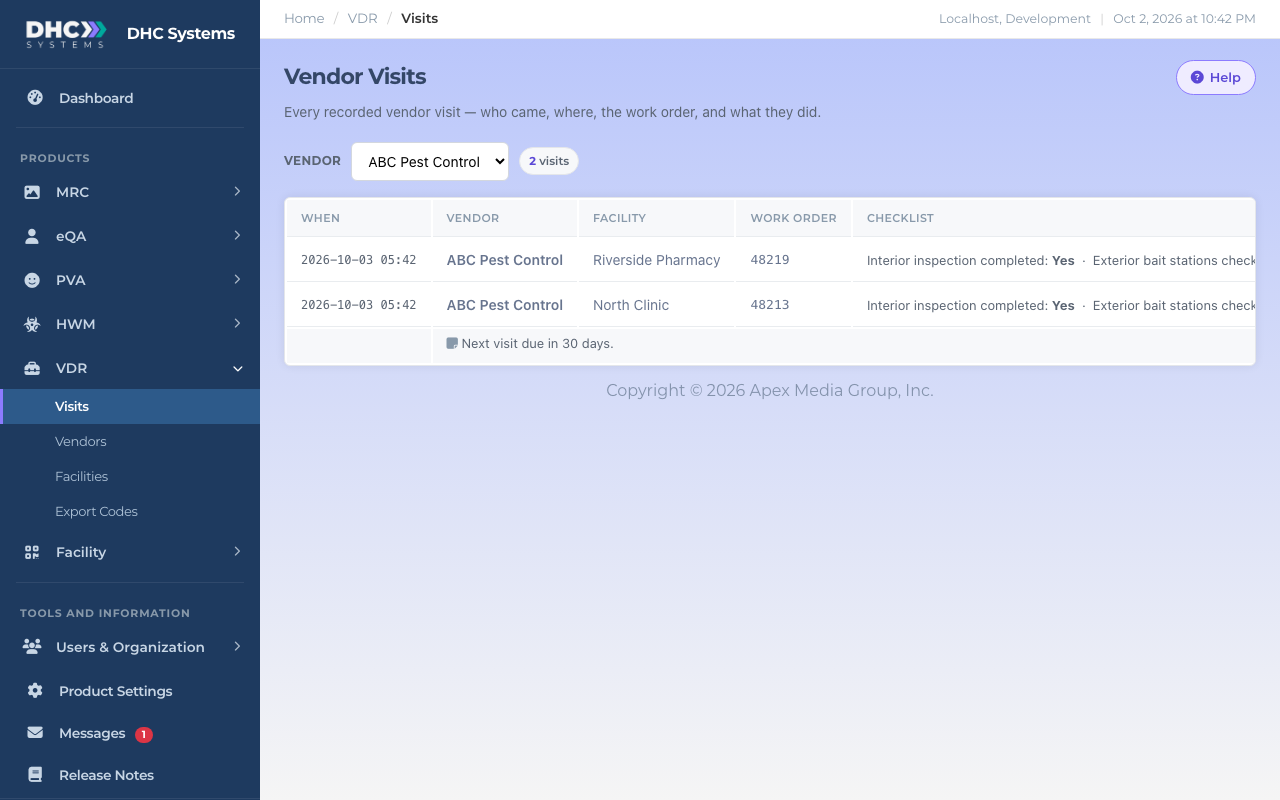
The Visits page is your record of who showed up, where, and what they did. Every time a vendor technician completes the check-in form on their phone, a new row appears here. Open it from the sidebar: VDR, then Visits.
The Visits page. Newest visits are at the top.
How to find a vendor’s visits
Click VDR in the sidebar, then Visits.
Use the Vendor dropdown above the table. Pick a vendor and the list reloads with only that vendor’s visits. Pick All vendors to see everything again.
The small count next to the dropdown tells you how many visits are showing.
Filter by vendor to answer “did they come this week?”.
What the columns mean
When: the date and time the technician submitted the visit.
Vendor: the vendor company, as named on your Vendors page.
Facility: the site they serviced.
Work Order: the work order number the technician typed in. Use it to match the visit to the vendor’s invoice.
Checklist: each checklist item and the technician’s answer, in the order you set on the vendor’s checklist. Answers are Yes, No, N/A, a number, or a short text, depending on the item type. Items the technician skipped are left out.
If the technician typed anything in the Notes box, it appears on a shaded line directly under that visit.
Notes from the technician sit under the visit they belong to.
Who can do this
Everyone on your account can view Visits: IC accounts, M1 accounts and Directors (M2). Visits are read only. Nobody edits or deletes a visit from this page; it is the record as the technician submitted it.
Tips
The page shows the most recent 300 visits. Filter by vendor if you are looking for something older.
If the Checklist column is wide, scroll the table sideways to read the rest of the answers.
A visit with “No items recorded” in the Checklist column means the technician submitted without answering any checklist item. That should be rare, since the form asks for at least one answer.
Seeing nothing yet? The page says “No vendor visits recorded yet.” until the first technician completes a visit. Check that the facility codes are posted (see Export Codes).